Objects / Works Archives
Pimcore objects are records that allow the management of structured data. Based on a class that defines their structure and attributes, objects can be used for almost any structured data, whether they are people, works, documents, photo galleries, events, or places.
Object classes
Pimcore Objects represent the descriptive units of the archive. Each object belongs to a class, which defines its type and field structure (descriptive template).
The class is assigned when creating the record: by right-clicking on the desired node of the tree structure, you can select the "Add object" option and navigate through the configured macro-sections.
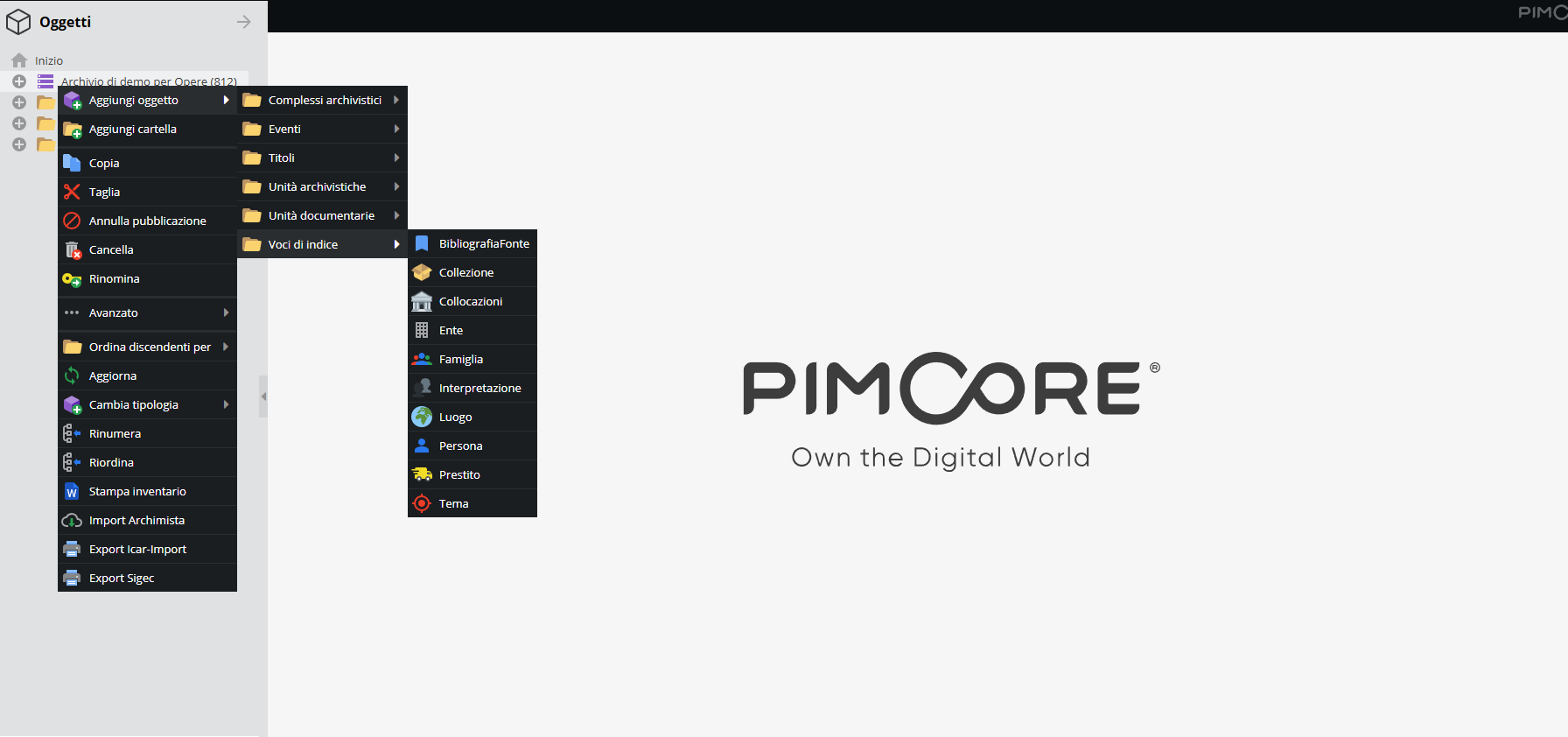
The Opere (Works) configuration, dedicated to the archives of theatres, opera houses, and musical institutions, is designed not only to describe archival documentation, but also to reconstruct the chronology of performances—seasons, productions, performances, concerts—based on the historical chronologies of major opera houses. The system's 41 classes are grouped into six macro-sections, visible in the "Add object" menu.
Archival complexes and Archival units
The records in these two macro-sections serve to outline the hierarchical structure of the archival documentation, corresponding to its divisions and aggregations, from the broadest levels down to the smallest unit. They follow the international standard for multi-level archival description ISAD(G), applying the same principle of the "archival bond" found in other system configurations, here enhanced with additional hierarchical levels.
Archival complexes — the broadest levels of the hierarchy
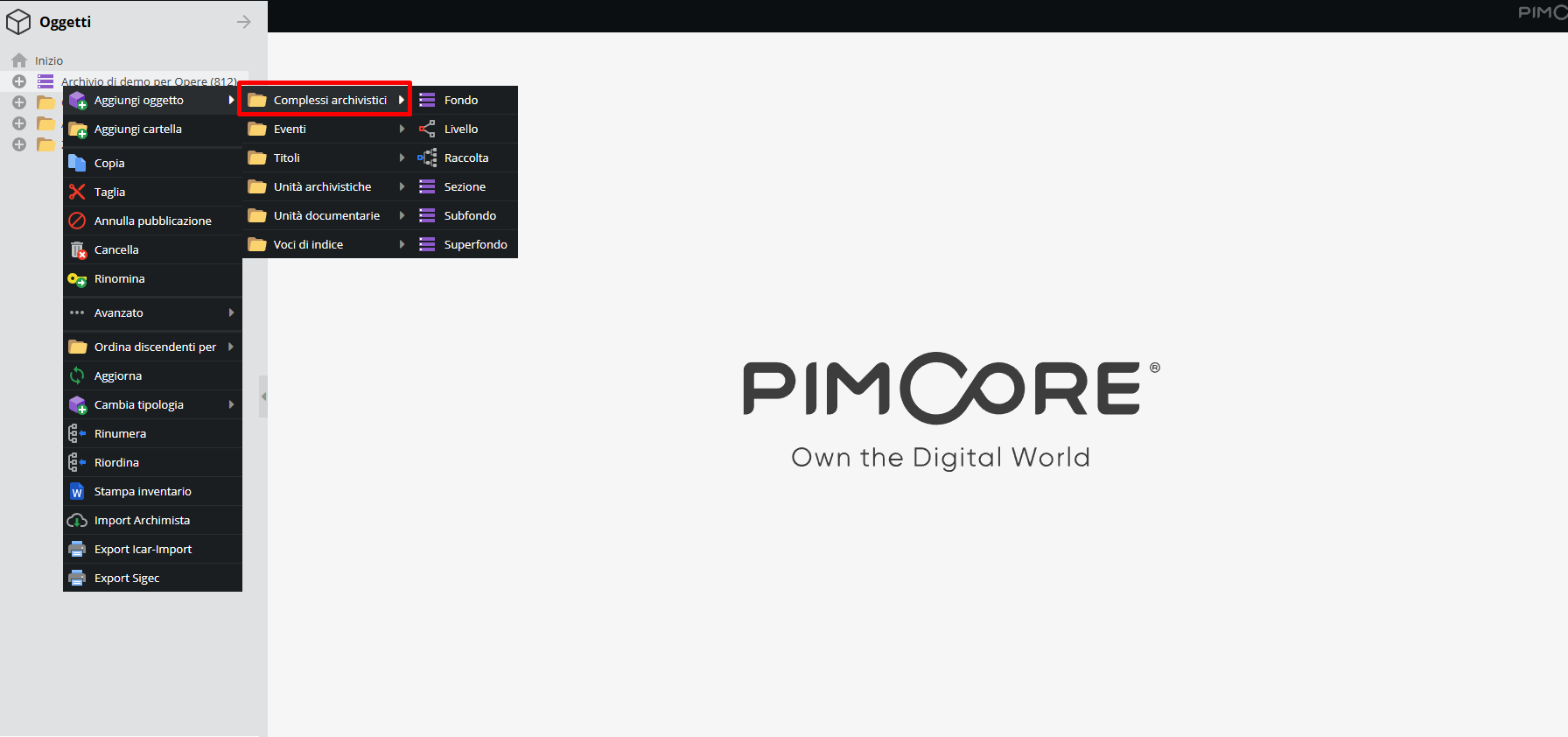
- Superfonds: the broadest level, grouping multiple distinct fonds under a single superordinate heading (for example, when the archives of several bodies come together under a single repository).
- Fonds: the standard level, the organic body of documentation produced by a creating body (a theatre, an opera house, a family of artists).
- Subfonds: a natural internal partition of the fonds, used when the creating body has a complex internal structure.
- Section: a partition of the fonds or subfonds by function or subject.
- Collection: the equivalent of a section, but for an artificially gathered set that was not organically produced by a single body, but assembled according to criteria chosen by its collector.
- Level: an "open" intermediate level, used when the actual structure of the archive does not correspond exactly to any of the previous terms.
Archival units — the finest partitions, with a similar descriptive structure
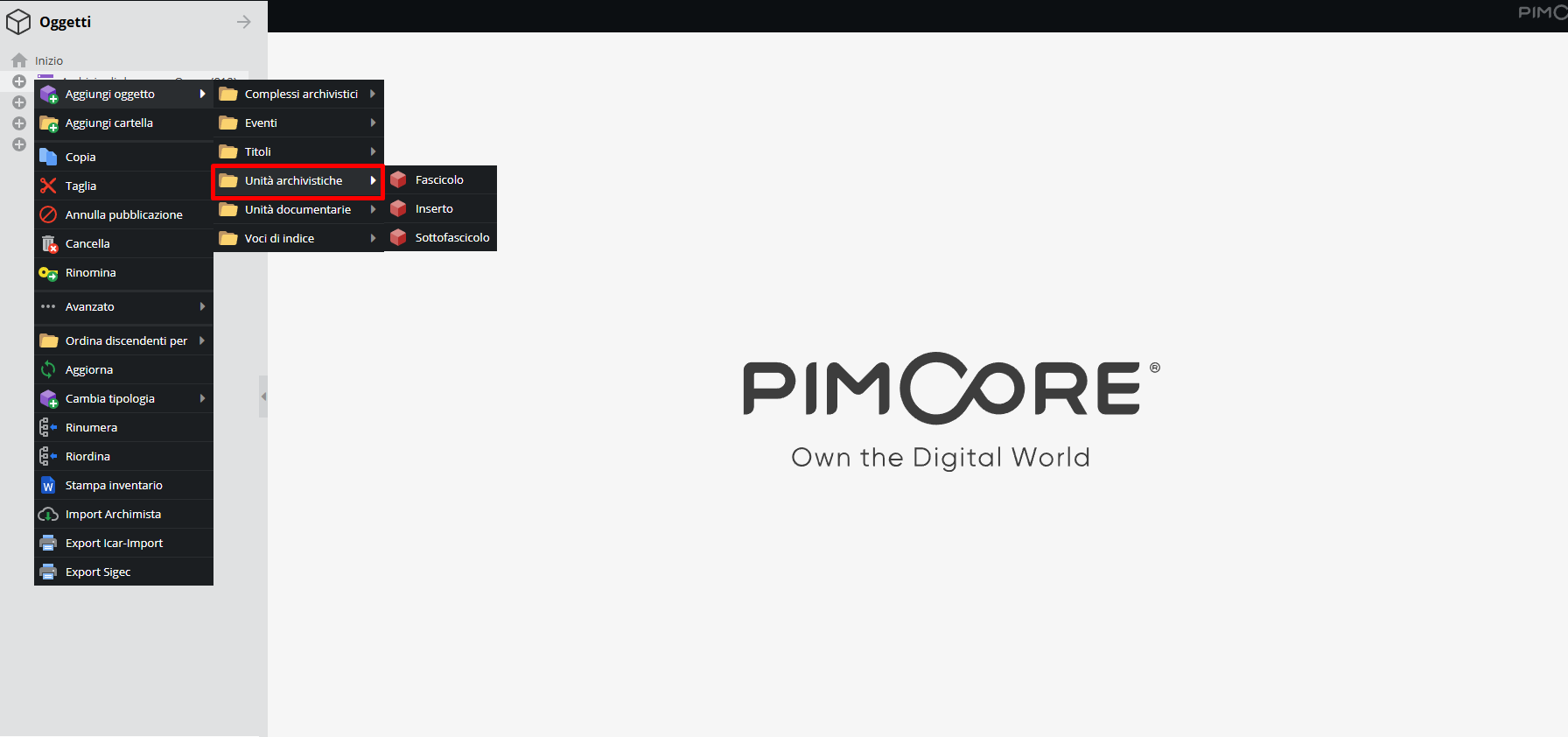
- File: gathers documents relating to the same matter, proceeding, or subject — for instance, all documentation produced for a single production or administrative file.
- Insert: an internal subdivision of the file, used when the gathered material requires further breakdown.
- Subfile: a further subdivision, used when the insert itself requires internal structuring.
Documentary units
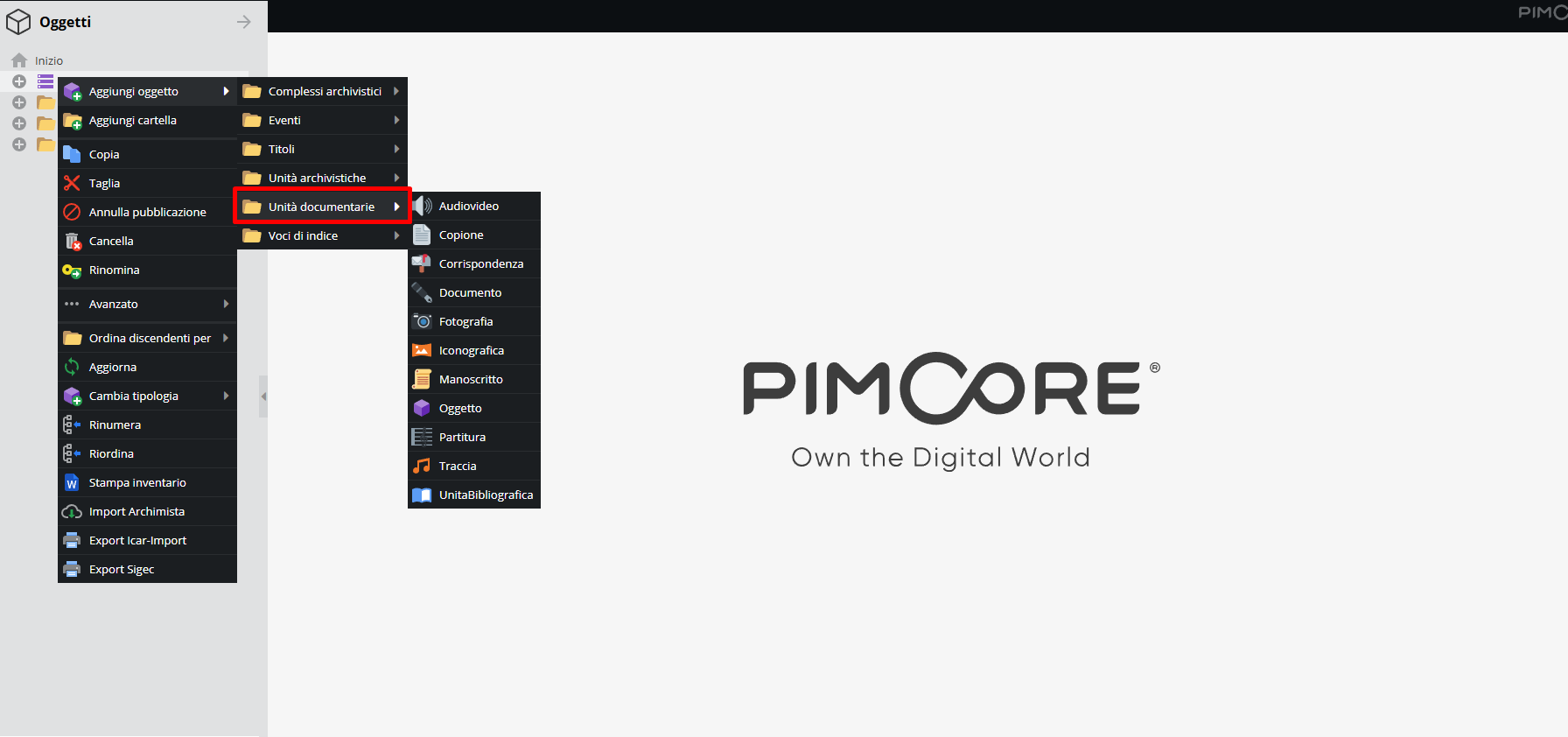
This area contains classes dedicated to describing individual physical or digital documents and objects preserved in files, using specific musicological and theatrical terminology where relevant. It is the largest area in the system, featuring eleven classes.
The available classes are:
- Audiovisual: video or film recordings.
- Script: copies of theatrical texts, often annotated with stage or directing notes; distinguishes different drafts or working copies (e.g., prompt book vs. director's copy) via the "Version" and "Writing mode" fields.
- Correspondence: letters and epistolary exchanges.
- Document: the generic documentary record, for records that do not fall into more specialized categories.
- Photograph: stage photos, portraits, photographic documentation of performances.
- Iconography: non-photographic iconographic material — set designs, costume designs, stage or costume sketches.
- Manuscript: handwritten texts other than scripts and scores.
- Object: three-dimensional preserved objects — relics, stage or costume elements, memorabilia — with physical fields specific to a 3D artifact (color scheme, dimensions, depth, weight).
- Score: musical scores, with a rich set of musicological fields — key, original and arranged performance media, type of arrangement, analytical and synthetic instrumentation — and, for commercial sound recordings, recording type and speed.
- Track: a single audio track of a recording, sharing the same musicological fields as Score, plus duration and format.
- Bibliographic Unit: printed publications physically held — books, house programs, printed librettos — with full bibliographic/editorial fields (author, publisher, series, edition, year, BID code).
Each class is equipped with a specific descriptive template designed to capture the technical, iconographic, and musicological metadata unique to each unit type.
Events
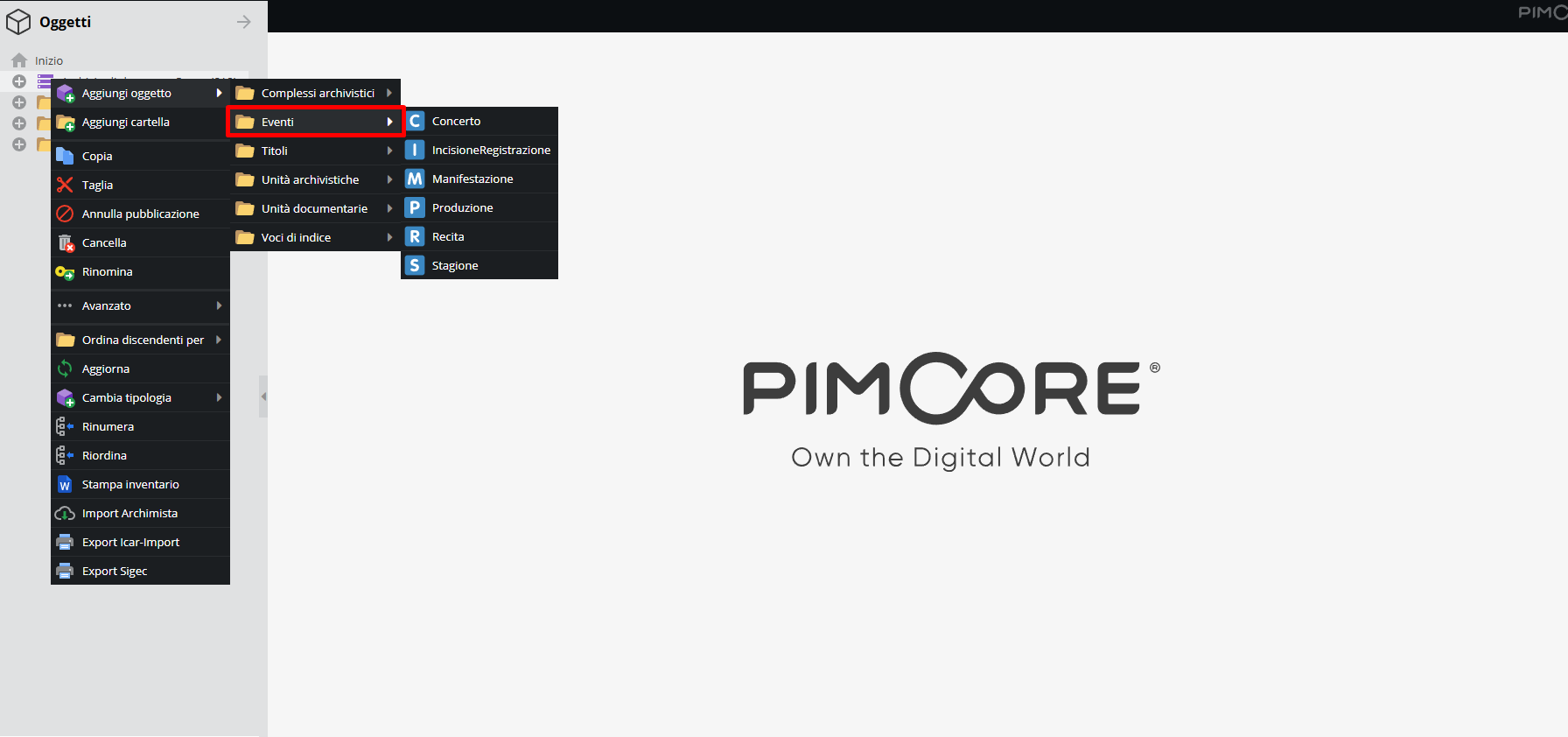
This area is the most distinctive feature of this configuration: it does not describe preserved physical objects, but reconstructs the timeline of the institution's activities — when, where, and in what form a work was performed.
The available classes are:
- Season: the broadest chronological container, representing the artistic season of an institution (e.g., "1923-24 Season").
- Production: a specific staging within a season — a new staging of a work, with its own cast and creative team — which can generate multiple performance dates.
- Performance: an individual live performance. It is the only Event class equipped with the "Linked performances/interpretations" field, where the record of who actually performed which character (or played which instrument) on that specific evening is stored.
- Concert: a non-staged musical event — a symphonic or chamber concert.
- Recording/Session: a recording session, in studio or live, distinct from the staged performance itself.
- Manifestation: a more generic event type for initiatives that do not fit the previous categories, classified using a dedicated controlled vocabulary.
Titles
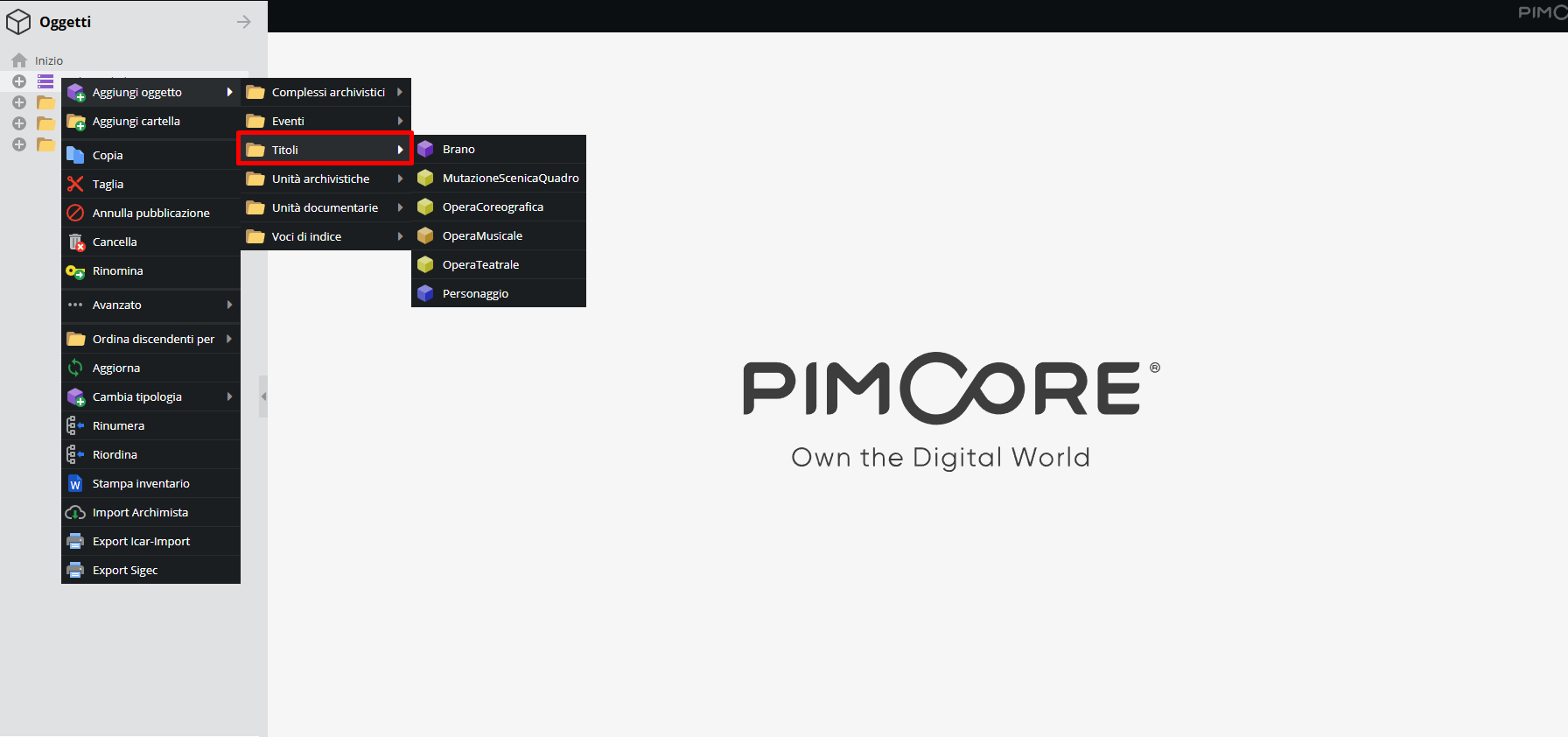
This area catalogs the work itself — its musical or dramaturgical identity — regardless of how many times or where it was performed. It is the repertoire catalog, distinct from the performance chronology (Events area), to which it remains constantly linked.
The available classes are:
- Musical Work: a musical work as a whole — an opera, an oratorio, a symphonic composition.
- Play/Theatrical Work: a spoken theatre work.
- Choreographic Work: a ballet or dance work.
- Piece/Track: a single musical number (aria, duet, chorus) within a larger work.
- Scenic Change/Scene: one of the scenic sections into which a traditional staging was divided, a scene change — a highly specialized template designed to reconstruct historical staging scene by scene.
- Character: a role in the work (e.g., "Adalgisa" in Norma).
Index entries
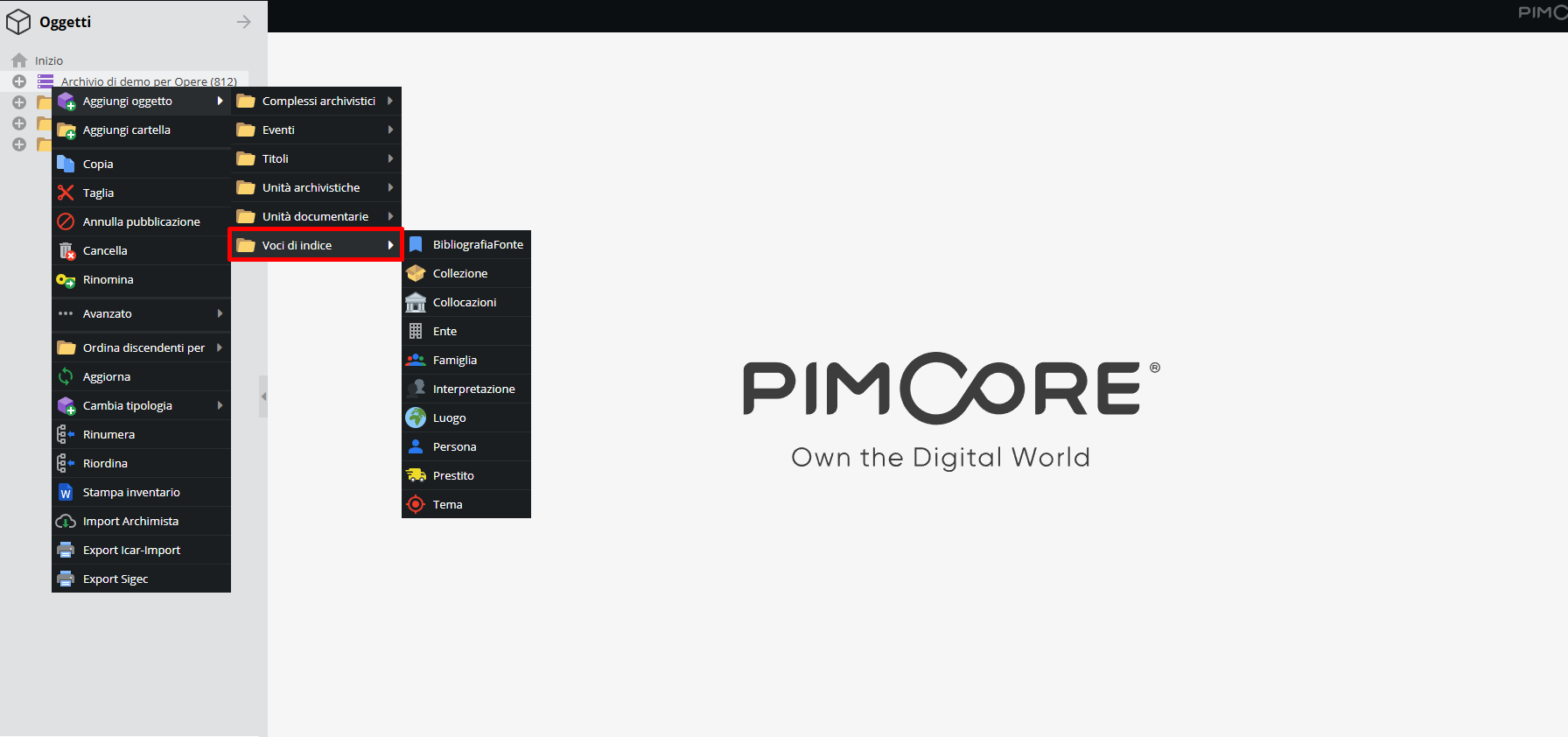
This section contains authority records, cross-cutting access points, and controlled vocabularies. As with the References area in other system configurations, these records do not directly describe archival units, events, or titles, but rather external entities, logistical data, or related events. They can be referenced from any other record to avoid repeating information as free text.
The available classes are:
- Person: an individual — composer, librettist, performer, director, set designer — with an authority record structured according to the ISAAR(CPF) standard, integrated with RISM references.
- Corporate body: an institution — a theatre, a music publisher, an orchestra.
- Family: a family unit, such as a family of artists or impresarios.
- Place: a geolocated geographical location — a theatre, a city, a concert hall.
- Topic: a keyword for cross-cutting thematic indexing.
- Bibliography/Source: a bibliographical citation or source used as a reference for cataloging, not to be confused with the Bibliographic Unit class (Documentary units area), which describes a physical copy held in the collection.
- Locations: where a physical unit is located.
- Loan: incoming or outgoing loans of material for exhibition, study, or restoration purposes.
- Performance / Interpretation: the most unique class in this configuration, describing neither a person nor a character alone, but the specific link between the two on a given occasion (see the section "Relationships" Area).
This section encompasses all object classes concerning external occurrences that can be linked to archival documentation, events, and titles. Using these objects improves data consistency and reliability across the archive, ensuring the quality of archival information by preventing duplication and improving search efficiency.
Information areas of the descriptive records
The following sections illustrate the main information areas characterising the various object classes, providing an analysis of their constituent fields. Some sections and descriptive elements common to all or most system classes are analyzed in the section "Fields common to multiple records".
Archival complexes and Archival units
Records in these macro-sections are used to describe the logical hierarchy of documentation, from top levels (Superfonds/Fonds) down to the smallest unit (File/Insert/Subfile). Descriptive units are organized into sections (also referred to as "information areas") and a Summary, navigable from the top bar on the page.
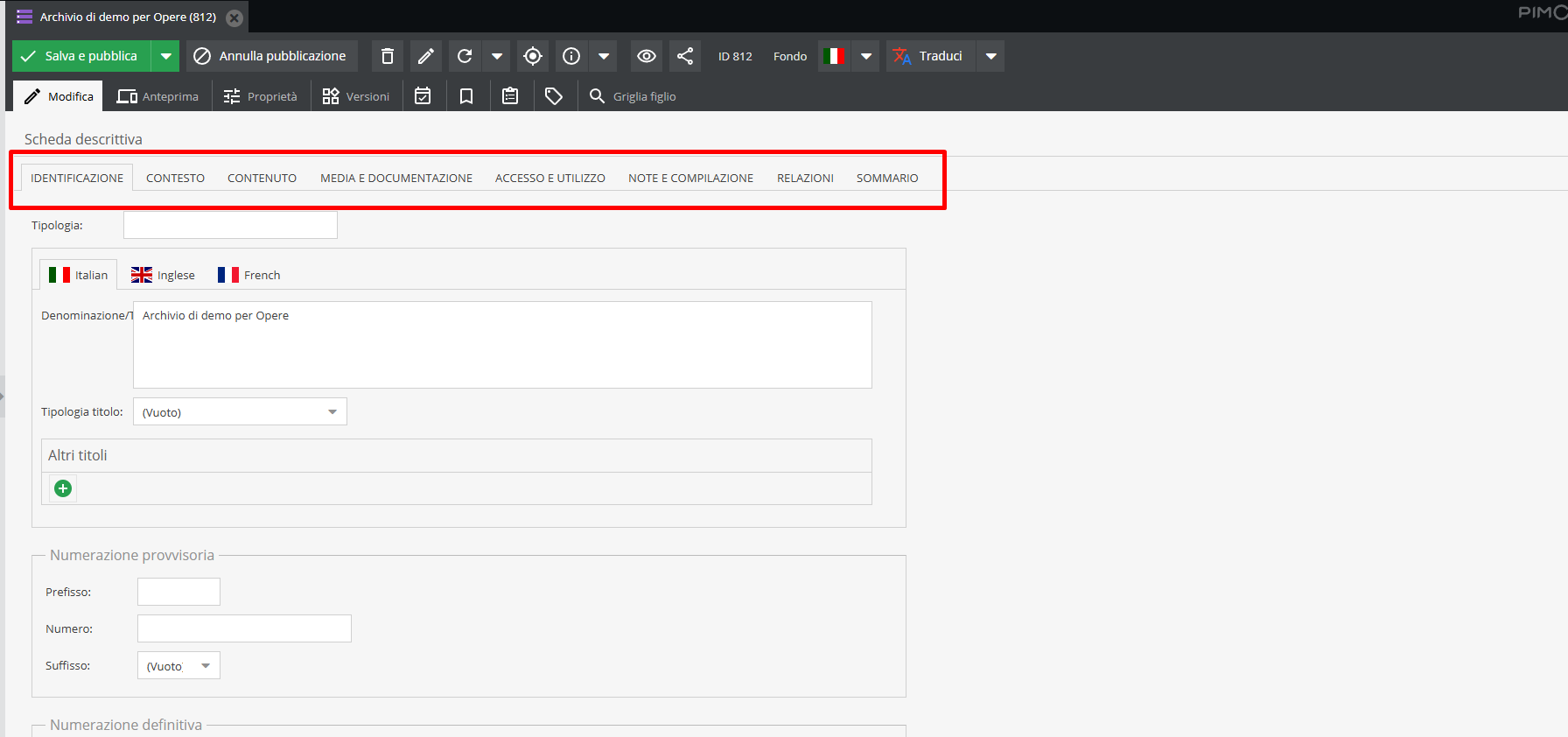
"Identification" Area This section contains key data required to uniquely identify the unit:
- Level of description [cf. ISAD(G) 3.1.4.]: a drop-down menu or text field specifying the archival level of the descriptive unit within the fonds structure.
- Title [cf. ISAD(G) 3.1.2.]: name of the complex or unit; the system allows specifying whether the title is original (found on the documentation) or attributed by the cataloger.
- Extent [cf. ISAD(G) 3.1.5.]: quantitative indication of the documentation.
- Provisional and definitive numbering: unique identification code (provisional or definitive) consisting of prefix, sequential number, and suffix; records any official code useful for identifying the unit.
Note the "Calculated extent" field, which automatically counts subordinate descriptive units (e.g., the number of files in a series). This tool guarantees an immediate, real-time overview of the actual extent of the archival complex without requiring manual entry.
"Context" Area — present only in Archival complexes, not in Archival units.
- Administrative/Biographical history [cf. ISAD(G) 3.2.2.]: text field for the administrative history or biographical profile of the creating body, helping contextualize the documentation.
- Archival history [cf. ISAD(G) 3.2.3.]: text field for information regarding the provenance and history of the described unit.
- Immediate source of acquisition [cf. ISAD(G) 3.2.4.]: text field indicating the source from which the descriptive unit was acquired, including date and acquisition title/method.
"Content and structure" Area
- Scope and content [cf. ISAD (G) 3.3.1.]: text field providing a summary of the scope (chronological, geographical) and content of the unit.
- System of arrangement [cf. ISAD (G) 3.3.4.]: text field providing specific details on the internal structure of the unit and the classification system applied.
- Appraisal, destruction and scheduling [cf. ISAD (G) 3.3.2.]: text field indicating appraisal and disposal operations carried out or planned for the unit.
- Accruals [cf. ISAD (G) 3.3.3.]: text field indicating whether the described complex is "open" or "closed" to additions.
"Conditions of access and use" Area
- Language [cf. ISAD (G) 3.4.3.]: drop-down controlled vocabulary indicating the language(s) used in the documentation within the unit.
- Conditions governing access [cf. ISAD (G) 3.4.1.]: details regarding legal or physical conditions regulating access.
- Conditions governing reproduction and copyright [cf. ISAD (G) 3.4.2.]: text field for copyright notes or technical restrictions on photoreproduction.
- Physical characteristics and technical requirements [cf. ISAD(G) 3.4.4]: text field providing details on physical traits or technical requirements essential for using the unit.
- Finding aids [cf. ISAD(G) 3.4.5]: text field noting finding aids related to the unit, such as pre-existing paper inventories, indexes, databases, or catalogs.
"Alliance materials" Area
- Existence and location of originals [cf. ISAD(G) 3.5.1]: text field indicating existence, location, availability, or destruction of originals.
- Existence and location of copies [cf. ISAD(G) 3.5.2]: text field indicating existence, location, and availability of copies.
- Publication note [cf. ISAD(G) 3.5.4]: text field citing publications referring to or based on the study of the unit.
Documentary units
Records in the Documentary units area share a core structural framework — Identification, Context (location with preserving institution, shelfmarks), Technical Description, Access and Use, Control and Notes, Relationships, Media and Links — differing mainly in technical descriptive fields specific to document types.
"Identification" and "Context" Areas
- Provisional and definitive numbering: unique identifier for the unit.
- Dating: chronological boundaries of creation or production (see section Dating).
- Location at repository and shelfmarks: physical location and arrangement identifiers.
"Technical description" Area
- Medium and technique, Dimensions: constituent materials, execution technique, and physical dimensions common to all classes.
- Specific musicological fields (Score, Track): key, performance media for original and arranged versions, arrangement type, analytical and synthetic instrumentation (detailed vs summary list of required instruments), and, for recordings, recording type and speed.
- Three-dimensional fields (Object): color scheme, depth, weight, alongside standard dimensions.
- Editorial fields (Bibliographic Unit): series, edition, place of publication, ISBN, and SBN/BID identifier.
- Version and Writing mode (Script): fields used to distinguish different drafts or working copies of the same text.
"Access and use" Area
- Condition state: physical preservation state and any restoration interventions.
- Physical location and storage unit: logistical storage data.
Events
Records in the Events area share a common structure — Identification (date and location of performance), Relationships, Media, Notes and Compilation, Summary.
"Identification" Area
- Dating, start time, duration: chronological boundaries and performance times (varying by class: Performance, for instance, includes sequential performance numbers and subscription codes).
- Location: venue of performance, linked to the Place class in the Index entries area.
- Definite numbering: identifier of the event within the chronological sequence.
- Musical form, performance media: available on Concert, describing the composition performed.
- Typology: dedicated vocabulary present on Manifestation to classify its nature.
"Relationships" Area
- Linked entities and people: involved Authority records (director, set designer, conductor, soloists, etc.).
- Other linked events: hierarchical connections between Season, Production, and derived Performances.
- Linked titles: the staged or performed work.
- Linked documentation: records documented by the event (posters, photographs, reviews).
- Linked characters and themes: see section Interstitial data.
- Linked performances/interpretations (Performance only): registers who actually performed which role (or played which instrument) on a specific date.
Titles
This area catalogs the repertoire independently of individual performances.
"Identification" and "Technical description" Areas
- Musical form, original/arranged performance media, key: found on Musical Work, Choreographic Work, and Piece/Track.
- Opus number and thematic catalog number: unique numbering systems for a composer's works, such as BWV for Bach or KV/Köchel for Mozart.
- Musical incipit: found on Musical Work and Choreographic Work.
- Premiere date, location: found on Play/Theatrical Work.
- Sequential number, act and scene, musical number, scenario text: specialized fields on Scenic Change/Scene, used to reconstruct historical staging scene by scene.
- Associated vocal roles: found on Character, specifying the vocal range written for the role (soprano, tenor, etc.).
"Relationships" Area
- Linked characters: see section Interstitial data.
- Linked tracks/pieces (Musical Work): constituent musical numbers.
- Linked events: performances and executions of the title.
- Linked authorities: composer, librettist, and for Play/Theatrical Work, linked Scripts.
Index entries
Records in this macro-section exist outside the hierarchical tree of the archive but remain closely interconnected with it. They enjoy descriptive autonomy, allowing catalogers to document corporate bodies, people, locations, topics, and events independently of archival units, events, and titles.
Descriptive records are divided into sections (information areas) and a Summary tab, navigable via the top bar.
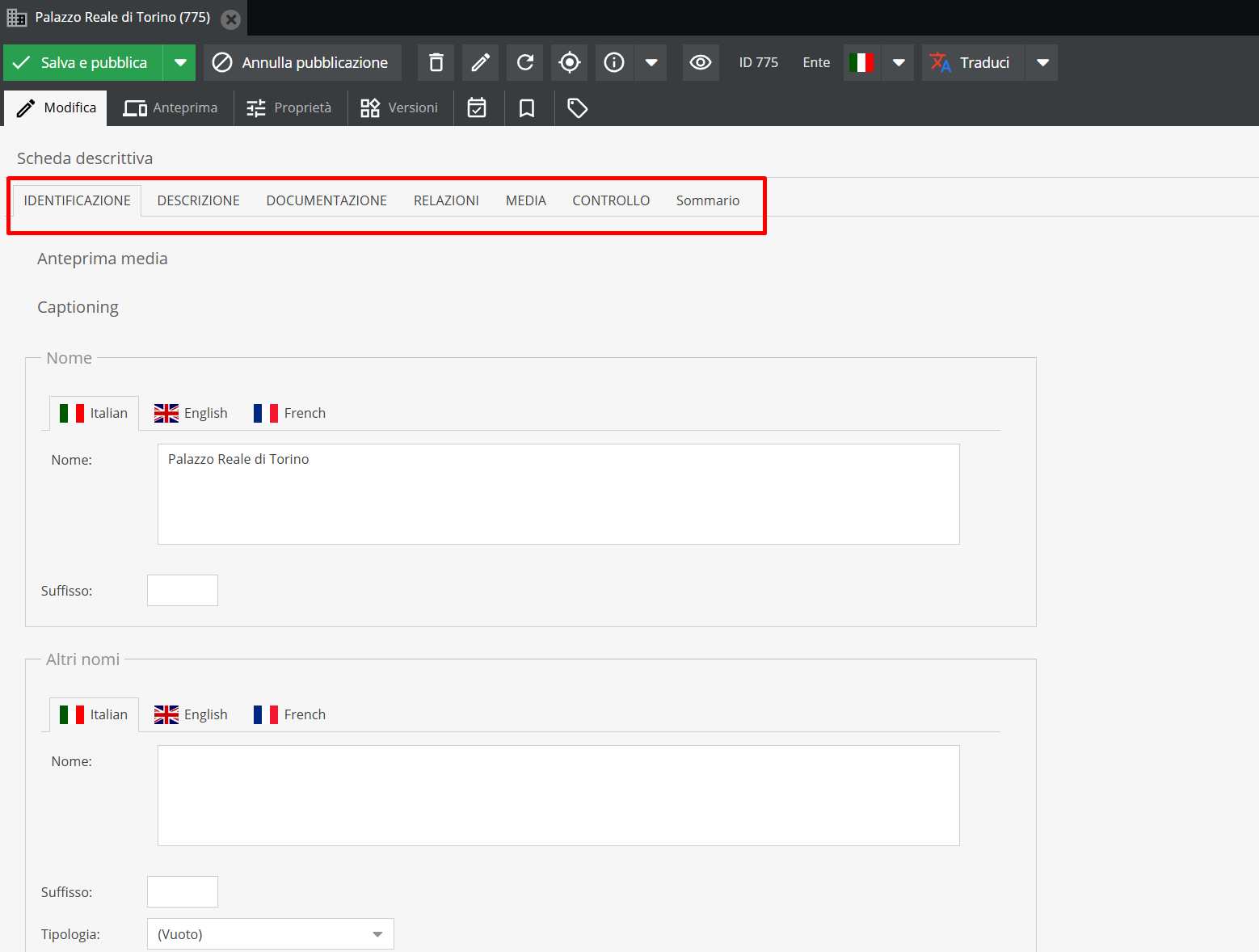
"Identification" and "Description" Areas for Person, Corporate body, Family [cf. ISAAR(CPF) standard]
- Name entry [cf. ISAAR 5.1.2]: text field for entering the authorized name form of the institution, person, or family.
- Other forms of name [cf. ISAAR 5.1.5]: repeatable field for variant names (parallel forms, acronyms, pseudonyms, historical names).
- Dates of existence [cf. ISAAR 5.2.1]: two fields indicating the lifespan or active dates of the entity (founding/dissolution for corporate bodies, birth/death for persons).
- History/Bibliography [cf. ISAAR 5.2.2.]: text field providing a concise history of the entity.
- Legal status [cf. ISAAR 5.2.4.]: text field detailing the legal status of the body.
- Functions, occupations and activities [cf. ISAAR 5.2.5]: text field describing main activities, held positions, professions, or institutional mandates.
- RISM Siglum: specific to this profile, the code identifying the entity uniquely in the Répertoire International des Sources Musicales alongside standard VIAF/Wikidata identifiers.
"Identification" Area for Place records
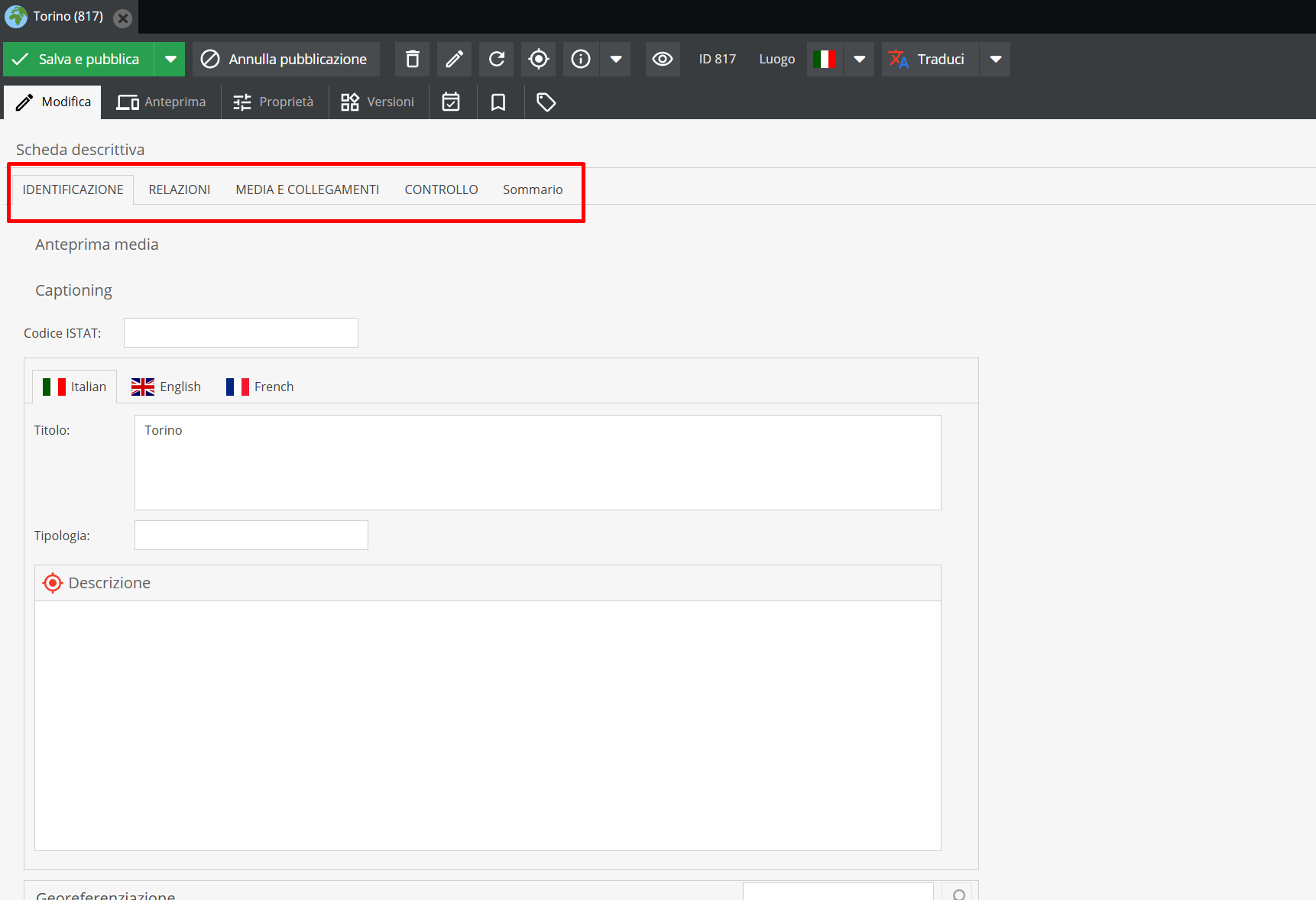
- Title: name attributed to the location.
- Typology: text field specifying the type of place described (e.g., theatre, concert hall, venue).
- Description: text field describing the venue, its history, and relation to the creator or repository.
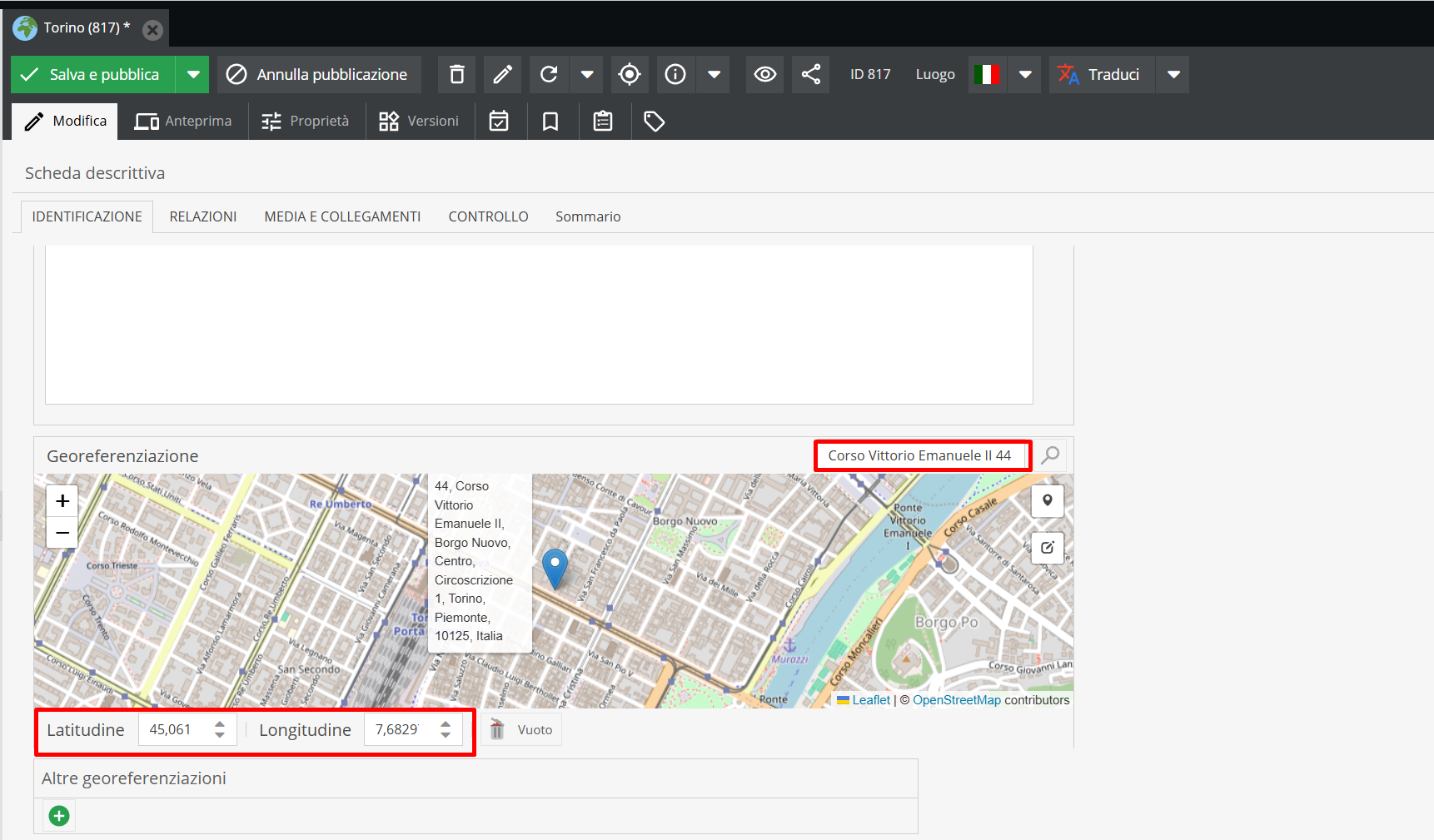
- Geolocation: Google Maps-based geolocation tool for entering exact addresses or GPS coordinates (Latitude/Longitude) for precise mapping.
- Dating: active usage dates or existence dates of the location relative to the institution.
"Identification" Area for Loan records
The Loan record is designed to manage physical movements and administrative tracking of items. It documents outgoing flows (e.g., exhibitions, restoration) and incoming flows (e.g., third-party temporary deposits).
- Typology: drop-down menu with controlled vocabulary classifying the operation type.
- Incoming / Outgoing loan: toggle determining logistics direction, legal responsibilities, and conservation obligations.
- Dating: chronological boundaries of the loan.
- Condition report: preservation state recorded before and after transfer, alongside insurance and transport details.
"Identification" Area for Performance / Interpretation records
The Performance / Interpretation record is the most unique feature of this configuration: it describes neither a person nor a character alone, but the specific relationship between the two on a given occasion.
- Performer: relational link to a Person record.
- Character: relational link to a Character record.
- Linked performances (inverse relationship): automatic, read-only field displaying in which Performance records this interpretation was used, without manual entry (see section Direct relationships and inverse relationships).
The Performance / Interpretation record connects Person and Character via a simple link, without interstitial columns like relationship_type/relationship_notes: the record itself acts as structured "interstitial data" for the entire system—a level of detail specific enough to warrant its own class rather than an extra column on a relational field.
Other classes in this area
- Topic: basic identification, linking all records connected by a shared theme.
- Bibliography/Source: bibliographic citation, publication details, SBN ID, language.
- Locations: geolocation, dates, and documentation stored at that location.
Fields common to multiple records
"Identification" Area: Media preview and Captioning in object records
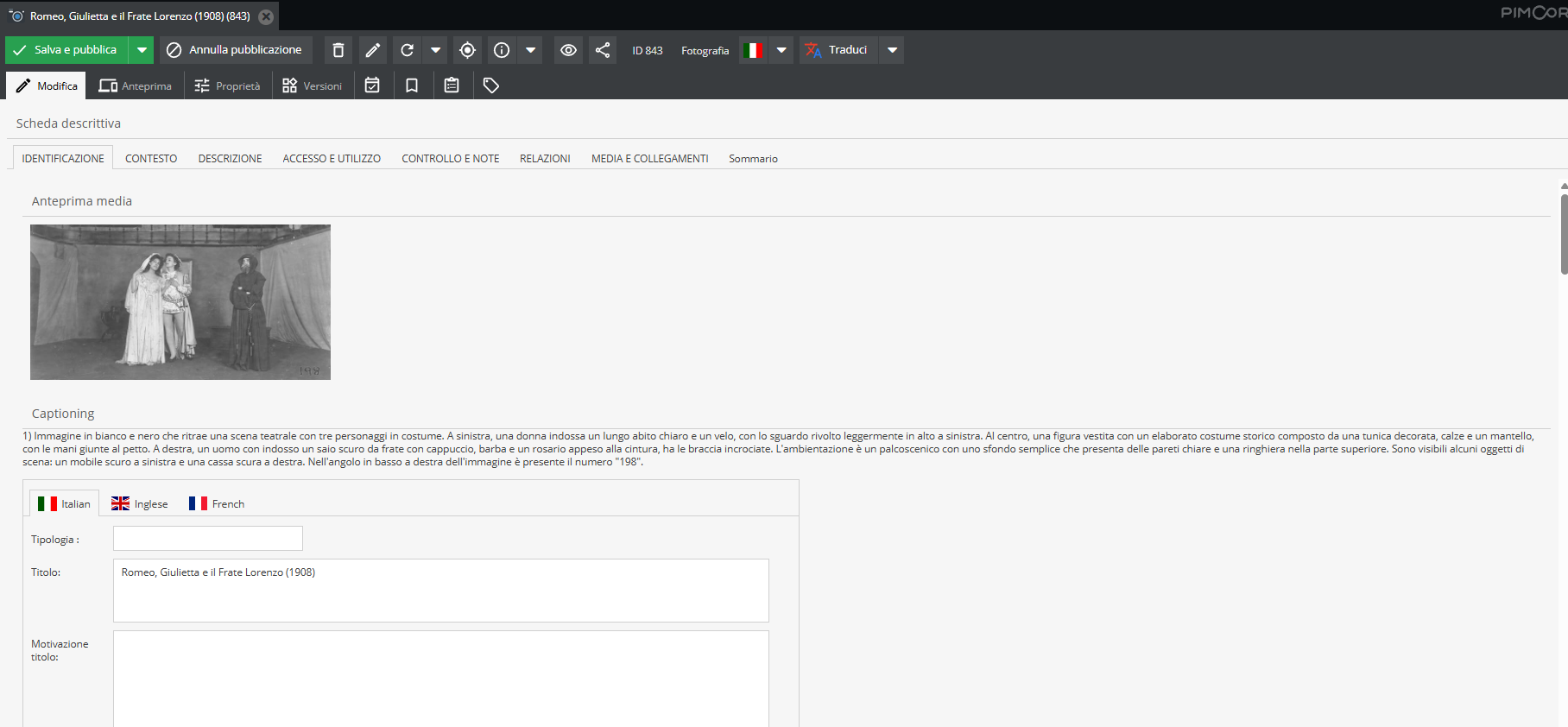
Many classes display two read-only fields at the top of the tab: Media preview and Captioning. These are not manually filled out; instead, they reflect the digital assets connected to the object via fields in the "Media and links" tab.
-
Media preview: displays thumbnail previews of images and documents linked to the record.
-
Captioning: displays text generated by the "Captioning" feature (see "Ask AI" Feature), providing an automated content description.
Both fields update only after reloading the record (via the Reload button on the toolbar): attaching a new gallery image or generating a new media caption will not display automatically until the record is reloaded.
"Identification" Area: Dating
Specifying chronological boundaries is a common requirement across most descriptive templates.
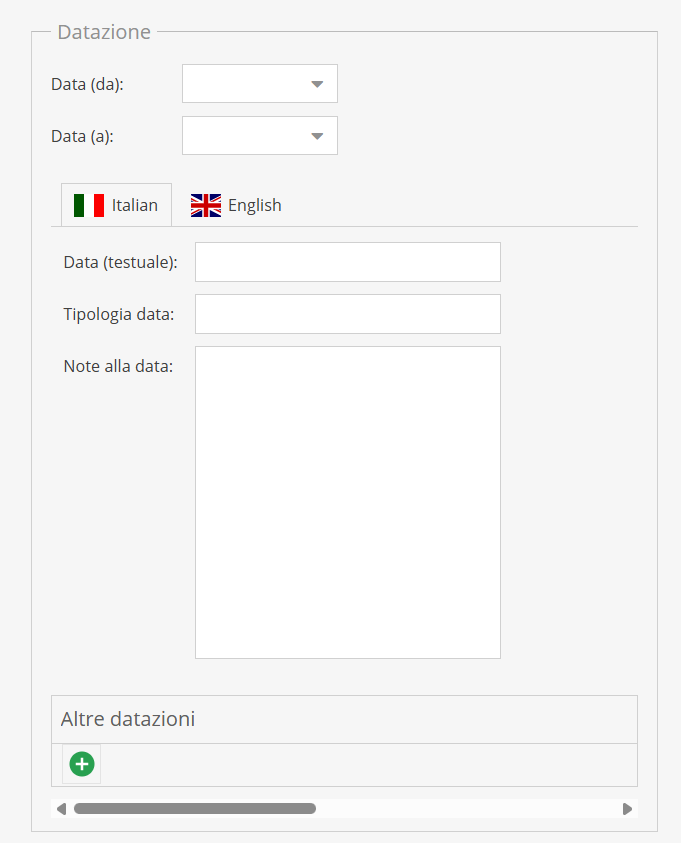
The system allows recording dates using the following fields:
- Date (from) - Date (to): normalized format fields (DD-MM-YYYY; e.g., 05-06-2013). Dates can be chosen via calendar picker or typed manually using hyphens. Note: filling these fields is mandatory, as they power chronological search functions in the front-end.
- Textual date: natural language representation of the date (e.g., 05-06-2013 rendered as 5 June 2013).
- Date type: text field specifying the nature of the date (e.g., "exact date", "inferred date", "event date", "copy date").
- Date notes: field for methodological notes on dating, explaining reasons for attributed dates or noting ambiguities.
- Other dates: repeatable field for additional significant time references.
"Media and links" Area
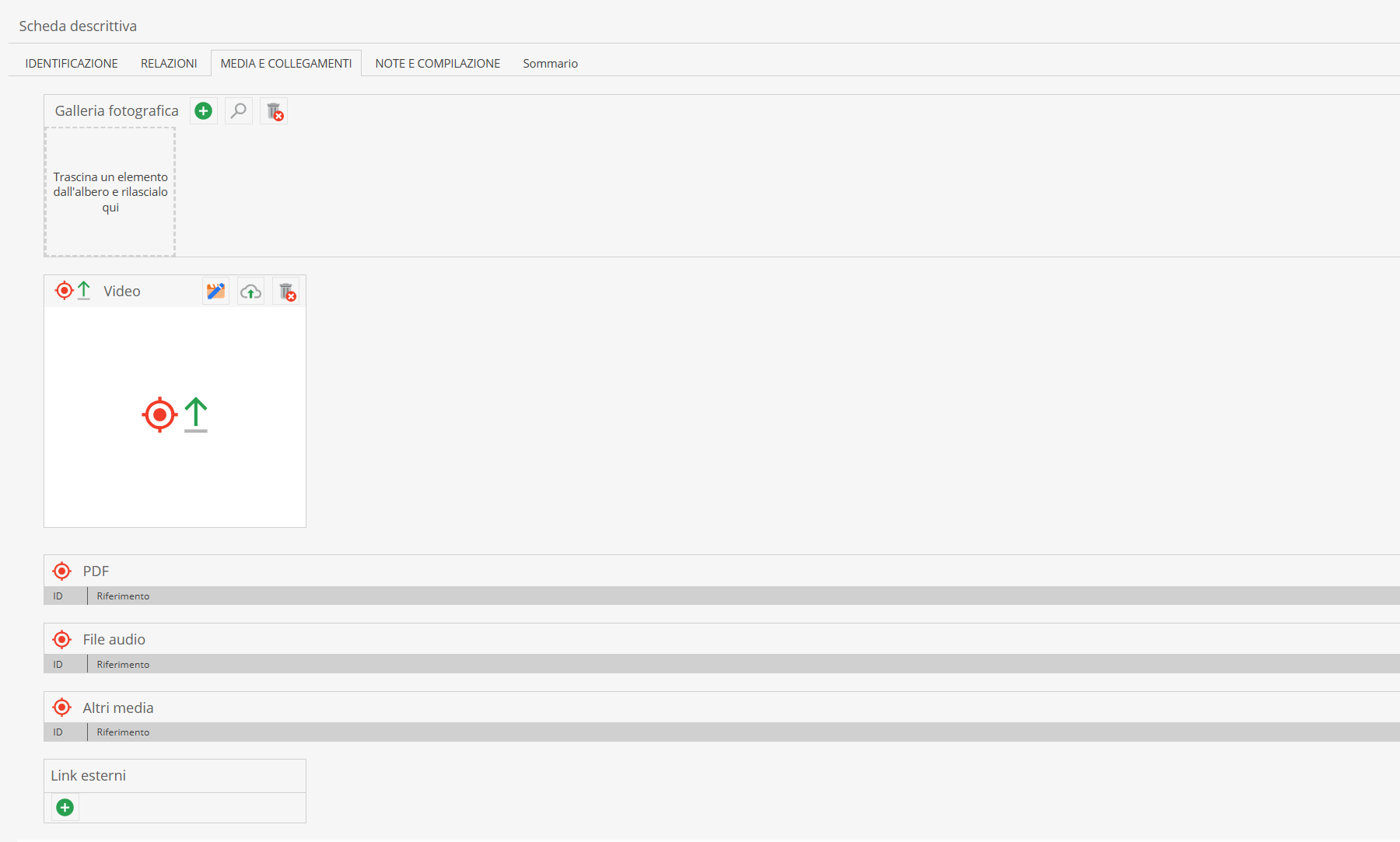
Digital assets are not uploaded directly onto descriptive records; they are linked or dragged via drag & drop from the Media (or Assets) section into the corresponding tab area.
To link files to descriptive records, assets must first be imported into the "Media" section (see section File management and the Media chapter).
Asset formats include image files (.tiff, .jpeg), video, audio, and PDF documents — audio files being particularly vital in musical archives for digitized recordings.
Within the Media section, files are assigned to corresponding input fields.
Main fields include:
- Photo gallery: drag and drop photographic assets directly into this area.
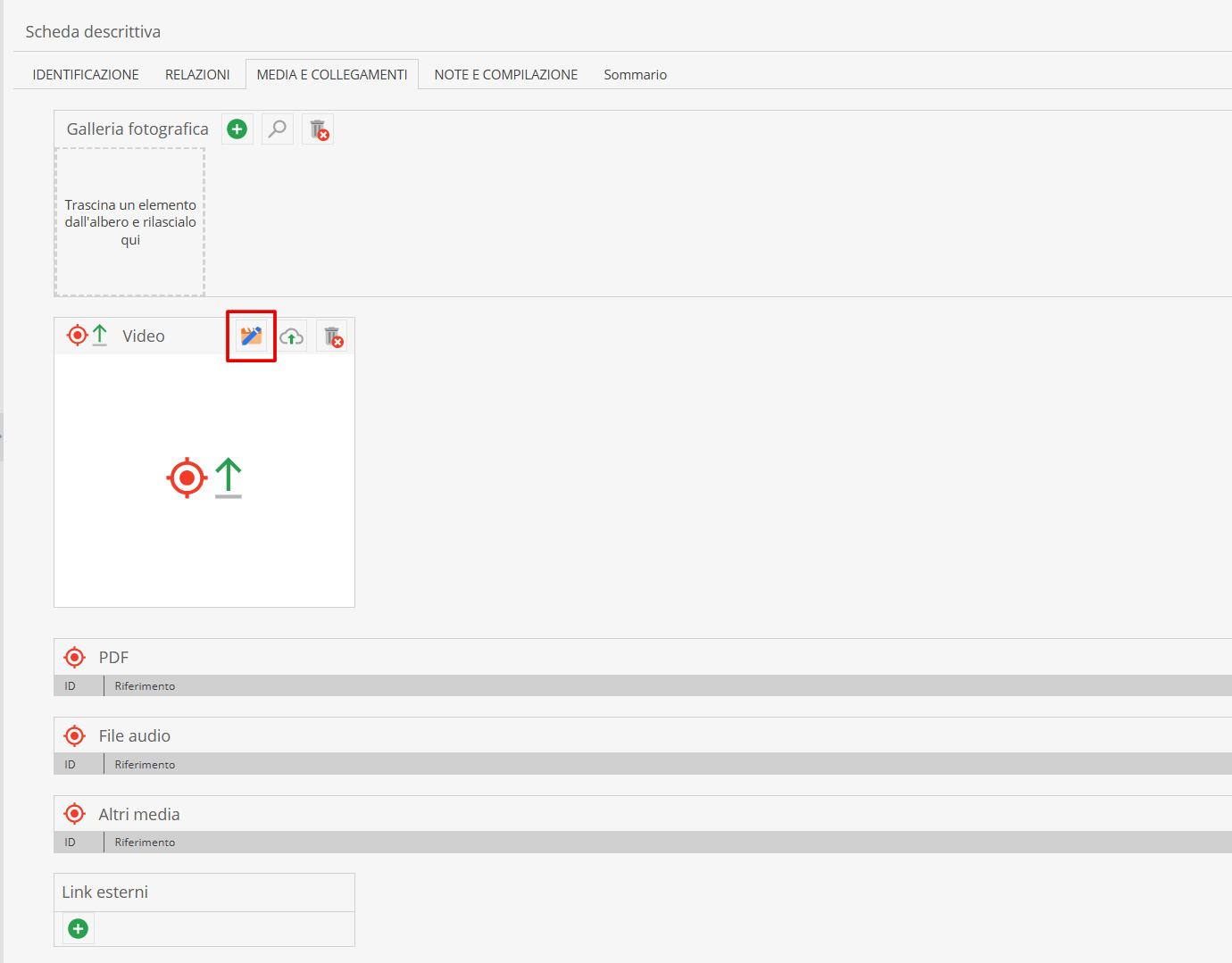
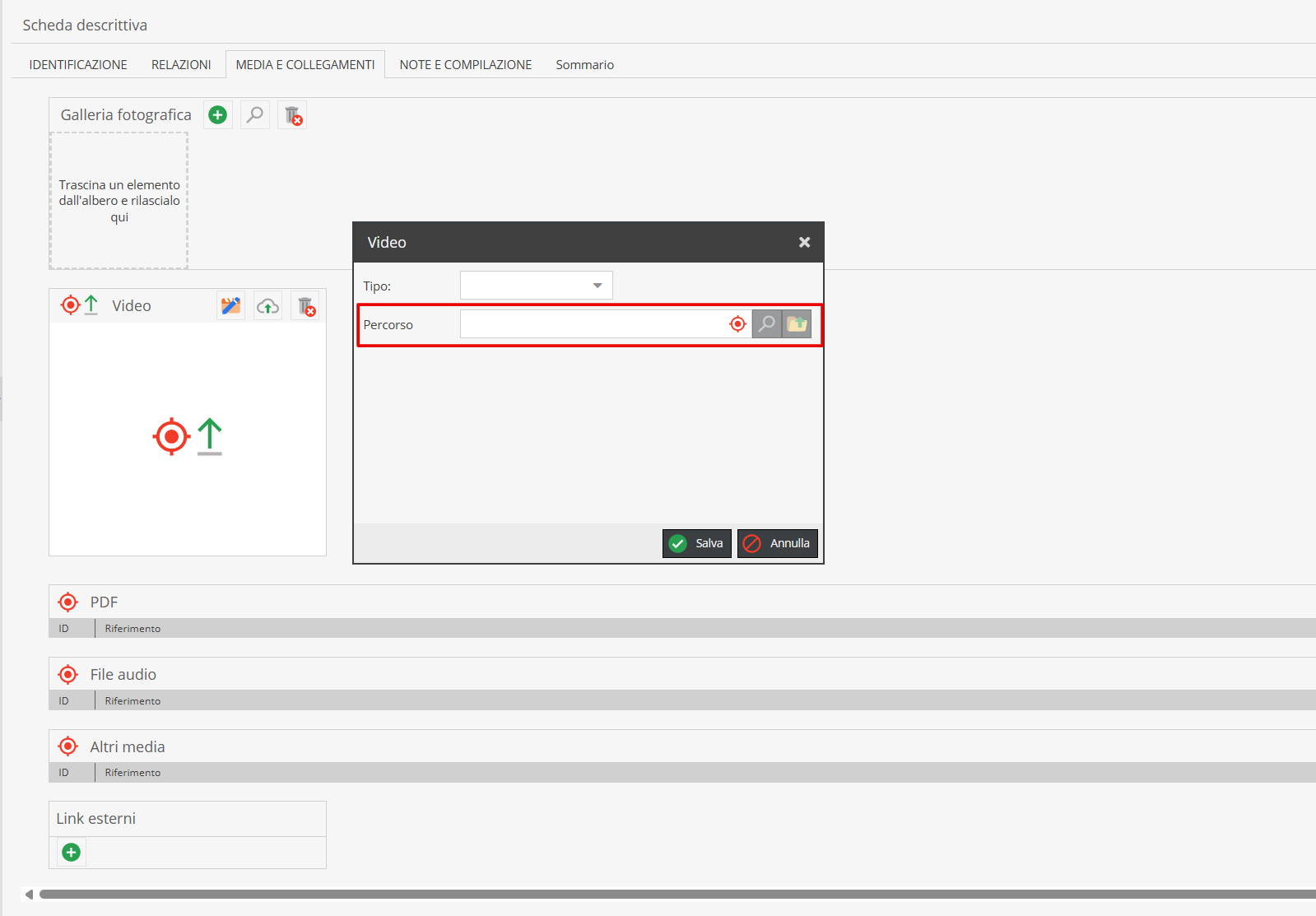
- Video: click the "edit" icon and drag video files from the Media area into the designated field.
-
Other media: supports various file types. Typically used for batch linking when multiple videos or images need quick association.
-
External links: used to store URLs to external web resources (e.g., YouTube, Wikipedia). Click "Add" in the designated field.
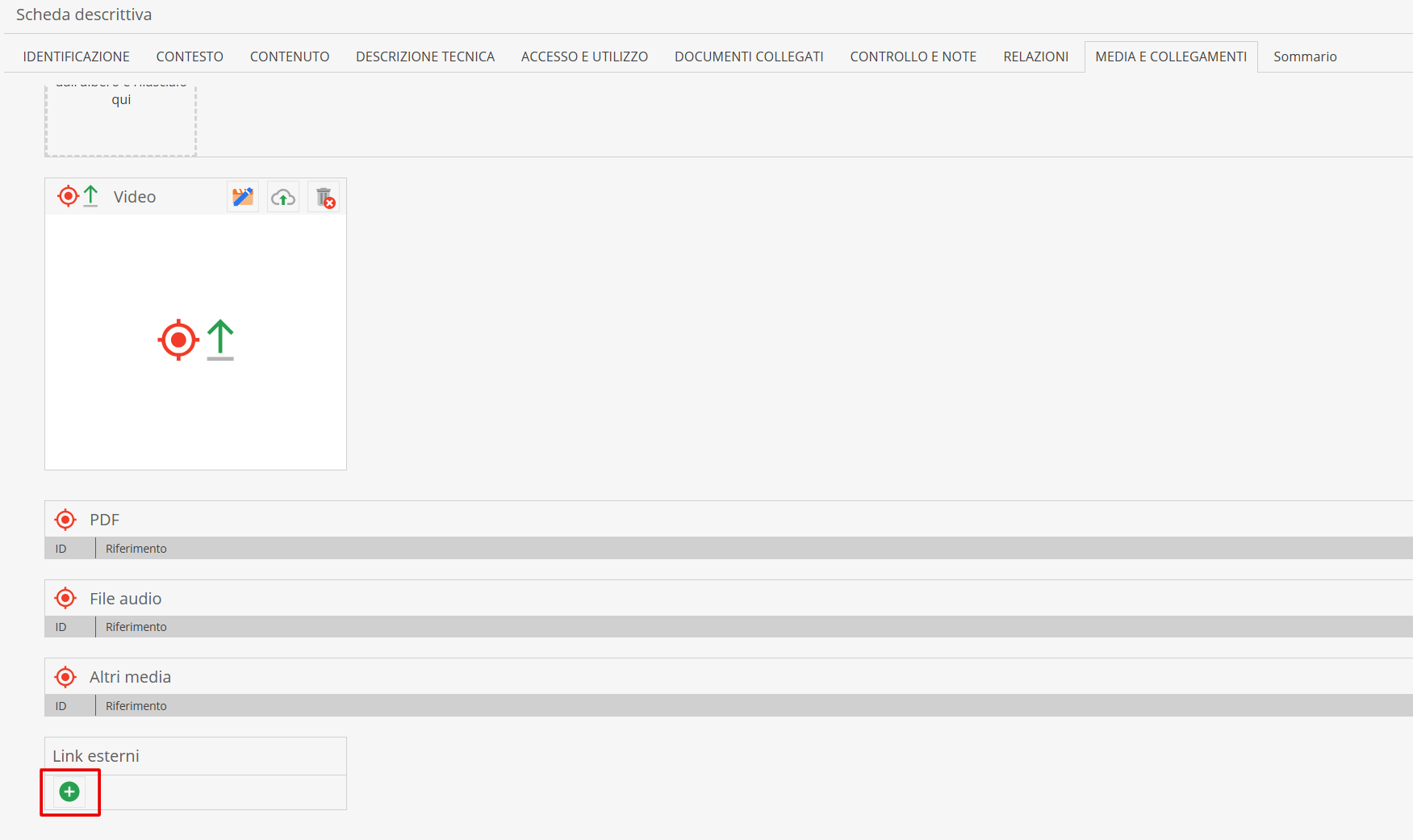
Click the "Edit" icon.
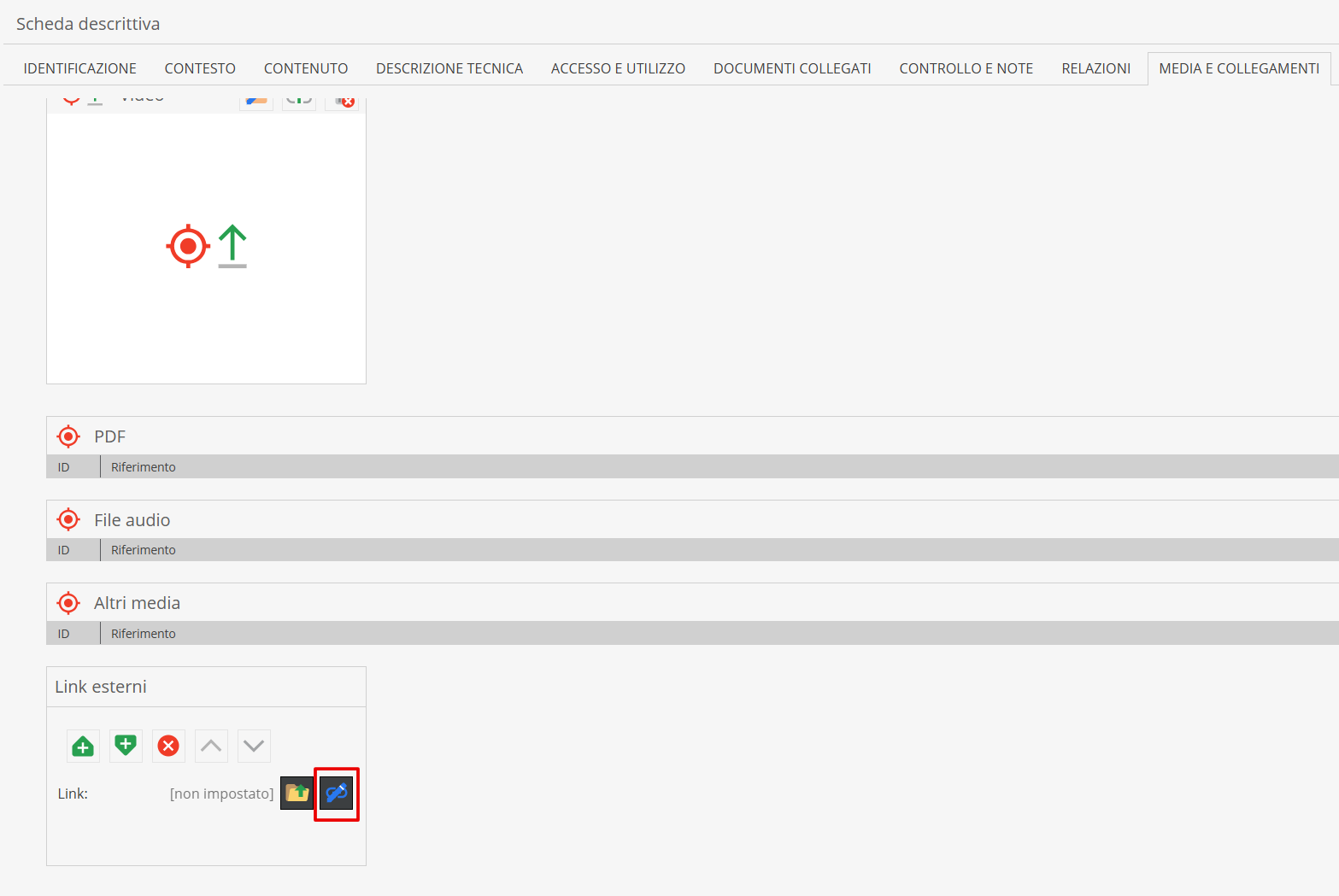
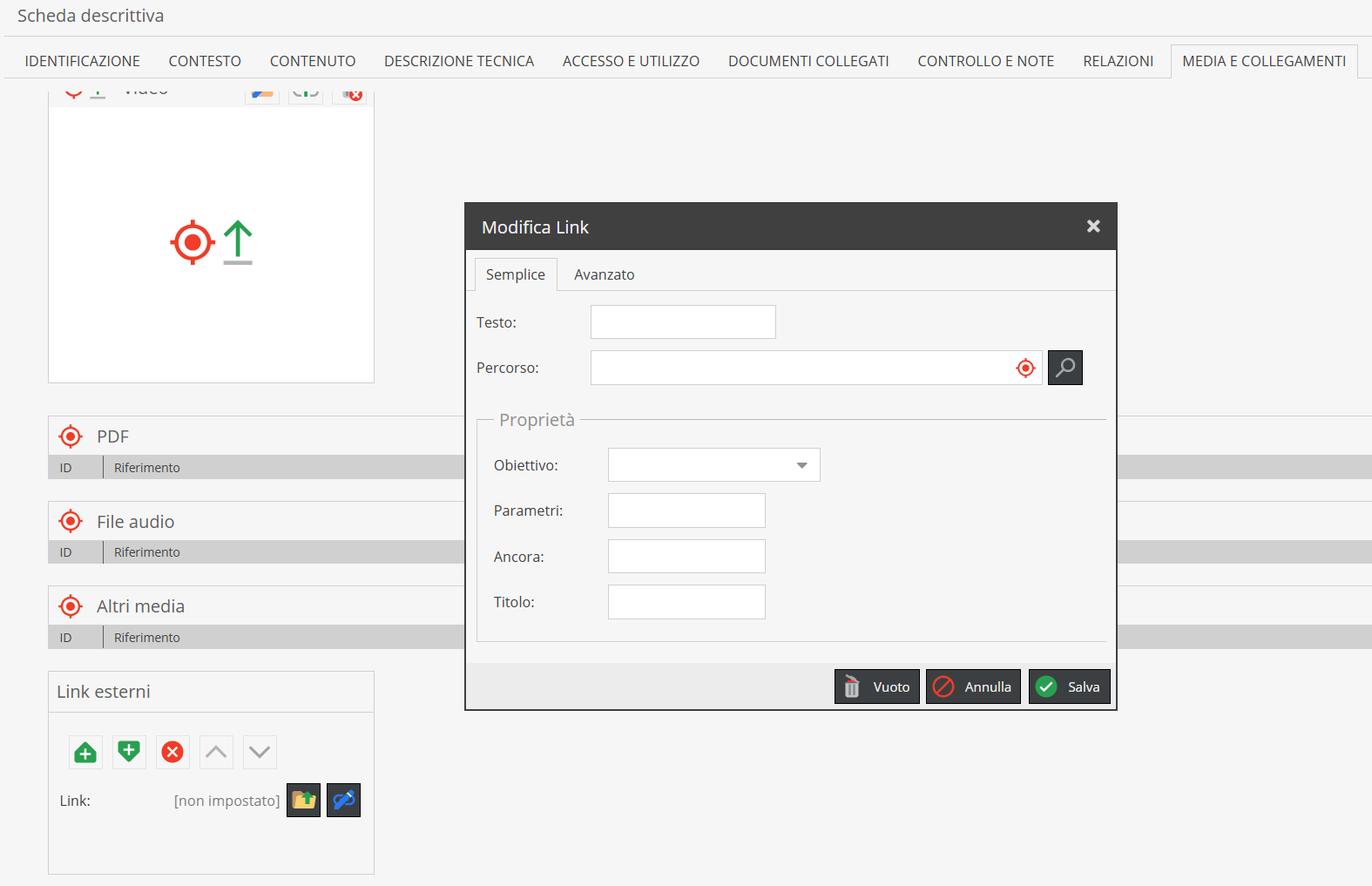
A modal window will pop up. Paste the full URL into the "Path" field. Fill in the "Text" field if you want to provide a descriptive title or label for the link.
"Control and notes" / "Notes and compilation" Area
This area includes:
- Cataloging level: controlled drop-down vocabulary indicating record completion status to monitor workflow progress.
- Responsibility: repeatable section tracking edit histories. Each intervention logs Action (controlled vocabulary), Date, and Compiler (text field).
- Notes: free-text field for relevant information that does not fit into structured fields.
- Archivist notes: technical field documenting methodological choices made during cataloging, sources consulted, or doubts. Unlike general "Notes", these are intended for internal or scholarly use to explain how the description was constructed.
"Relationships" Area
The Relationships area creates logical and scholarly links between different descriptive units in the system. To establish a link, at least one of the two units (the host unit or the target unit) must already be saved in the system.
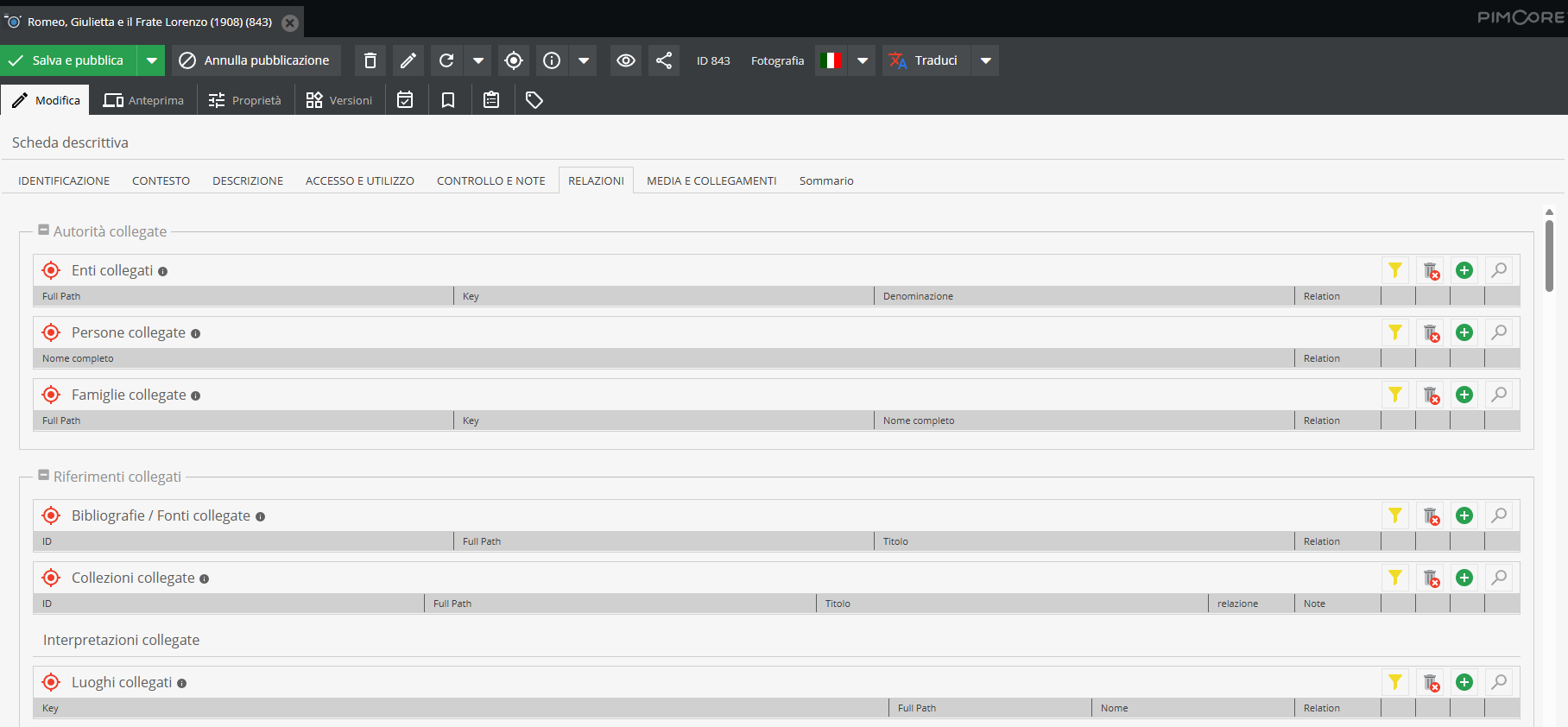
When target units are already in the tree structure, two operating methods are available.
Method 1. Click the "Search" icon (magnifying glass).
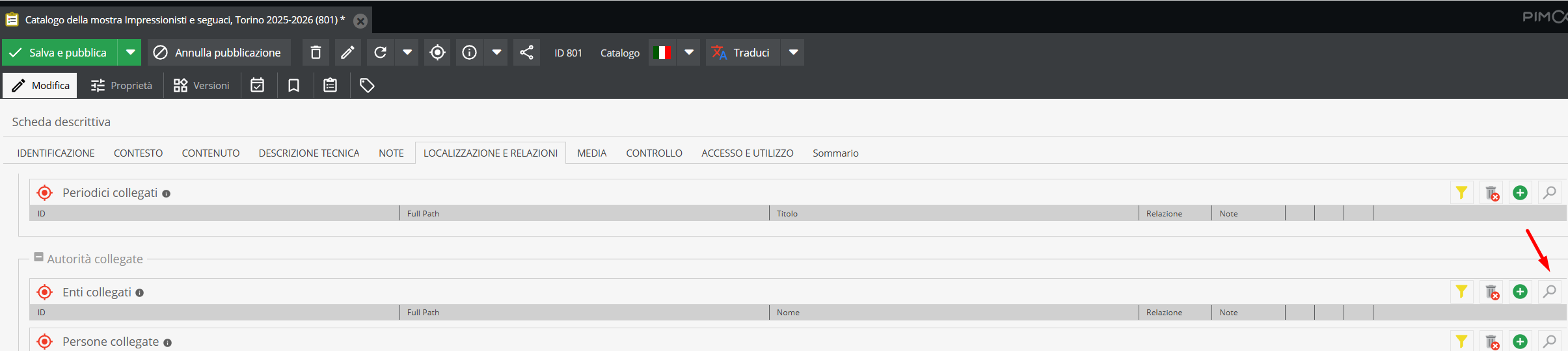
A search interface pre-filtered for the relevant object class will open.
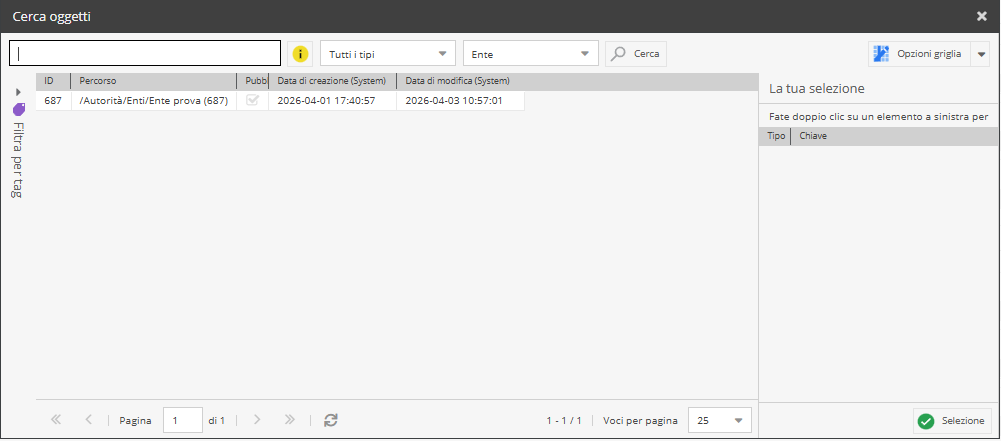
Locate desired records via keywords, tags, or browsing, and select them.
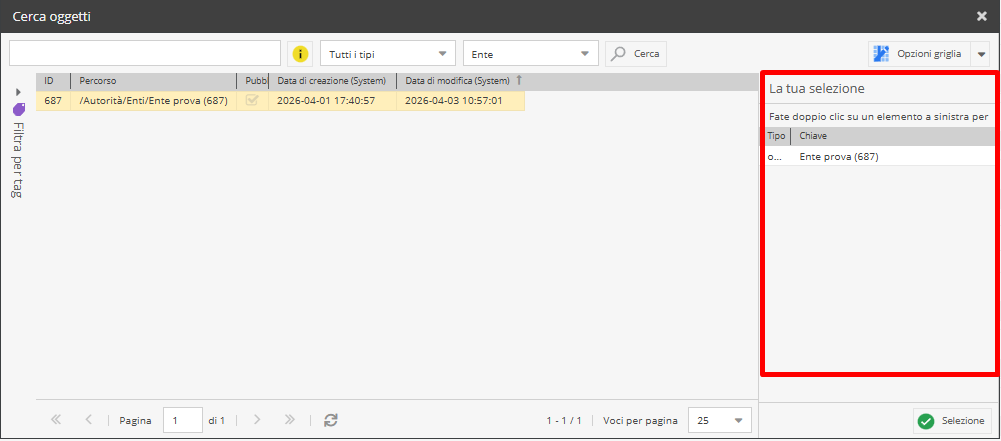
Double-click an individual item, or right-click a multi-selection and select "Add" to transfer the records to the "Your Selection" sidebar panel.
Multi-selections can be made by holding Shift (for contiguous items) or Ctrl / Command on Mac. Once selected, right-click and choose "Add" to move the full selection into the panel.
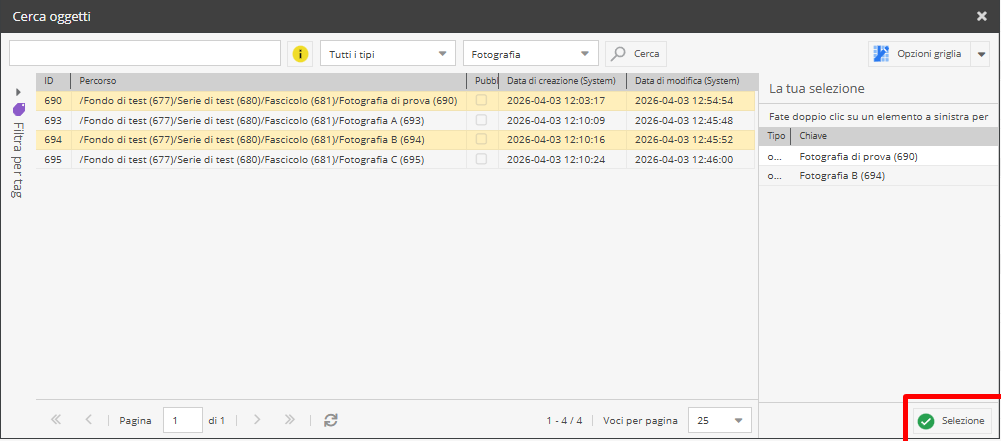
When finished, click "Selection". The linked items will appear in the reference bar.

Method 2. You can link items by simply dragging the target item onto the corresponding relation bar (drag & drop).
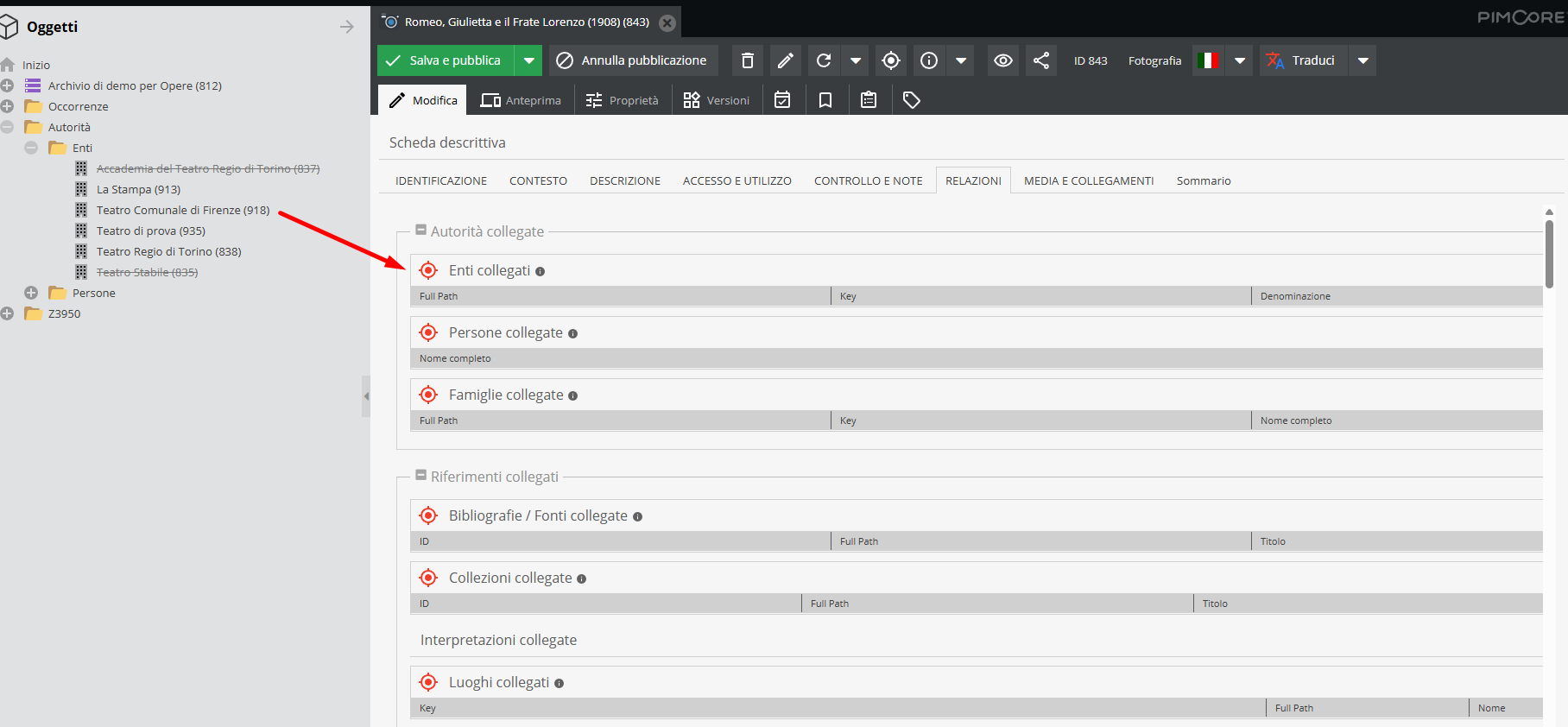
If dragged correctly over an eligible field, a green checkmark ✓ will appear, indicating it can be dropped.
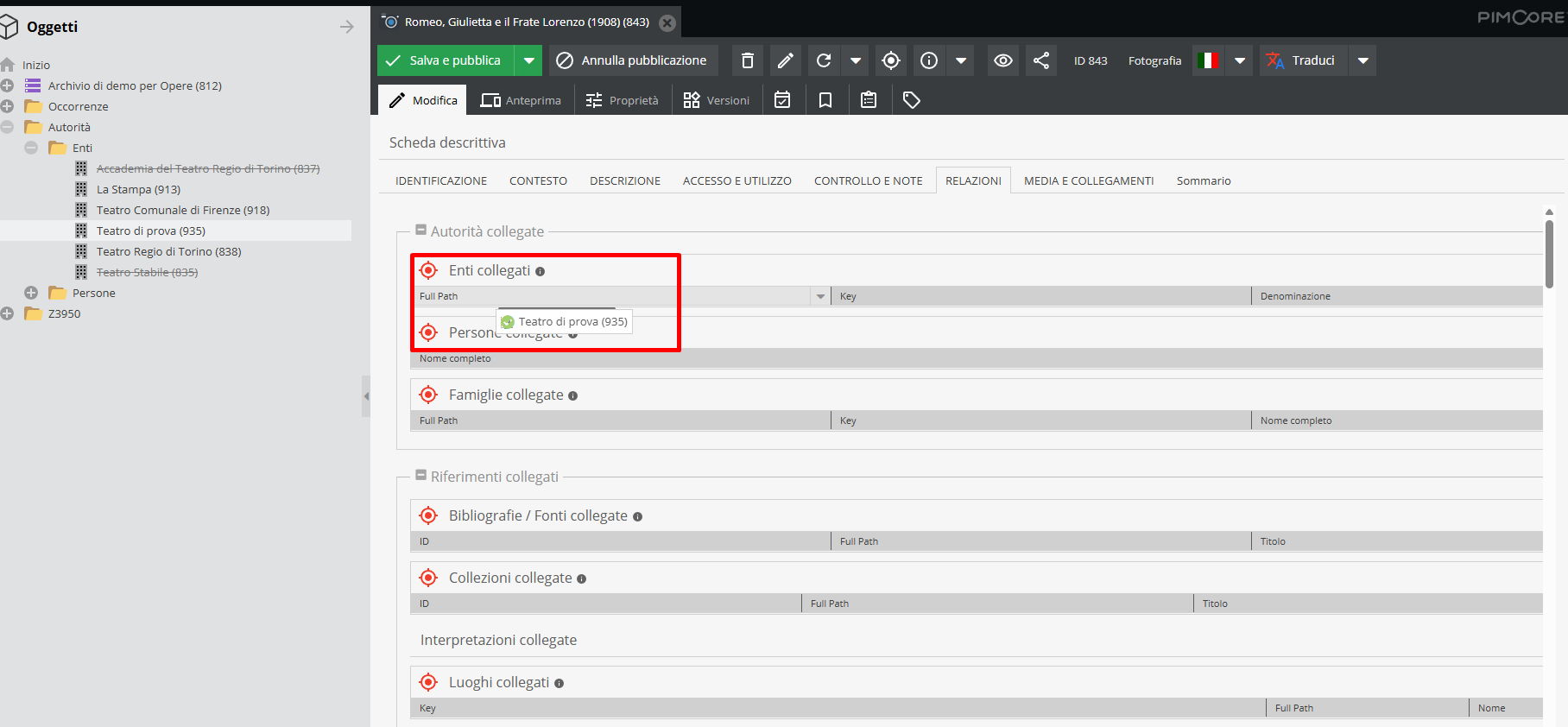
If an item is dragged over an incompatible document field or invalid area, a red ✕ symbol will appear next to the item name, preventing the drop.
If the target record has not yet been created, you can create it directly using the "Add" (+) symbol adjacent to the relationship field.
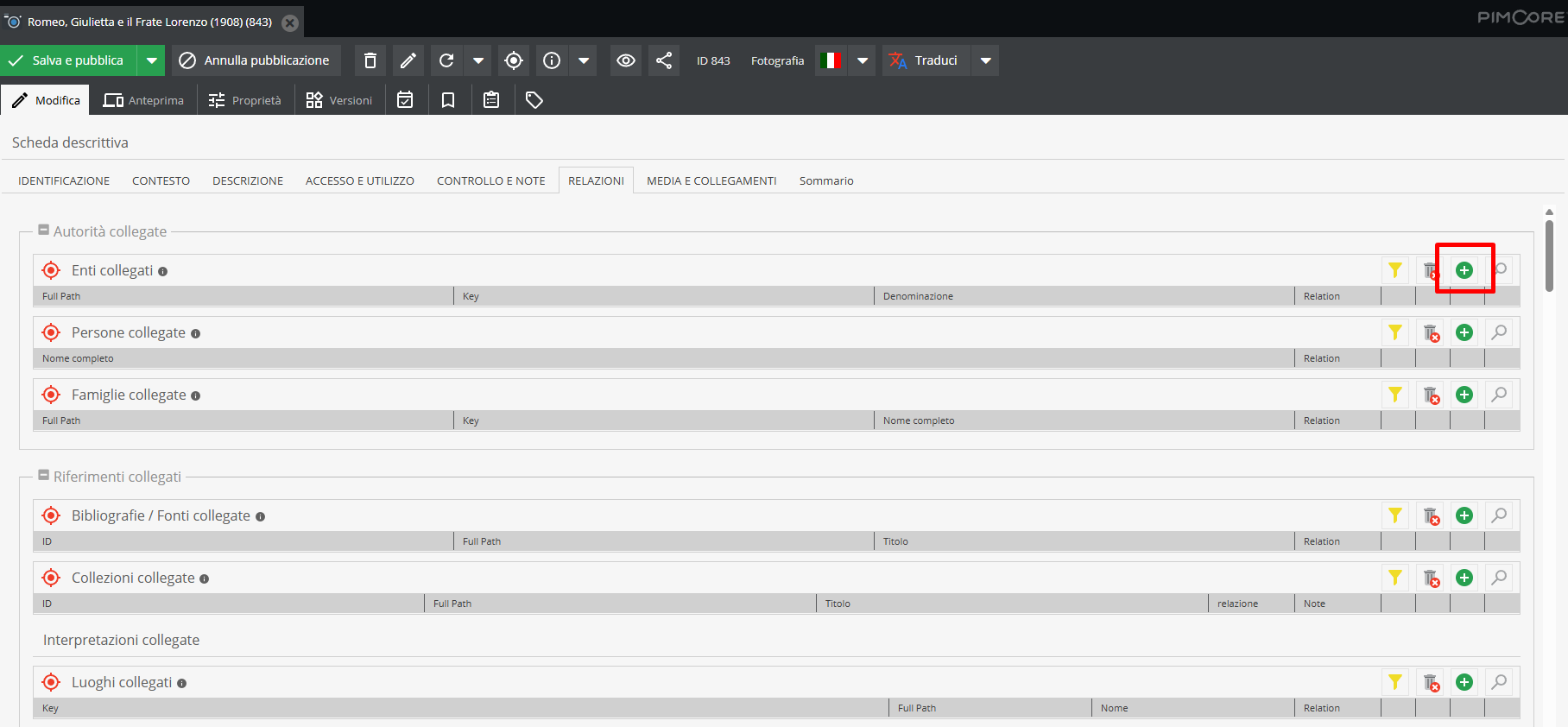
Clicking this button opens an "Add object" pop-up window where you specify the Name (provisional or final title) and the Parent (the tree location where the new record will be created).
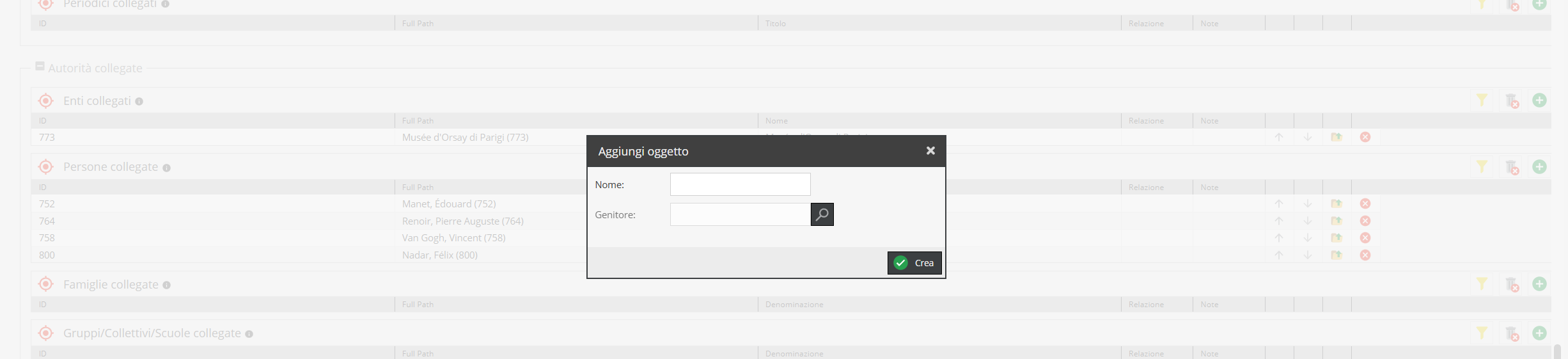
The "Name" field is text-based, while the "Parent" field opens a search dialog via the magnifying glass icon to select the target parent node in the hierarchy.
For example, to add a person as a performer linked to a Performance record, the new descriptive record can be created right from the link field, placing it inside the Occurrences > Authorities > People folder. You then select the target "parent" folder by searching via ID (Pimcore unique code) or keywords, or filtering by object class in the drop-down menu. Upon selection, the new object is automatically created under that node.
If no "Parent" is defined when creating a record, an error message will prompt you to fill in all mandatory fields.
Once a link is established, it can be qualified using two extra columns on system relationship fields — known as interstitial data: tipo_relazione (labeled "Relationship" in the UI) and note_relazione (labeled "Notes").
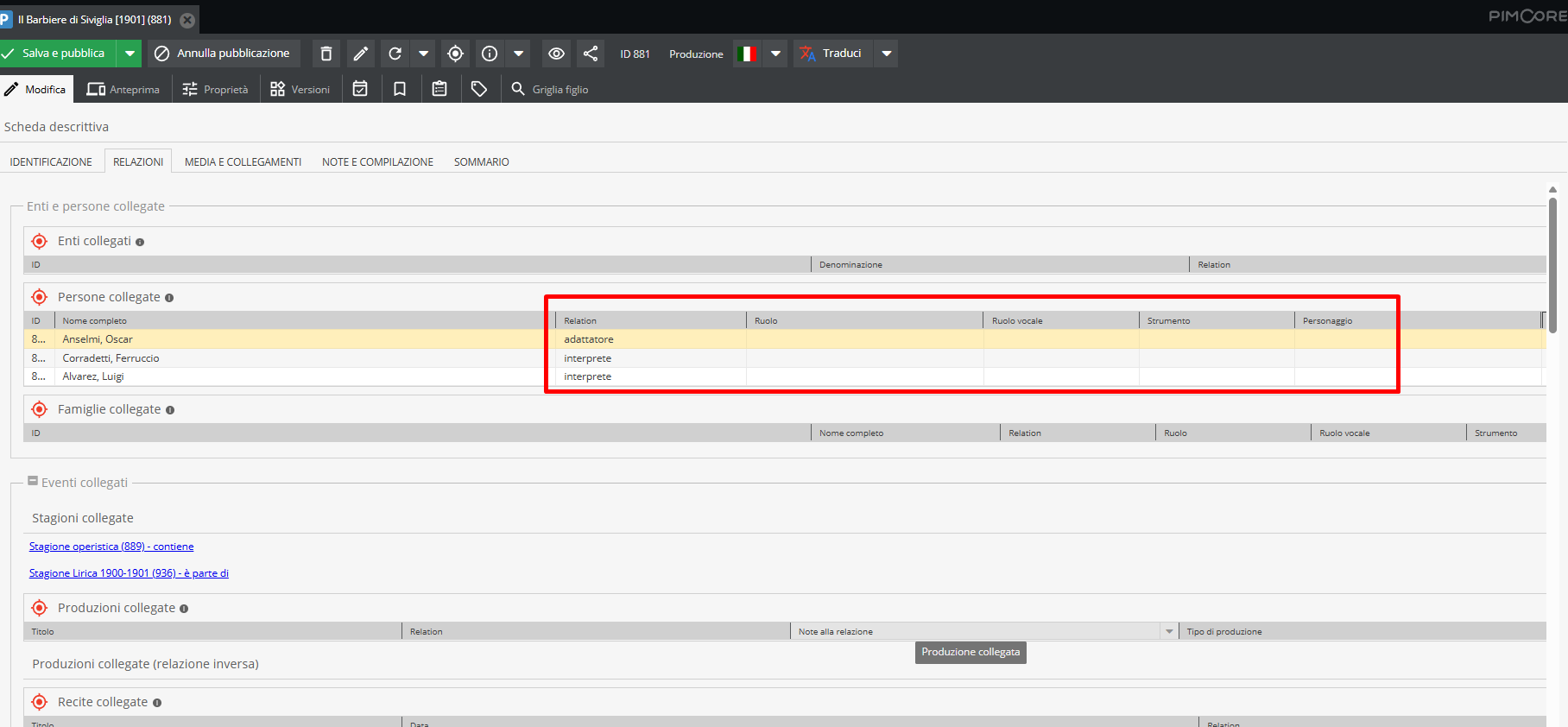
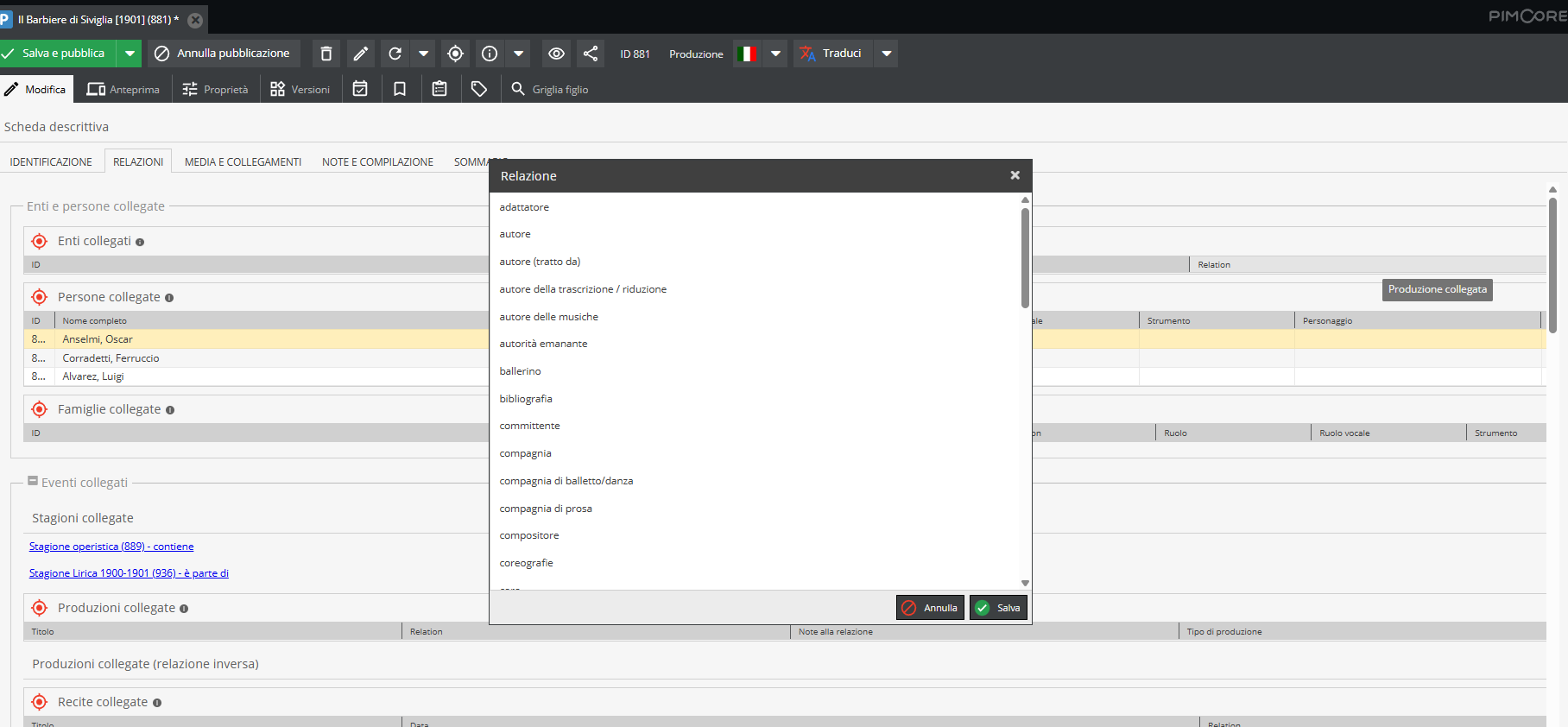
These two data points belong strictly to the relationship itself rather than to either of the two linked records — hence the term "interstitial" data.
Interstitial data
This configuration has a noteworthy feature: on the "Linked characters" and "Linked performances" fields (in Event and Title records), the relationship type vocabulary specifies a vocal range or instrument — Soprano, Tenor, Baritone, Violin, Dancer, Mime, and dozens of other voices — answering the question "with which voice or instrument was this character performed?". These fields also feature a third interstitial column, sequence, which specifies the order in which names appear in cast lists or programs.
| Relational field | Interstitial columns | Examples of tipo_relazione values |
|---|---|---|
| Linked characters / Linked performances (Events, Titles) | tipo_relazione, note_relazione, sequence | Soprano, Tenor, Baritone, Bass, Violin, Piano, Dancer, Mime, Actor, Performer… |
| Linked topics (Events, Titles) | tipo_relazione, note_relazione | scenic change/scene, linked production(s), linked stagings, inspired by, adapted from, contains, part of… |
| Linked entities and people (Events, Titles, Archival complexes) | tipo_relazione, note_relazione | authority roles: author, curator, commissioner, publisher, translator, collector… |
| Performer / Character (inside Performance/Interpretation record) | none — simple link | not applicable: the Performance record itself acts as qualification |
"Summary" Area
This section serves as an overall summary of the descriptive unit. It aggregates key metadata extracted across all information areas into a single consolidated view.
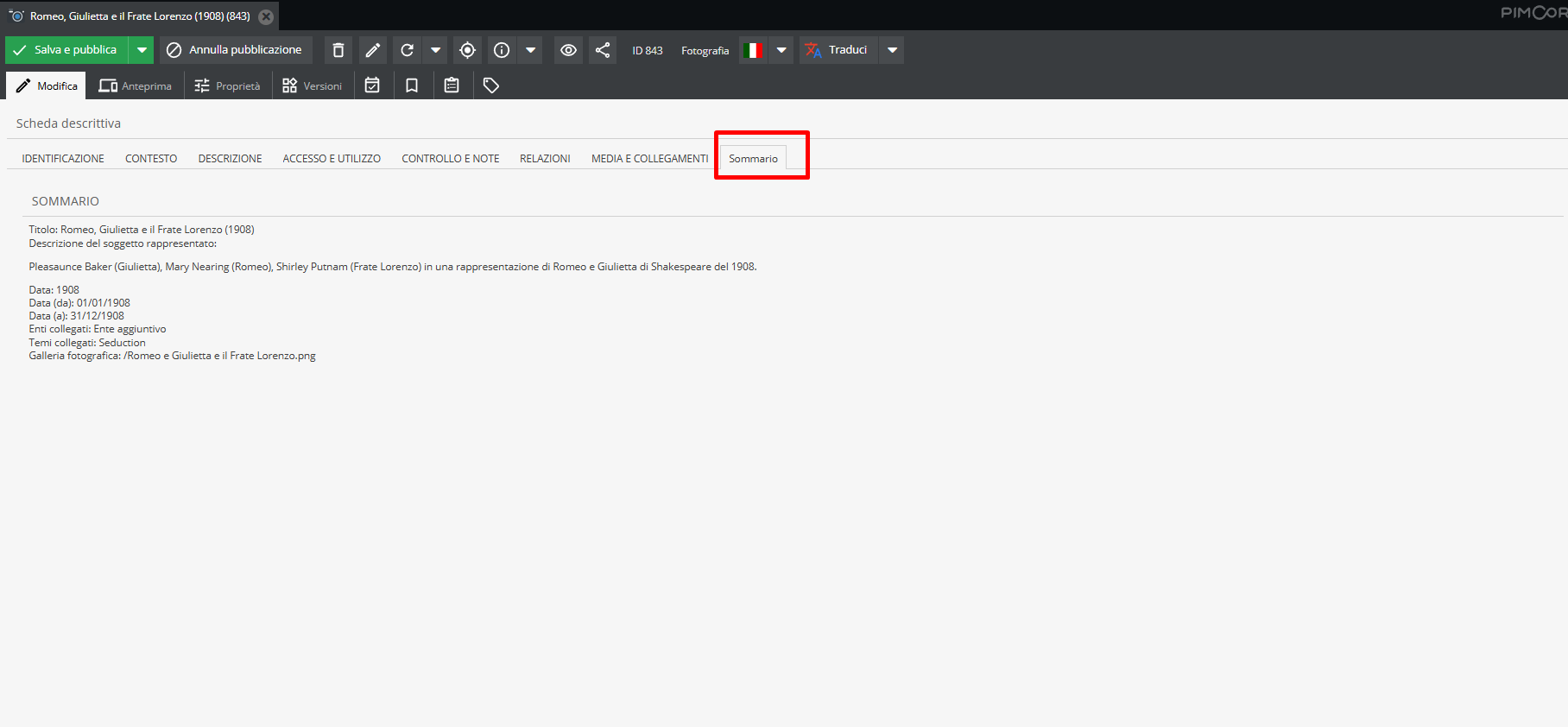
The "Summary" tab enables quick verification of data consistency without navigating through individual detail tabs.
Localized fields
Localized fields are an advanced Pimcore feature enabling multilingual management of descriptive metadata, essential for global audience access.
These fields are marked by Language selector tabs (featuring flag icons and language codes) adjacent to text inputs. Standard system settings support Italian, English, and French.
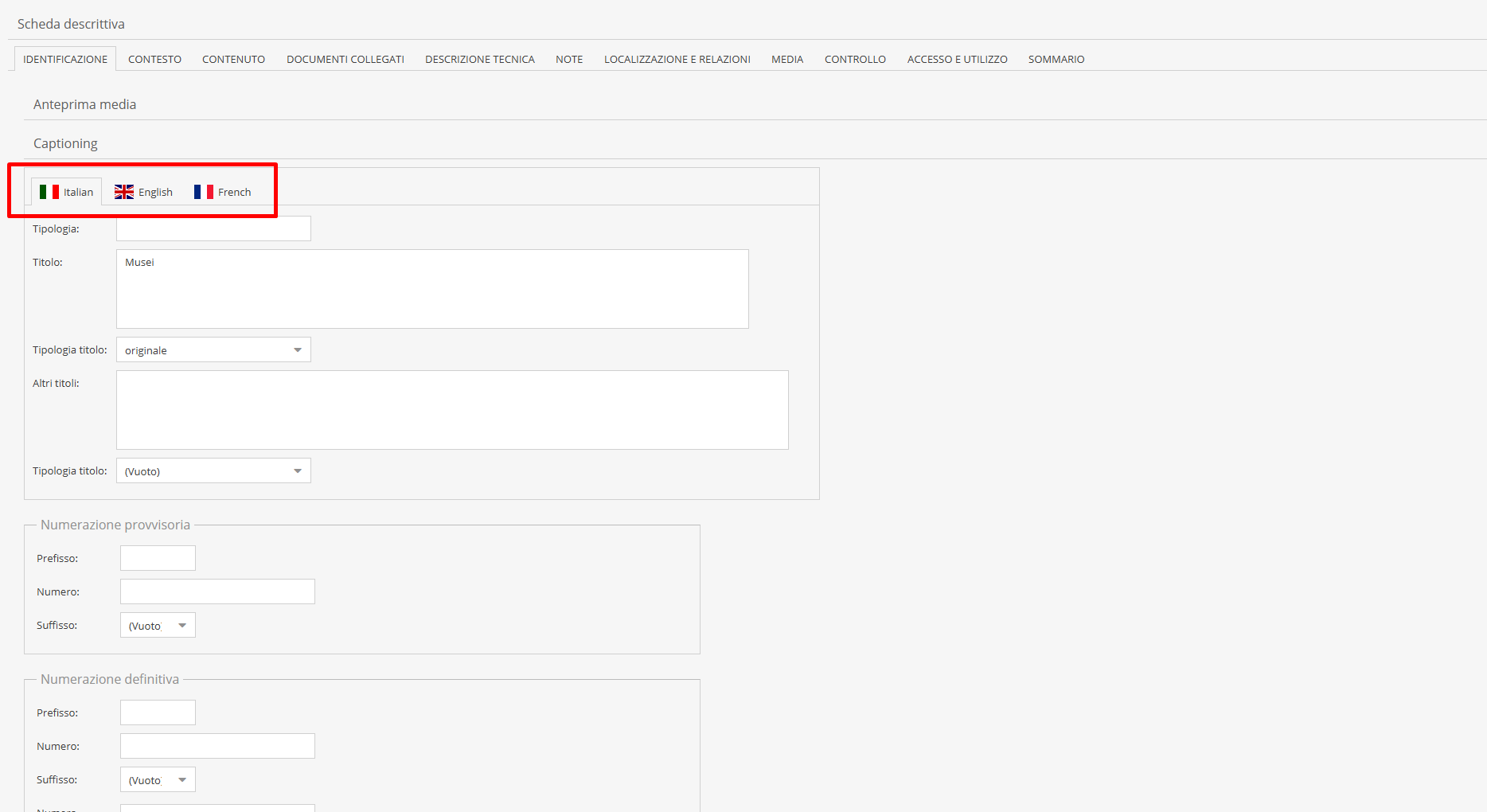
Fields typically enabled for multilingual translation are narrative and free-text fields. Alphanumeric or structured fields (such as physical dimensions, identifiers, shelfmarks, or normalized dates) are excluded from localization, maintaining single values regardless of active language.
Field translation is not automatic: catalogers must manually enter text across active languages, or request batch translation services from Promemoria Group for large bodies of material.
Properly populating localized fields activates the "Multilingual" feature on the front-end portal, allowing visitors to switch site language effortlessly.
The integrated auto-translation tool Located on the toolbar next to the language selector, the "Translate" button operates on fields configured as translatable.
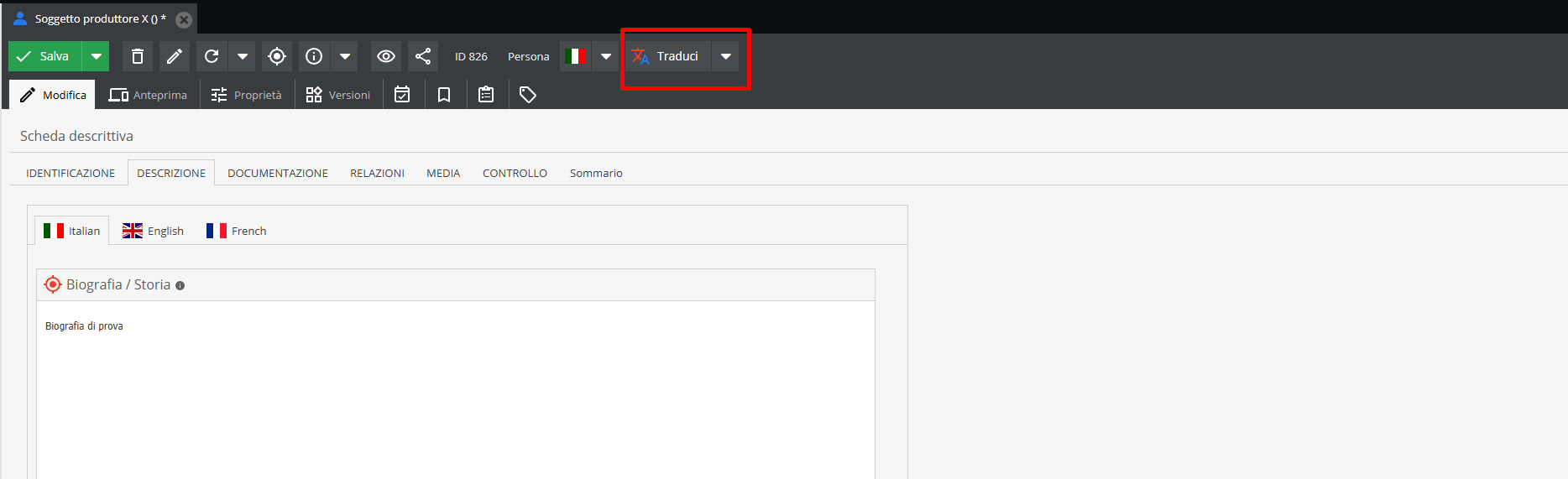
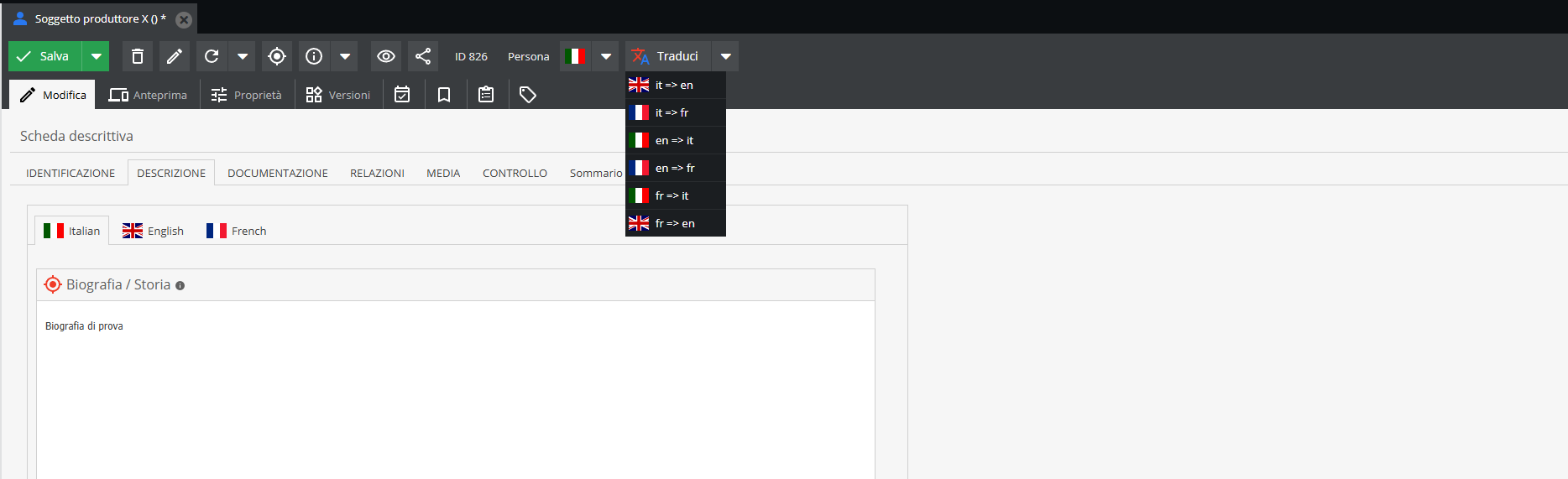
Using its drop-down menu, select the source and target languages (e.g., Italian to English): the system calls the automated translation service and populates the target language tab directly.
The "Translate" button applies only to selected text fields; it cannot be used on drop-down select or multi-select fields.
Object management
All object types described can be created, edited, and managed within the "Objects" (Data Objects) section. Right-clicking an element opens a context menu with available actions.
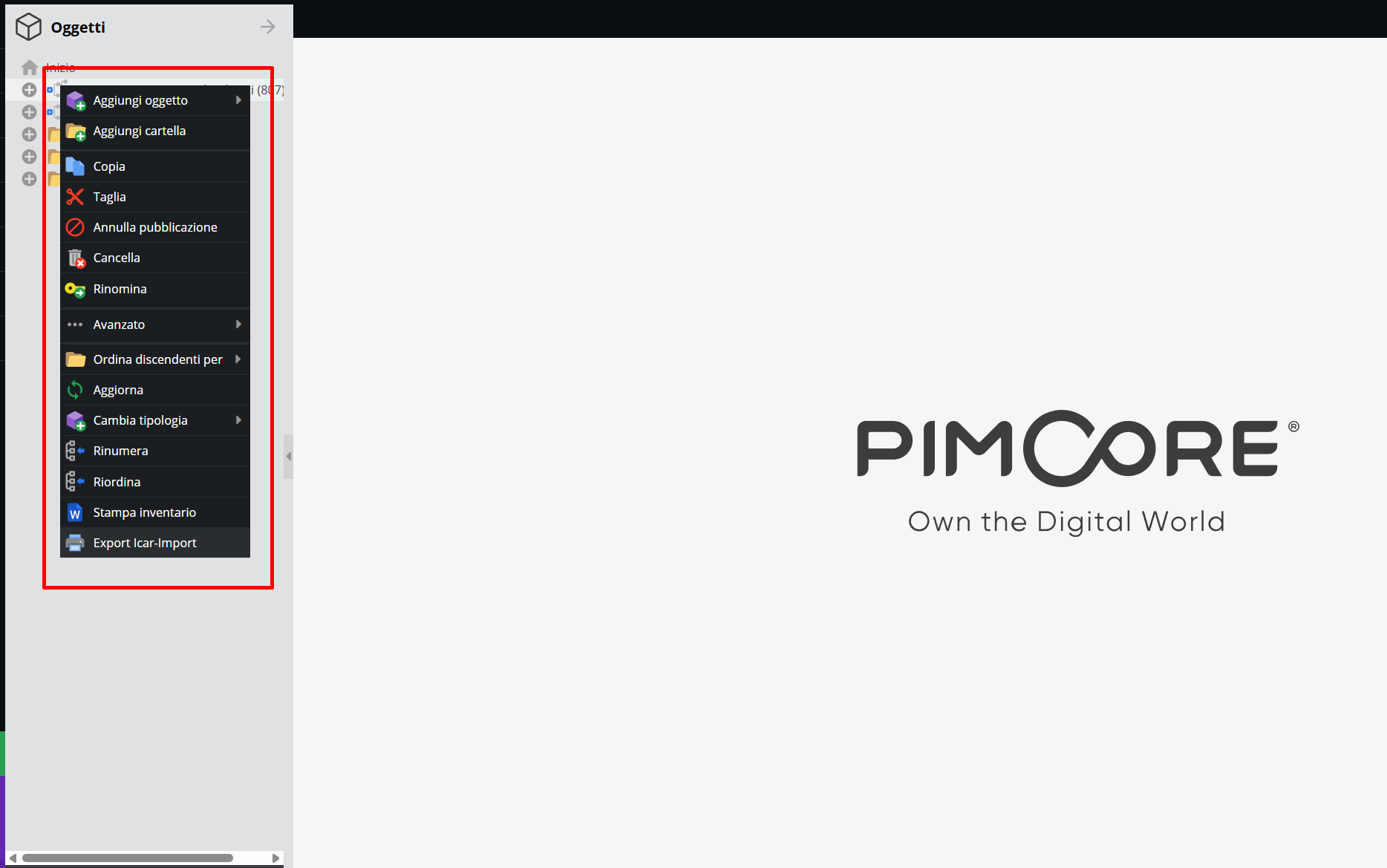
Inserting a new element into the structure
Right-click on the parent archival complex, event, title, or reference folder where you wish to add a record, then choose "Add object".
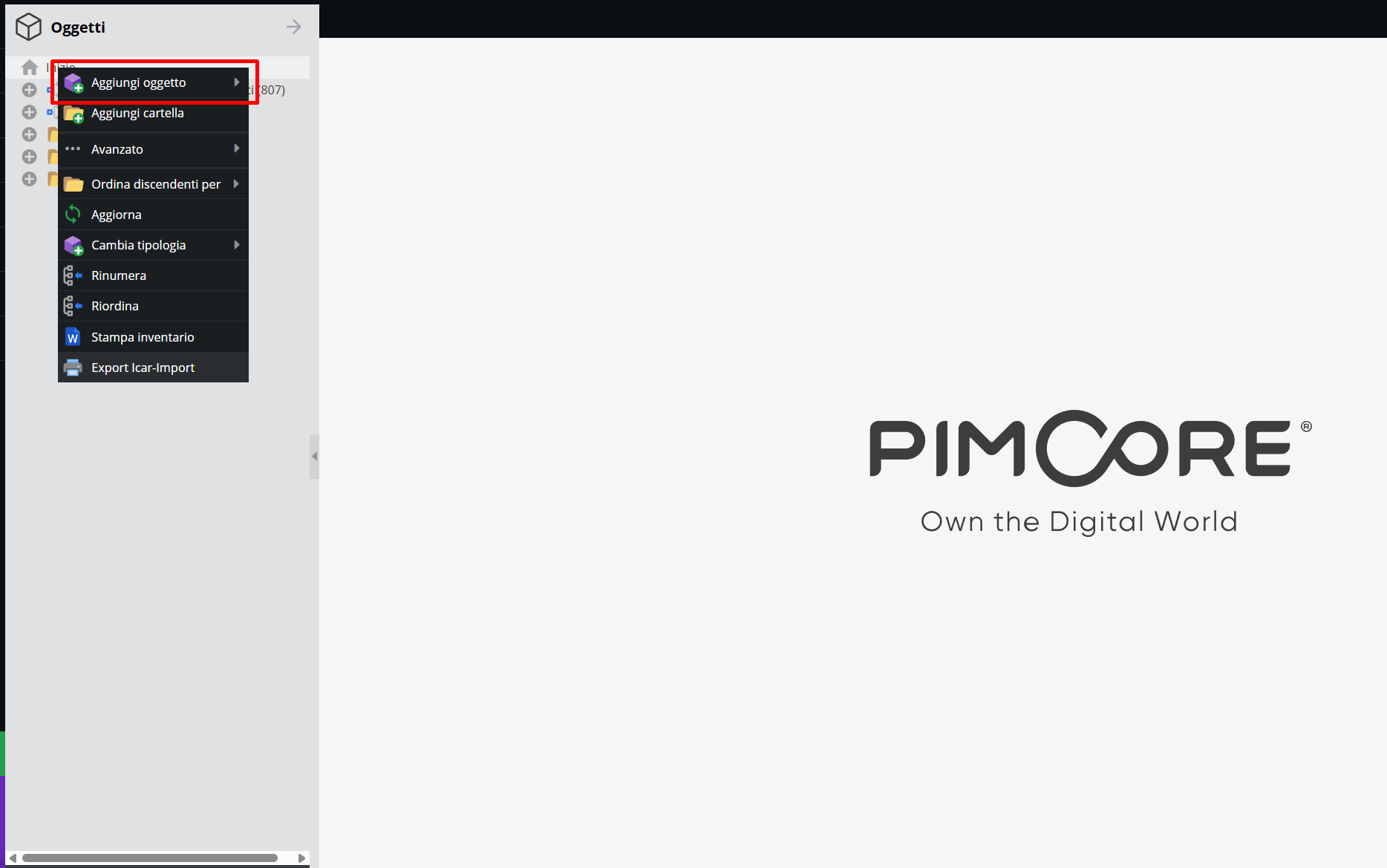
Select the group containing the target objects and pick the desired descriptive class.
Clicking the class opens the creation dialog modal:
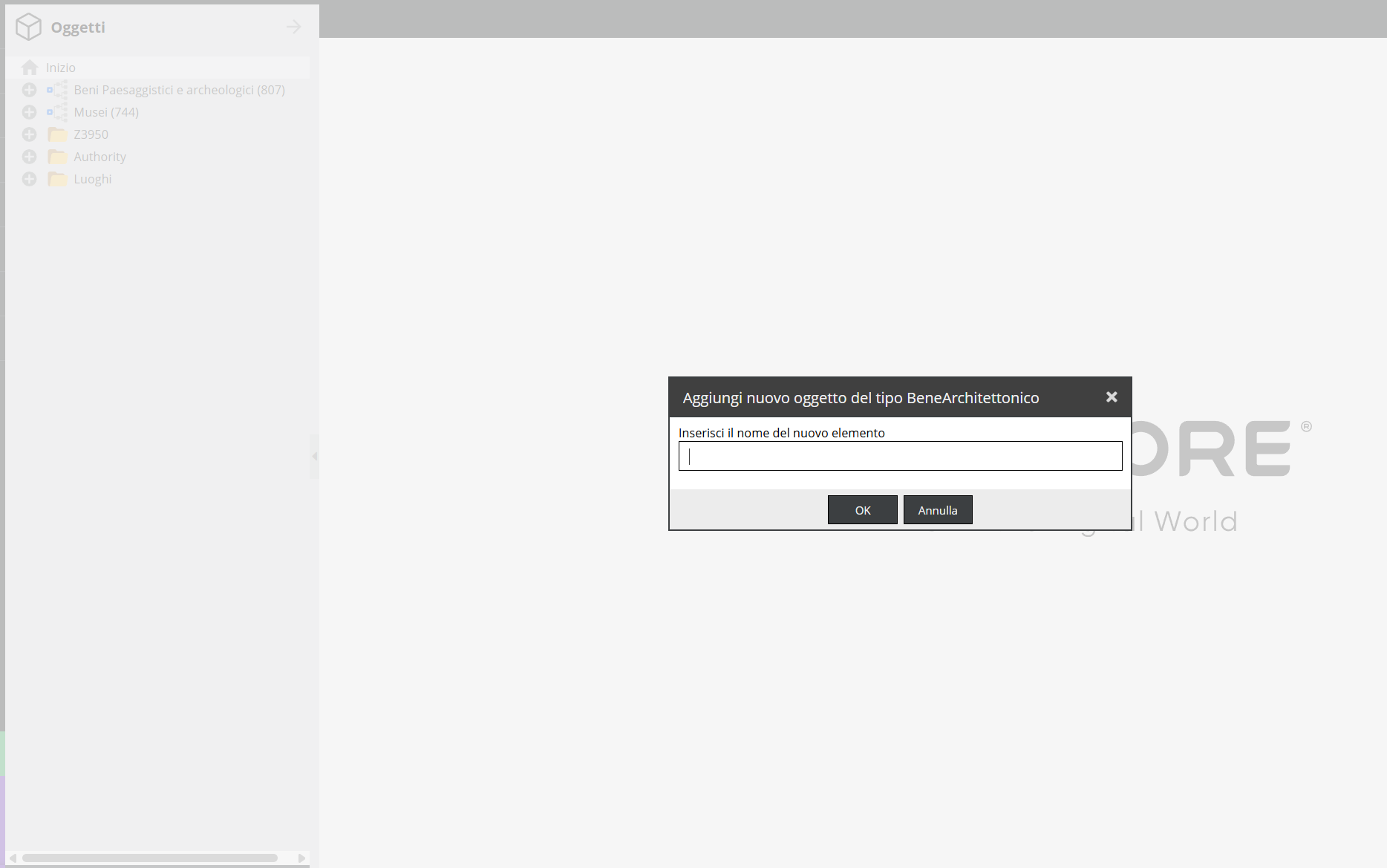
Enter the title (provisional or final) of the new record and click "OK".
The descriptive record will open, displaying the information areas analyzed in Descriptive record information areas.
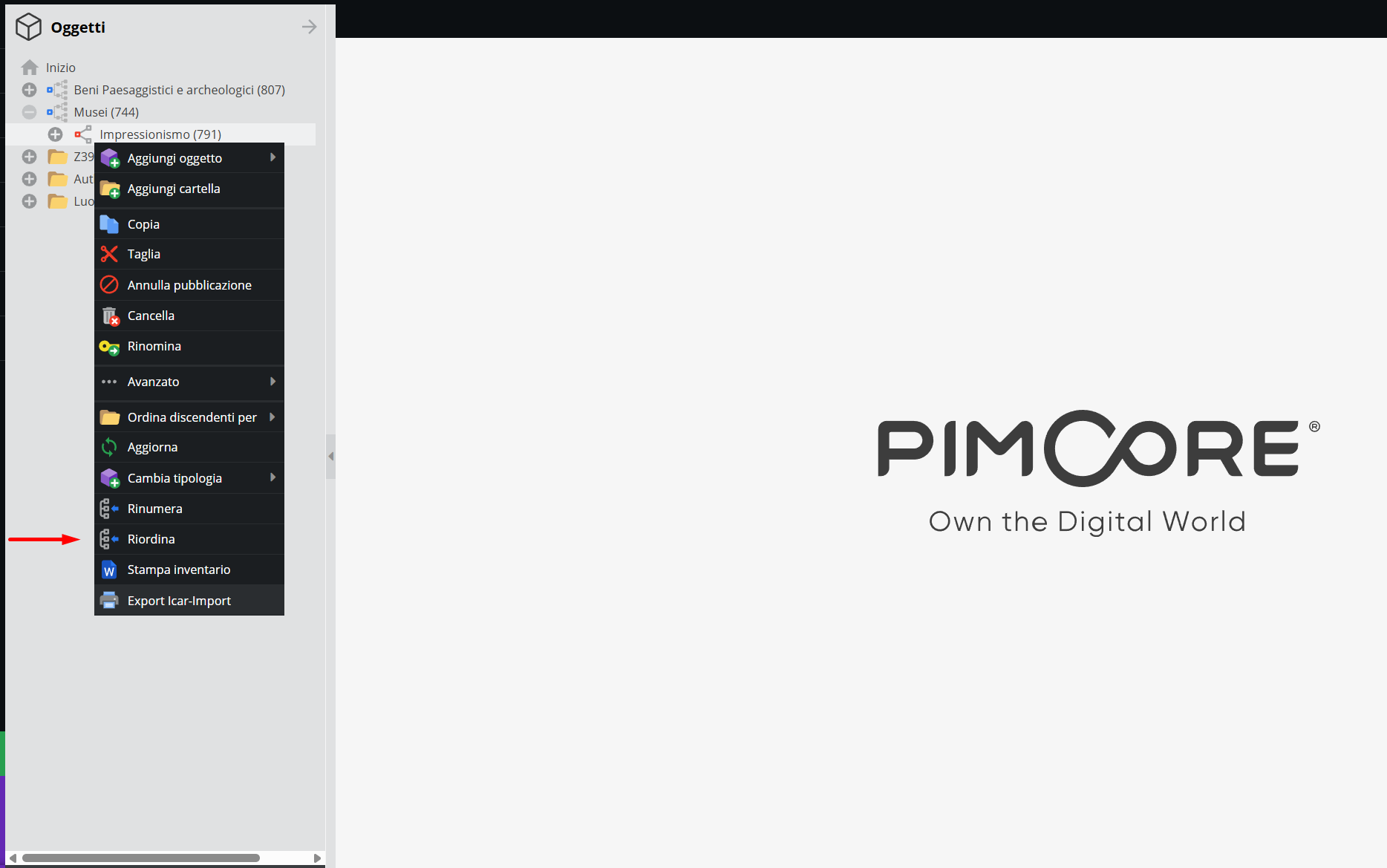
The context menu also enables actions like copy, cut, paste, rename, and delete.
Reordering objects
The system supports systematic reordering to change the logical sequence and hierarchy of items. Right-click the target parent node in the tree and select "Reorder".
Reordering can apply selectively to immediate child nodes or recursively across all descendant nodes. Available ordering criteria are: identifier code (based on provisional or final numbers), chronological (Date), or alphabetical (Title).
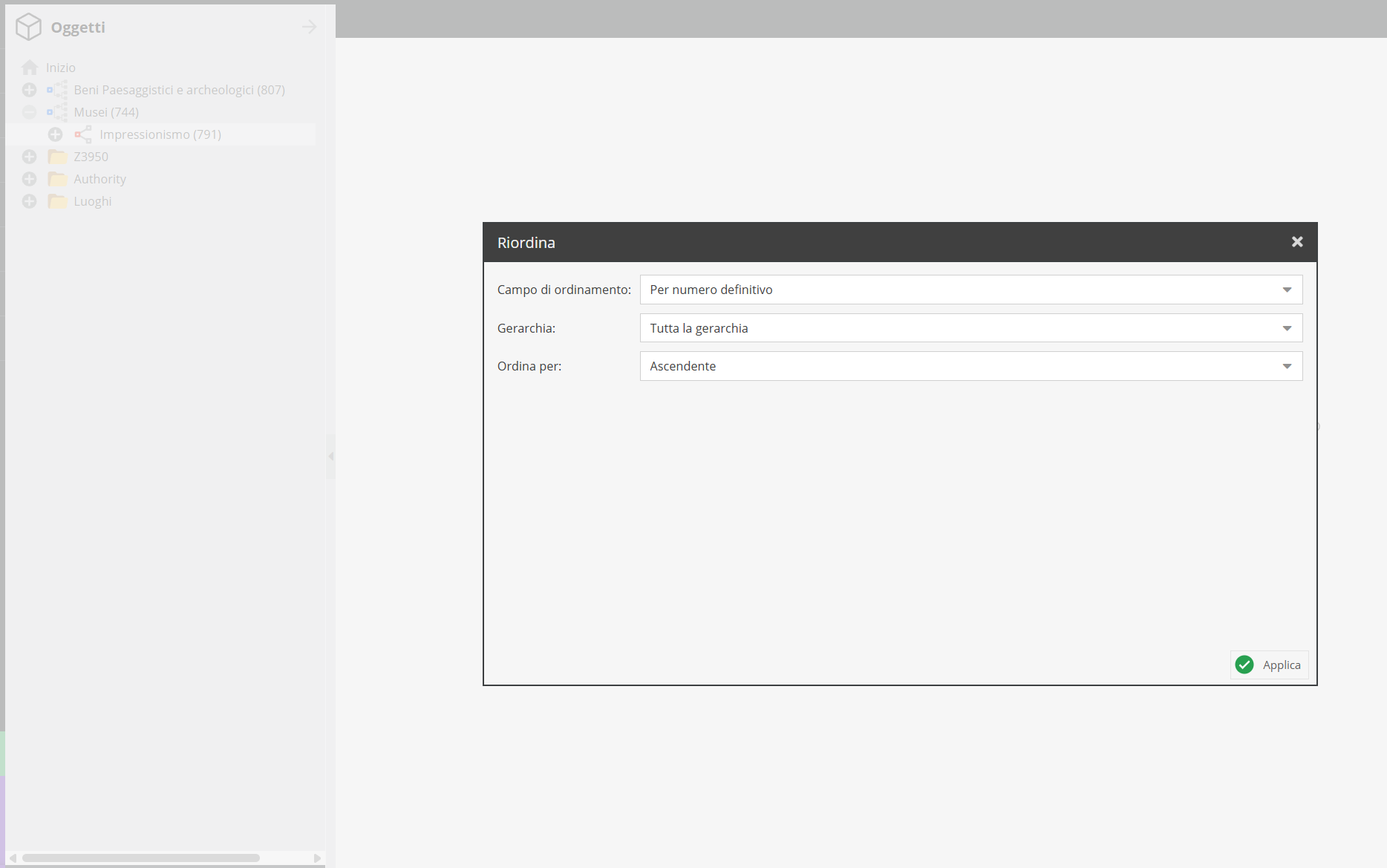
Each criterion supports ascending or descending directions. After configuring parameters in the modal menu, click "Apply" (bottom right) to execute the new hierarchy sequence.
Renumbering objects
This tool automates sequential numbering (item numbers) across physical containers (boxes, binders, volumes) or archival units within a complex. Right-click the reference node and select "Renumber".
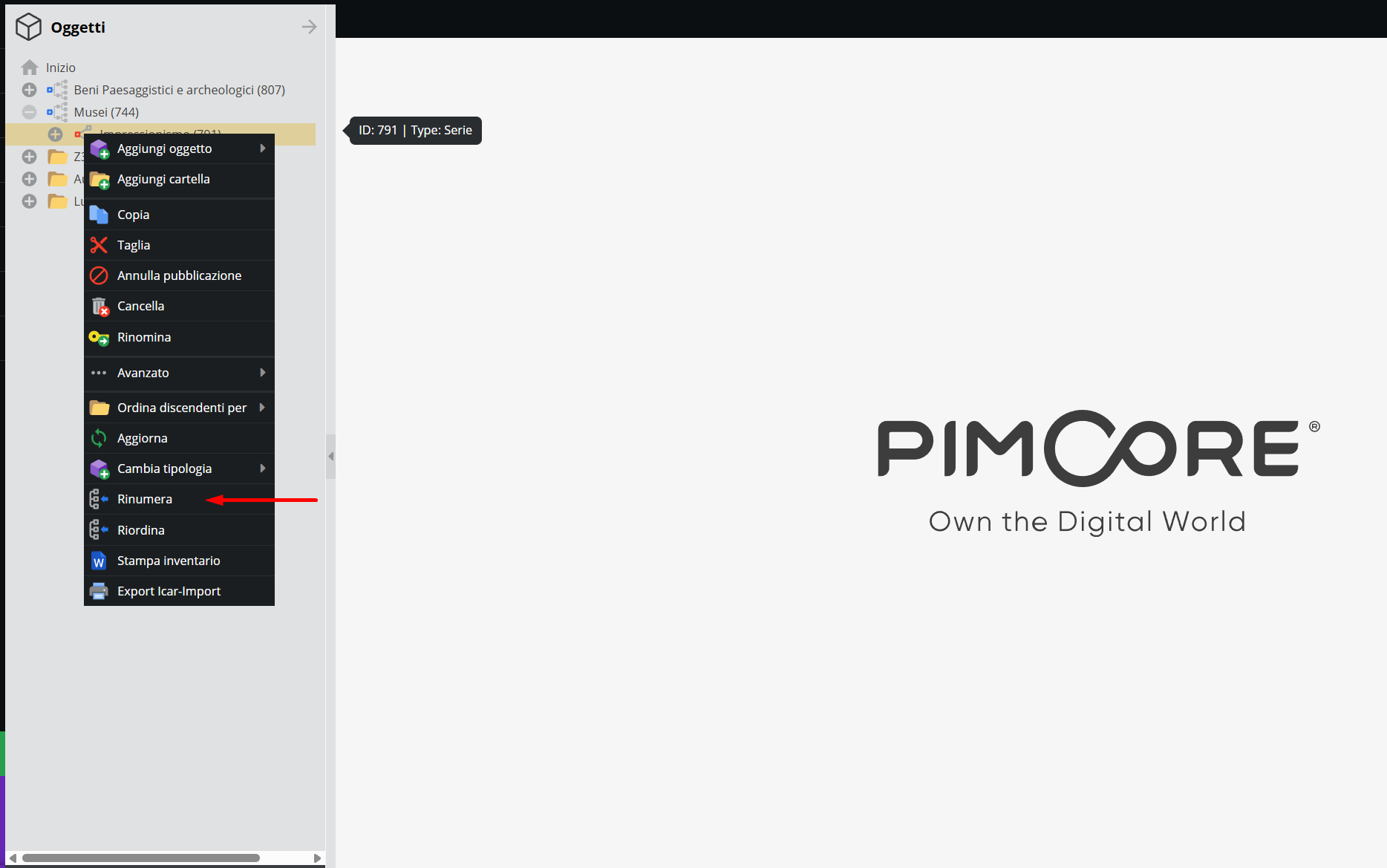
Select the target object classes to number using the drop-down menu:
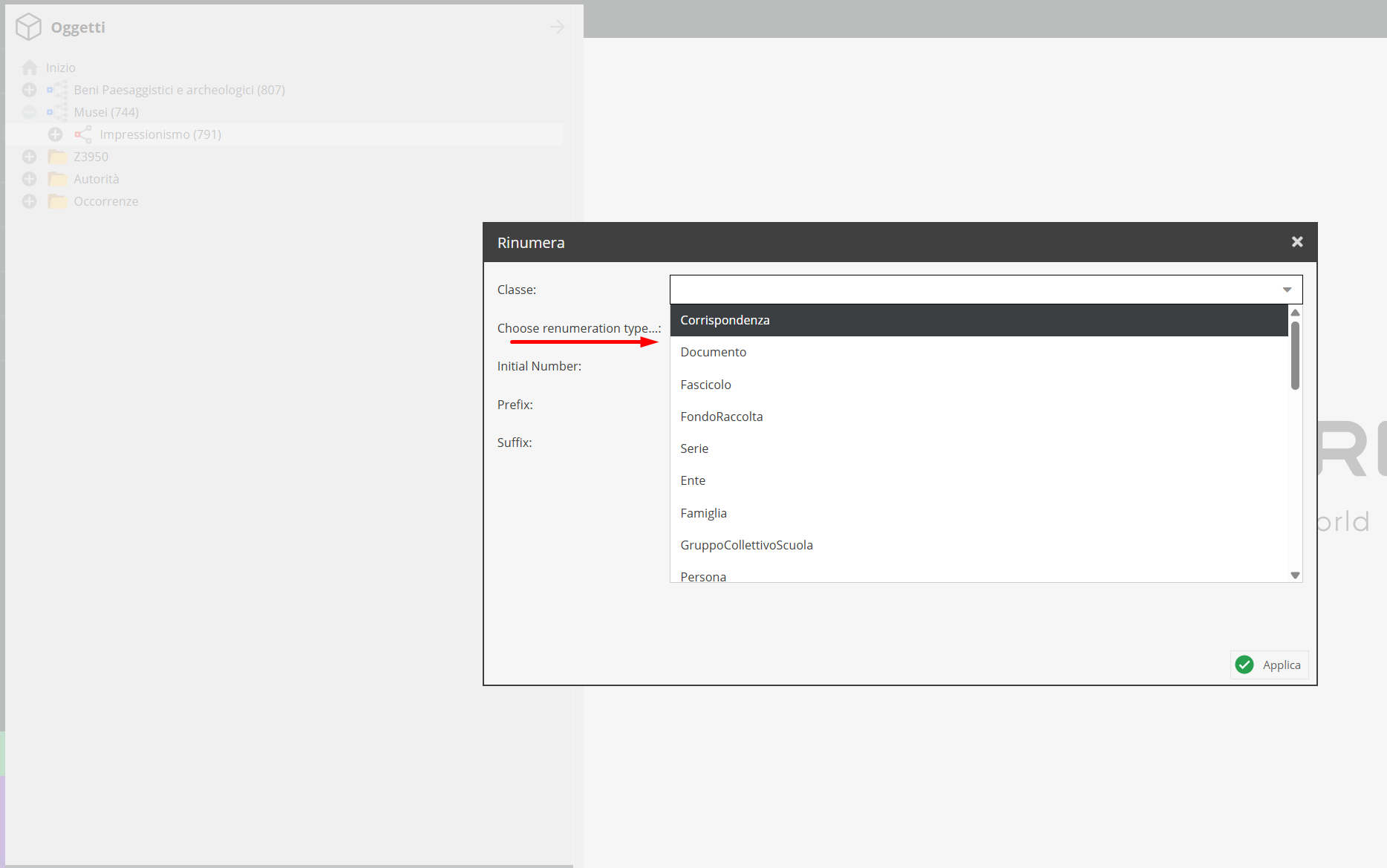
Choose the numbering sequence mode:
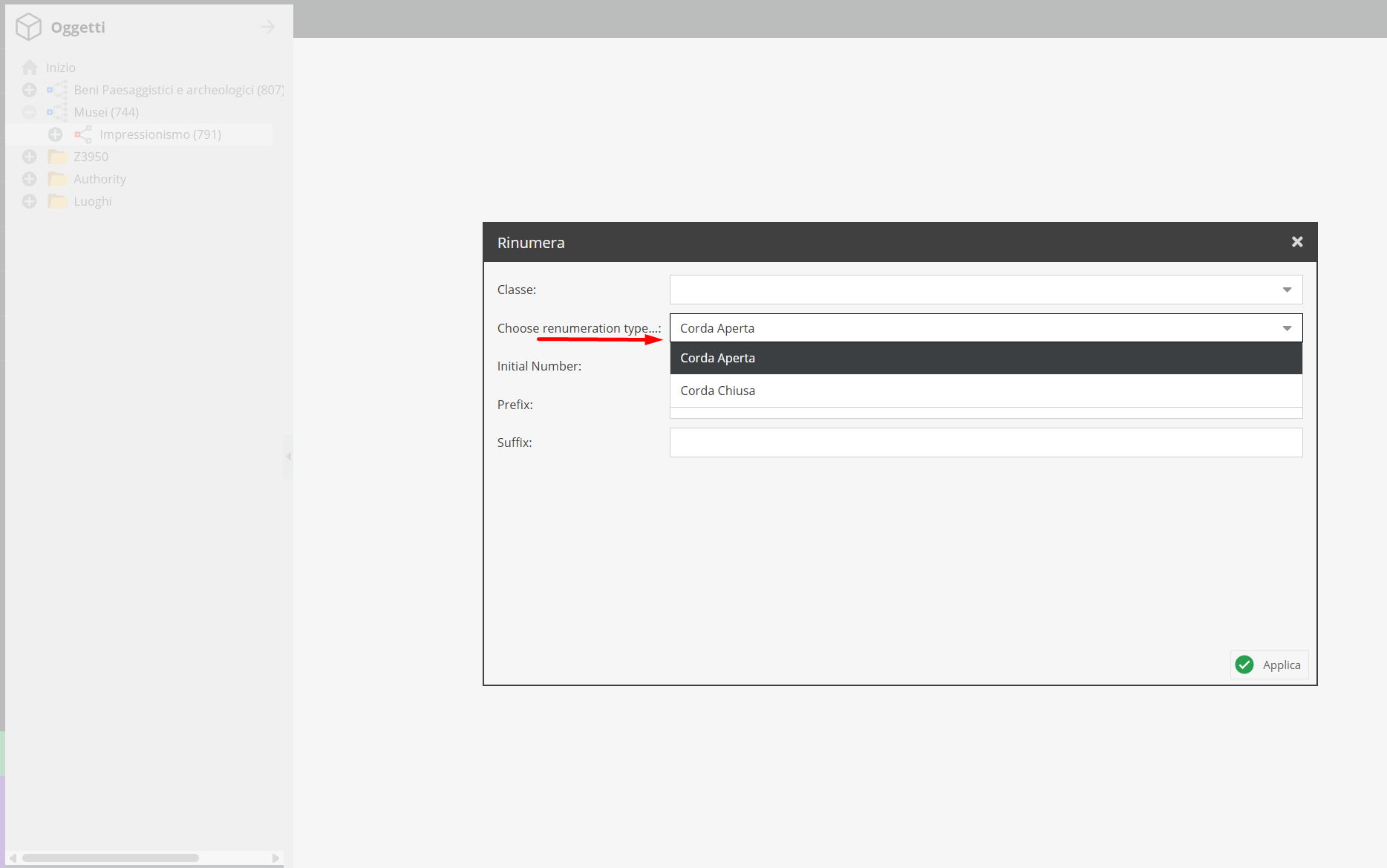
- Closed sequence: used for completed collections where numbering runs continuously without gaps.
- Open sequence: used for growing series, allowing flexible numbering for future additions. Enter the starting integer value (e.g., "1" for a new series or a higher number if continuing existing sequences).
Print inventory
This function automatically generates a downloadable .docx document containing a descriptive inventory of all units descending from the selected node. Right-click the reference node and select "Print inventory".
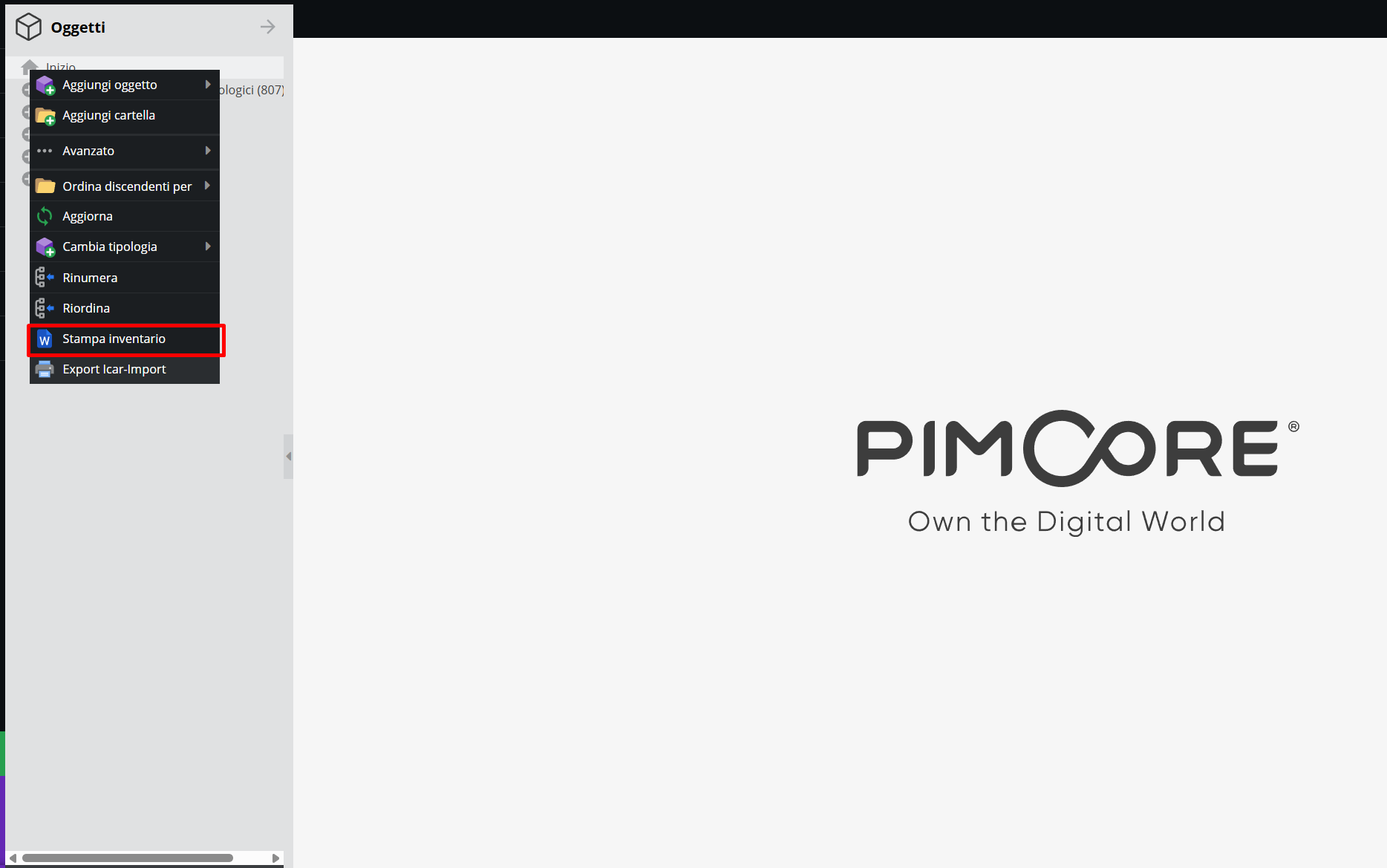
The generated document reflects the exact tree structure from which it was run: each partition appears as a section header, while descriptive units appear below with their respective IDs — the numeric identifier assigned by the platform upon creation.
The document includes automatically generated back-matter indexes — such as alphabetical lists of Index entries (People, Institutions, Places) linked to inventoried units via relationships: page reference numbers point directly to the descriptive unit IDs where relationships were set up.
This outputs a comprehensive inventory complete with reference indexes, usable outside the platform.
ICAR-Import Export
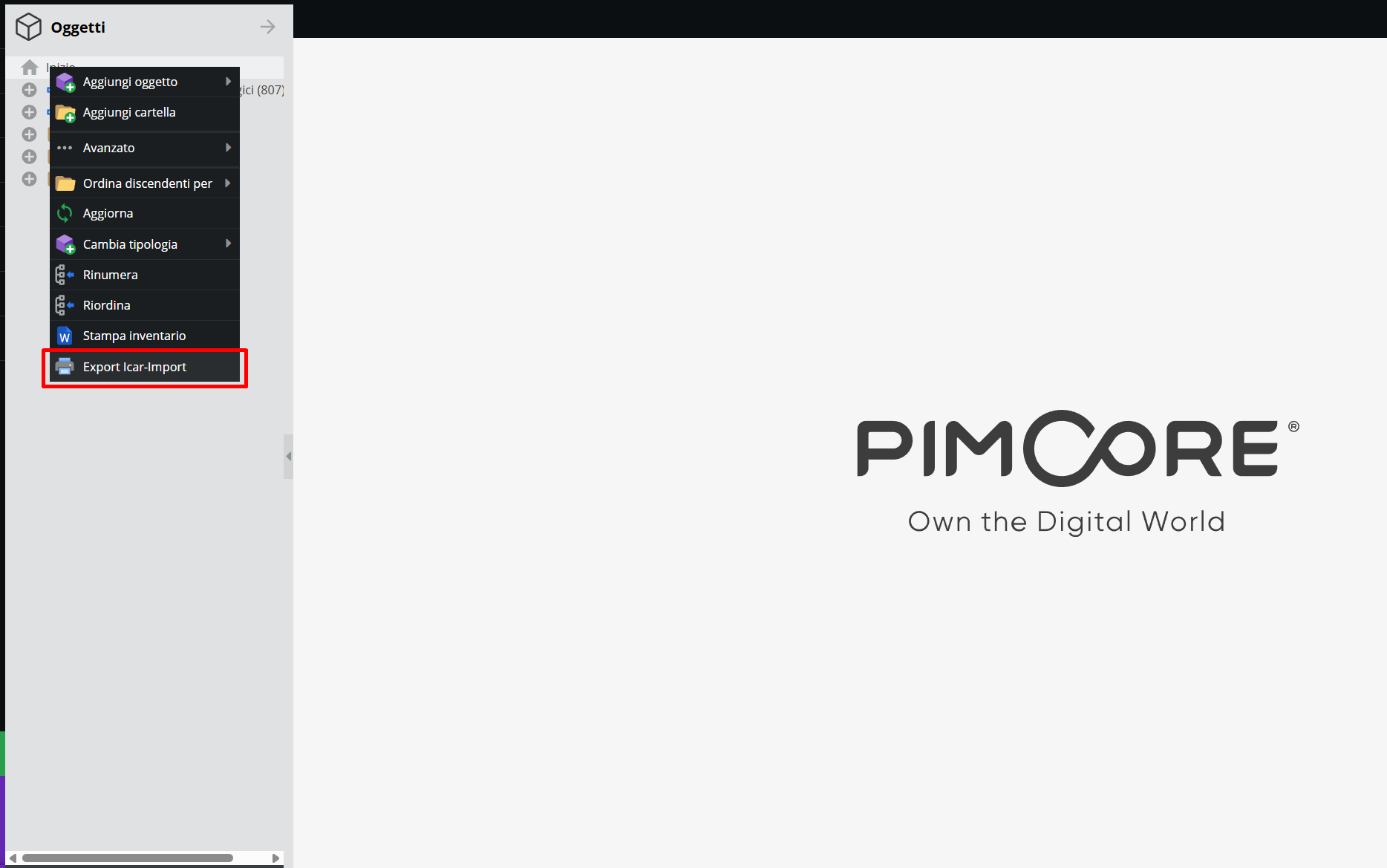
The "ICAR-Import Export" feature, available upon request, allows exporting archival descriptions in standardized formats compatible with ICAR (Istituto Centrale per gli Archivi) specifications.
System architecture: hierarchical structure and access points
The system architecture was touched upon in previous sections. This overview presents a summary using a sample use case.
The architecture described in Object classes reflects three distinct organizational frameworks within a single repository, interconnected via relationships rather than nested inside a single tree structure: physical archival conservation hierarchy (Archival complexes > Archival units > Documentary units under ISAD(G)), performance chronology (Events area), and repertoire cataloging (Titles area).
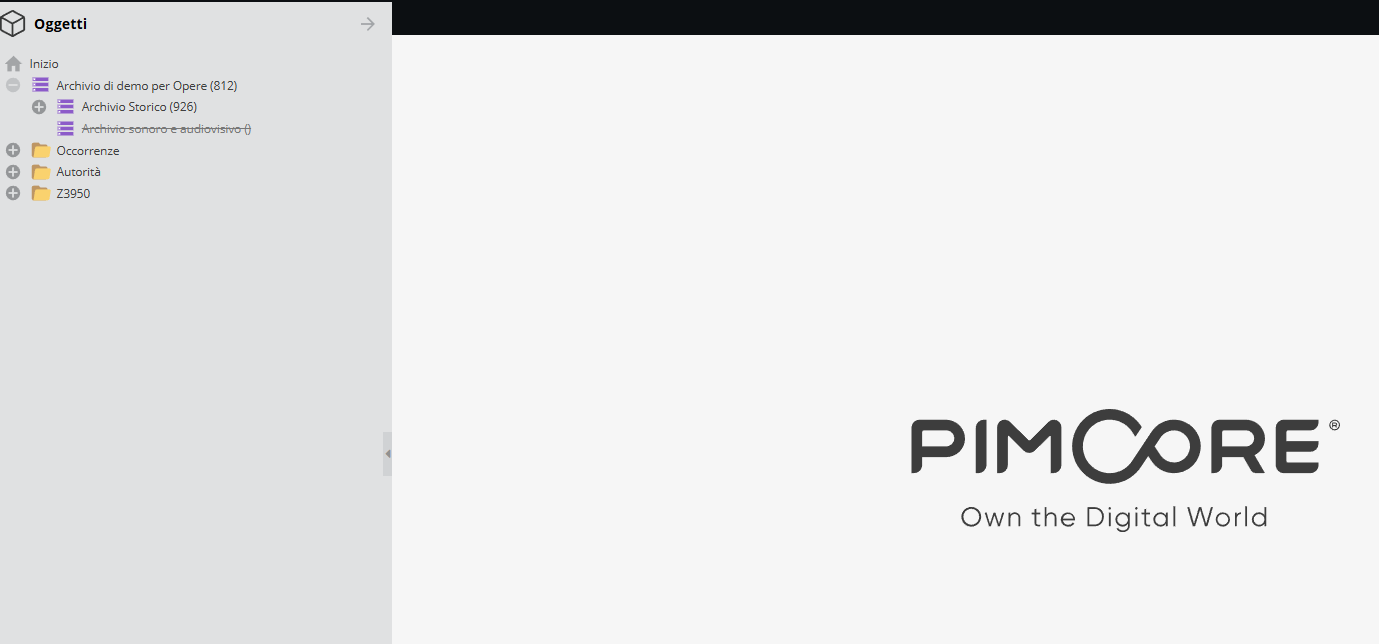
The Fonds reflects the actual logical structure of preserved materials, supporting multi-level hierarchies (Subfonds/Section/Collection/Level, Files, Inserts, Subfiles, down to individual Documentary units). A file holding production materials does not "contain" the Production in a hierarchical sense: they remain distinct objects linked via the "Linked events" field in the Relationships panel.
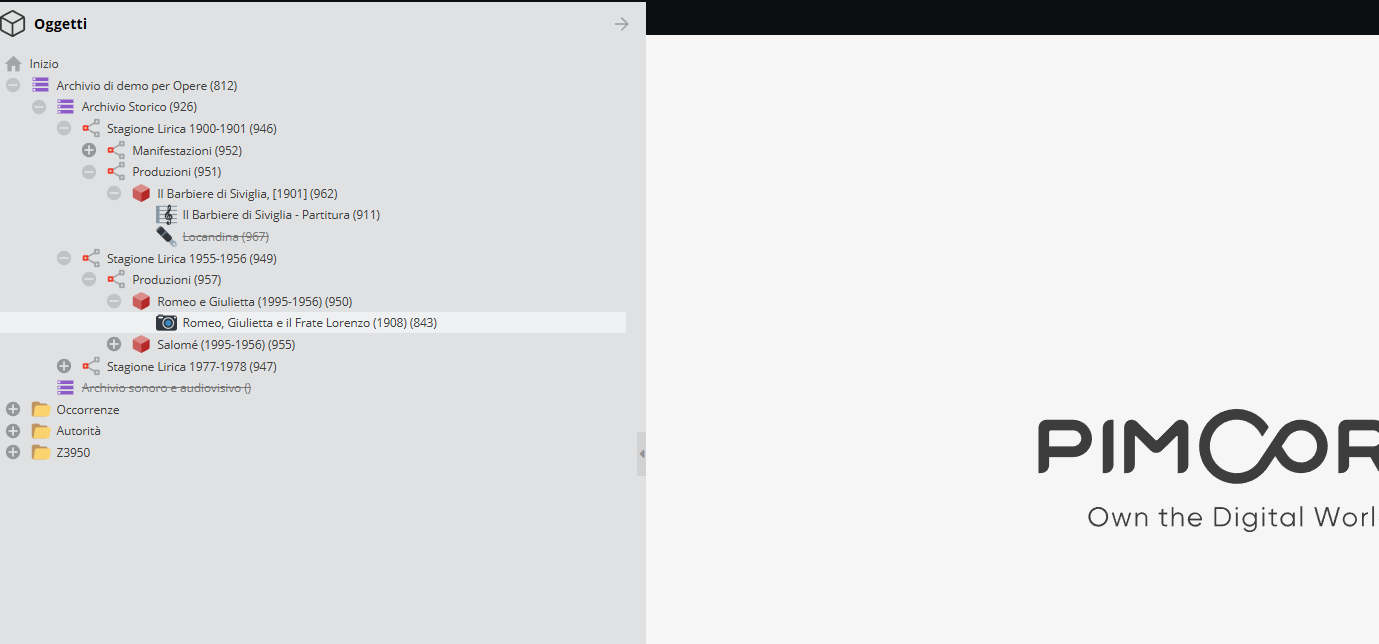
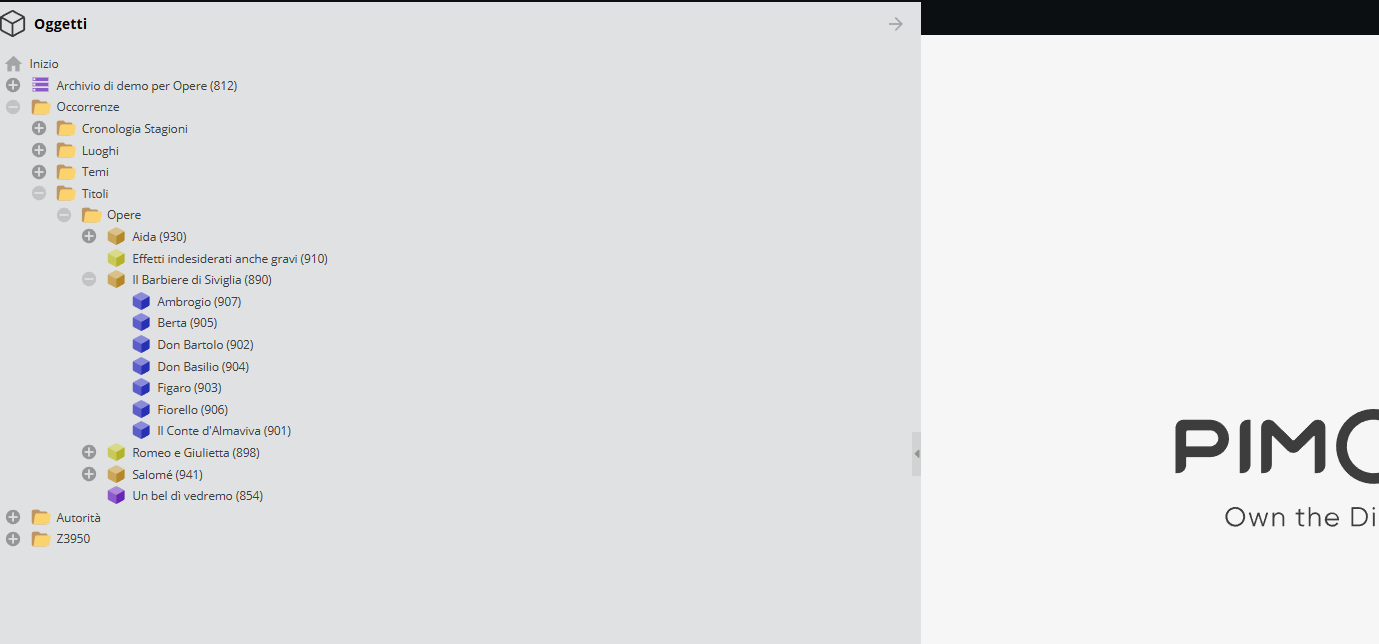
In this implementation, all classes external to the core archival hierarchy are gathered under a top-level folder called "Occurrences", hosting performance timelines, repertoire titles, and all Index entries.
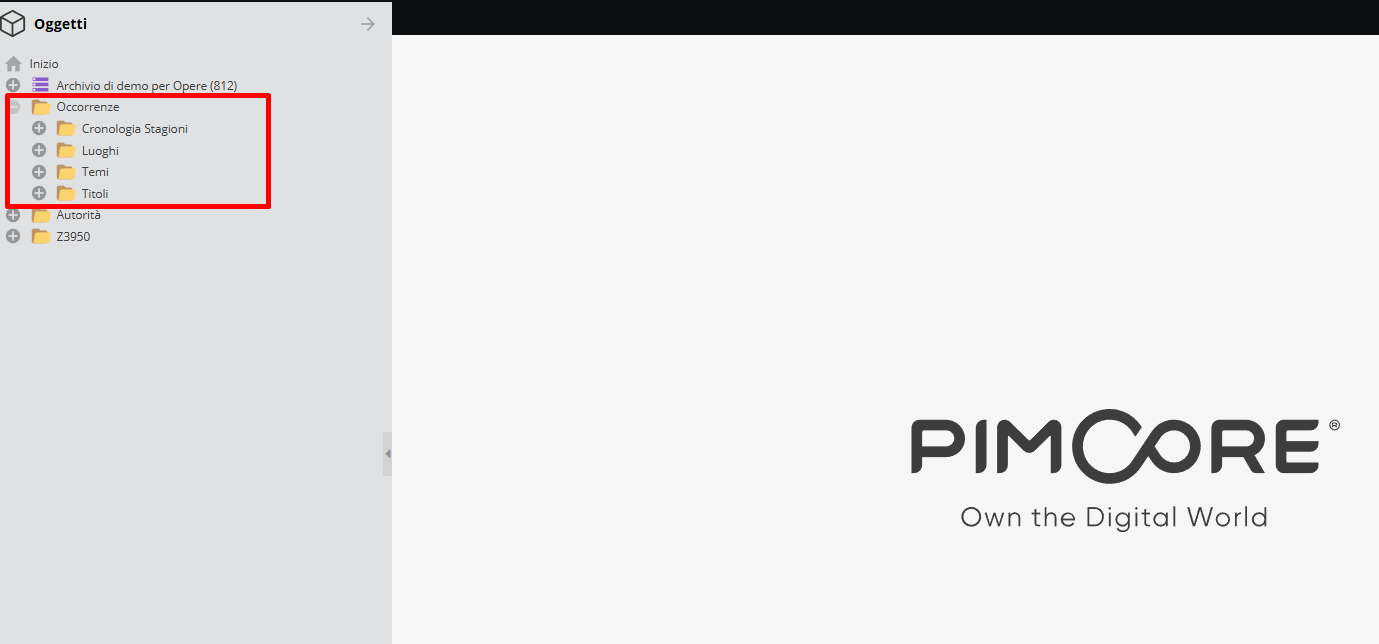
The Occurrences folder is divided into subfolders:
- Season Chronology holds Events objects (Season, Production, Performance, Concert, Recording/Session, Manifestation), nested chronologically — each Season contains its Productions and Concerts, and each Production contains its derived Performances. This allows reading an institution's season-by-season history at a glance.
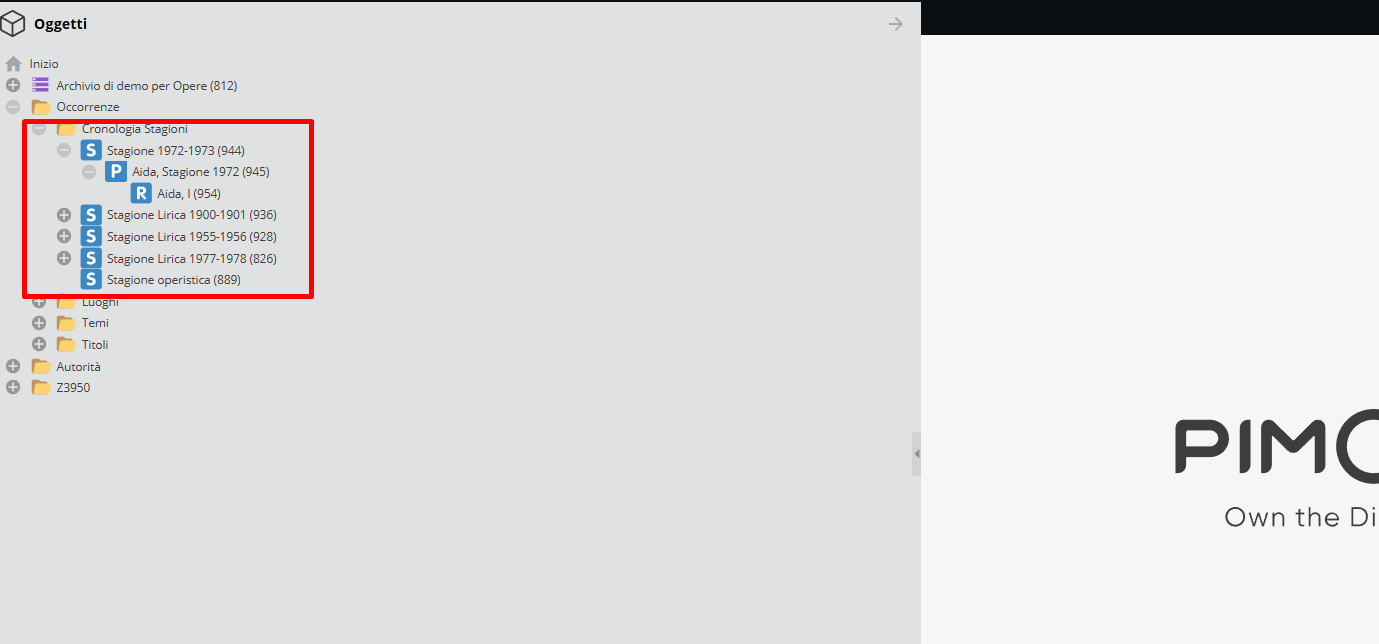
- Titles holds the repertoire catalog (Musical Work, Play/Theatrical Work, Choreographic Work, Piece/Track), with Characters nested directly under their parent work.
-
Authorities, with subfolders Institutions and People, holds ISAAR(CPF) authority records — theatres, opera houses, and institutions as Institutions; performers, directors, composers, and individuals as People.
-
Places holds Place records from the Index entries area.
-
Topics holds Topic records from the Index entries area.
Meanwhile, the physical conservation branch (Historical Archive, housing Archival complexes, Archival units, and Documentary units) remains nested under its archival bond, separate from "Occurrences" but constantly queryable alongside it via direct and inverse relationships (see section Direct relationships and inverse relationships).
The descriptive record: options and features
Clicking any object in the system opens its descriptive record.
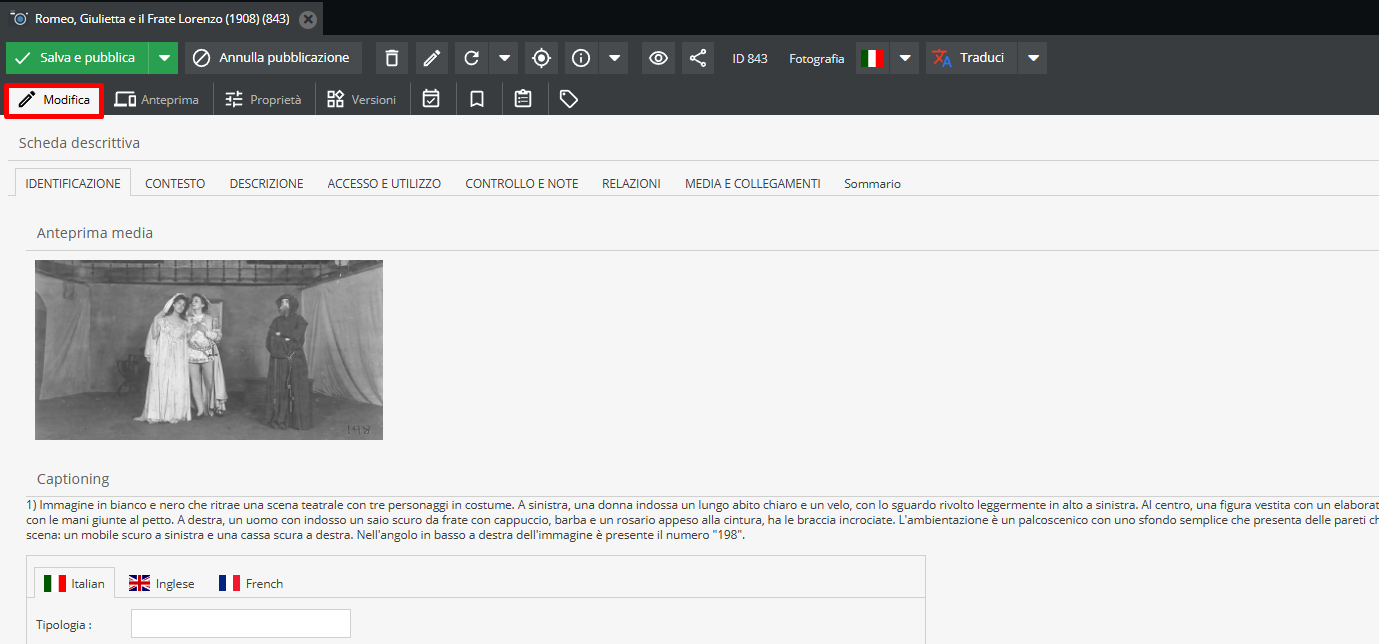
"Edit" tab
The record opens on the Edit tab, where field values across information areas can be entered.
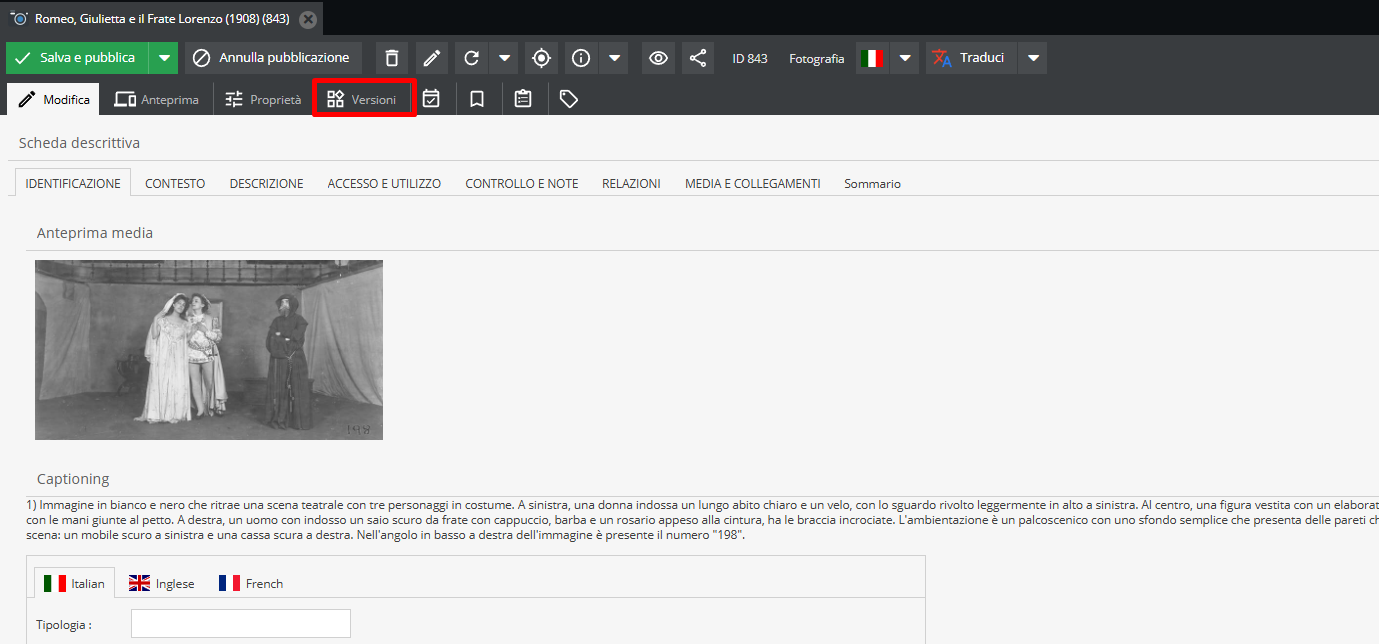
"Versions" tab
Displays all historical edits saved on the record, noting author timestamps.
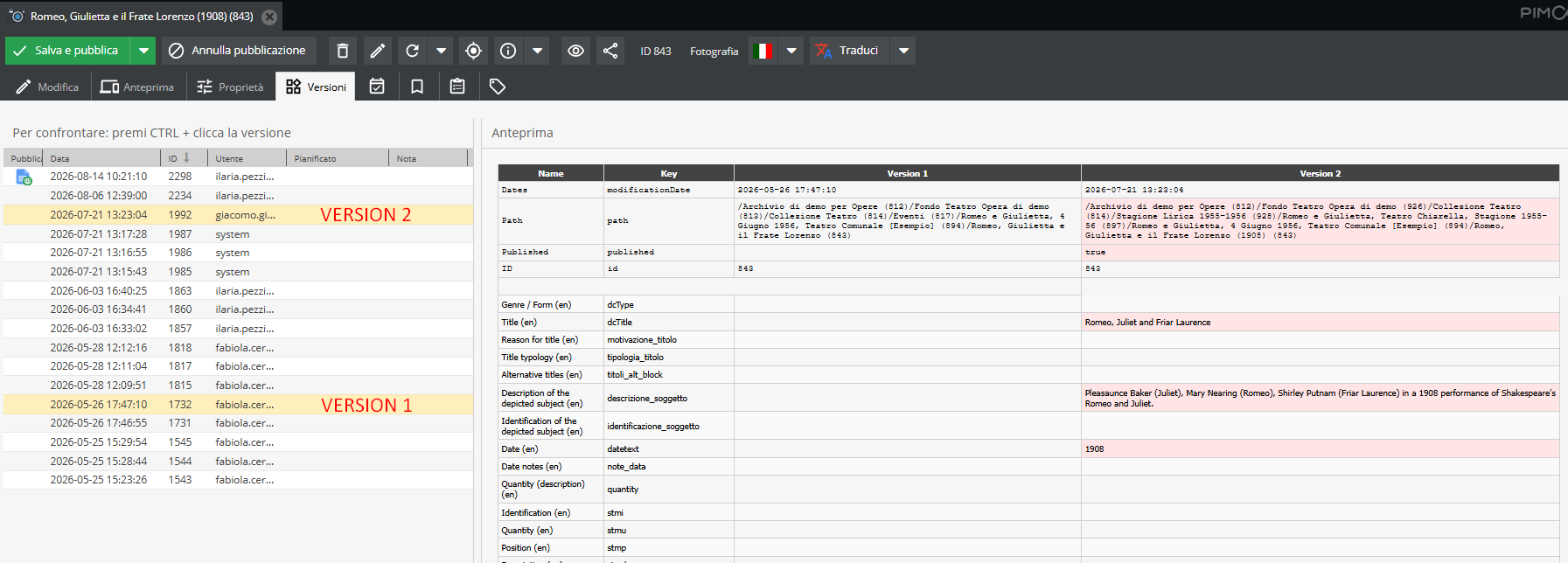
Compare two or more versions by holding CTRL + clicking the desired versions.
A comparison preview highlighting altered fields will be displayed.
You can revert to a previous version (making it current) by right-clicking it and selecting "publish".
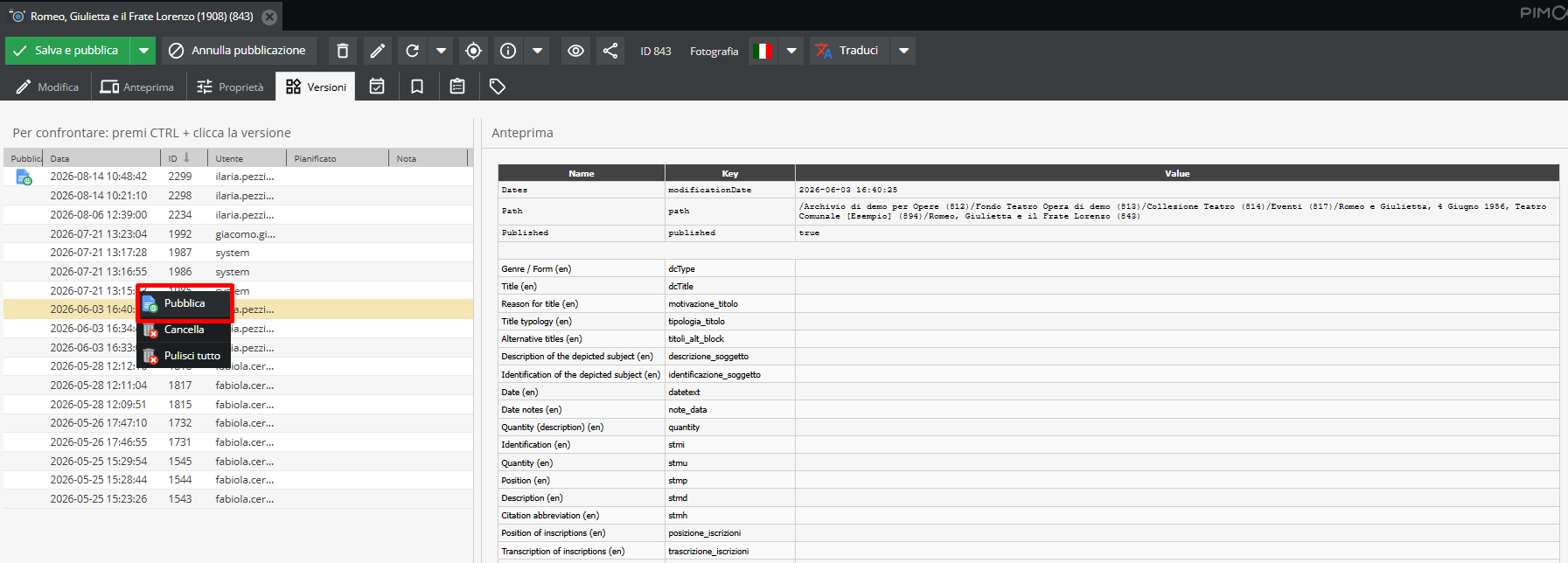
You can also clear specific historical versions or entire version histories from this menu.
Deleting version history is generally discouraged as a best practice.
"Dependencies" tab
Tracks all record dependencies, reporting active links with Media and Object records.
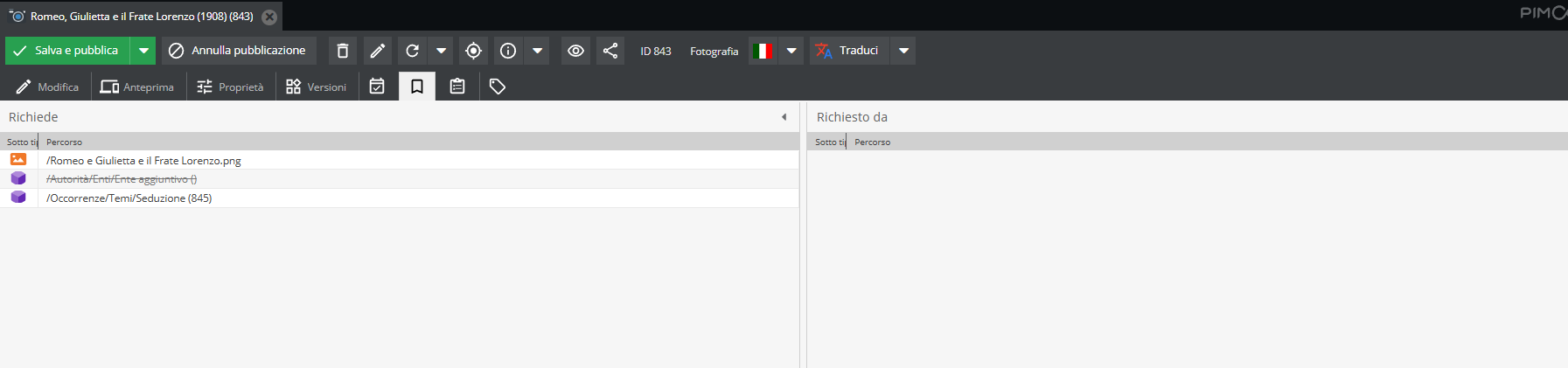
The "Requires" section lists direct relationships outbound from the record to other Objects or Media.
The "Required by" section lists inverse relationships, showing external records that link inbound to this object.
"Tags" tab
The Tags tab is used for tagging descriptive units: assign one or multiple tags (filters) to the open record.
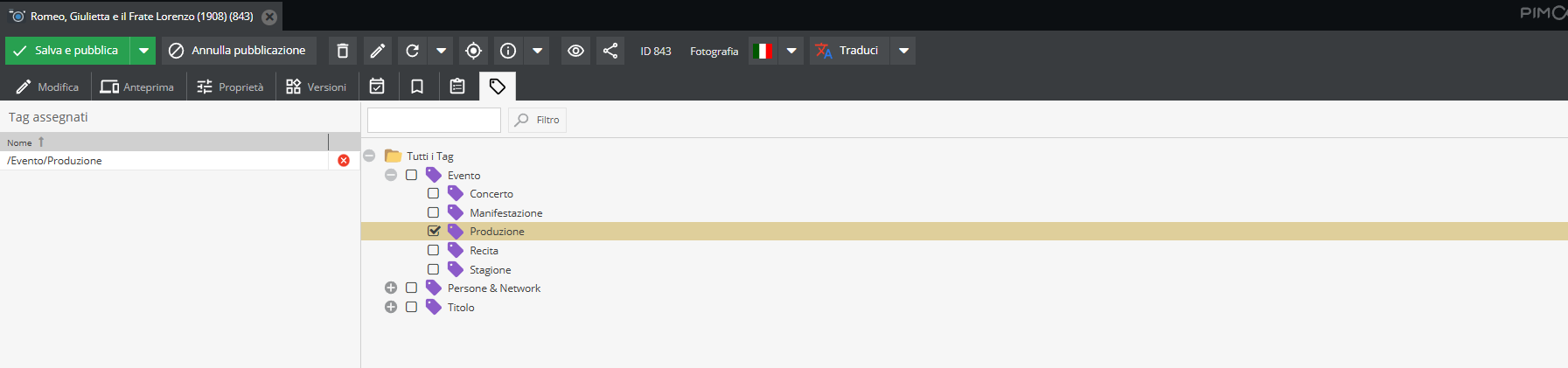
Perform batch tagging when an object acts as a parent node ("mother record") to lower-level descriptive units.
Navigate to the parent node, open its "Tags" tab, choose desired tags, and click Apply tags to children.
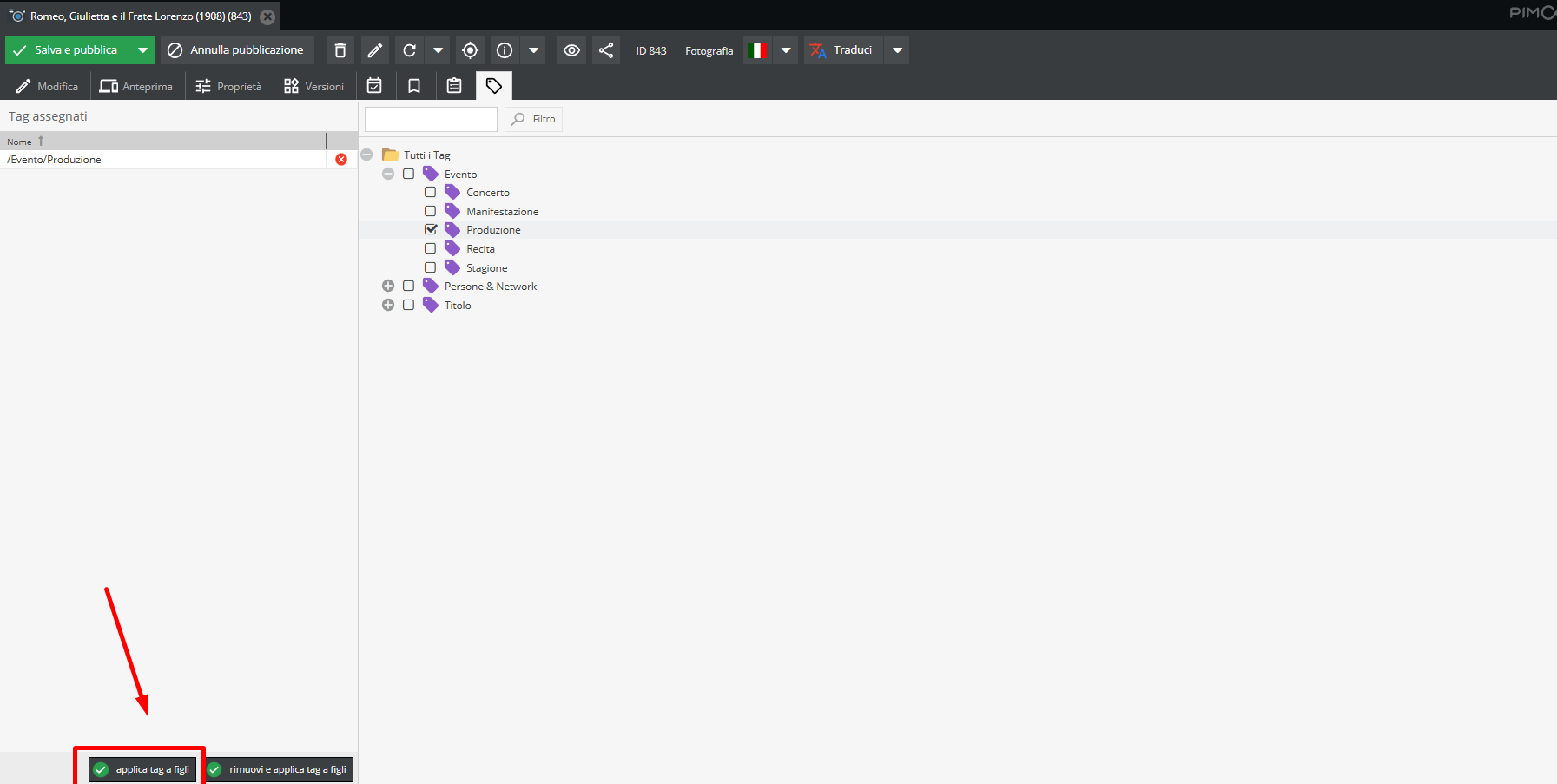
For tag configuration and structuring, see Applying tags and Tag configuration.
Batch tagging causes all subordinate units under the parent node to inherit these tags. This operation cannot be undone. It should only be performed by trained staff who have completed platform training with Promemoria Group.
"Save" tab
Unsaved edits trigger an asterisk (*) next to the record title.
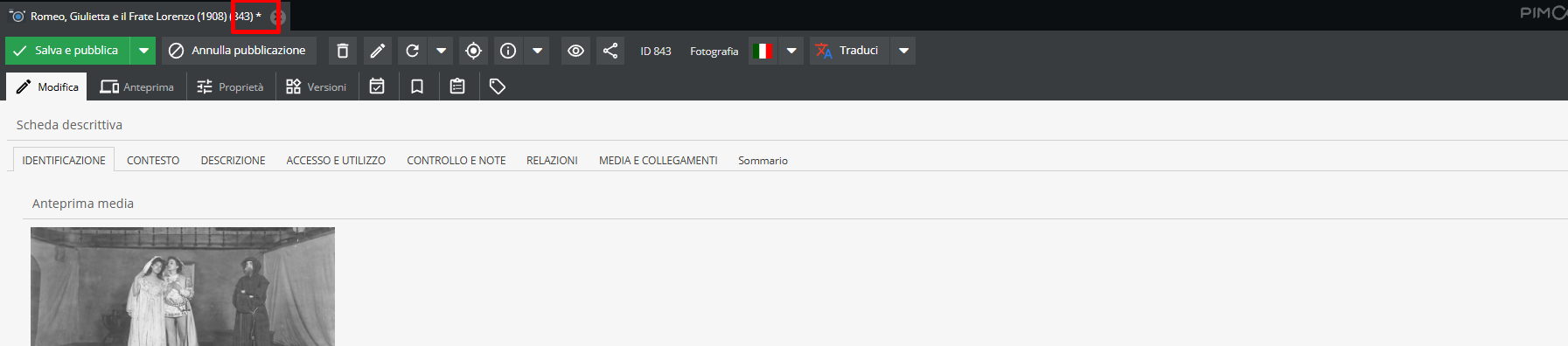
All edits must be saved to take effect.
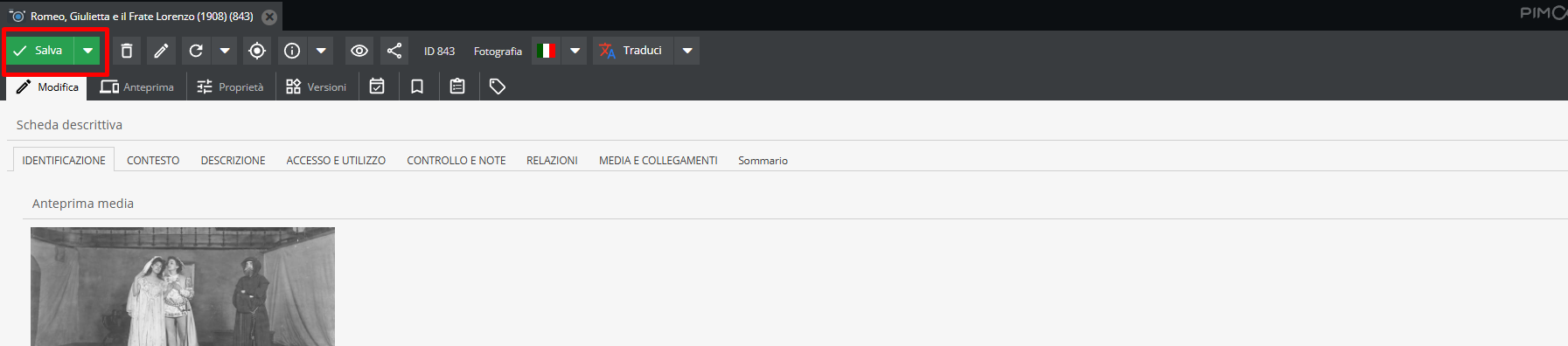
Select Save without publishing via the green Save button, or choose Save & publish from the drop-down menu.
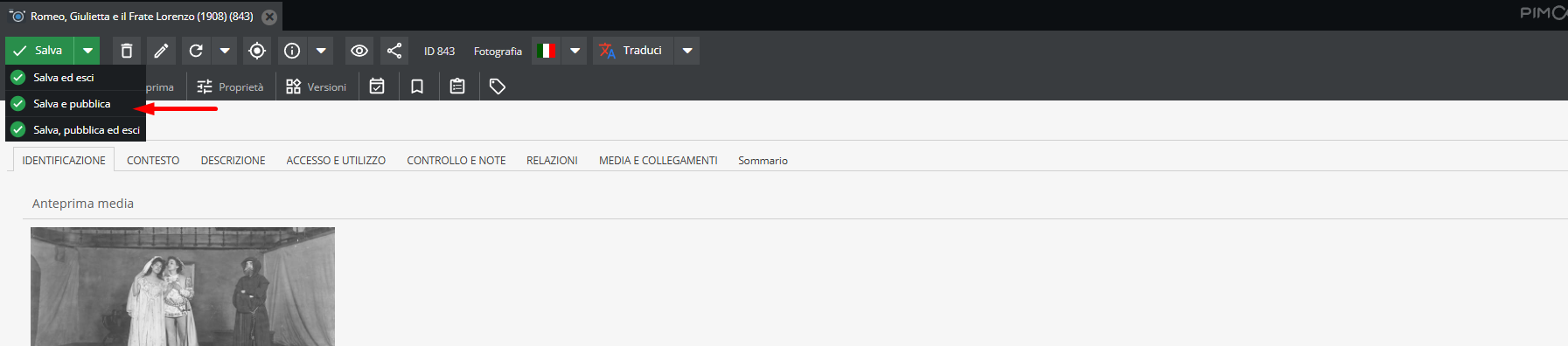
Saved but unpublished records (hidden from front-end view) display with a strikethrough title in the tree sidebar, whereas published records render in regular text.
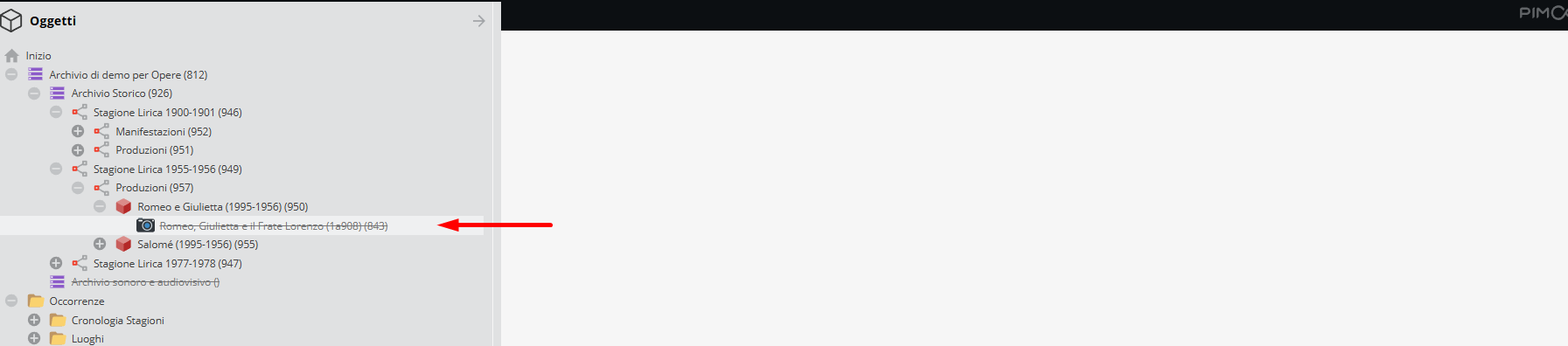
Published records can be reverted to back-end visibility only by clicking the grey Unpublish button.
"Trash" tab
Click Delete to remove the descriptive record.
"Rename" tab
The Rename option allows modifying the record's "Title" field.
"Reload" tab
Refreshes the current descriptive record view.
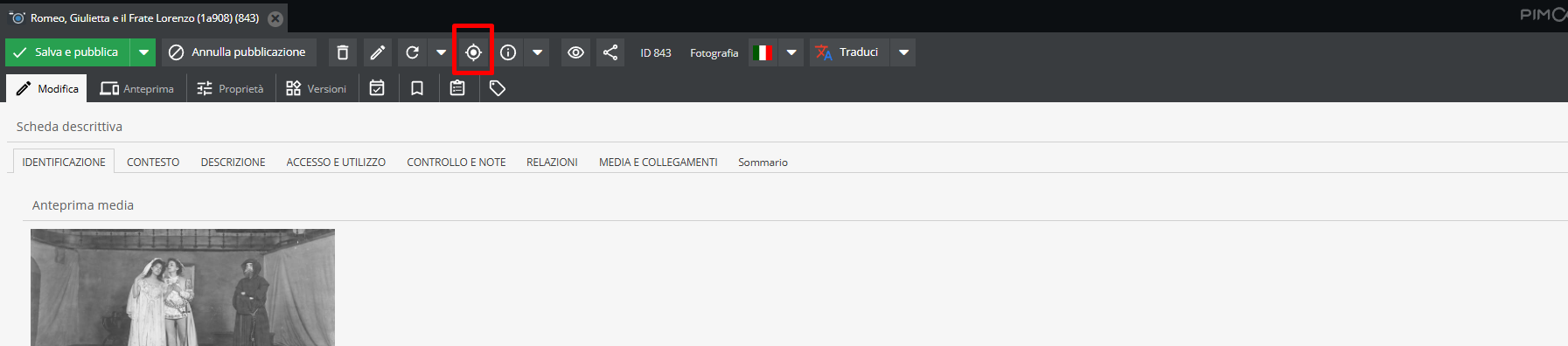
"Show in tree" tab
The Show in tree option locates and highlights the open record within the navigation sidebar tree.
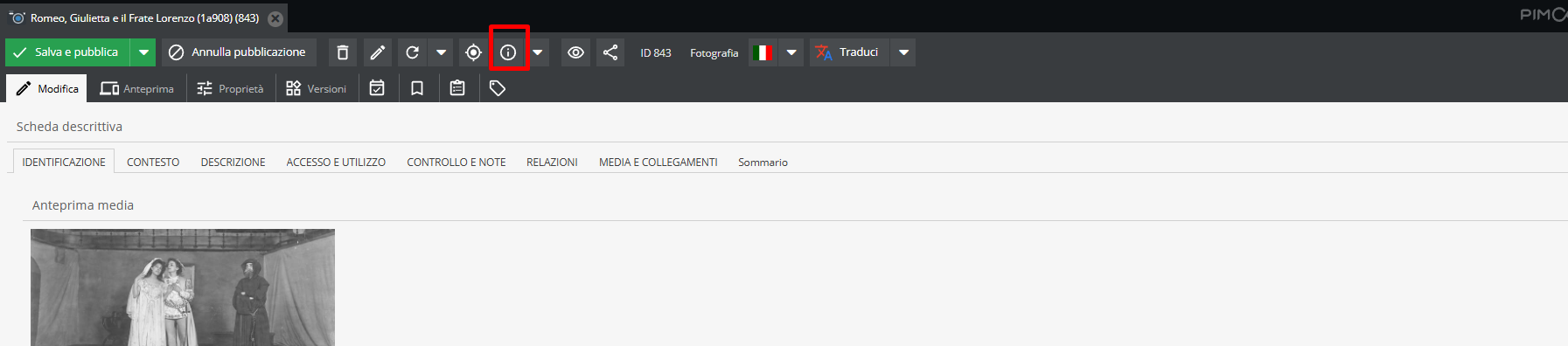
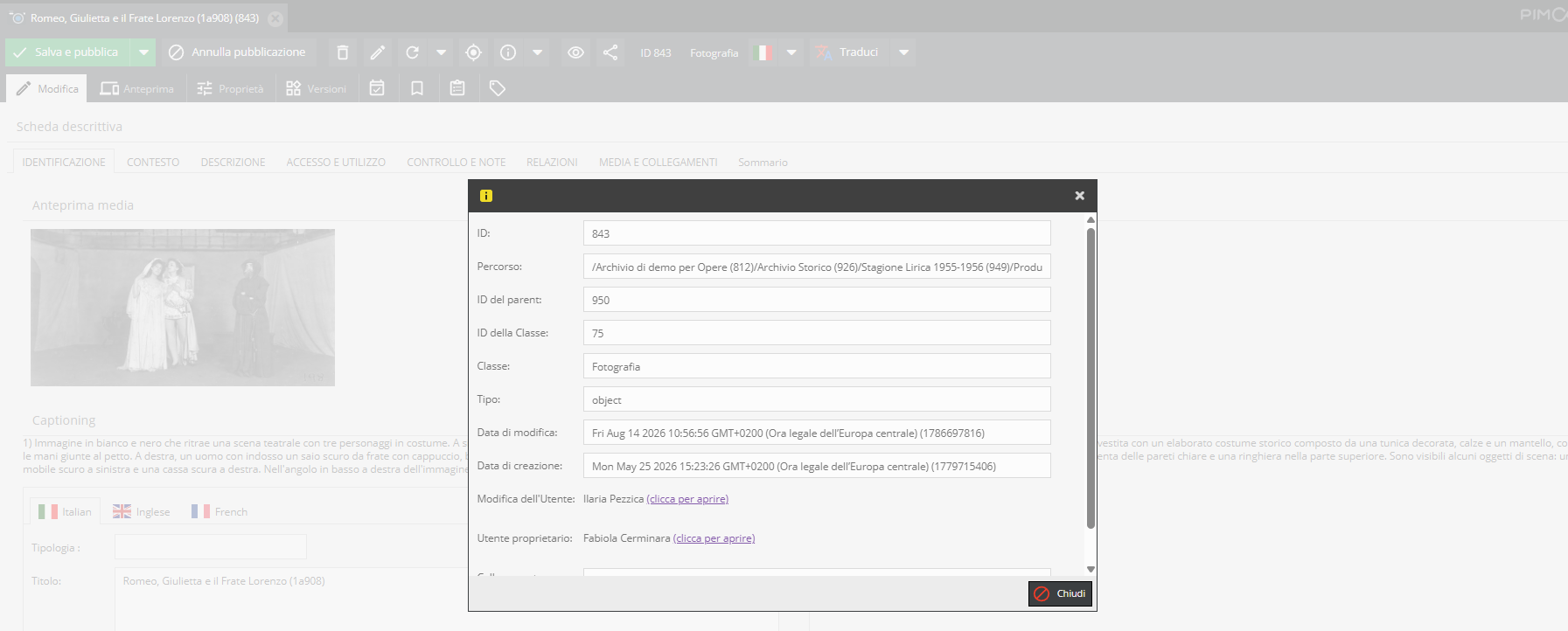
"Properties/Info" tab
Displays system properties of the record: object class, parent ID, creation date, modification date, and deeplink URL.
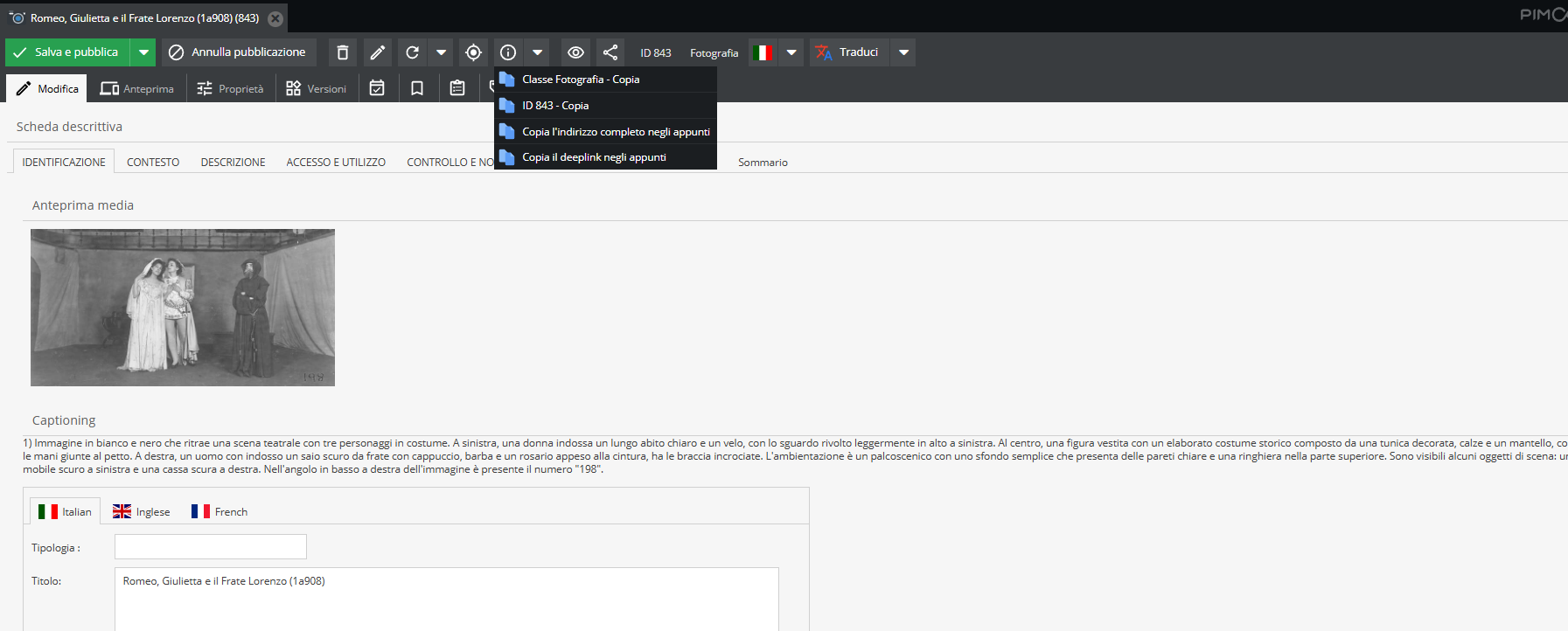
Clicking the arrow adjacent to the section opens a drop-down menu to: copy ID to clipboard (the automatically assigned unique record integer); copy full path address; or copy deeplink (the direct system URL path to the Pimcore record).
"Translate" tab
The "Translate" button processes specific localized text fields.
Select source and target languages from the drop-down (e.g., Italian to English): the automated translation engine populates the target language tab fields directly.
The "Translate" feature works on translatable text fields only; it cannot translate drop-down options or multi-select fields.
For further details, see Localized fields.
The "Grid" option and batch object tagging
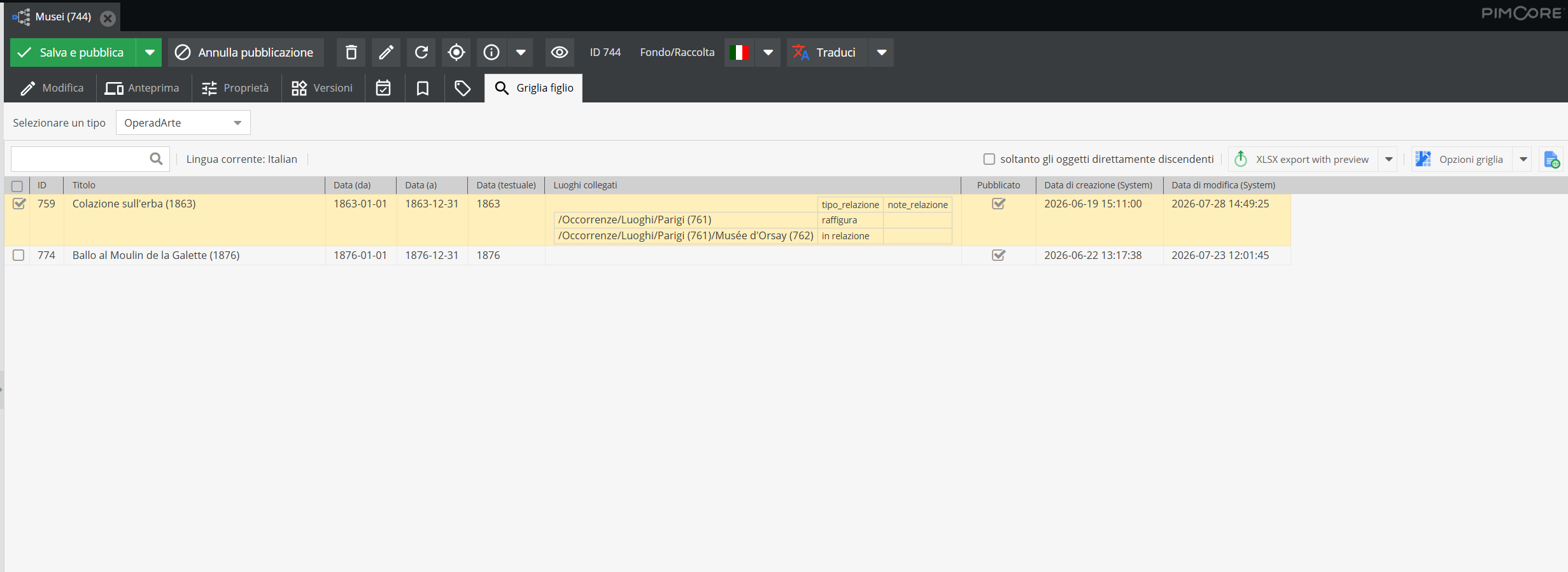
Double-clicking any parent node holding child units opens its content view when clicking Child grid.
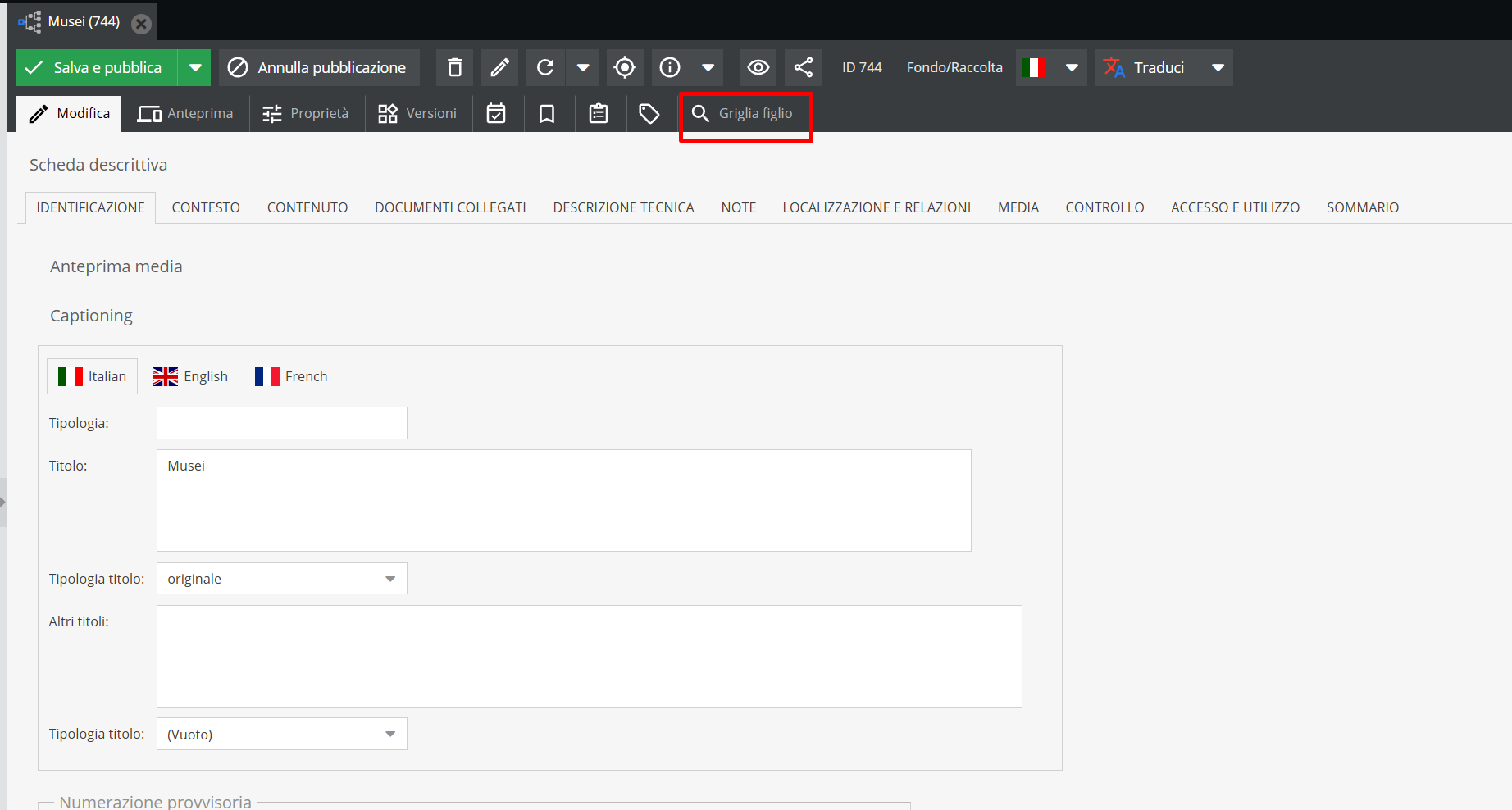
If child elements under a parent record belong to different object classes, select the desired class type from the drop-down menu.
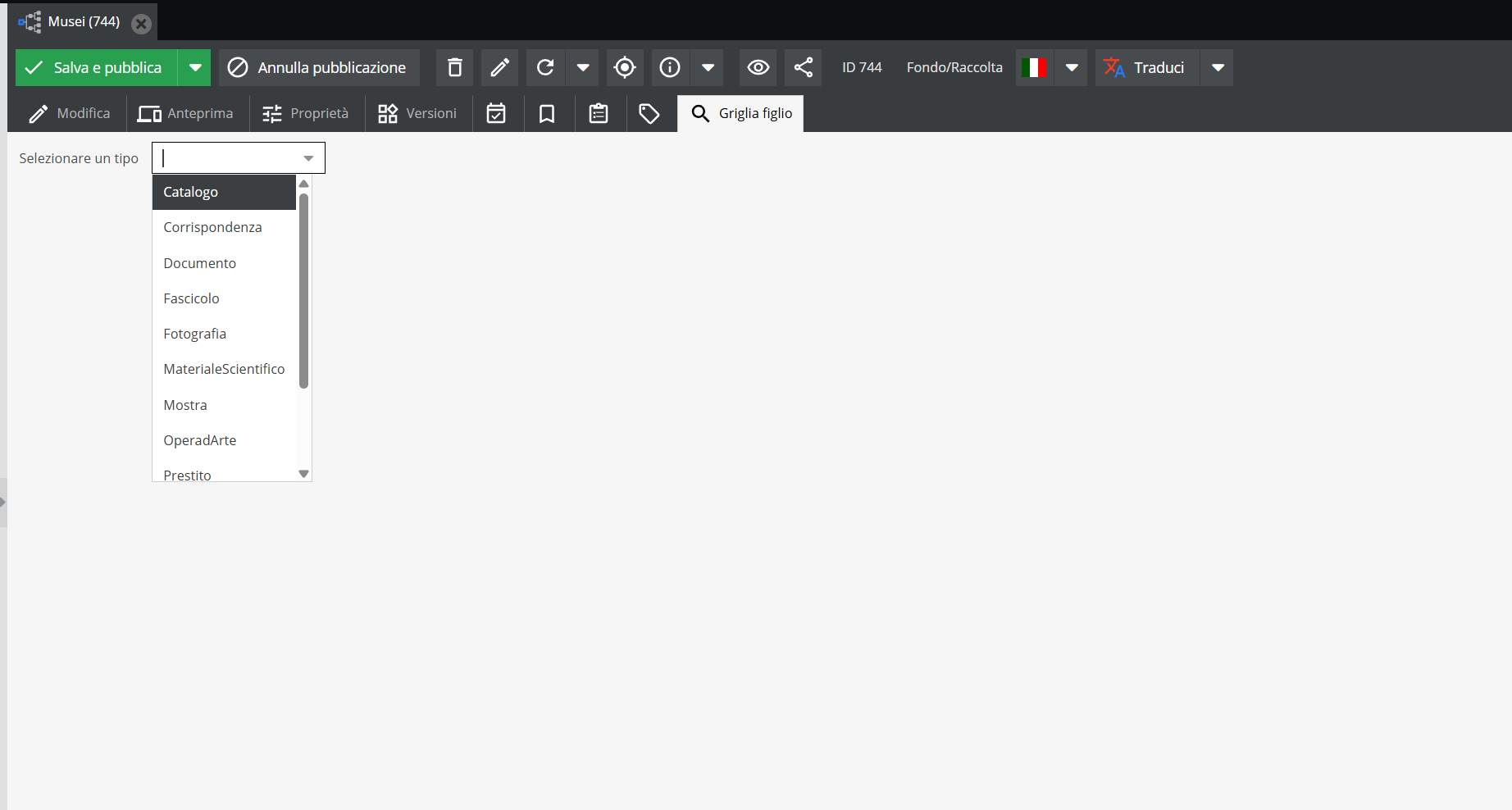
Multi-selection across different classes is not supported in grid view; distinct object types must be viewed separately.
Upon class selection, the Grid view opens.
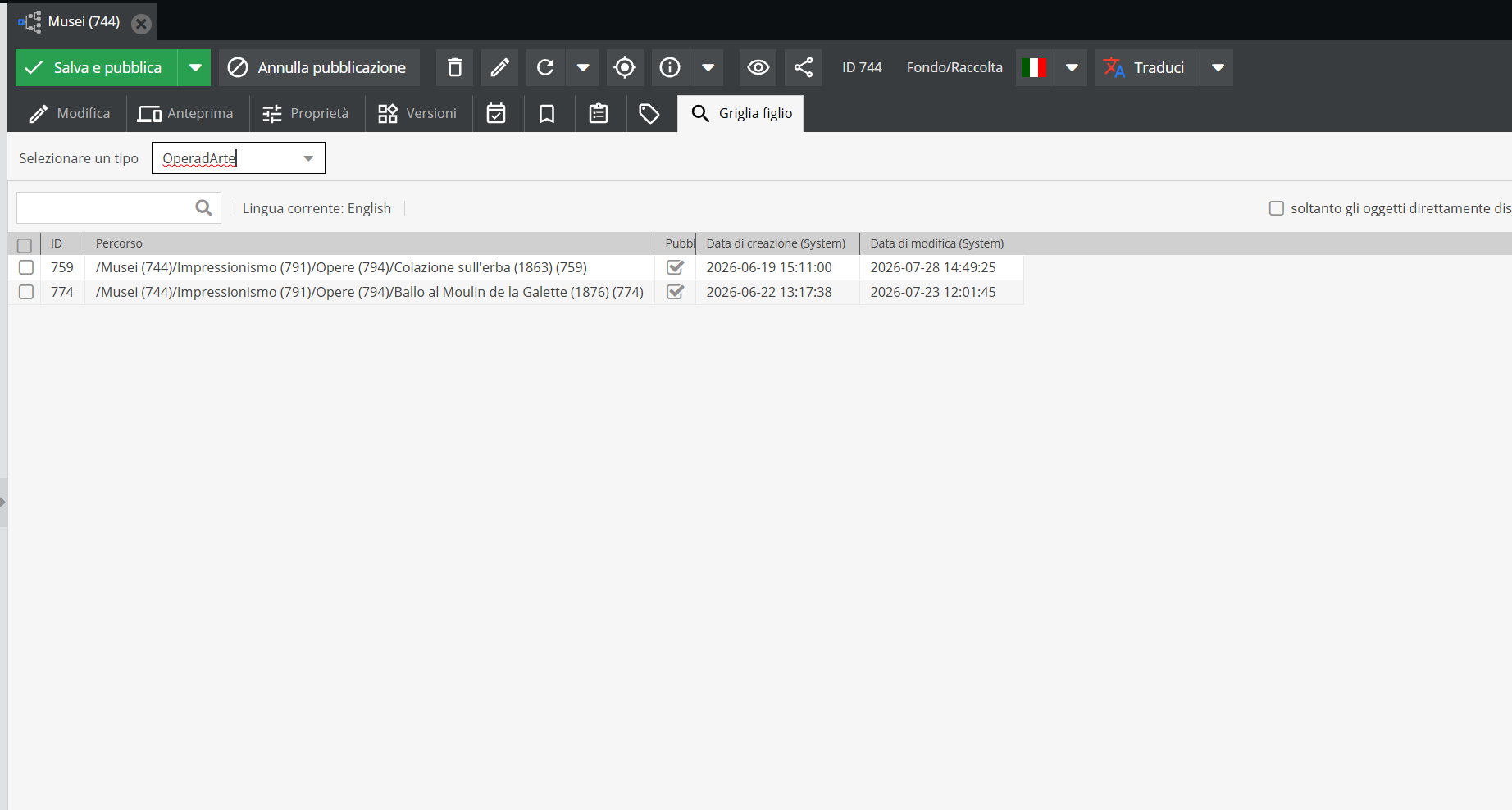
By default, the grid displays child records of the selected type (e.g., Performance) under the parent item with columns showing:
- Descriptive record ID;
- Item path;
- Publication status (checked if published, unchecked if draft);
- Creation date;
- Modification date.
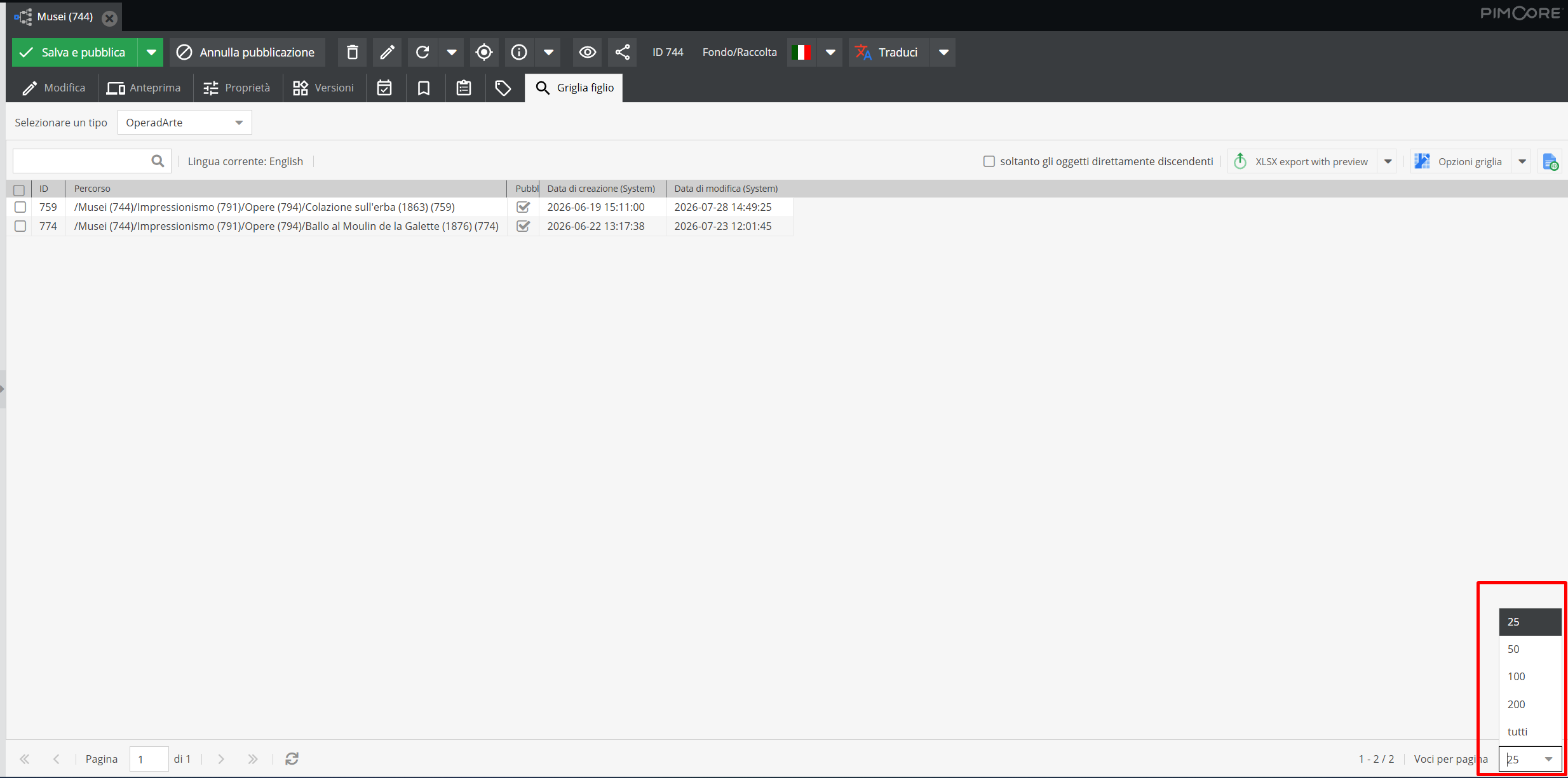
At the bottom right, select the number of records per page. Default display is 25 items per page, expandable to display all items.
At the top, click Grid options to customize visible columns, allowing catalogers to review, edit, delete descriptions, or batch-assign relationships.
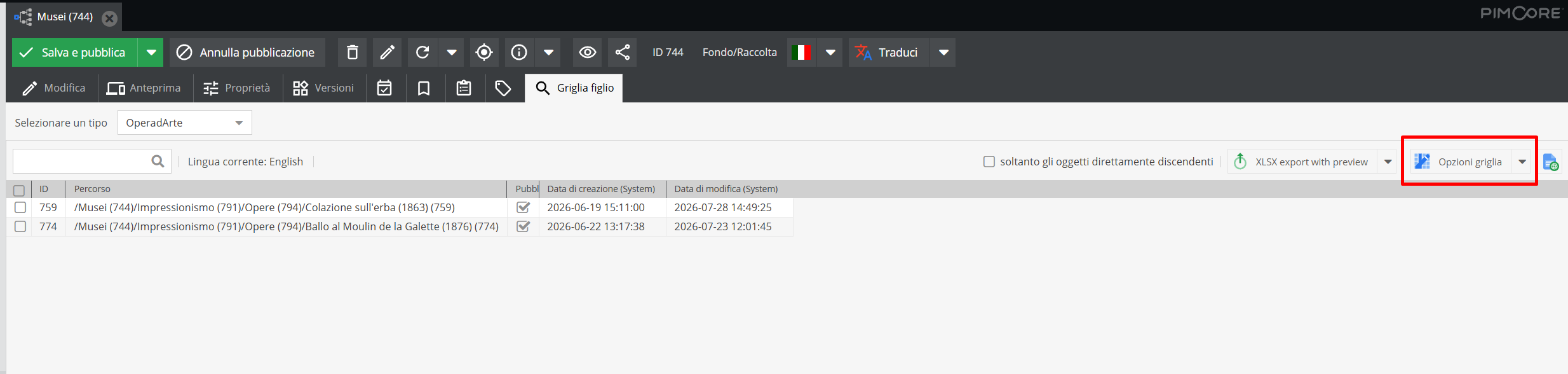
Clicking "Grid options" opens the Grid configuration dialog.
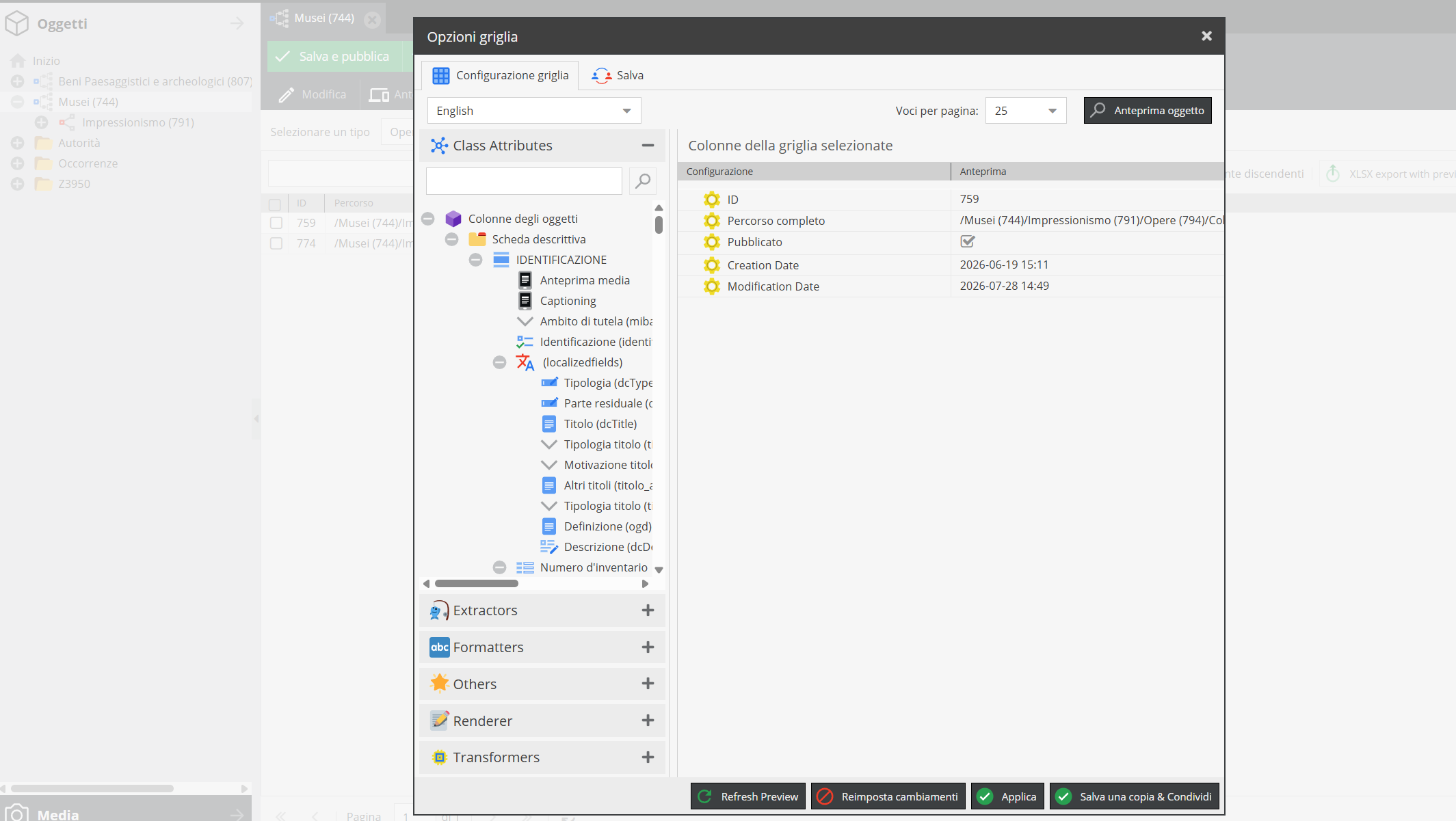
First, choose the language in which you want to view and edit descriptive fields.
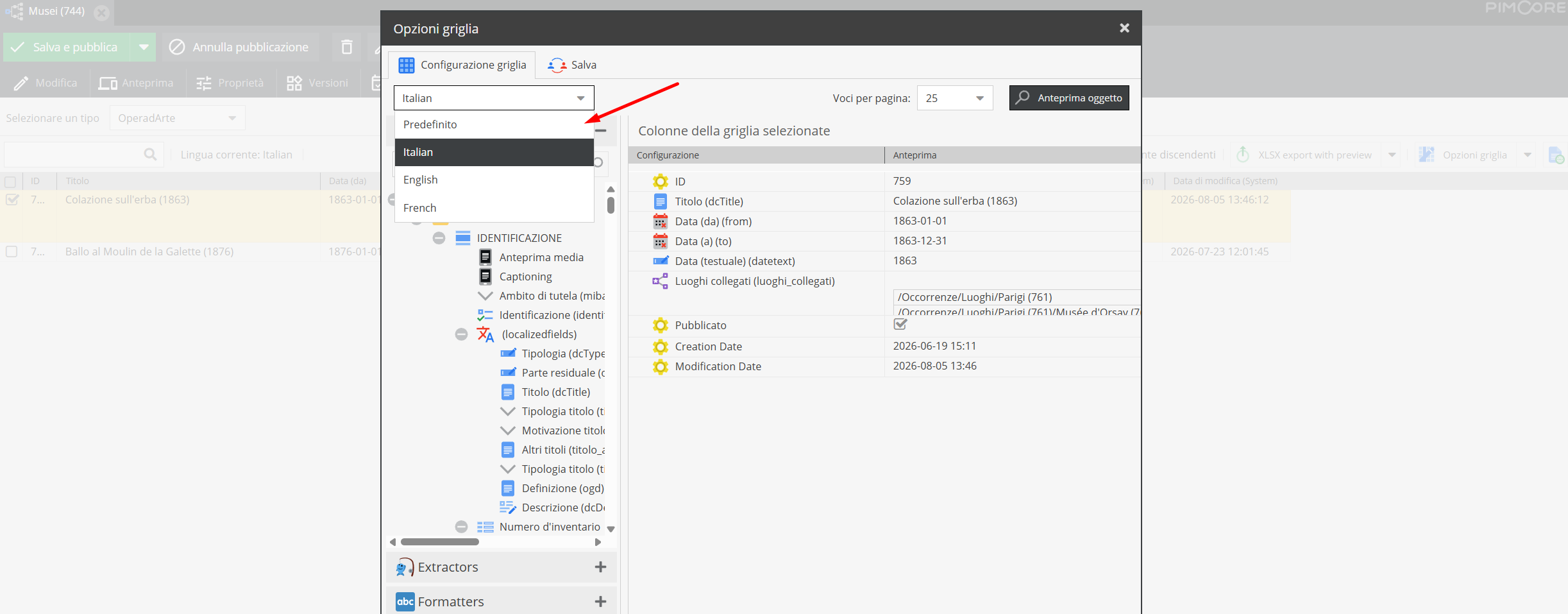
Available descriptive fields for the target class appear on the right (see sections Object classes and Information areas of the descriptive records).
Use drag & drop or double-click to add fields to grid columns: titles, descriptions, and relationship fields.
Dragging a field to an invalid grid target displays a red ✕ symbol, preventing the column from being added.
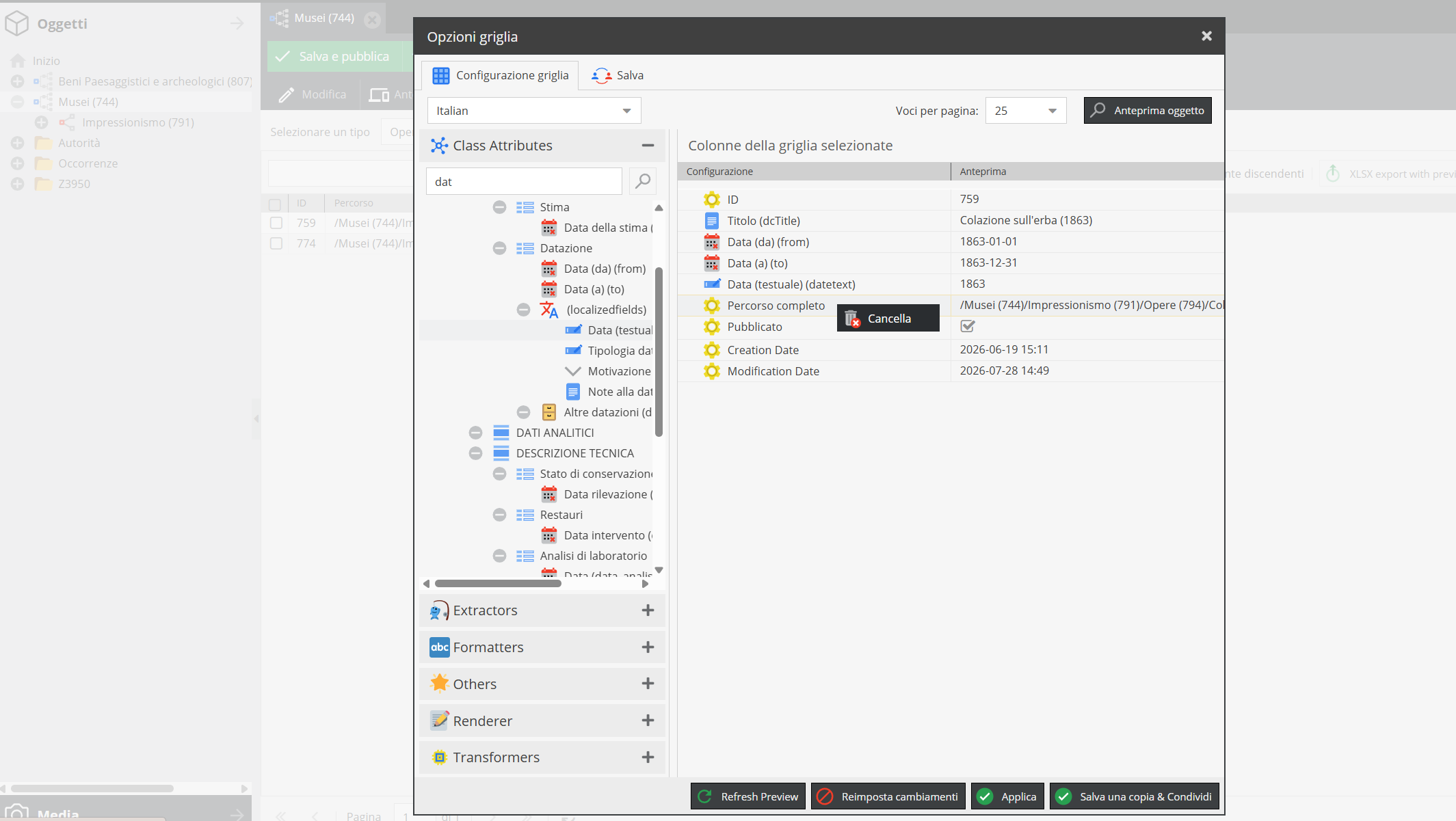
Successfully placed fields render in the column setup list:
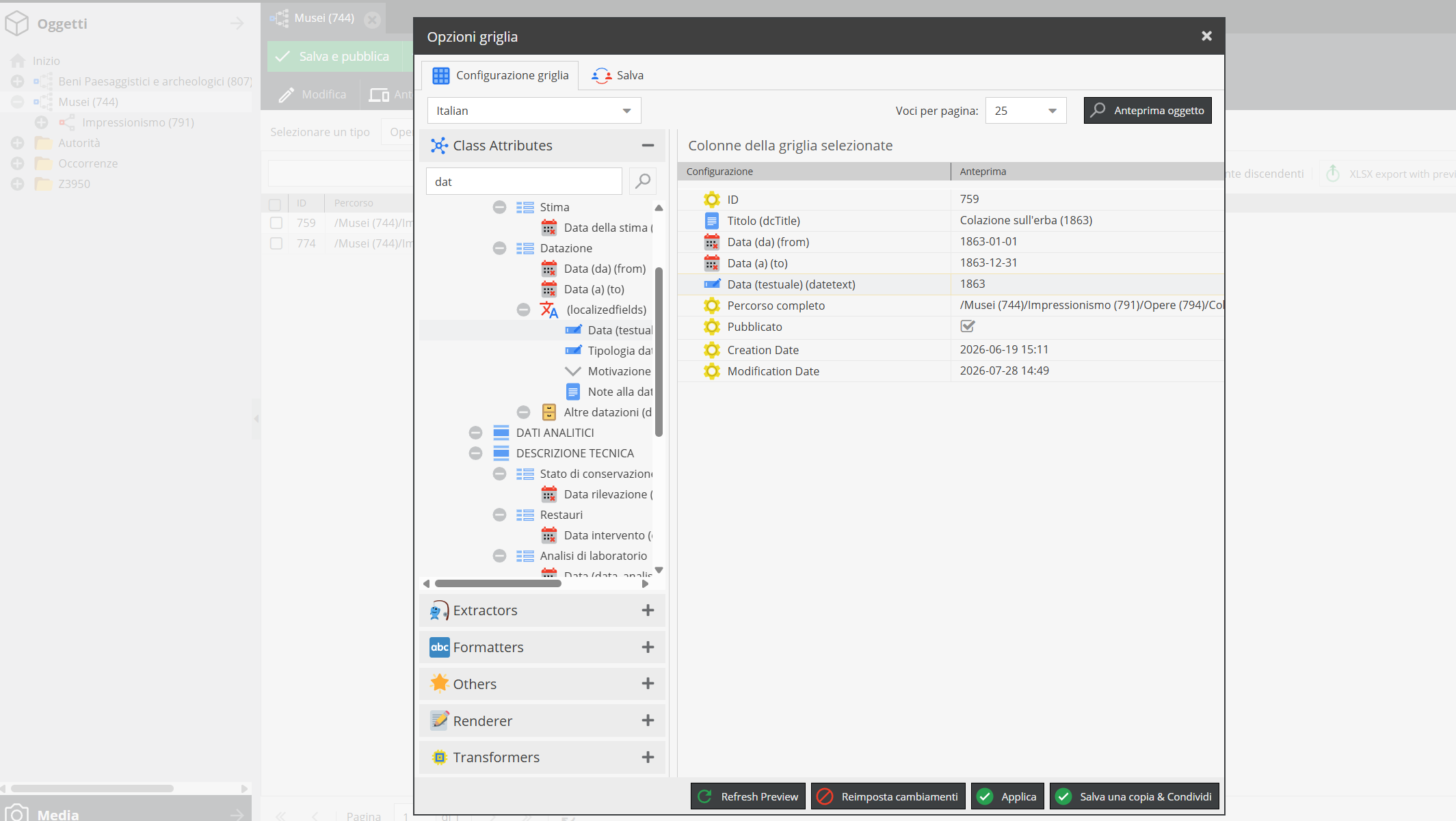
Remove any column field by right-clicking it and selecting Delete.
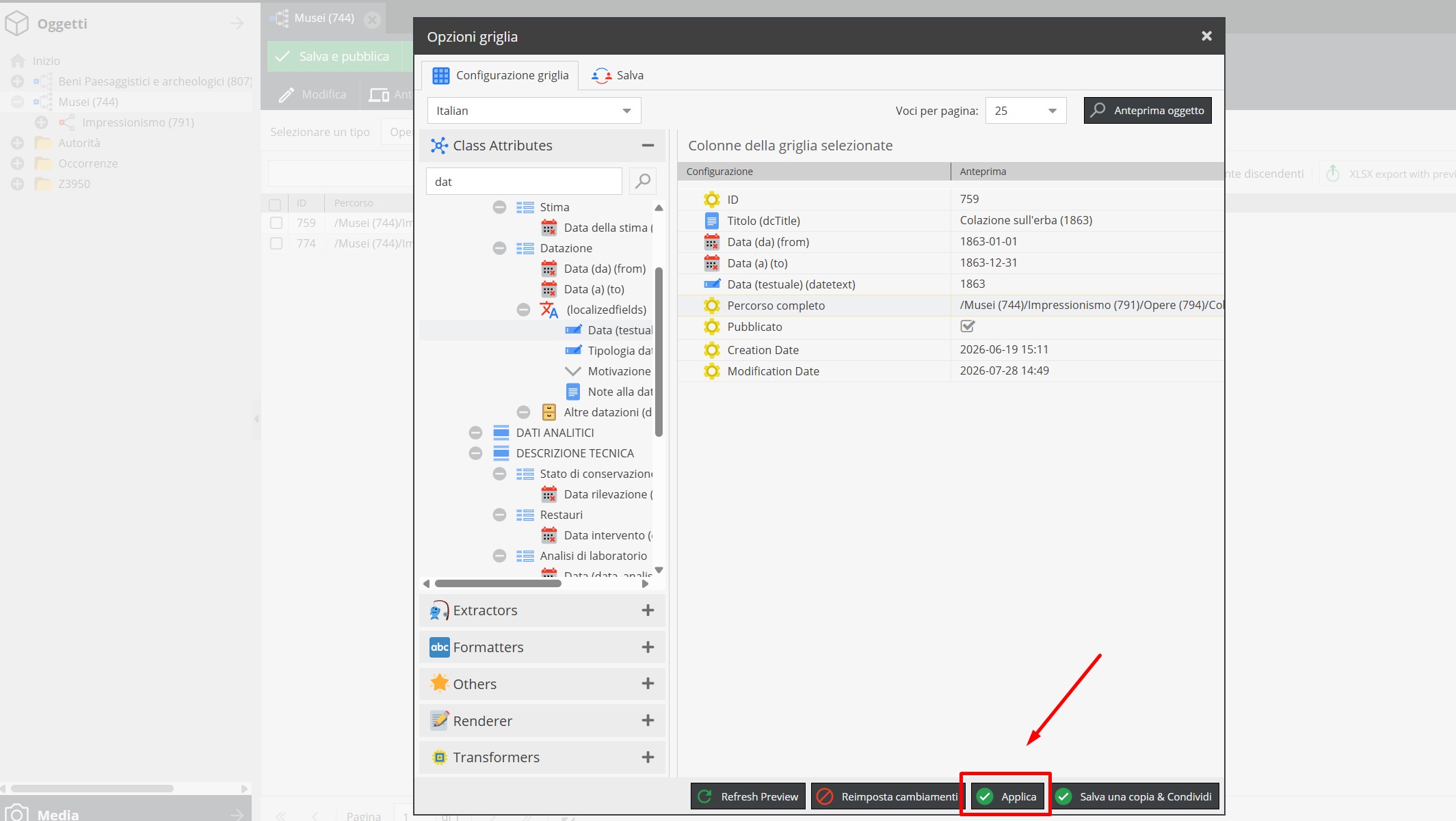
Click Apply to load the custom grid layout temporarily.
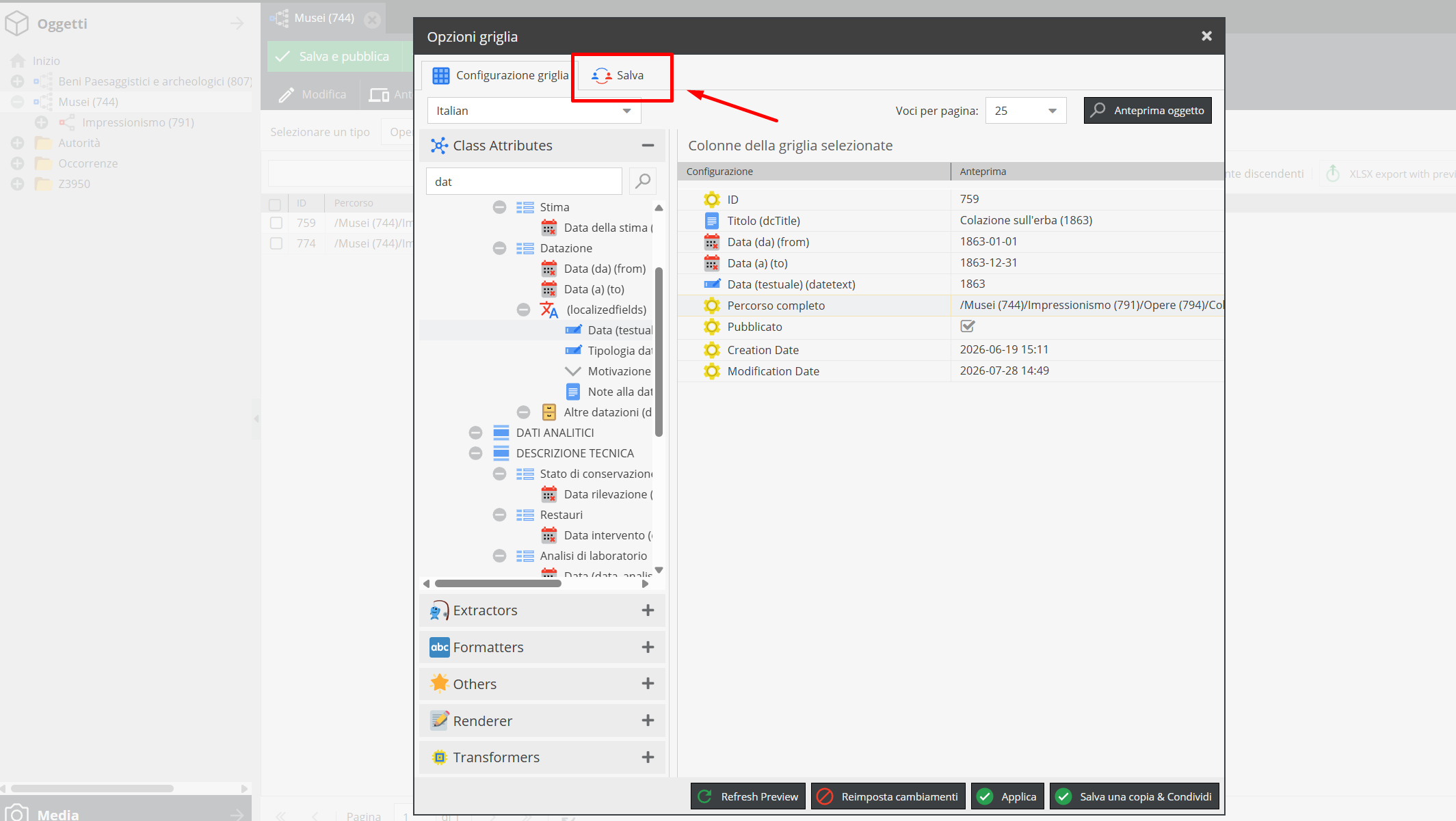
To save a re-usable layout preset, navigate to the Save tab.
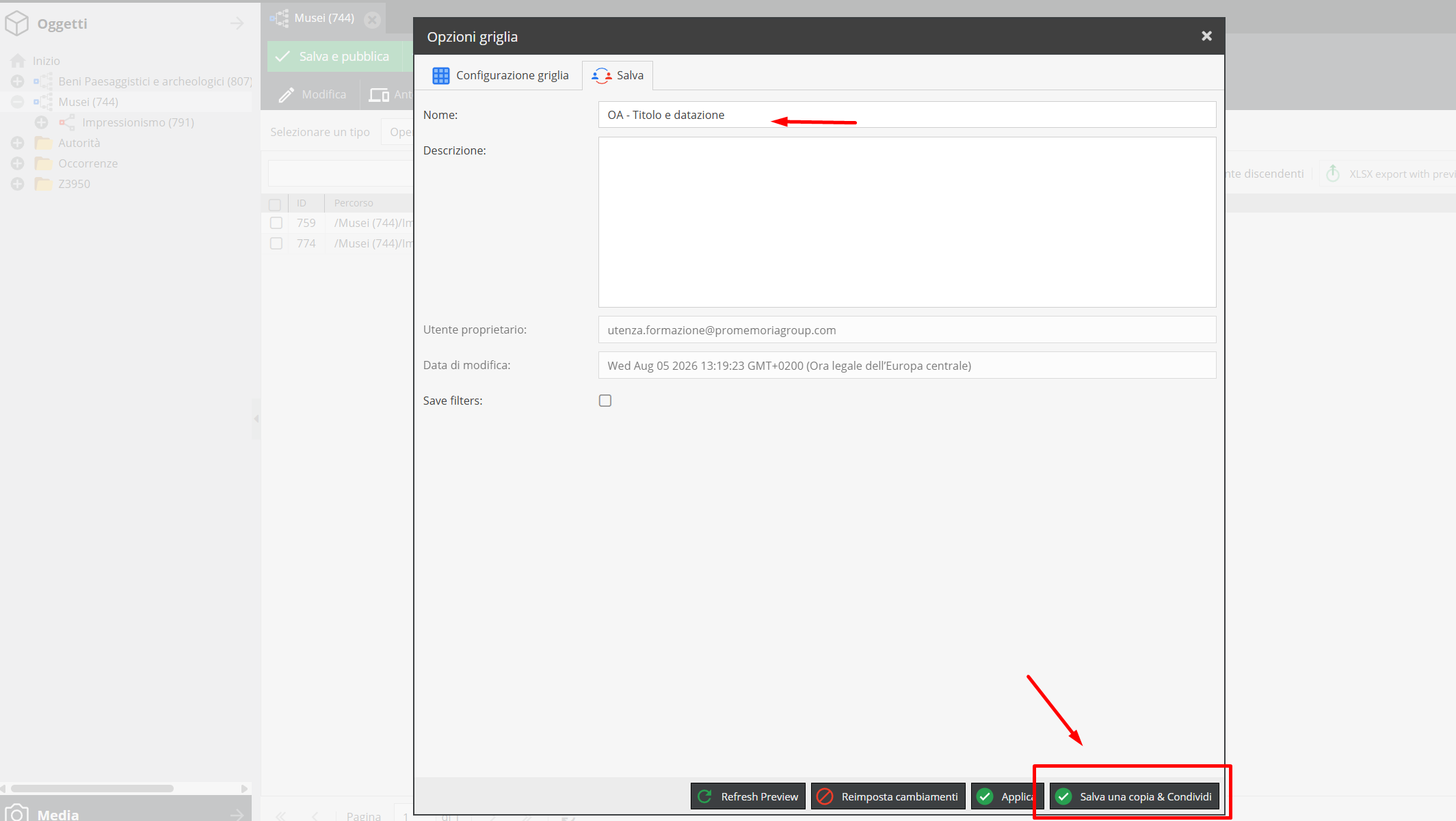
Enter a title and optional description for the layout, then click Save a copy & Share.
If you click Save a copy & Share without adding a title, a warning pop-up appears:
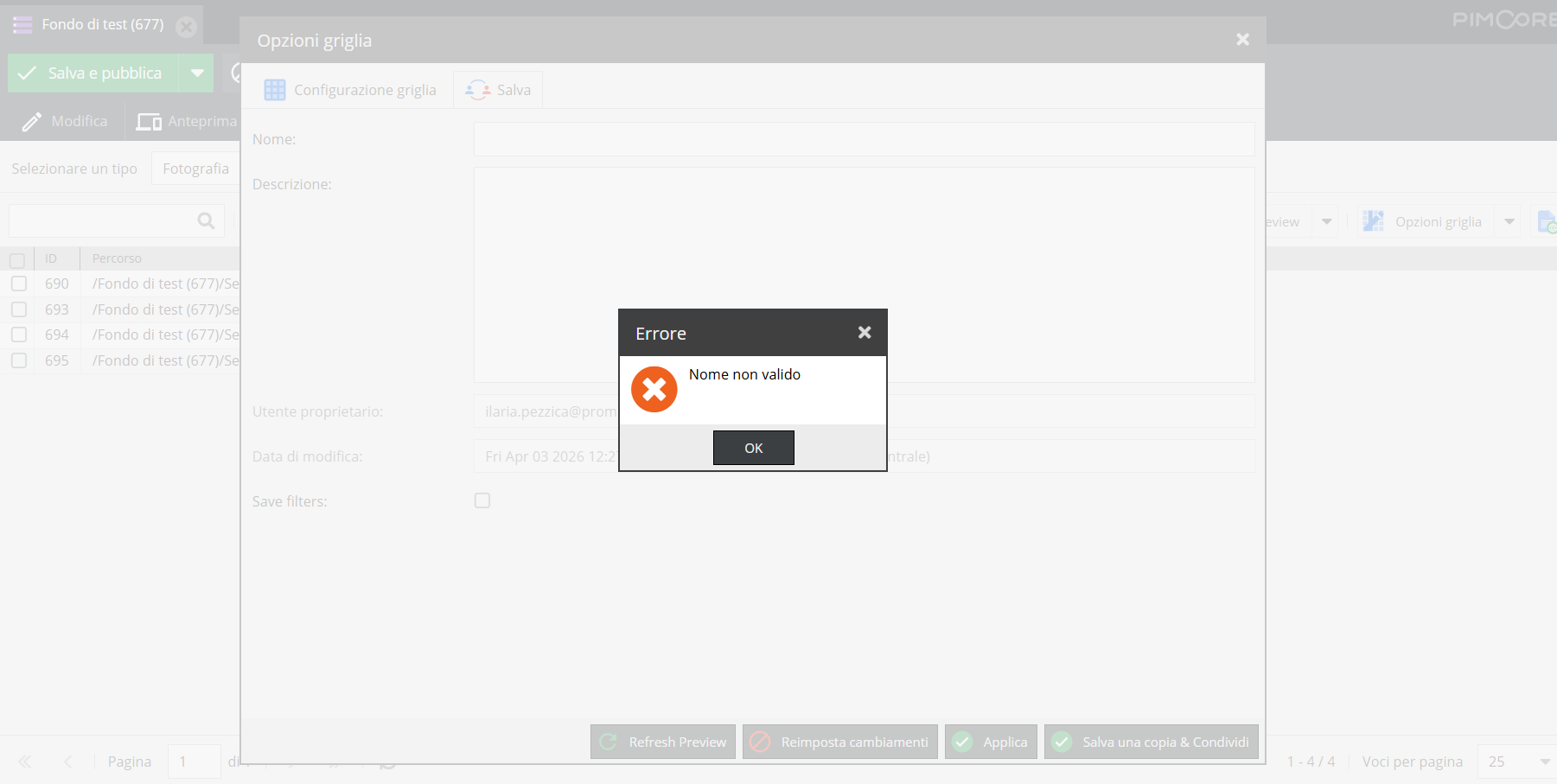
Click "OK" to return to the Save tab and enter a title.
Once saved, the grid configuration opens as a structured table view, enabling batch descriptive edits.
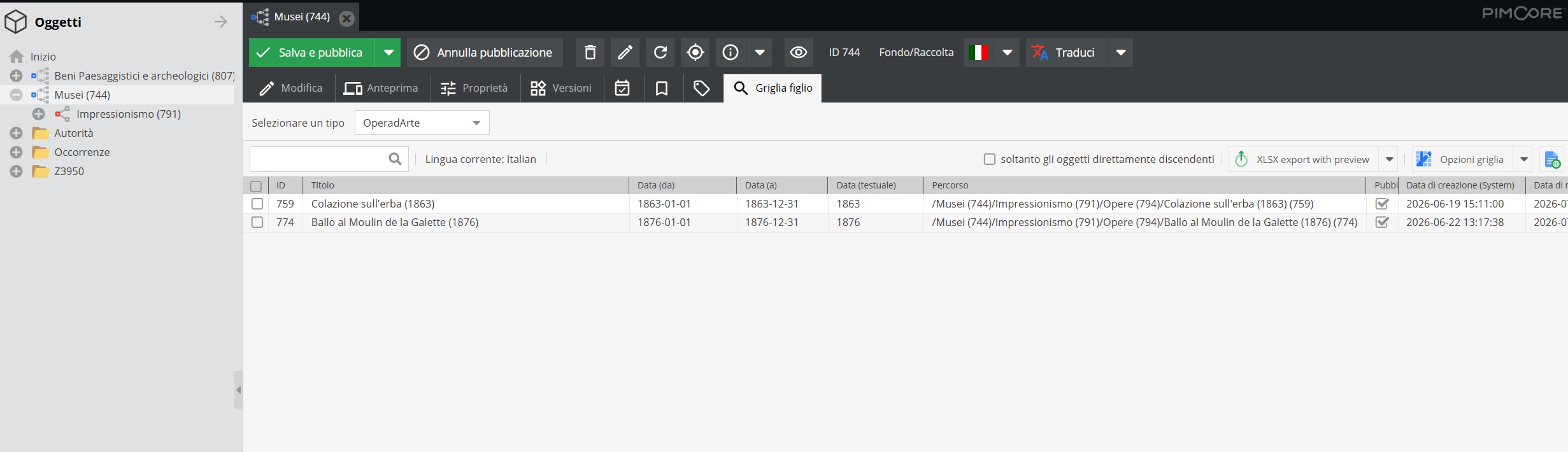
Multiple operations can be performed from the grid.
Editing information of individual descriptive units
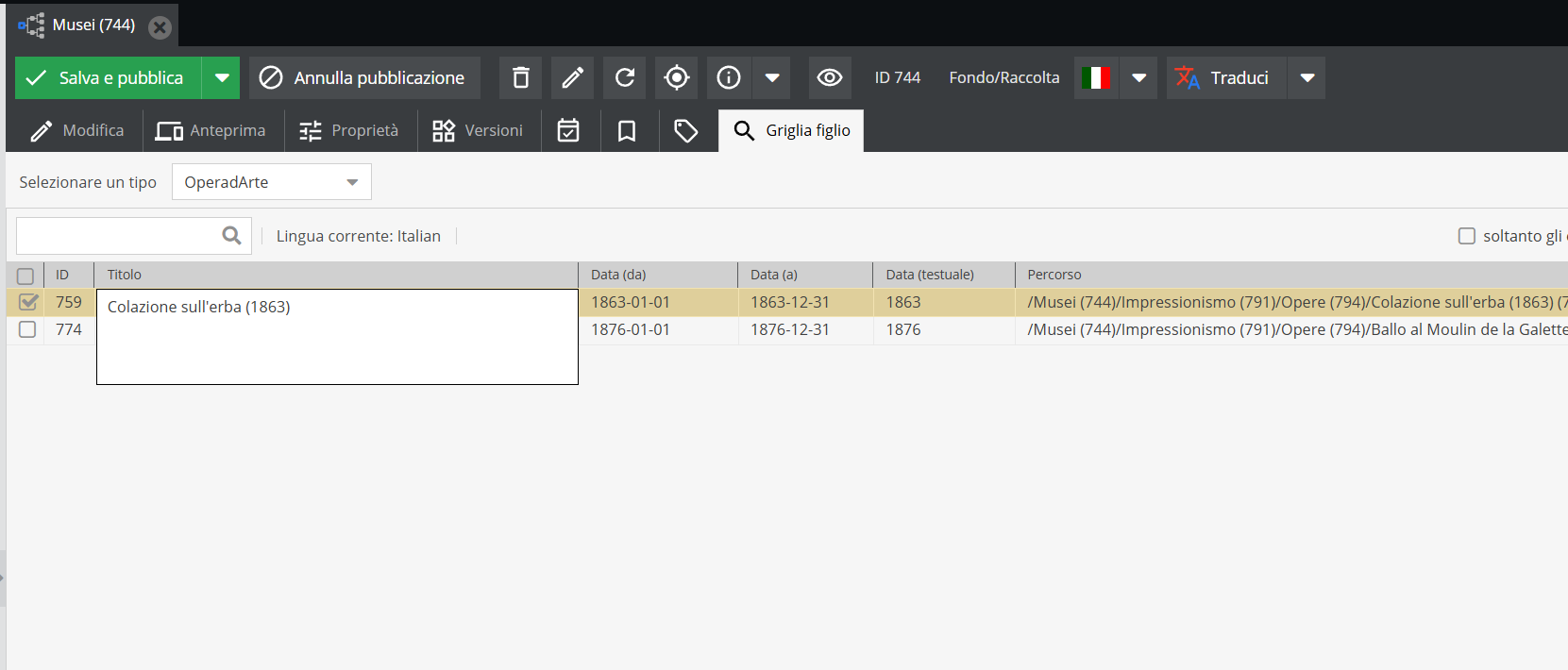
Clicking a grid cell opens an editable input window into that specific record field. For text fields, make changes and click Save.
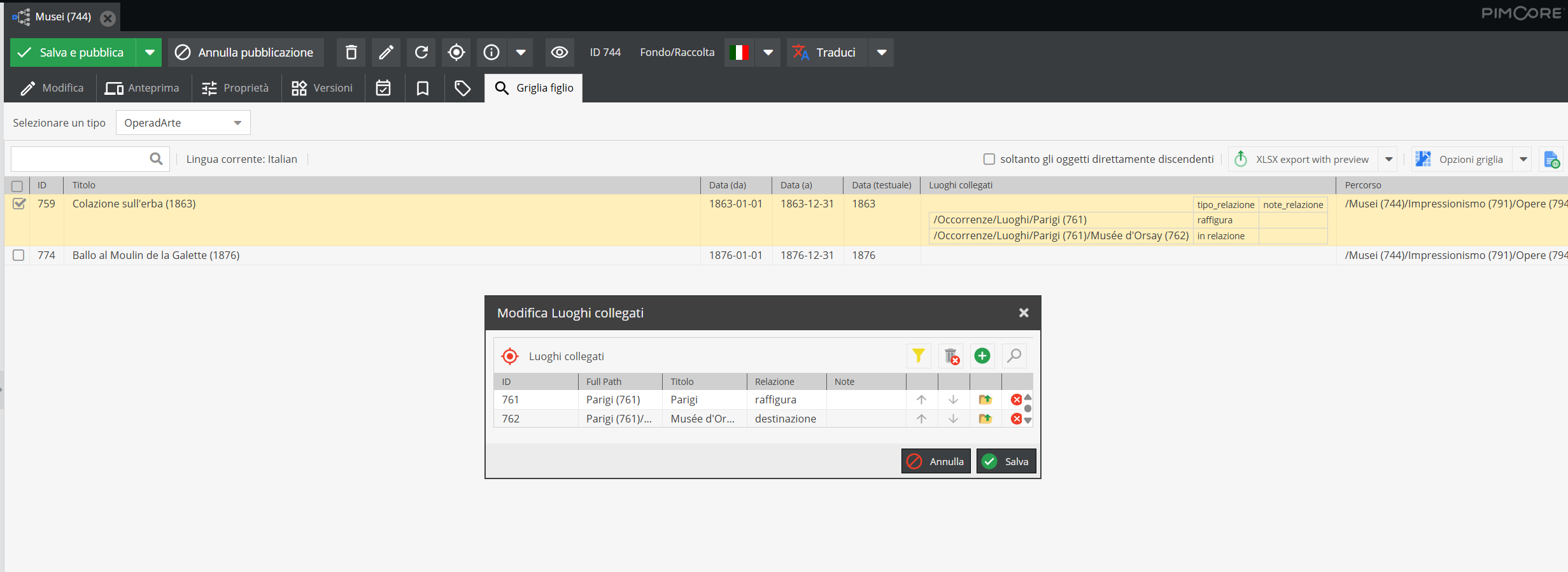
Clicking a relationship cell opens the standard relation picker detailed in the "Relationships" Area section.
Batch editing
Select check-boxes for target records to edit.
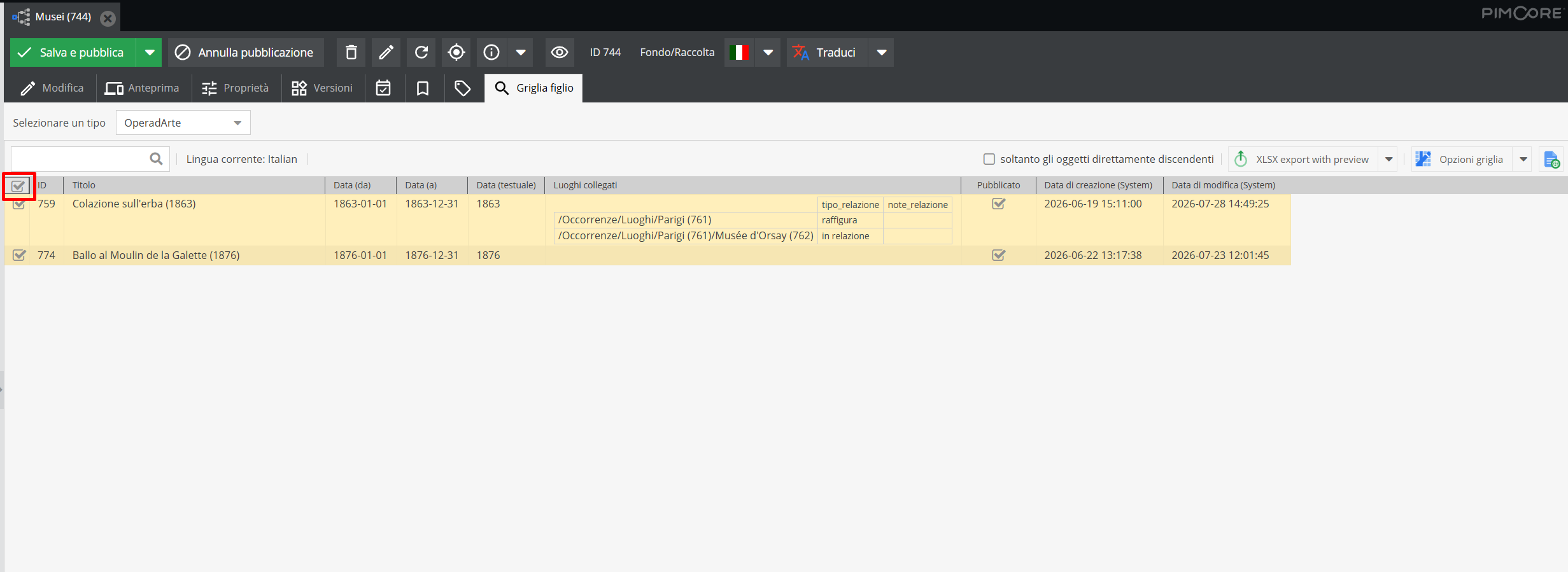
Alternatively, select all items visible in the grid.
To edit more than 25 items at once, adjust page size at the bottom right. Batch editing more than 50 records at a time is discouraged.
With items selected, open the column header drop-down menu for the field you want to modify.
For text fields, options allow batch edit all or batch edit selected.
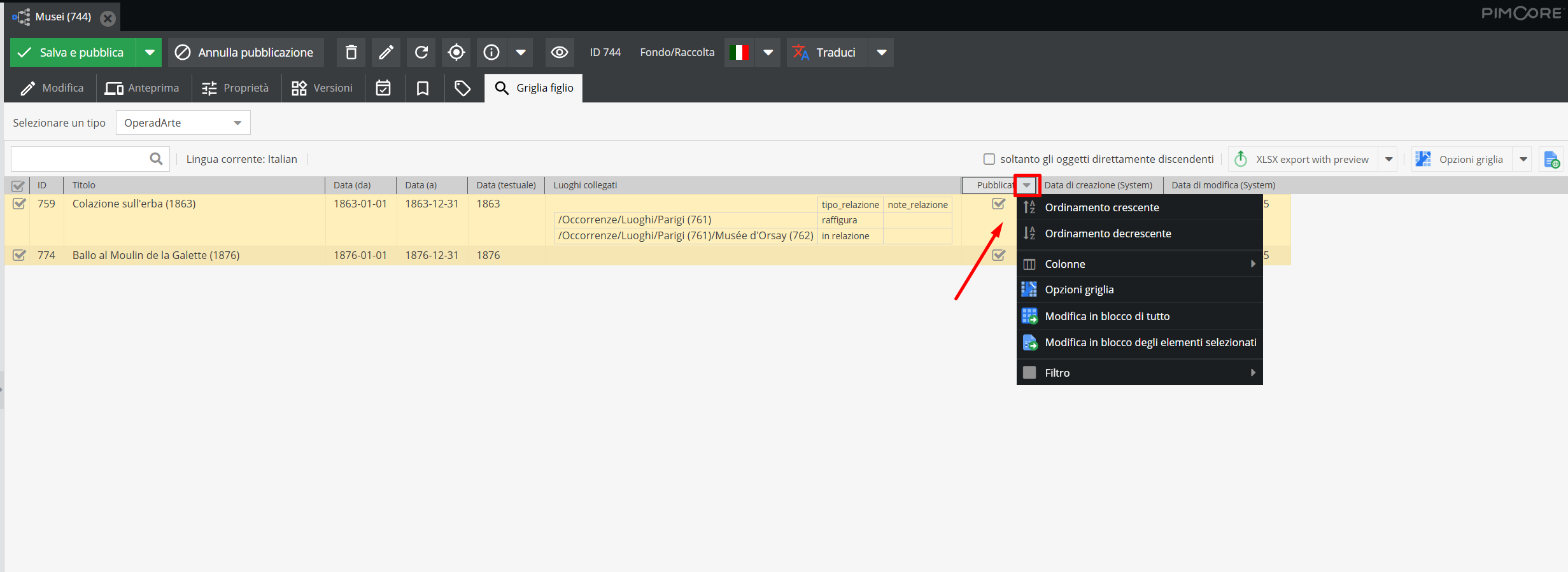
Batch edits permanently overwrite data across targeted records. Proceed cautiously and only after receiving Promemoria Group training.
For relationship fields, options allow you to batch edit (overwrite existing links), batch append (add new links alongside existing ones), or batch remove (delete existing links across selected items).
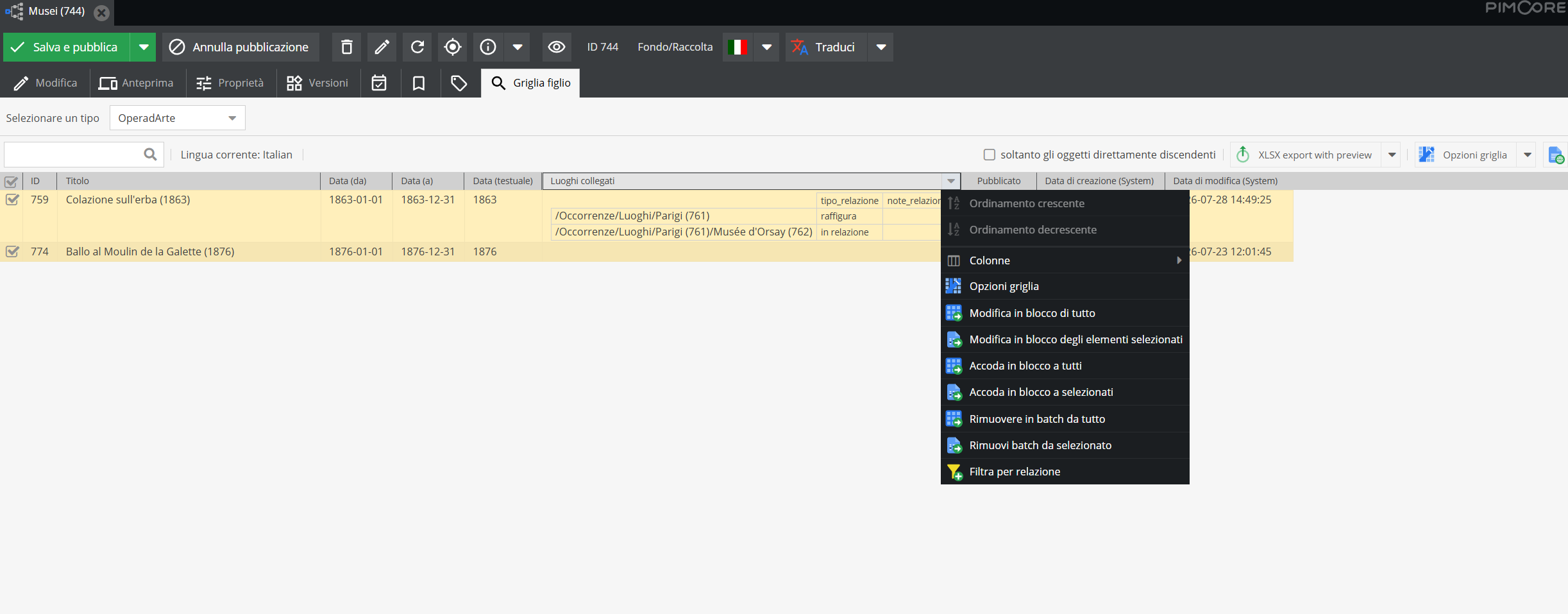
Entering interstitial relationship data (tipo_relazione, note_relazione, sequence) is currently not supported via batch editing in grid view.
When cataloging Casts and Performance roles, catalogers should edit entries individually to ensure accurate vocal/instrumental qualification and program billing sequence.
Applying tags
Tags (filters) can be applied in batch mode from the grid view by selecting target records, right-clicking selection check-boxes, and choosing tag actions.
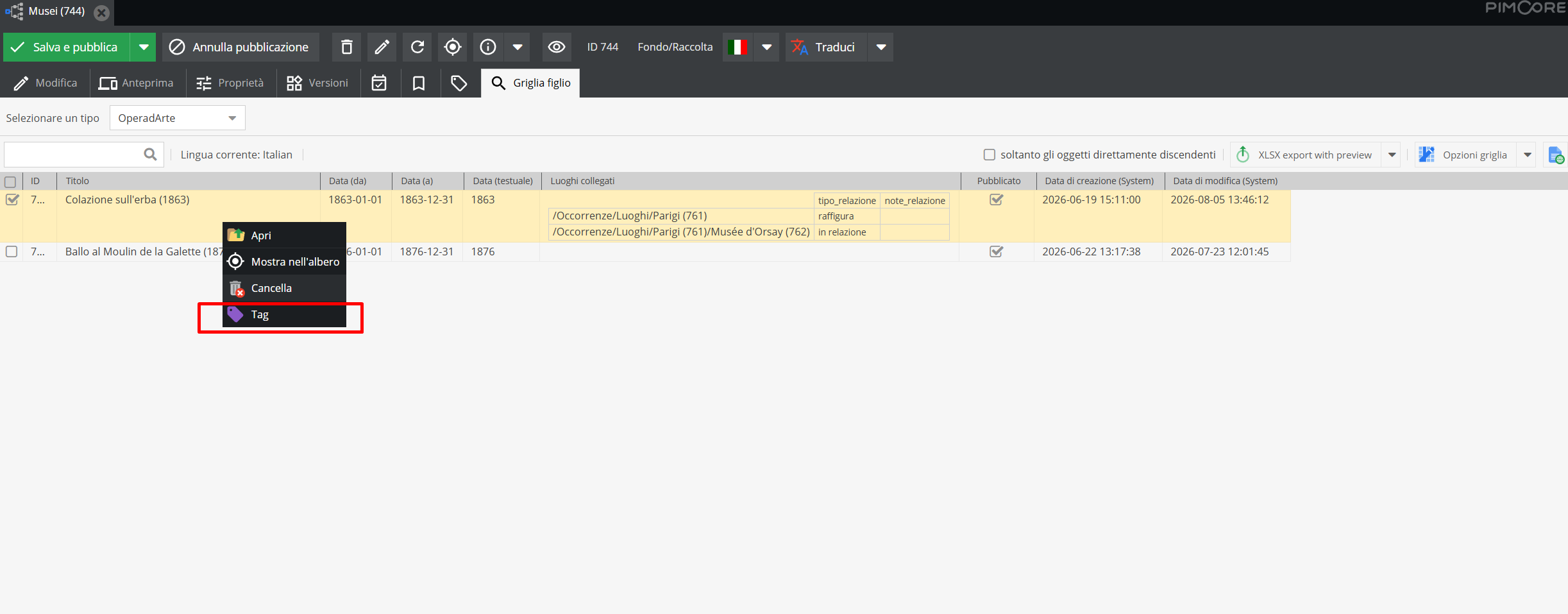
For details on tag management, see Tag configuration.
The grid as an exporter
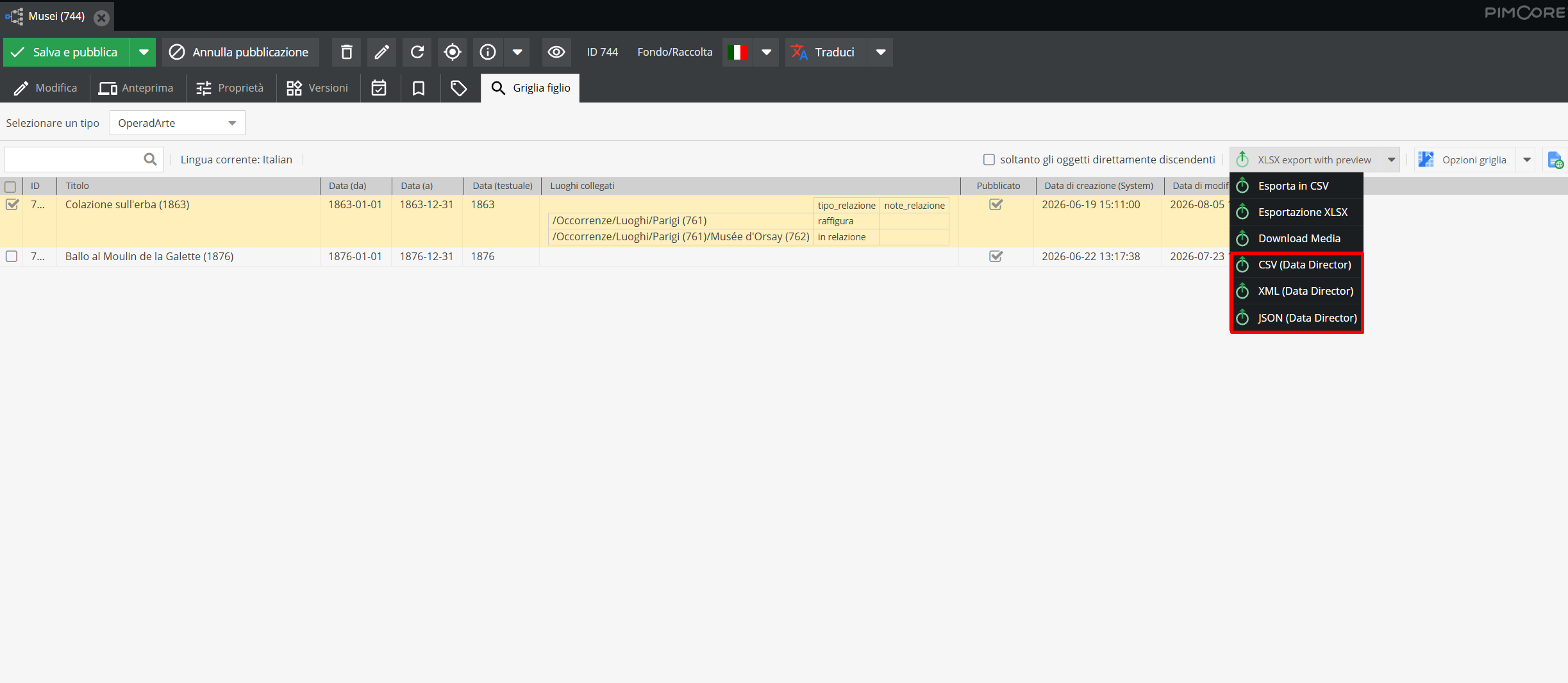
The grid allows exporting data in multiple formats: select CSV Export, XLSX Export, or Media Download (to download attached digital files) from the top-right drop-down menu. Exports include checked items, or all listed objects if all are selected.
Search
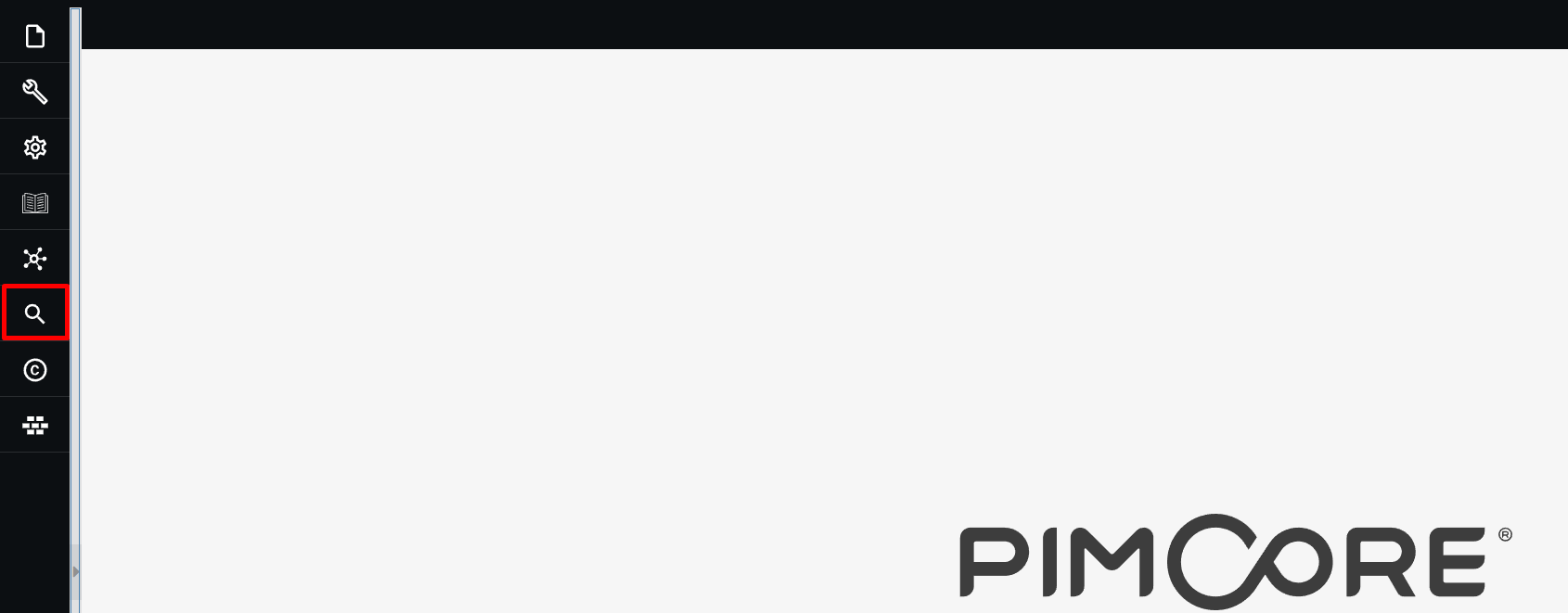
All elements in Pimcore (Objects and Media) can be queried using the Search tool. Click the search icon in the main panel navigation bar.
Select search mode: quick search (across media and objects), search objects, or search media.
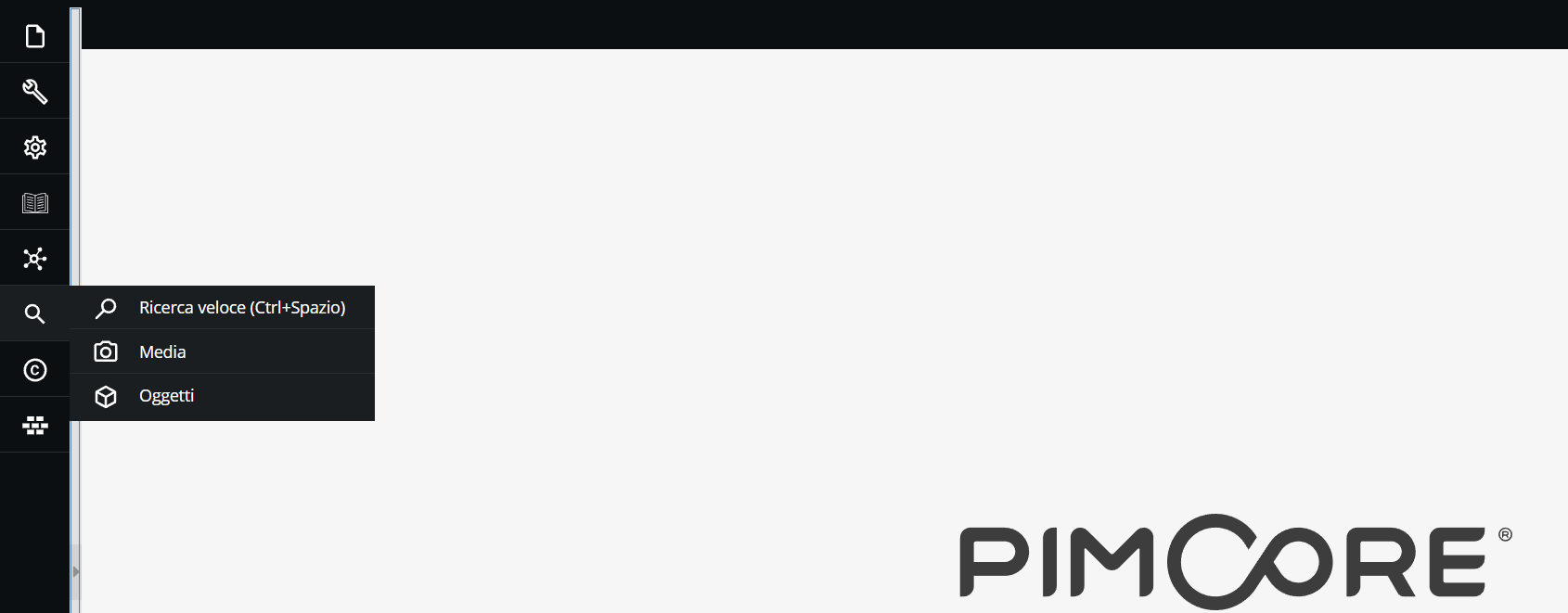
Quick search queries both Objects and Media environments simultaneously.
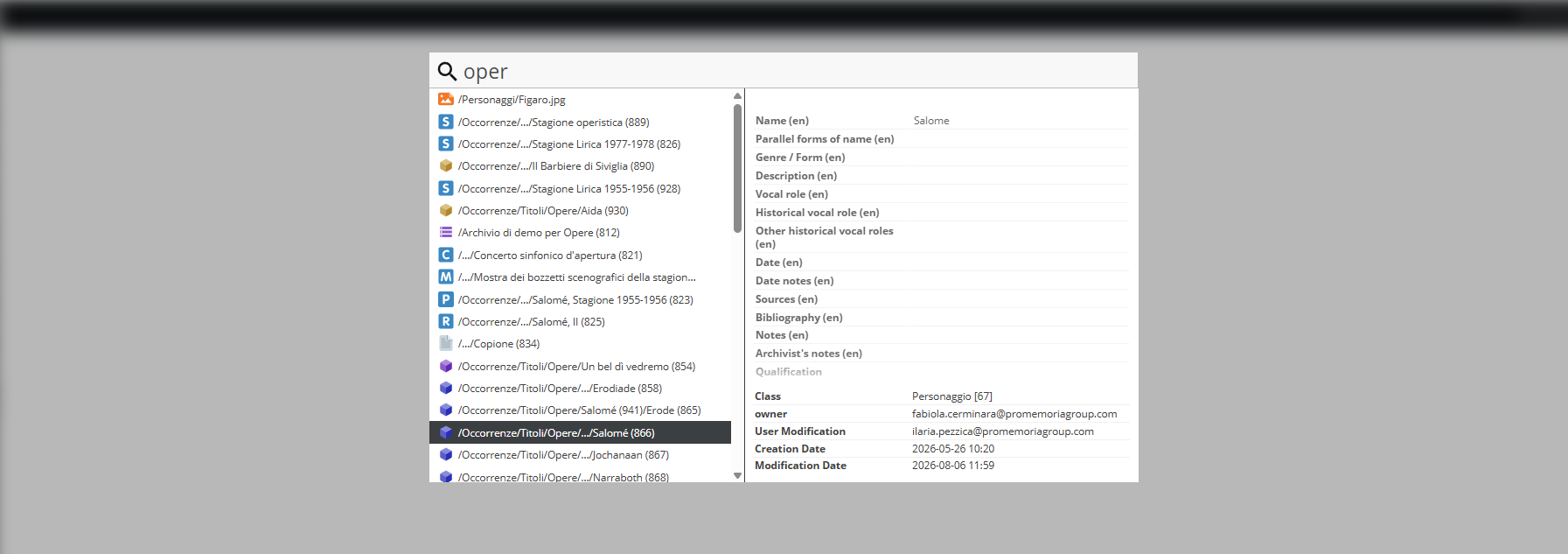
This outputs general system-wide results. When using quick search, enter specific keywords to avoid overly broad result sets.
Search objects targets the Objects (Data Objects) environment exclusively.
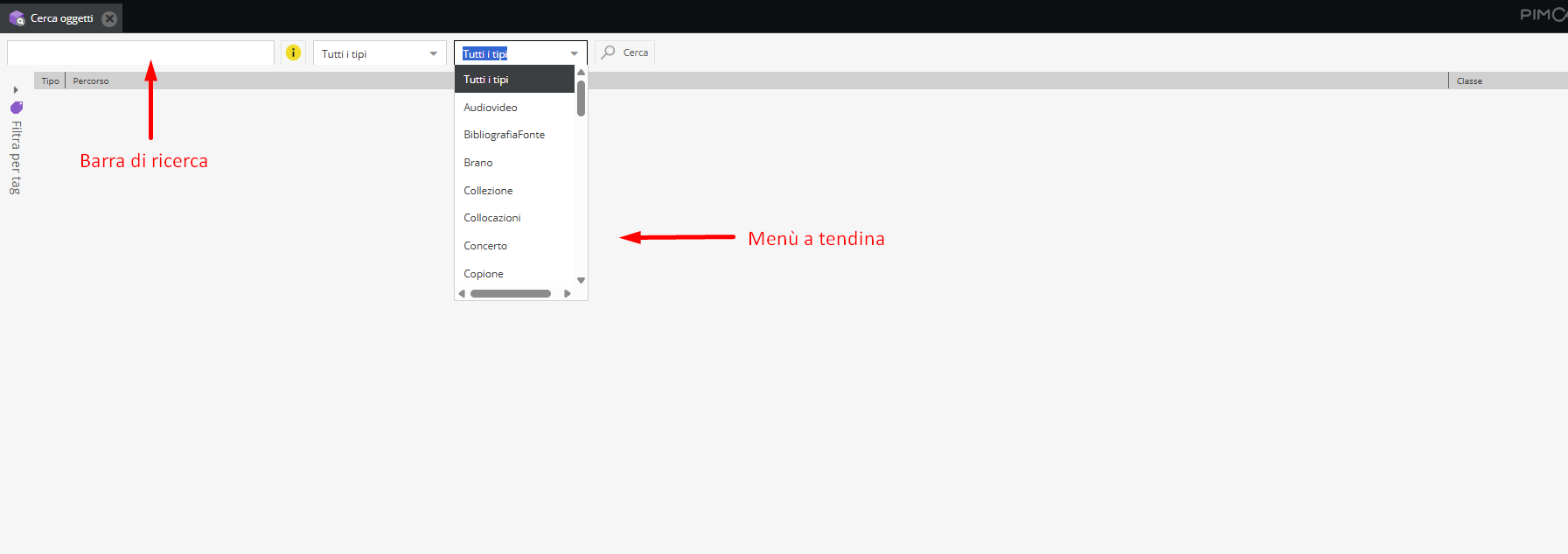
Filter searches by selecting document class types from drop-down menus or typing keywords into the search bar.
Double-click any result record to open it.
Search media targets the Media (Assets) environment exclusively, operating under the same workflow as object search.
Advanced Object Search can also be activated upon request, enabling multi-class filtering and tag-based queries.
Tag configuration
Access keys defining catalog criteria structure how information is retrieved across the archive.
Classification relies on both descriptive relationships and tags (filters).
While tags are applied directly on descriptive records, administrative tasks like deleting tags or reorganizing tag tree structures are performed within Tag configuration.
To access tag configuration, click "Settings" → Tag configuration.
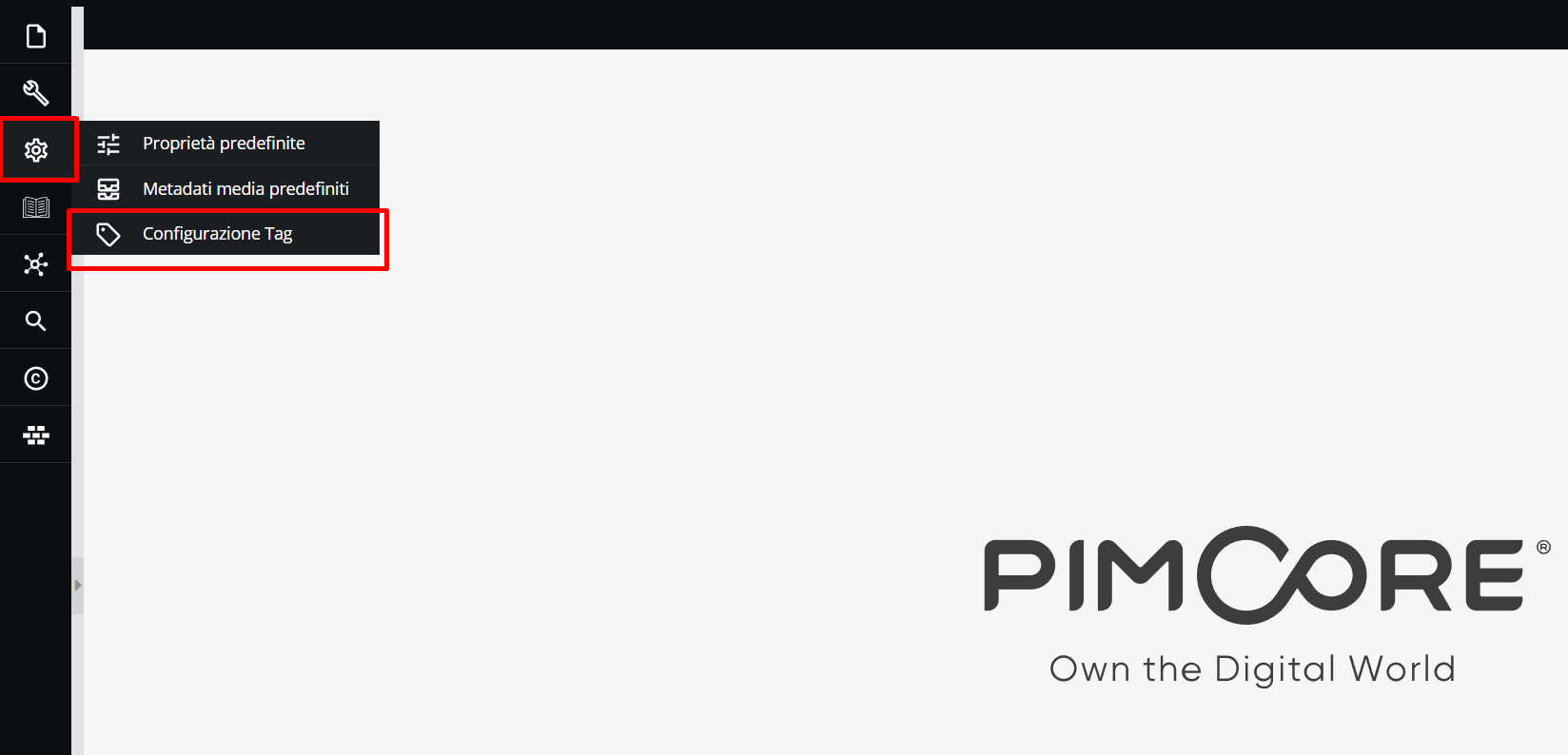
The tag hierarchy tree can be navigated from this menu. Click "+" icons to expand lower tree levels.
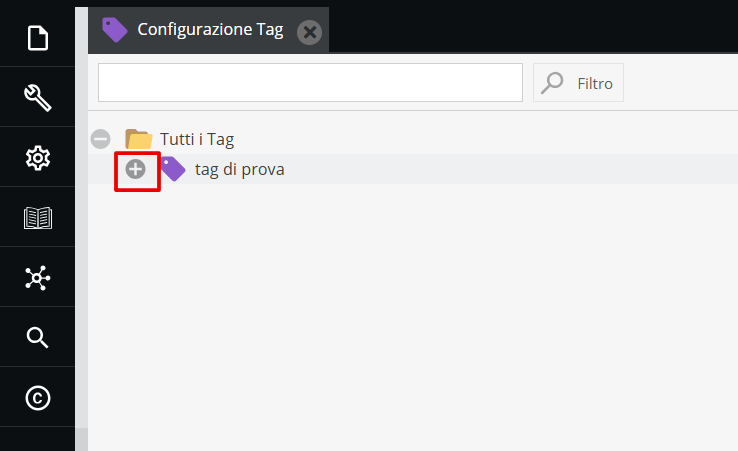
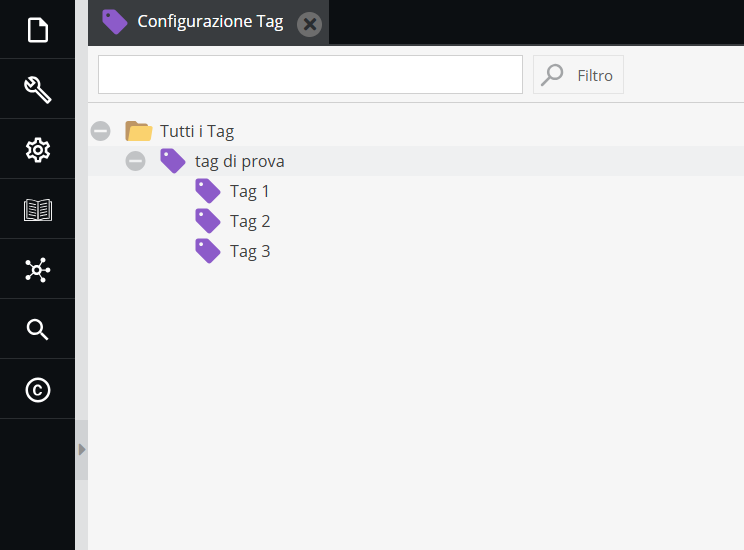
Right-click any tag node to rename, add, or delete tags. Re-order tag structures using drag & drop.
Z39.50 Protocol
Through Z39.50 client integration, the system connects directly to OPAC SBN — the Italian union catalog for libraries — pulling bibliographic metadata into publication records without manual transcription (derived cataloging).
This feature streamlines cataloging for Bibliographic Unit records (Documentary units area) — books, house programs, printed librettos — ensuring compliance with national standards while reducing transcription error.
From the Z39.50 search tab, query OPAC SBN for the target edition; selected records automatically map onto corresponding fields in the descriptive template, generating pre-populated catalog records. Local exemplar details — shelfmark, physical condition, acquisition notes — are added manually.
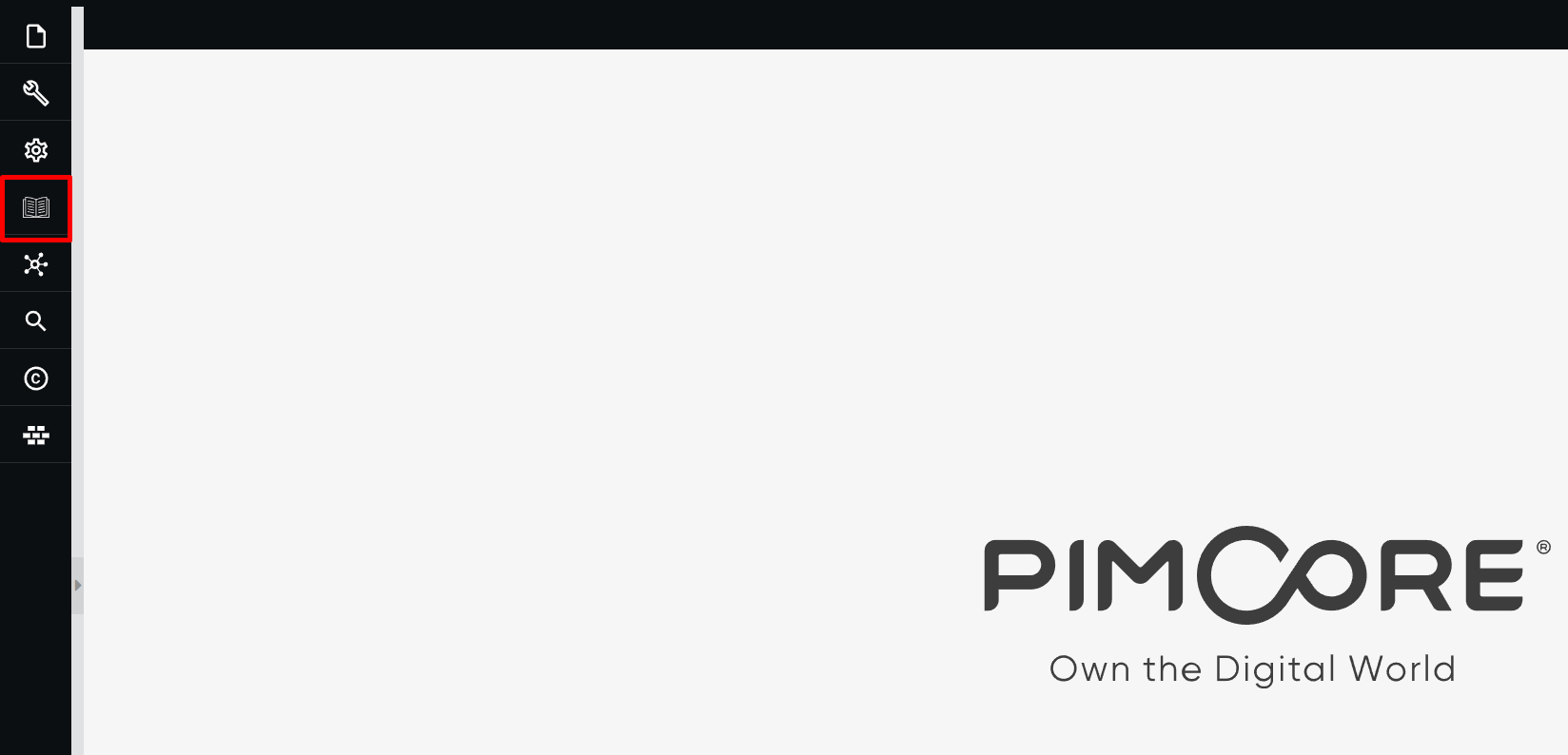
Access the protocol by clicking the "book" icon on the main menu panel.
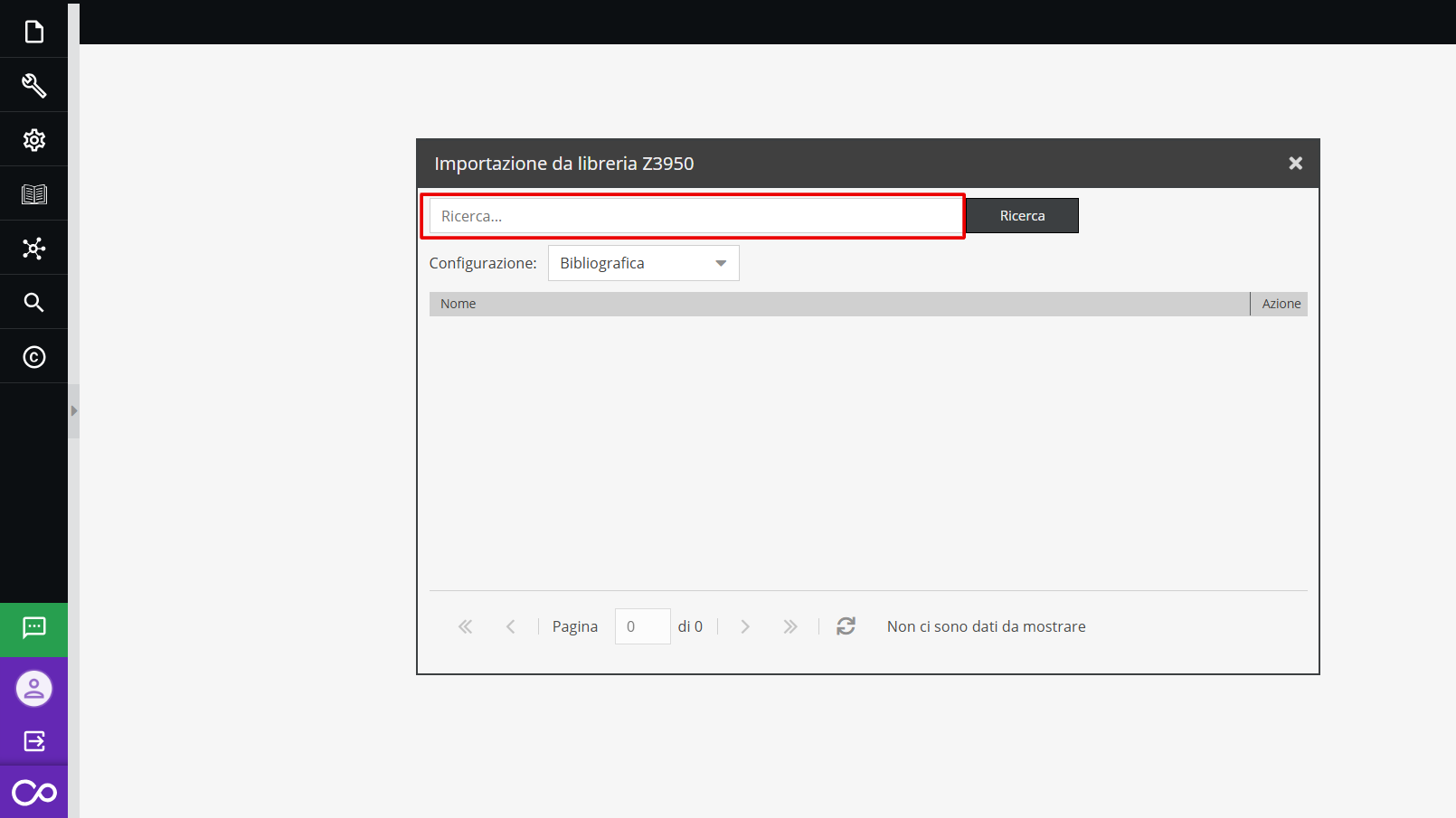
Enter the publication title into the query field.
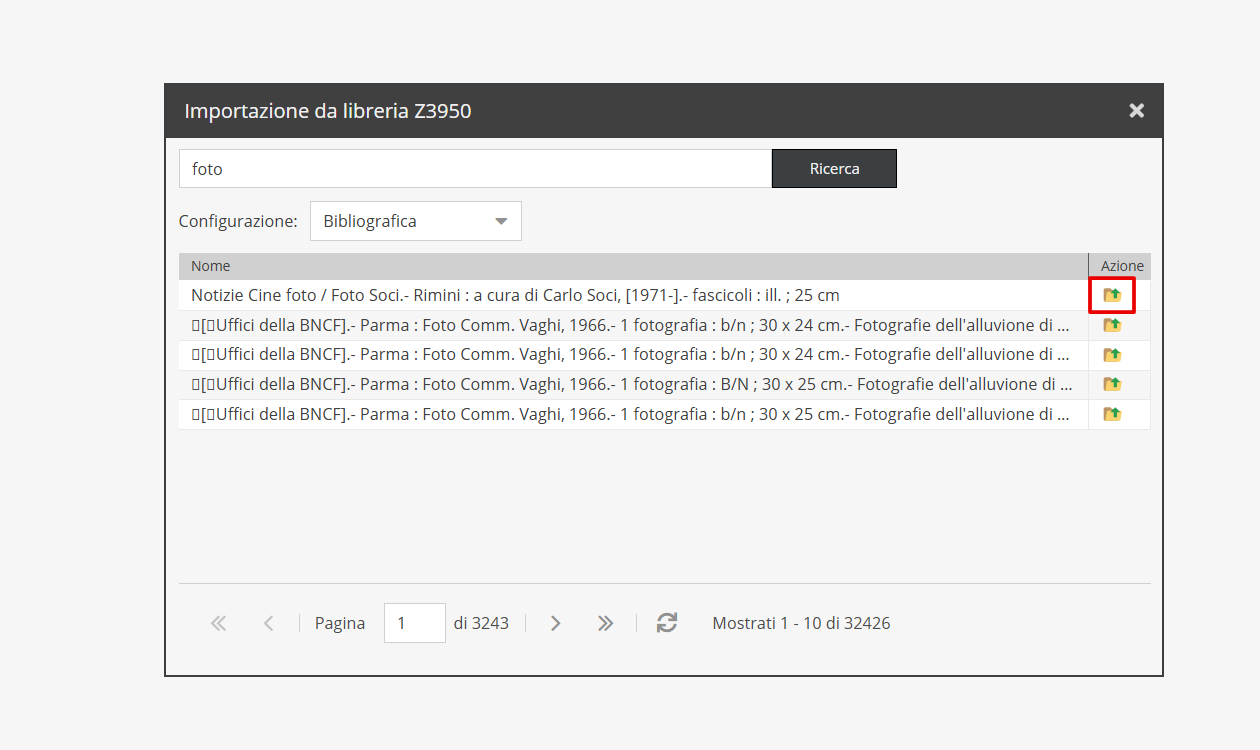
Click "Search", identify the correct edition, and click the folder icon under "Action".
A pre-populated descriptive record is generated, ready for item-specific details.
Batch import from CSV
Batch data imports are conducted via CSV files using the "Datahub" module, accessible from the left sidebar.
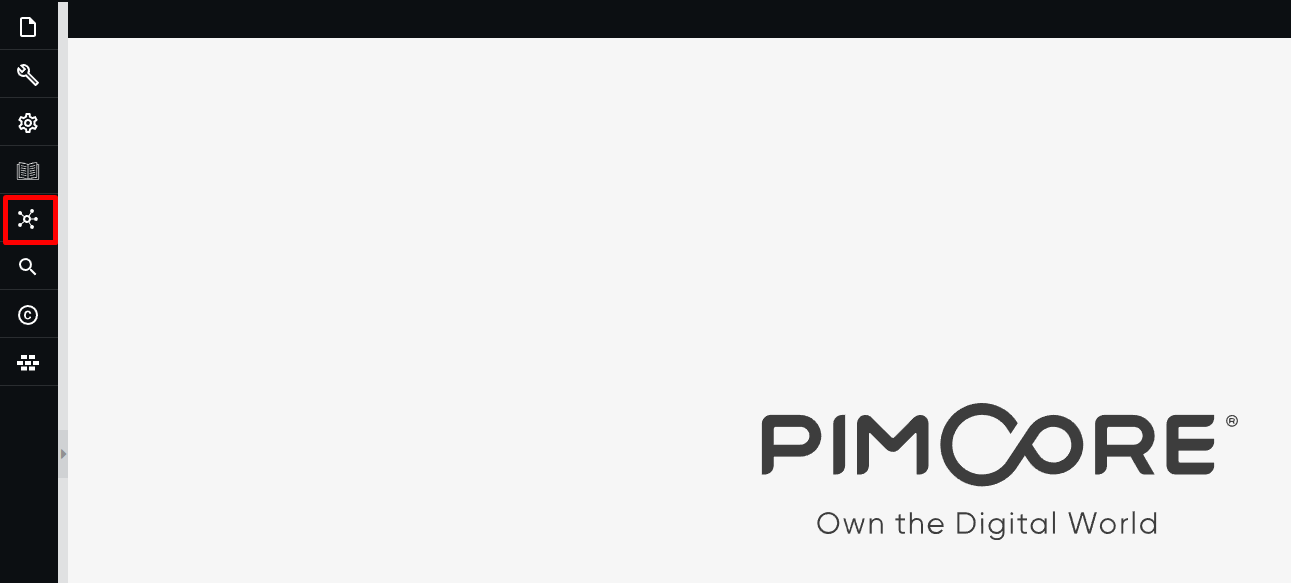
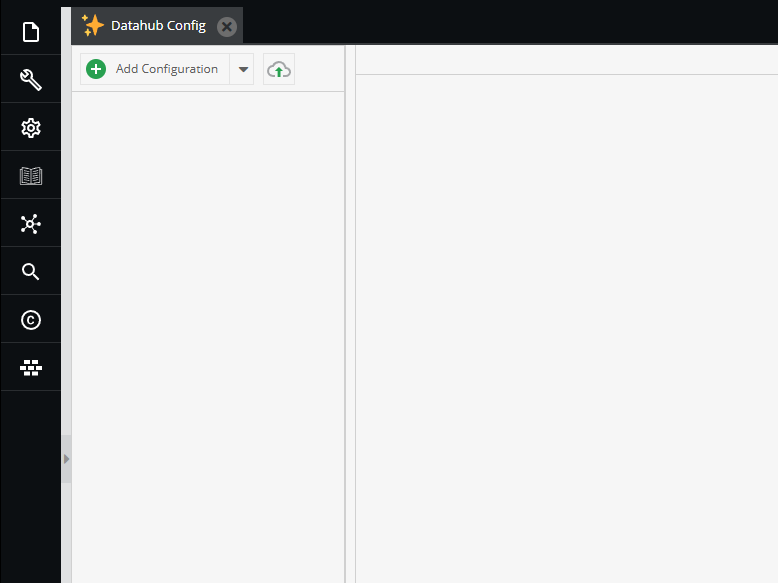
Clicking the icon opens the "Datahub Config" tab.
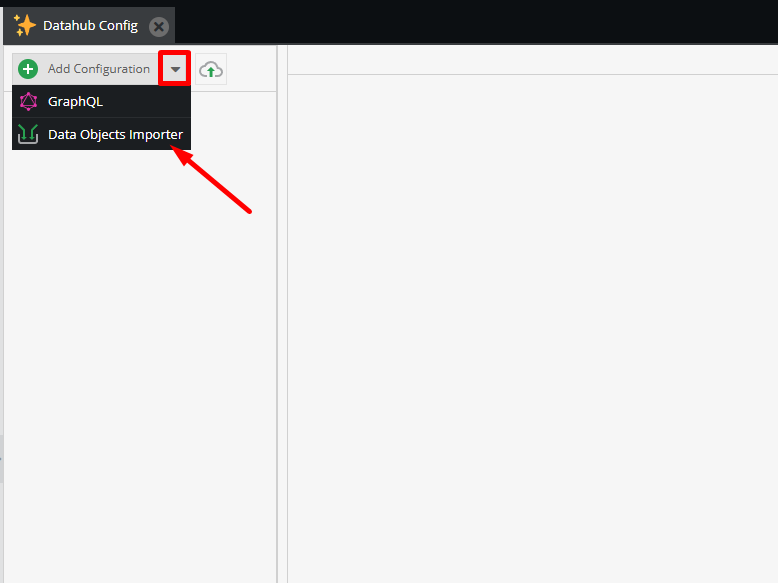
Create a new import configuration by clicking the arrow next to "Add Configuration" and choosing Data Objects Importer (the importer for Object classes).
Each import configuration targets a single object class: batch imports process one record class at a time. Heterogeneous datasets containing mixed object classes cannot be imported in a single run.
Using Datahub requires specialized training provided by Promemoria Group upon request. Importing complex nested hierarchical structures should be coordinated directly with the Promemoria internal IT team.
AI Usage
Features powered by "Ask AI" rely on a token credit system monitored via the dedicated icon on the left sidebar.
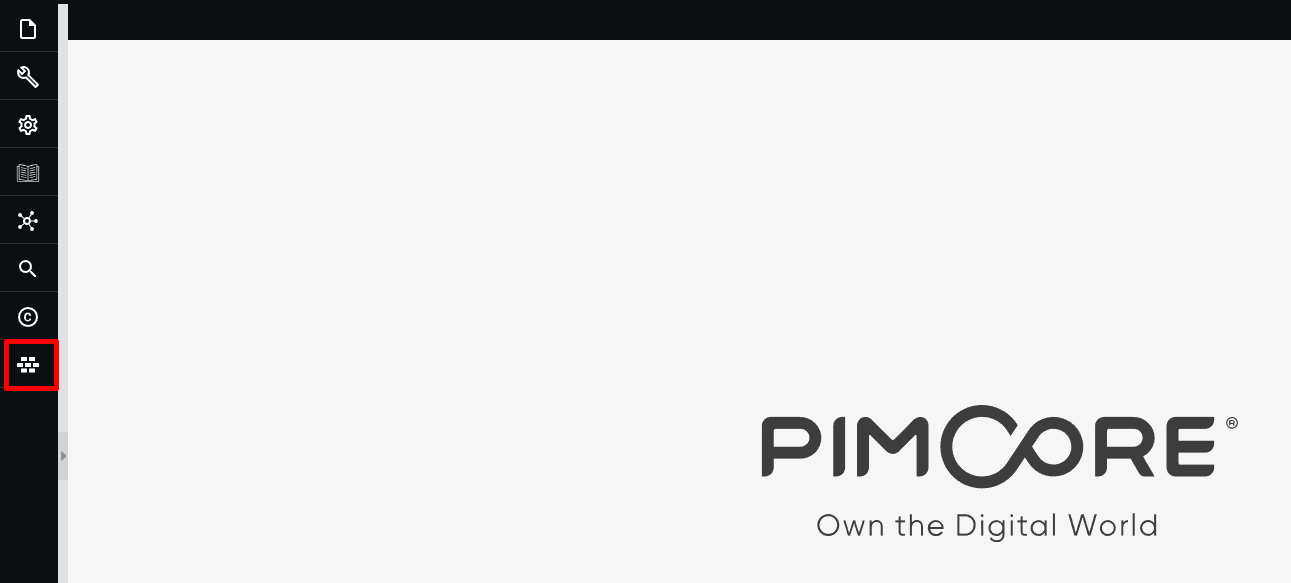
Standard platform setups include a baseline allowance of 5,000 monthly credits. Custom token allocations are established during contract setup and platform configuration.
Clicking the icon opens the "AI Usage" pop-up, displaying credit consumption for the current billing cycle.
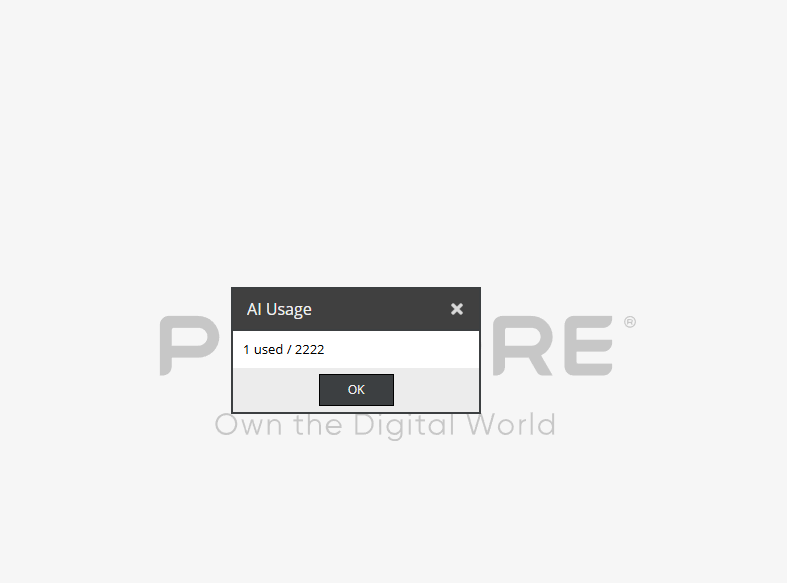
If credits deplete before month-end, AI operations pause, showing a credit limit error. Credit counters reset automatically on the first day of each month.
Data synchronization
The Archivio Digitale platform consists of two main architecture tiers: (1) the Pimcore back-end managing the Historical Archive, and (2) a secure, login-protected internal browsing portal for general staff access. While routine single-record edits sync instantly, major structural updates or batch modifications require a manual synchronization run to align back-end data with front-end views. Specifically, manual sync runs are required after:
- Batch edits affecting digital assets or objects (e.g., batch-updating privacy restrictions on media files).
- Deleting, renaming, or restructuring tags in Tag configuration.
- Batch applying media tags from parent folders to child items.
Synchronization for these operations is not automatic. It is launched manually by Promemoria Group technical staff upon client request to preserve data integrity and optimize performance.