Homepage
From the login Console, by clicking on the right box, the logged-in user accesses the archive website. The site consists of two fixed main sections: the Homepage and the Explore page. In addition, it is possible to activate an About section to present your institution, a Historytelling section for thematic paths, the Exhibitions section (Museums solution only), and the News section.
Users with Researcher and Cataloger roles will view the site as configured by Manager users even when it has not yet been made public.
As mentioned in the paragraph dedicated to the Frontend pubblico, the Homepage is composed of modules that can be activated, deactivated, and reordered (with the exception of Breaking News, which remains fixed at the top of the page when active). The availability of individual modules may vary depending on the subscribed package.
In the standard configuration, it is not possible to create entirely new modules beyond those provided: customization concerns content (texts, images) and the activation/order of existing modules, not their structure.
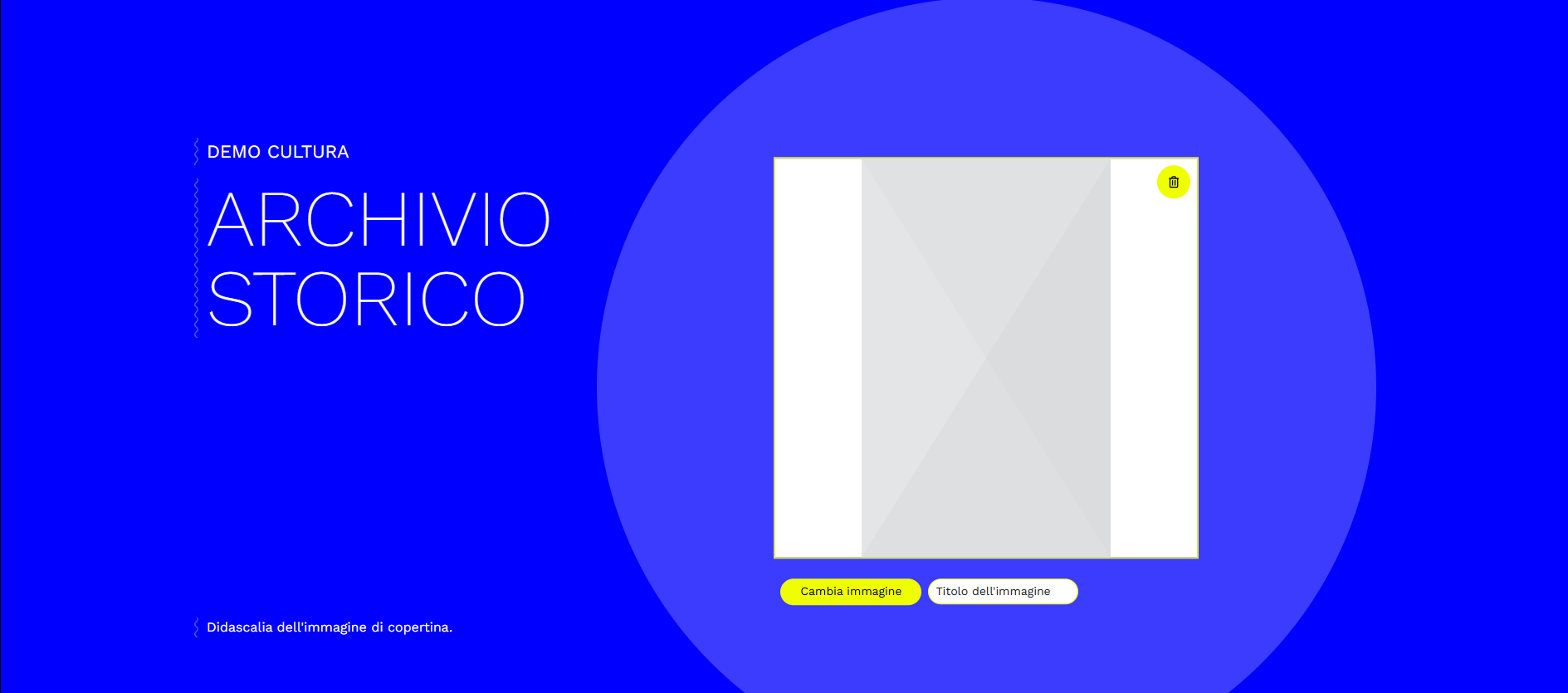
Hero
Within the Hero section, you can:
- Edit headings and enter the project name;
- Edit the cover image and assign it a title;
- Insert a caption for the cover image.
For further details, see also the "Edit" mode.
"Breaking News" Module
The “Breaking News” module is a banner located at the top of the homepage, which can be used to briefly give urgent news (opening hours changes, closures) or news of particular importance (e.g., the opening of an exhibition). The text notice is accompanied by a button with editable text that can link to a chosen detailed page. This can be external (social media, news on the institutional website or an information site) or an internal News item on the same site (see "News" Module).

The “Breaking News” module is the only one that cannot be moved to other parts of the page, precisely because of its nature as a highlighted notice at the opening of the site.
"About" Module
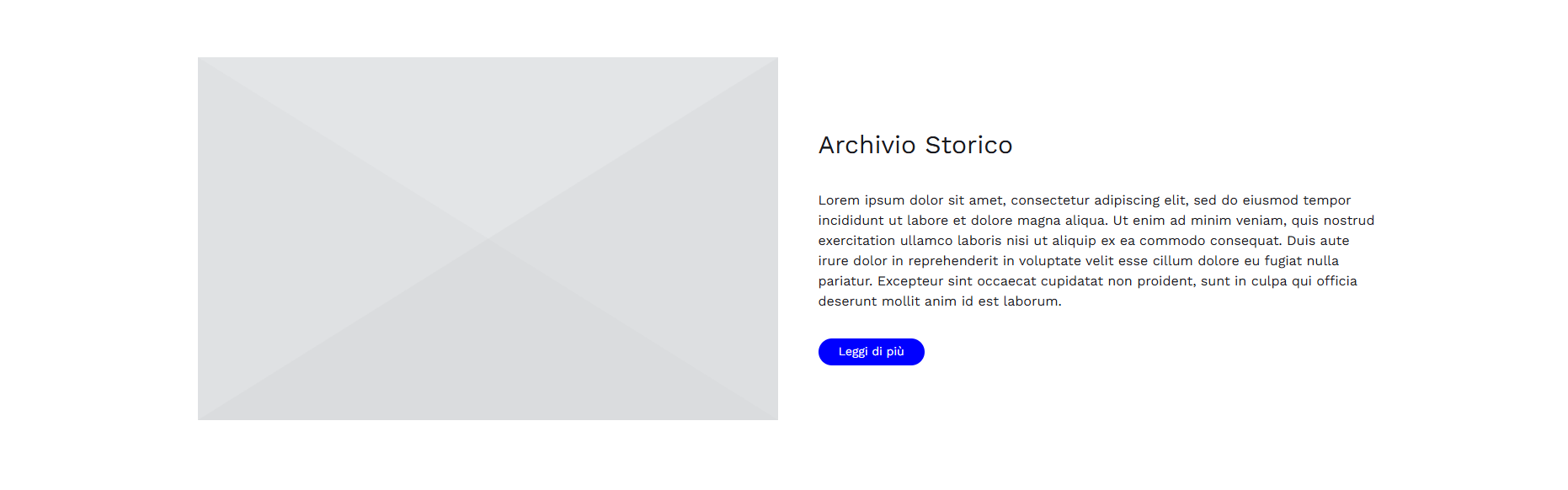
The About module is intended for presenting the archive or the institution that preserves it.
The Homepage module can contain a title, a short text, and a representative image. The text content of the button at the end of the short text can be edited (“Read more”, “Find out more”, “Discover”, etc.) and can link to an external site if needed, useful for providing further information about the archive and the institution.
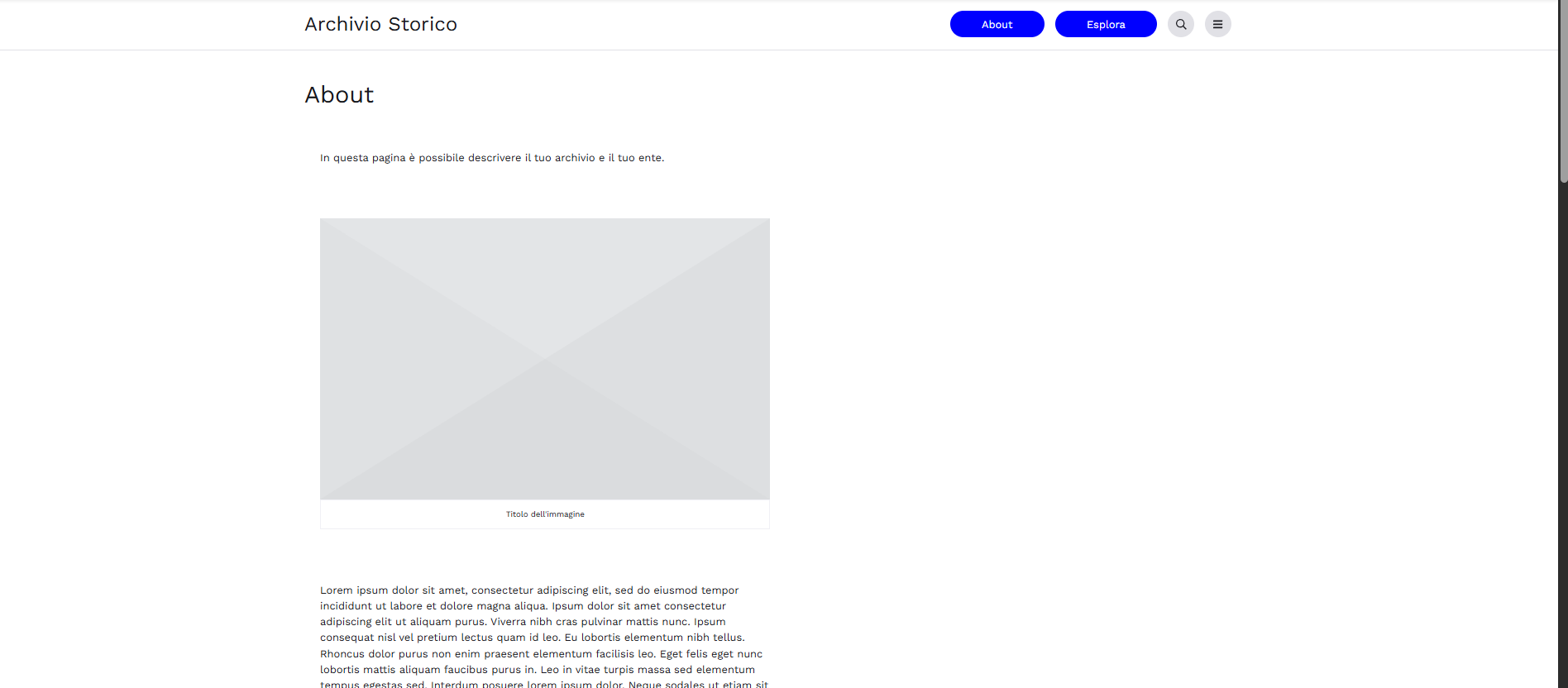
Unless otherwise set by the user, the button leads to the About section within the Archivio.com site, which can contain a more detailed description (the classic “About Us”) accompanied by images, galleries, videos, paragraphs with titles, and so on. The About section of the site can also be accessed via a dedicated button in the Header and from the main site menu. Disabling the About module from the Homepage will also hide the button to access the About section and its corresponding entry in the site menu.
"Information" Module
It can contain up to four columns of text with a corresponding title in a larger font size, generally used to provide information such as access conditions and guidelines for using the site or archive. The text can be formatted with Bold, Italic, and Underline: highlighting words opens a small menu from which you can also insert hyperlinks (“#” button).

As with other sections of the site, copying and pasting pre-formatted text from editors like Word is strongly discouraged, as this can cause inconsistencies and misalignments. It is recommended to write text directly on the page or copy and paste unformatted text (e.g., from Notepad).
"Stakeholder" Module
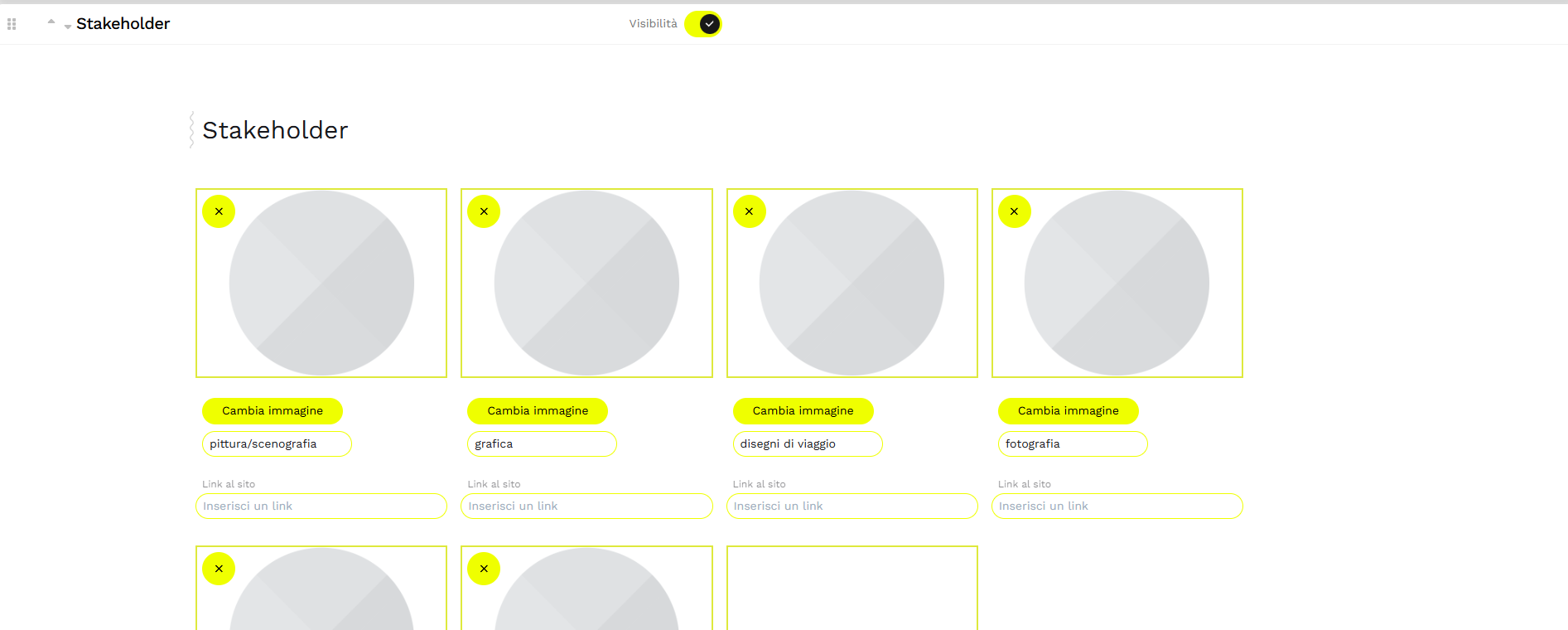
The module allows you to insert logos or representative images of partners, funders, supporters, etc., accompanying them with alternative text and a link. To remove a logo, simply click the X in the yellow circle at the top left; to add one, upload a new logo in image format at the end of the existing ones. The logos will be arranged horizontally on the page and – if they exceed its width – will scroll horizontally. If accompanied by a link, clicking each logo will redirect to the respective website.
"Historytelling" Module
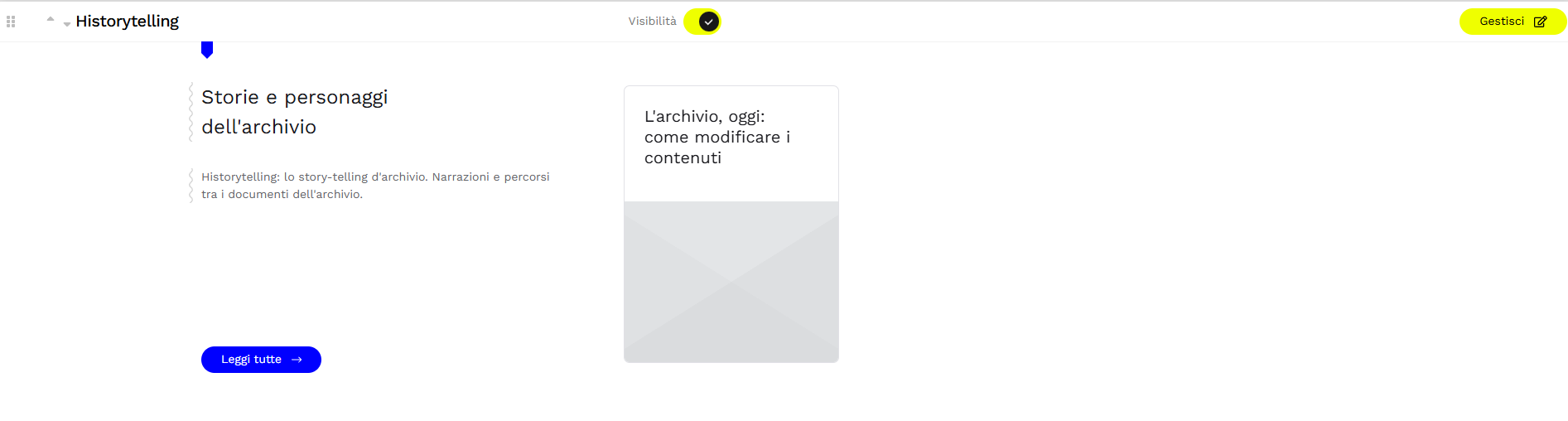
The Historytelling module is the tool dedicated to the narrative enhancement of the preserved heritage. Unlike the News module (focused on communicating events and current affairs), this section allows archive curators to structure and publish thematic paths, historical in-depth studies, and consultation guides.
Through the combination of curatorial texts, multimedia resources, and direct links to descriptive records, the module offers users cross-cutting keys to explore collections and archival fonds through a guided experience.
"News" Module
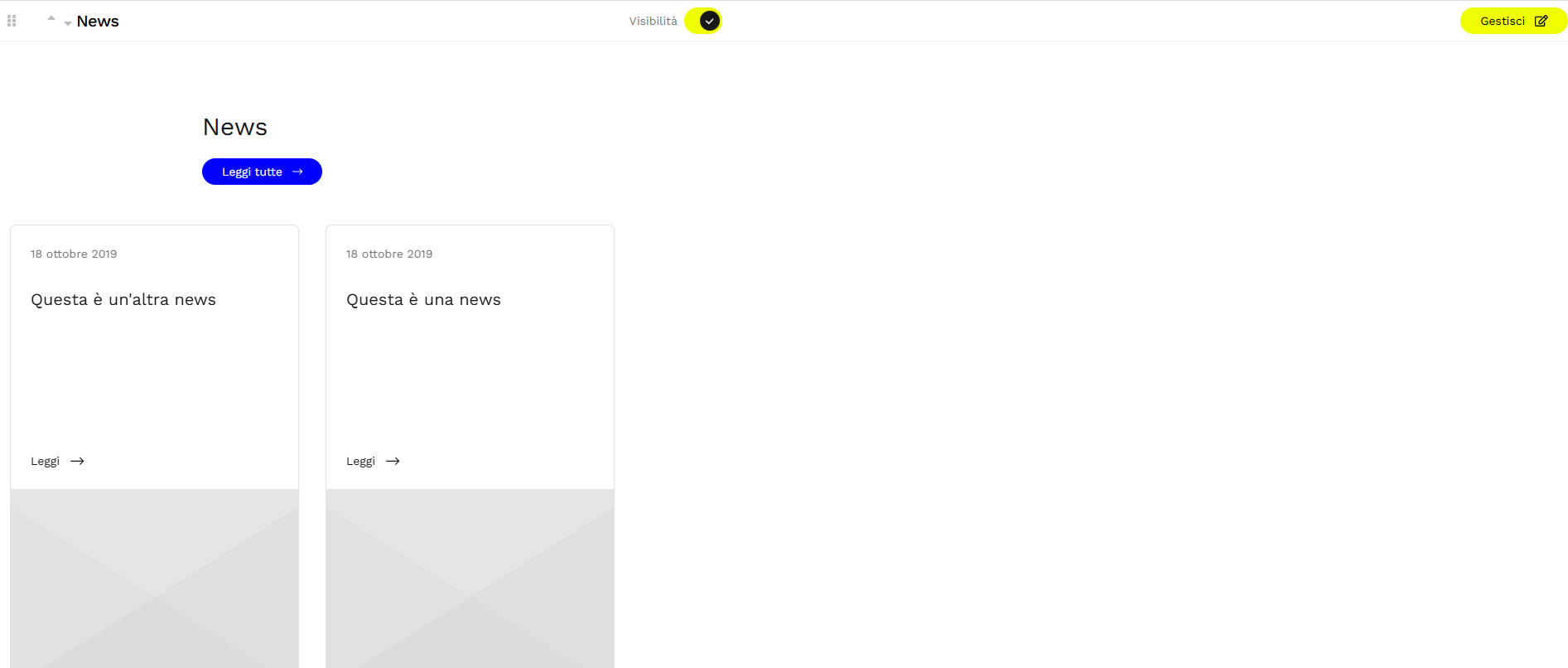
The Homepage module collects all the News items written by the site curators in reverse chronological order (from the most recent to past ones), along with a general introductory text about the News. Clicking on each news item allows you to read it; alternatively, clicking "Read all" accesses the page that collects all news, which is also reachable from the site Menu (when the "Historytelling" module is active). By activating Edit mode on this page, you can add new stories (click "New"), remove existing ones (click the Trash icon next to the story you want to delete), and decide whether to publish each one online or not ("Publish" toggle). The publication date of the News, and consequently their chronological ordering, is generated automatically.
"Timetable" Module
A two-row, eight-column editable table to indicate daily opening/activity hours.

"Newsletter" Module
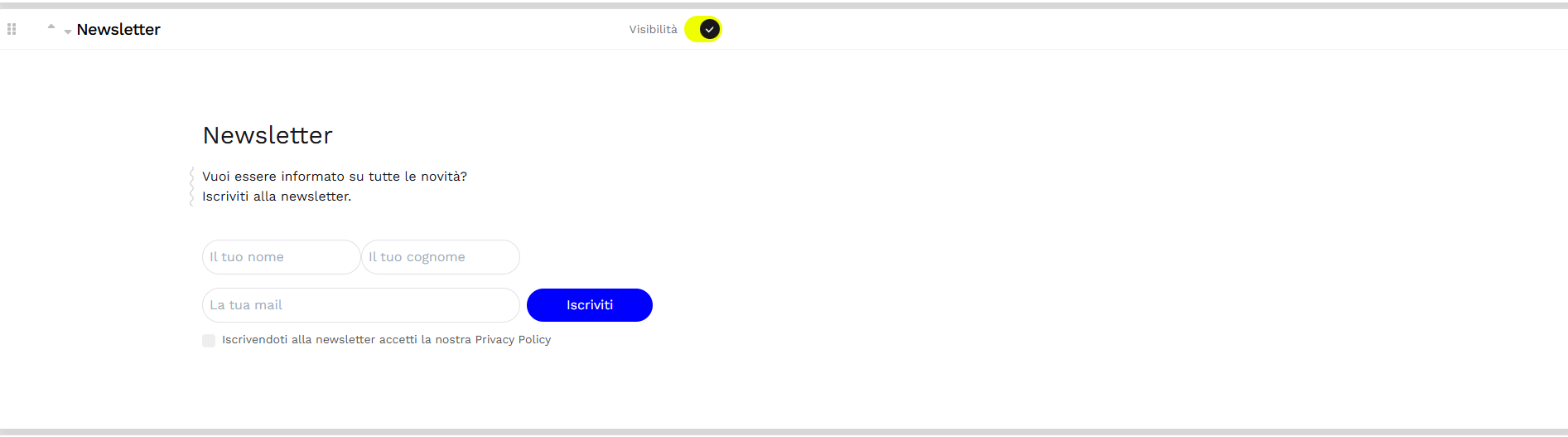
The module allows collecting names and addresses of site visitors who wish to stay updated with the newsletter of the institution owning the page. To subscribe, the user must enter their first and last name, email address, and accept the Privacy Policy. The Privacy Policy document present by default is a generic standard drafted by the Promemoria Group team, but it can be completely modified by the site administrator by clicking on “Privacy Policy” and then activating the “Edit” toggle. New Newsletter subscriptions are flagged with a colored number in the Console (see CONSOLE) next to the “Newsletter” button (Shortcut section). Clicking the “Newsletter” button downloads the subscriber list in .csv format (compatible with Microsoft Excel and similar programs), ready to be imported into major Newsletter management software (e.g., Mailchimp).
"Quote" Module
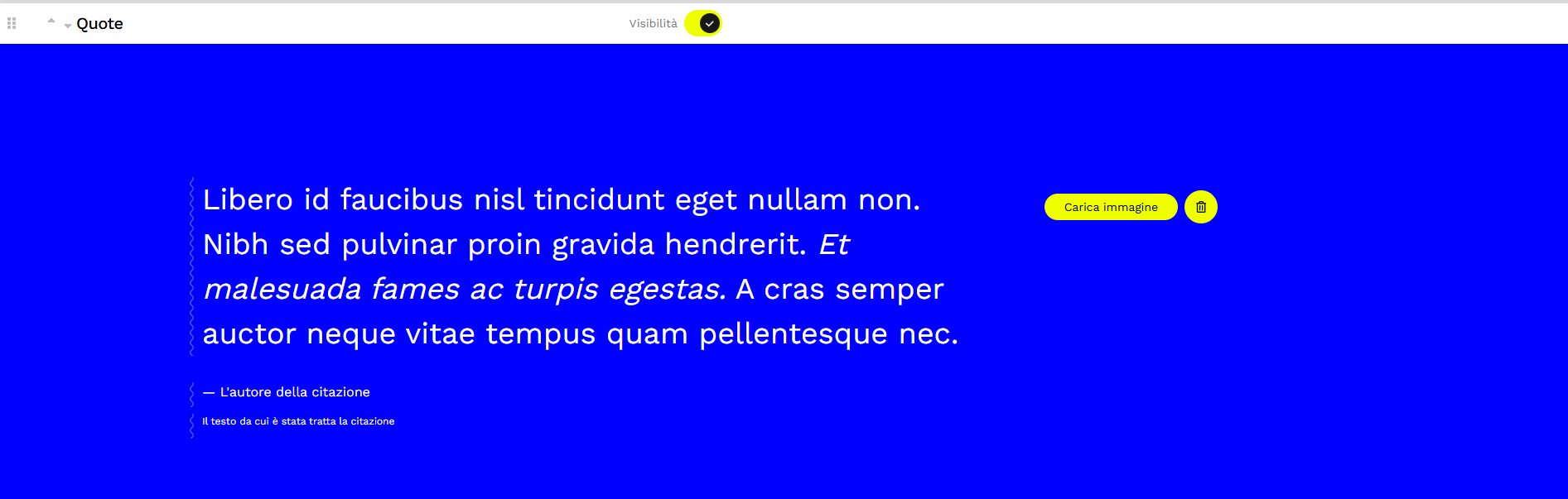
The "Quote" module can contain a highlighted quotation, with the author's name and bibliographical reference. By clicking on “Upload image” (or “Change image” if one has already been inserted previously), you can add a background figure, e.g., the author of the quote. The chosen image is automatically sized for the module and blended with the color scheme chosen for the site (see Appearance Settings). It is not possible to manually adjust the image position; therefore, it may be necessary to try multiple times with images of different formats or types to achieve the desired result.
"Look Around" Module
In this section, the system automatically aggregates and displays images associated with records linked to a specific THEME. The displayed theme is chosen automatically from those available in the system to stimulate visitor curiosity, and you can switch to the next theme by clicking the intersecting arrows icon. Clicking DISCOVER instead launches a filtered search across all records related to the currently displayed theme.

"Exhibitions" Module (Museums solution)
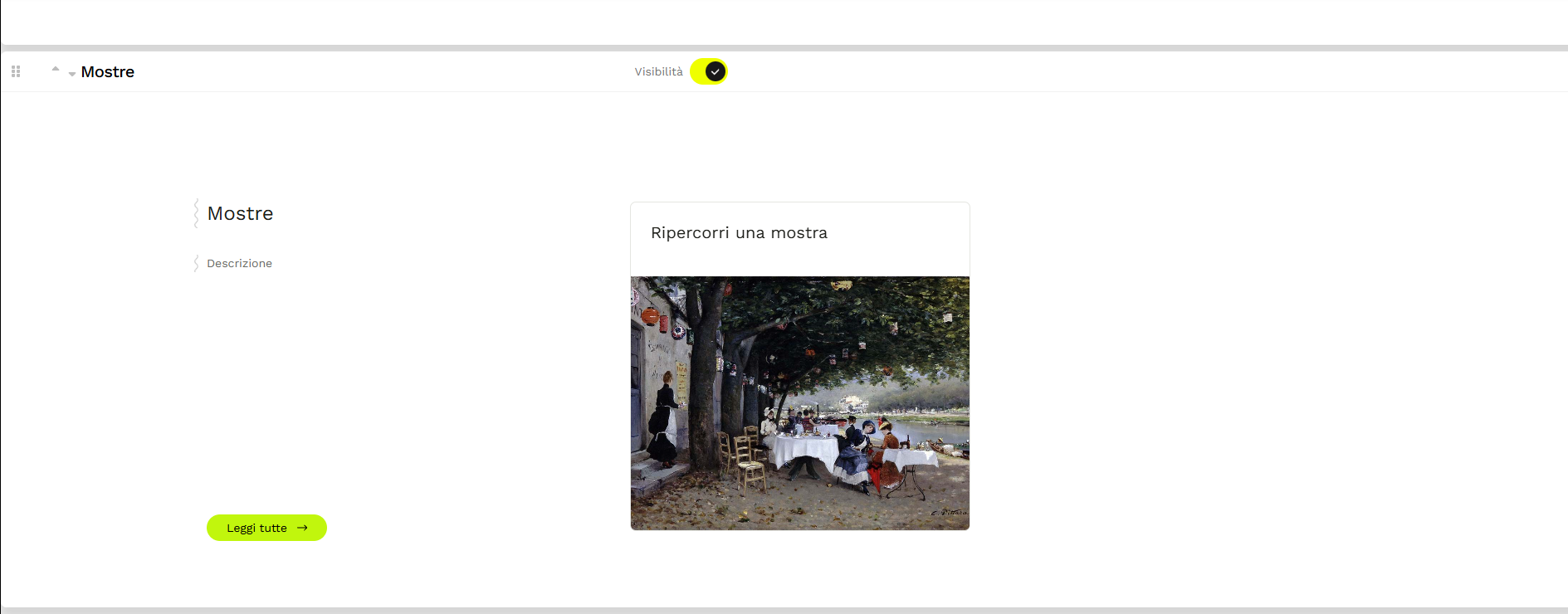
The Museums solution offers the possibility to keep track of in-person exhibitions or create small digital exhibitions through a dedicated module where a sort of exhibition catalog can be presented using texts, images, videos, galleries, and links to records. The Homepage module collects all exhibition paths created on the site, each with its preview image, along with a general introductory text. Clicking on each exhibition allows you to view it; alternatively, clicking "Read all" accesses the page collecting all of them, which is also reachable from the site Menu (when the "Exhibitions" module is active). By activating Edit mode on this page, you can add new exhibitions (click "New"), remove existing ones (click the Trash icon next to the Story/Exhibition you want to delete), and decide whether to publish each one online or not ("Publish" toggle).
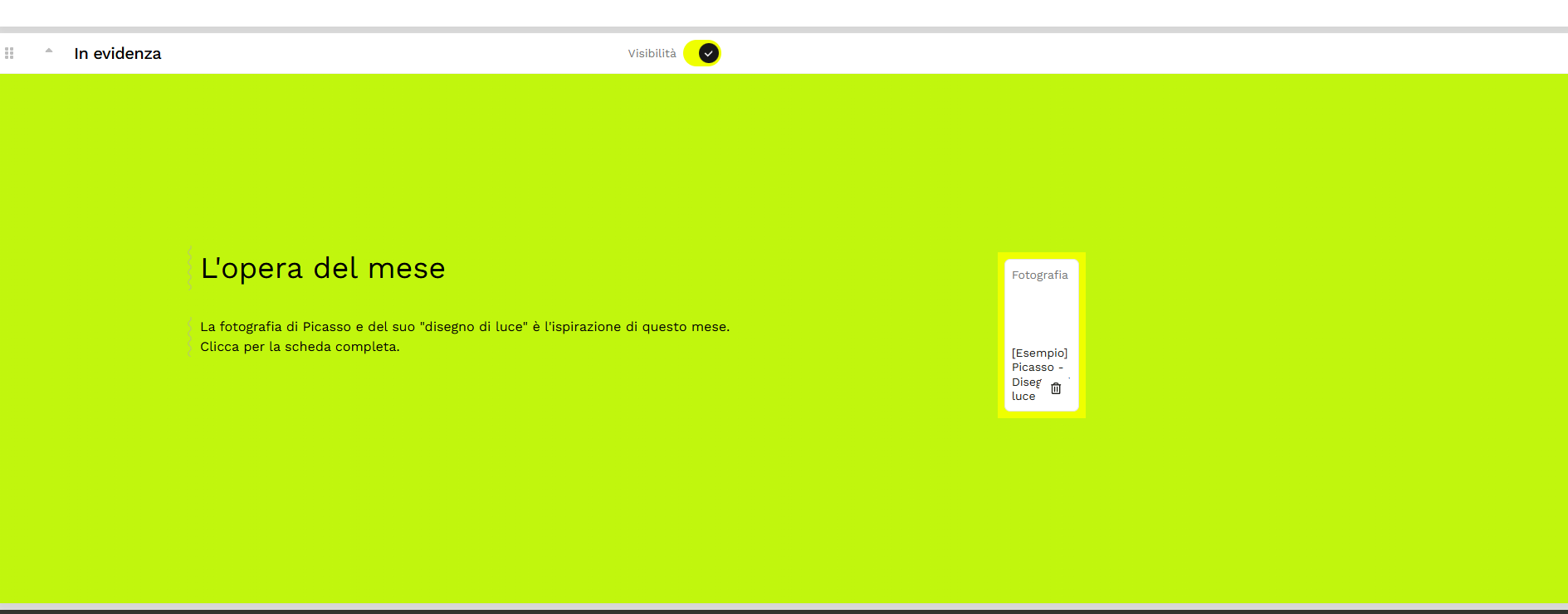
"Featured" Module (Museums solution)
The module allows you to "showcase" an item cataloged on the platform by linking the preview of its detailed record directly to the homepage. To replace the featured record, you must remove the previous one (Trash icon) and then click the “Insert” button. A quick keyword search of the database will open, from whose results you can select the desired record with a single click.