Search Filters and the "Explore" Section
Explore
The Explore section of Archivio Digitale can be reached in various ways:
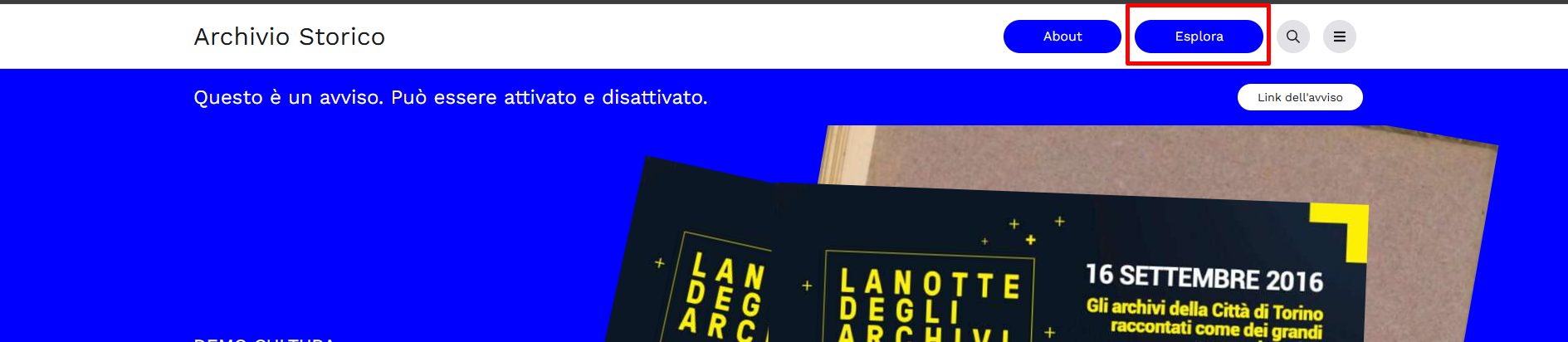
Directly from the homepage, next to the "About" button
By clicking on the "Menu" symbol at the top right (see also The navigation menu in Public frontend)
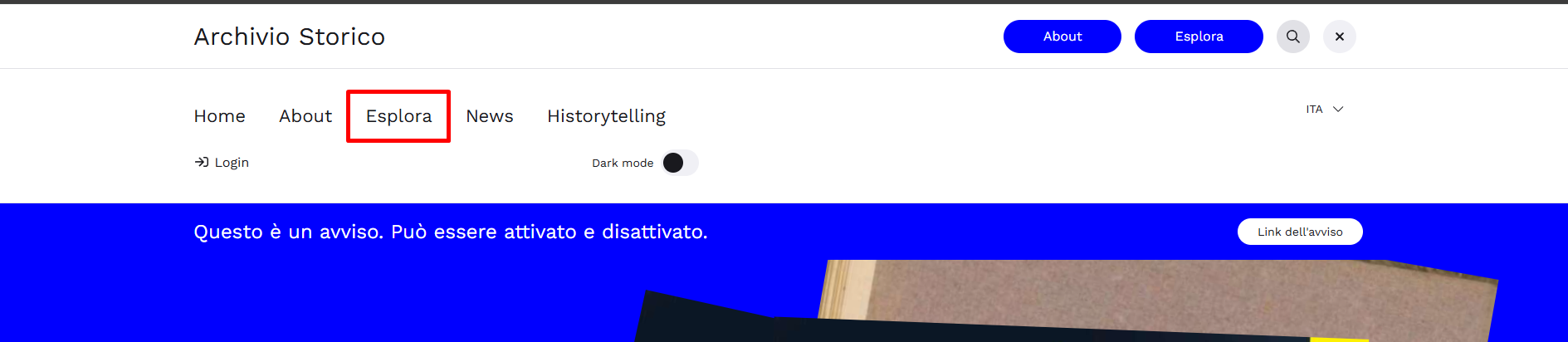
After logging in, also via the Home selector inside the control panel control panel

The Search Bar (Searchbar)
Archivio.com allows users to customize their search experience, providing various access points to the collection.
The first tool presented is keyword search: it allows you to find all records set as "Visible online" (see the "Save" Tab — here and in subsequent references, we refer to the Pimcore Cultura manual, assumed as the canonical configuration for features common to all three versions of the platform) containing the searched terms in any of the published fields.
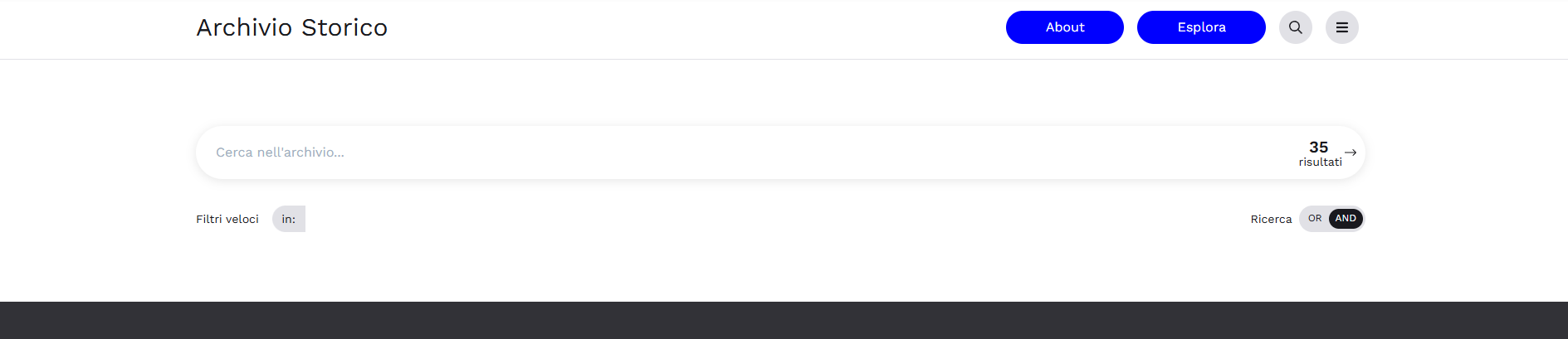
The search can be set to AND or OR, i.e., between records containing all the searched terms, or containing at least one of them. You can launch an already filtered search by clicking on the quick filters below the search field and then selecting the desired filter from the drop-down menu (e.g., "in:" allows searching among records of a specific type). To launch the search, you can press Enter or click on the number preceding the count of results, next to an arrow on the right of the search field. If the bar does not yet contain any terms, the number will show the total number of units in the archive: by clicking on it, you can display all published records in the search results. Once a search is launched for one or more terms, you can continue using the bar to add more terms or filters, progressively refining the results or adjusting your query by removing terms that are no longer useful.
Narrowing the Scope: Search Filters
As mentioned in the previous section, from the Explore section you can further refine your search using the filter tree.
The information structure can be designed by the Client so that it reflects the unique characteristics of the Institution: it shows subdivisions by documentary types, allows searching by thematic cores (if identified), and exploring specific collections, gatherings, and funds, creating combinations suitable for identifying precise sets of documents.
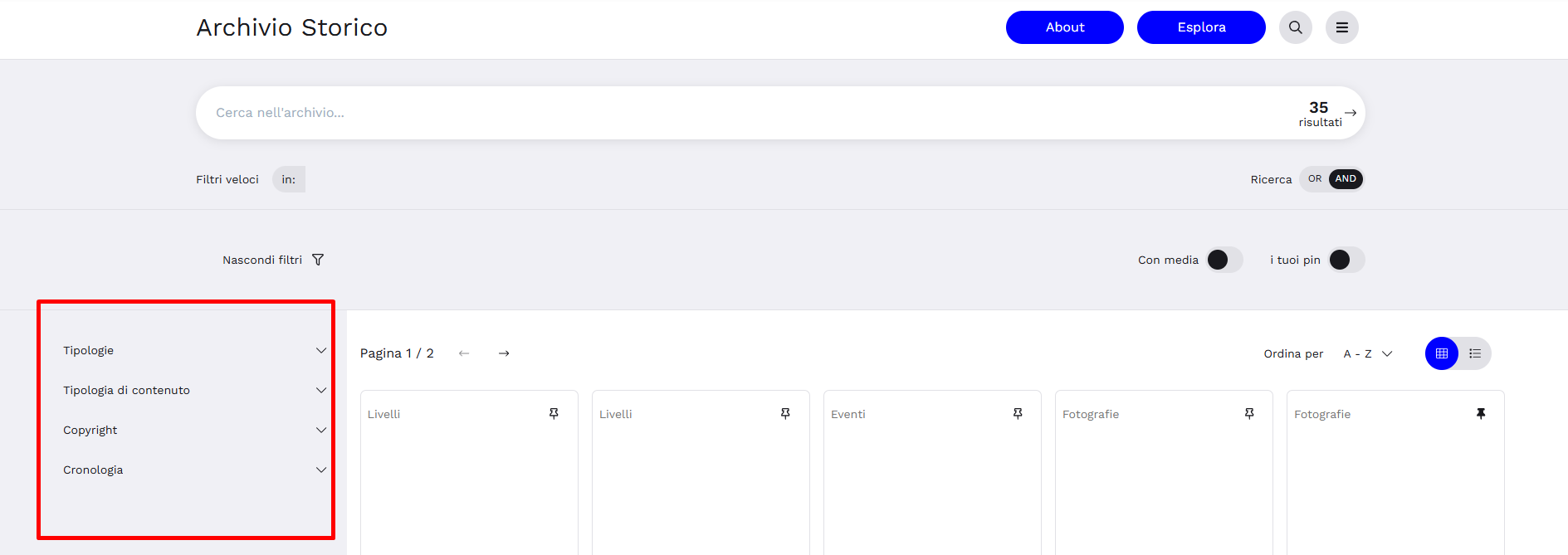
This area is customizable and can include more or less complex search parameters (for details, see also the section Tag Configuration in the reference Pimcore manual).
Below are some default search modes.
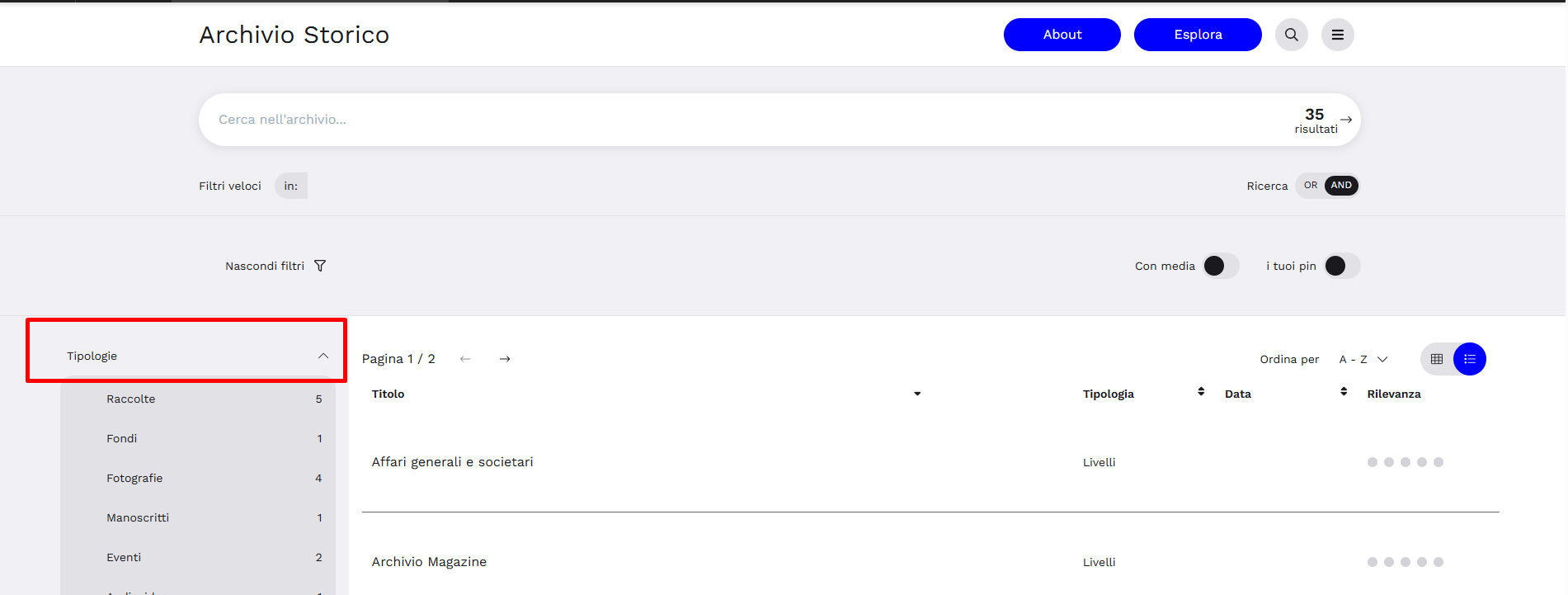
The "Type" Filter
It is automatically generated based on the types of descriptive records present (articles, events, photographs, videos, documents, etc.).
The "Chronology" Filter
This filter allows you to perform a time-based search.
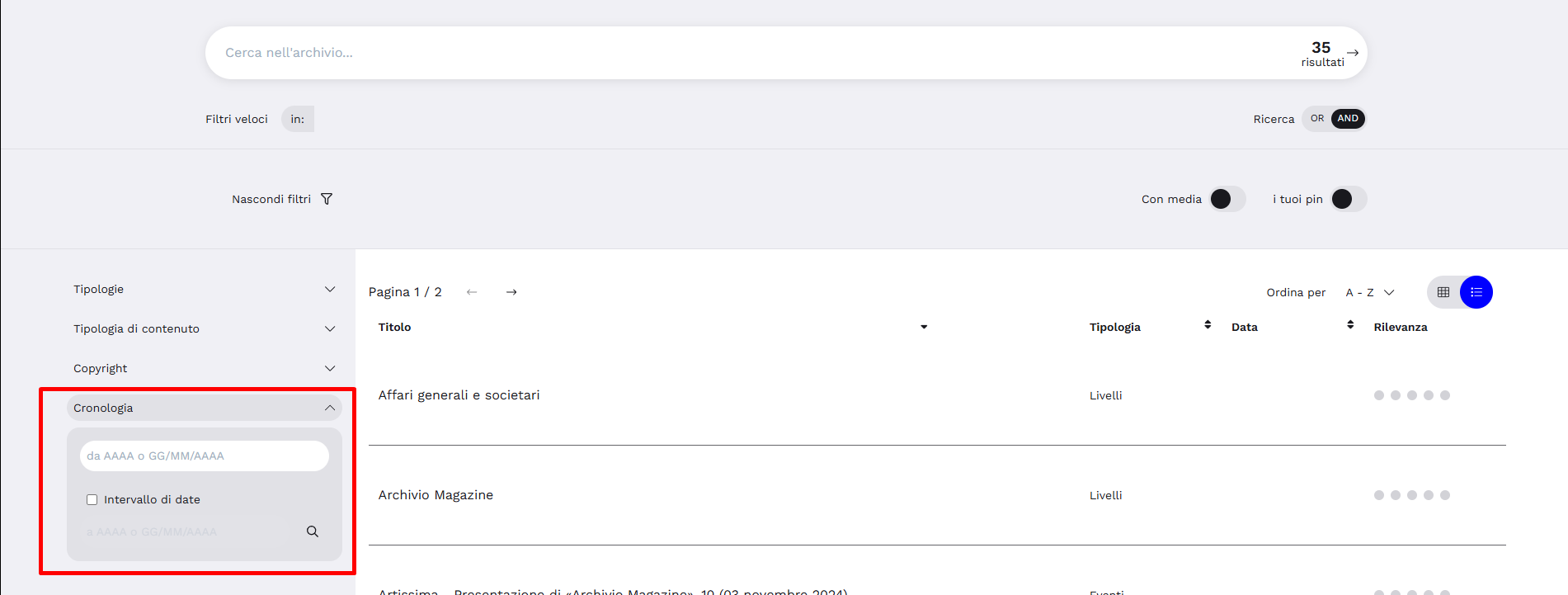
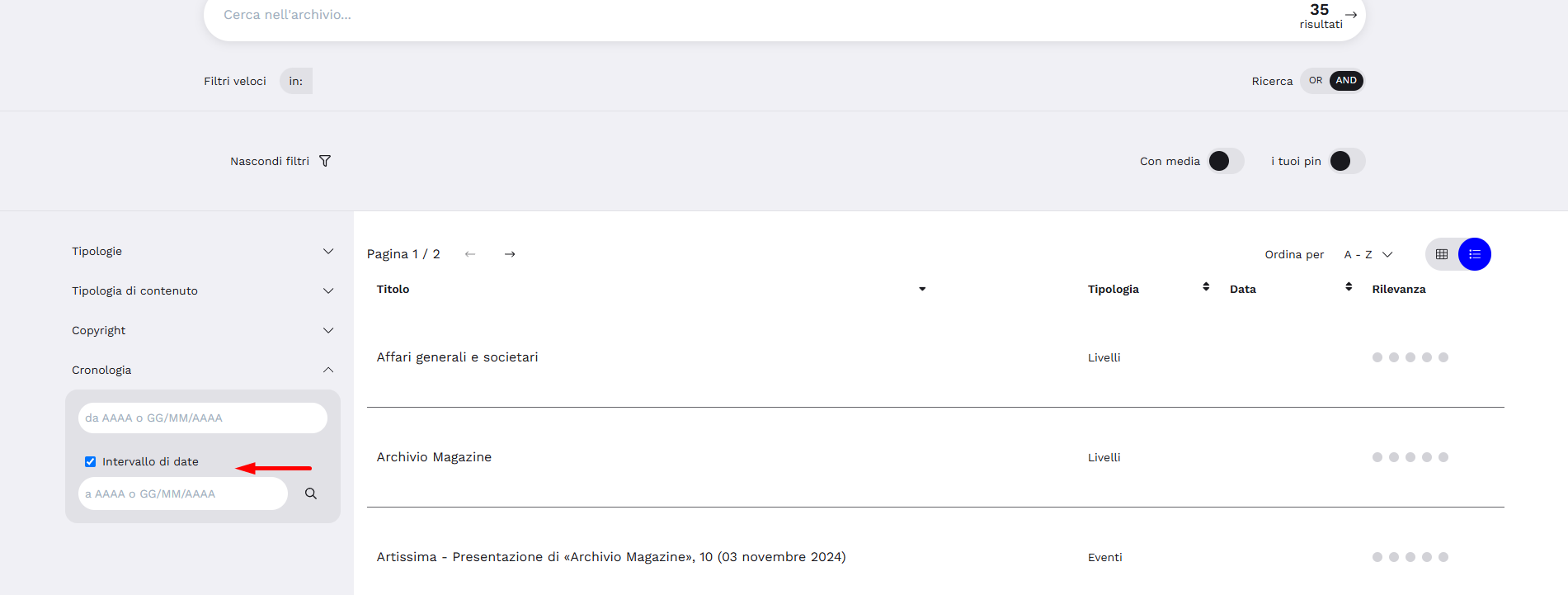
You can either specify a specific date or year or, by enabling the end date of the period, perform a search by date range.
Search Results
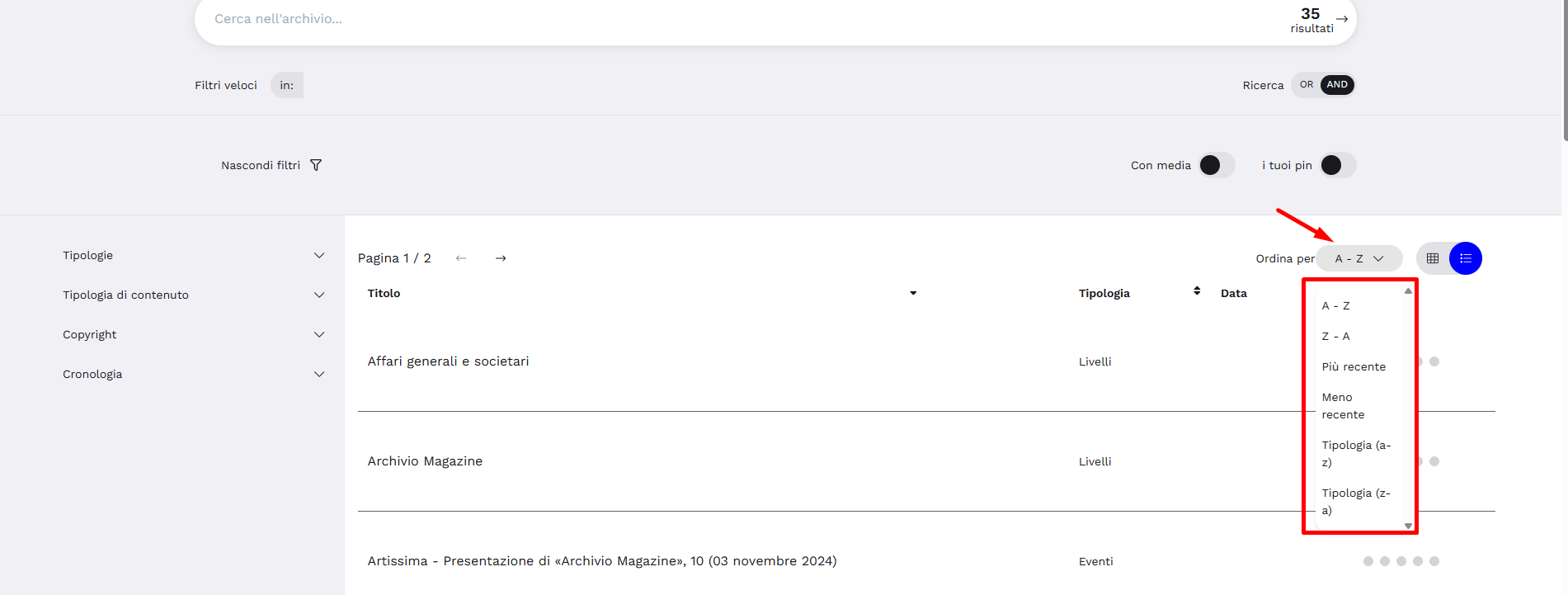
Once the expected search results are obtained, the user can choose both their display order (according to standard predefined, non-modifiable parameters) and the display mode.
Sorting Search Results
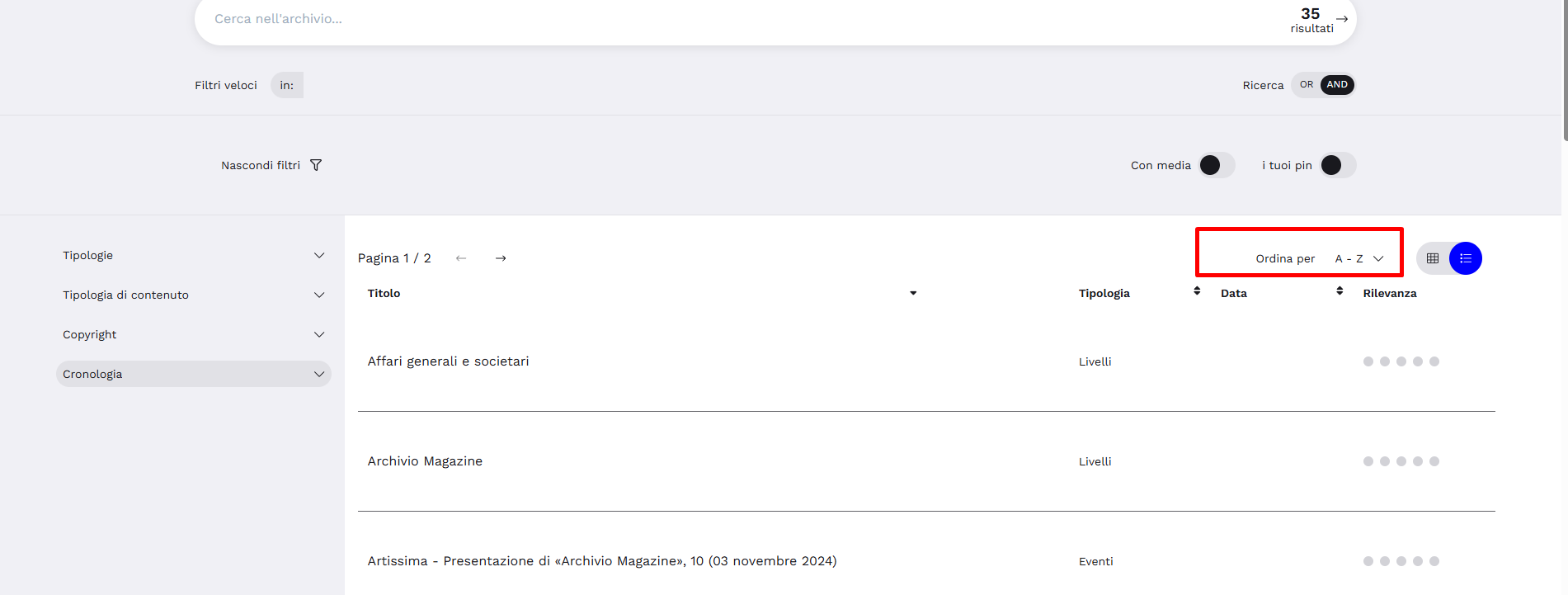
Allows reorganizing search results based on various parameters such as: from newest to oldest and vice versa, alphabetically by title ascending or descending, alphabetically by type (ascending or descending).
Displaying Search Results
Their display mode can be selected by clicking on the side tab on the right edge of the screen.
These clearly identify the two possible result view modes:
- Classic: images are clearly visible, descriptive elements such as title and type are visible above and below the images. This is the default view mode opened by the system.
- List: descriptive elements of the units (Title, Type, Date) take center stage; images are visible (where present) but smaller in size.
"Inventory" Module (Hierarchy)
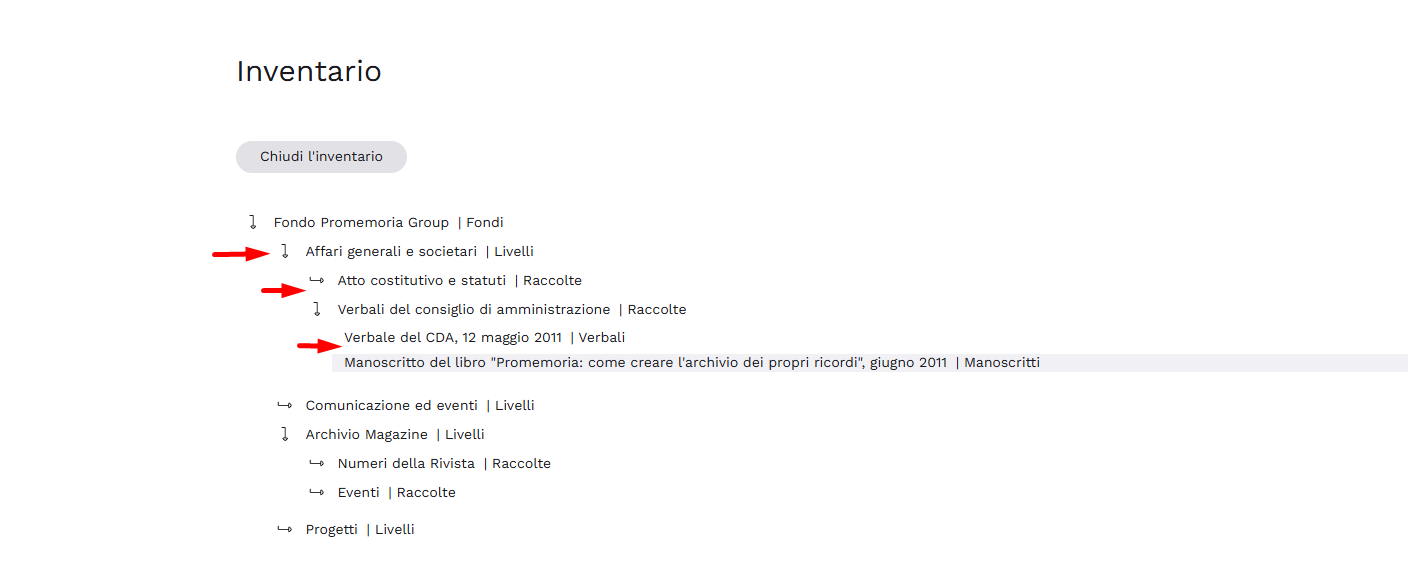
The module allows displaying the archive structure hierarchically, placing each item in its context. The initial view upon opening the page is limited to the highest hierarchical level (or levels).

To expand the view to subsequent levels, click on the horizontal arrow next to the title, which turns vertical when that level is expanded. The inventory hierarchy is limited to showing funds, archival units, documentary units, and objects set to "visible online". Each entry is clickable to view its detail page.
"Theme" Module
The Theme module displays the archive's "Themes" as clickable tiles—that is, the main thematic groupings around which the archival material is structured. The line of text above the title indicates the number of published records linked to that theme. Clicking on the desired tile launches a filtered search across all records related to the theme you wish to explore. It is important to remember that a single record can be linked to more than one theme, so it will appear in the results of multiple searches.
Enter the path of the relevant filter in the string, adding "/filter name". For multi-level filters, use the following sequence: "/filter name/sub-filter name".

In Archivio Musei, the Theme module functions identically but has a different configuration: the list and search filter include only the Museum Collections instead of themes.

"Timeline" Module
The module is designed to represent the database on a timeline through a graphic solution using vertical lines whose height is proportional to the amount of documentation preserved for each year. The data shown is automatically generated by entering the date range in the "Dating" field inside the descriptive records during cataloging (see the section Fields common to multiple records in the reference Pimcore manual).
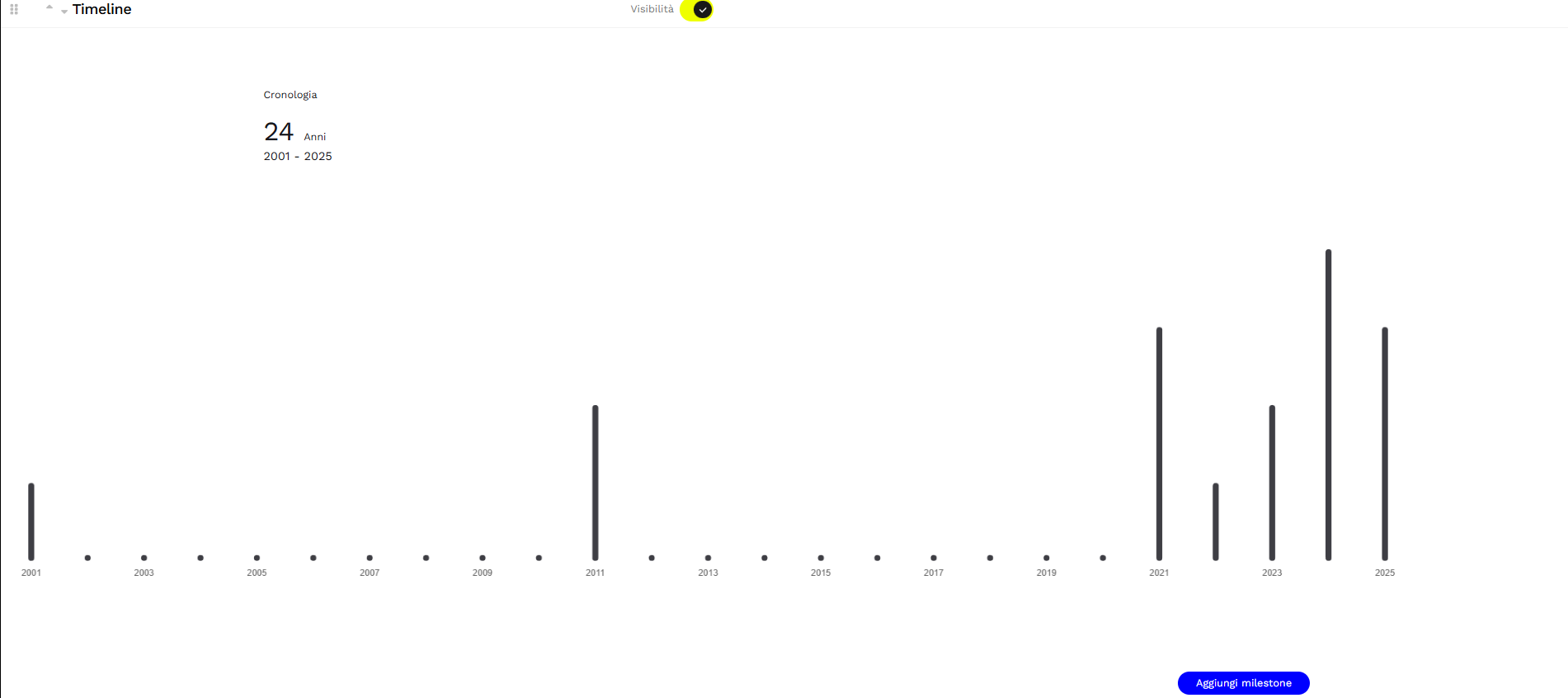
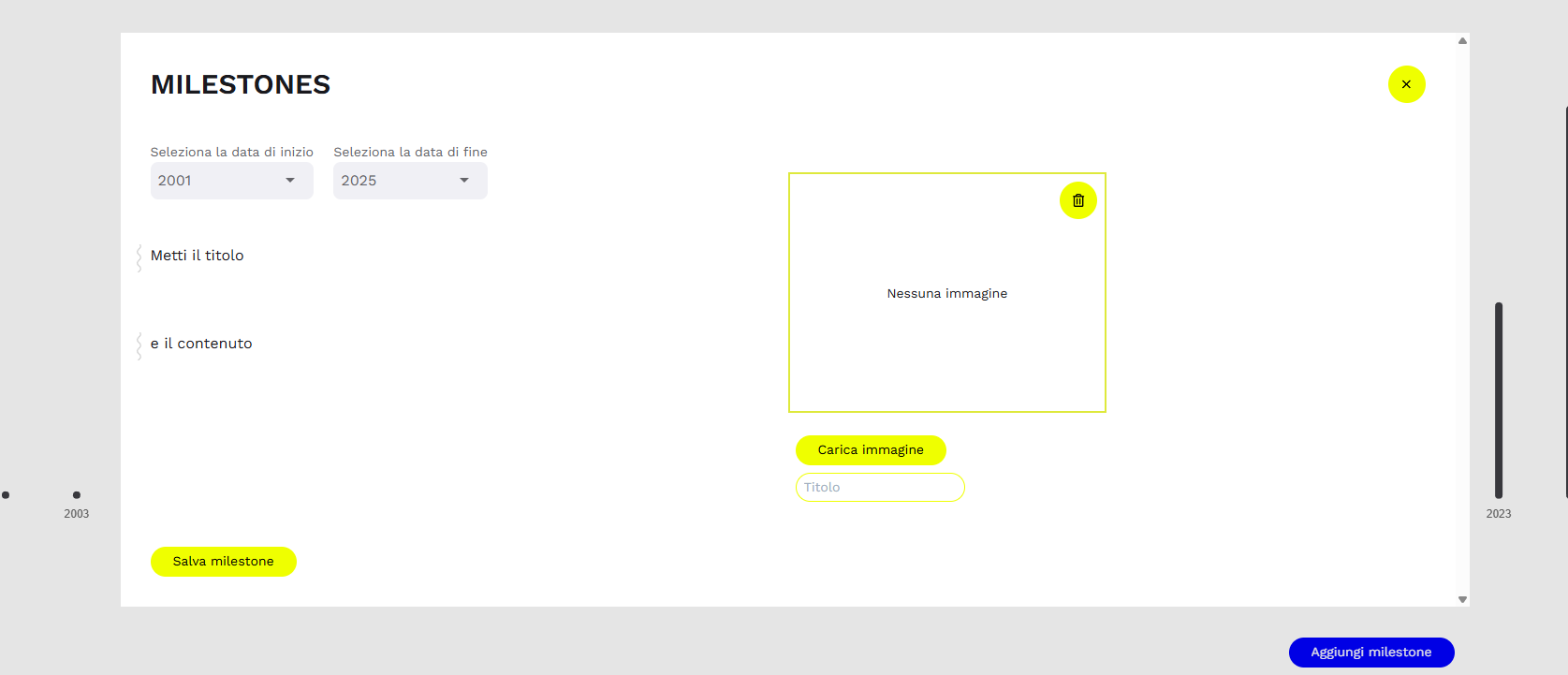
Furthermore, the module allows adding milestones—cards with an image and short description to highlight particularly significant dates or time periods.
"Map" Module
The module allows displaying on a map all records associated with a georeferenced location. Pin icons are clickable to view the type and name of the records linked to a specific location. Selecting an item from those displayed opens its detail page.
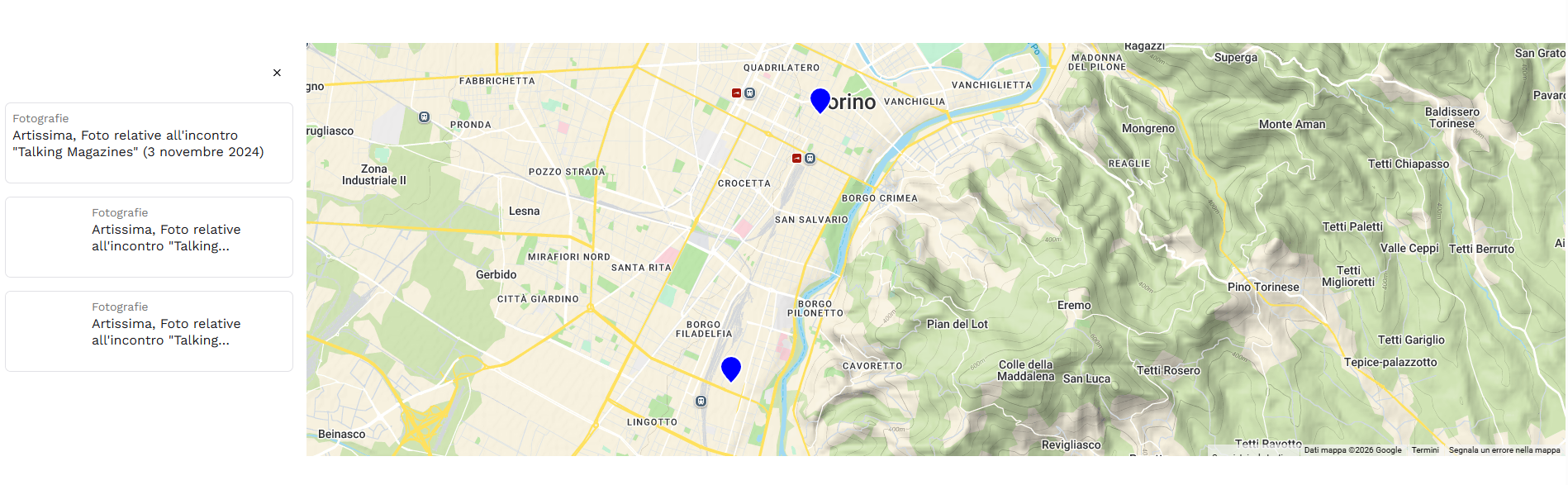
Upon request, the map can integrate a set of filters allowing users to display only specific categories of records. The map can feature a pre-set filter whose initial configuration is chosen based on the archive's focus area. The map can also be embedded via an iframe within a thematic itinerary to enhance project storytelling.
"Overview" Module
The module displays an automatic count of records published on the system, broken down into various categories (archival series/fonds, archival units, documentary units, levels, records with media, or, in Archivio Musei, museum assets, archival assets, and book assets). Clicking on each number launches a filtered search within that category.
"Shuffle" Module
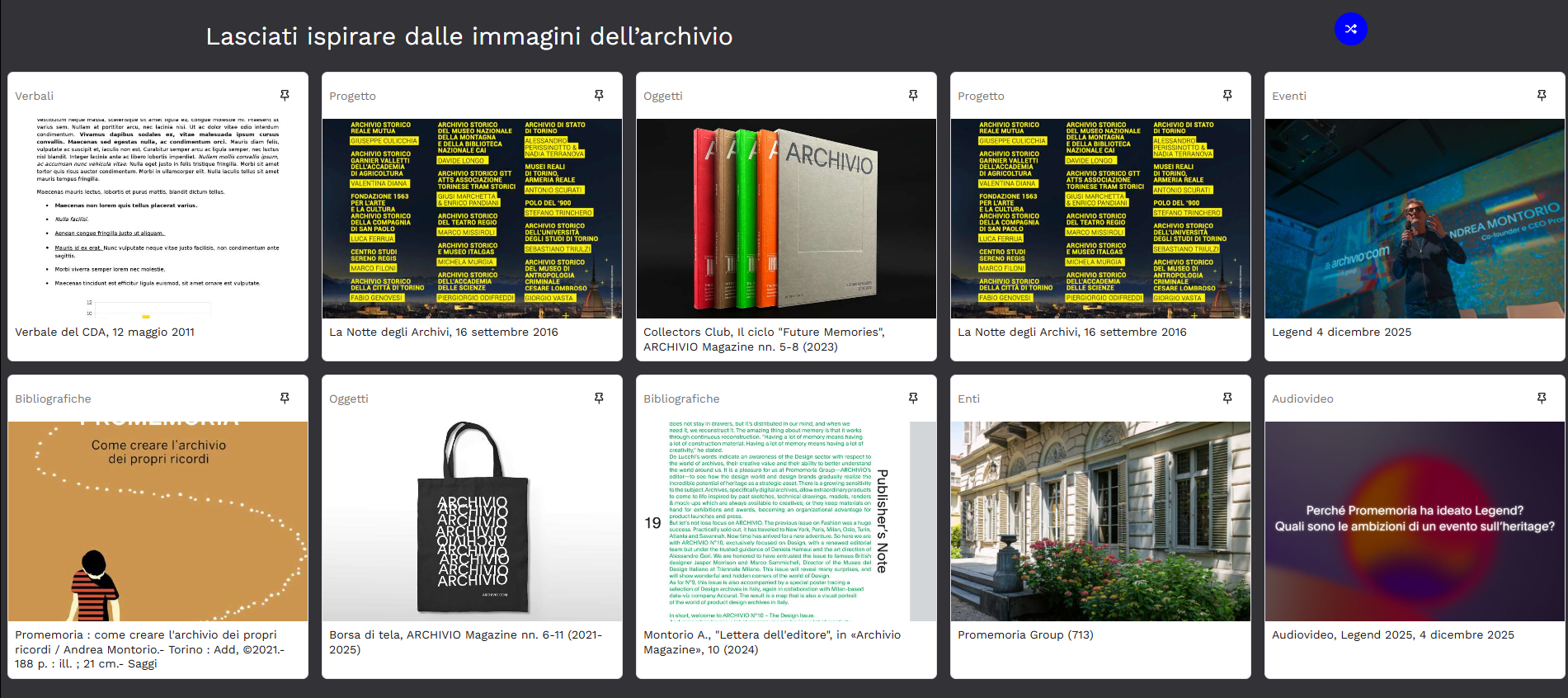
The module provides a preview of a group of descriptive records randomly selected from the database.
"Pin" Module
The module allows displaying groups of descriptive records saved by the user directly on the Homepage.

For further details, see also the section dedicated to operation and management of Pins.