Getting started
Web address and login
Access
The consultation portal (front-end) can be reached at a URL with the structure chosenname.archivio.com, corresponding to the homepage of the website once made public (see the section General).
You can request the redirection of the Archiui site to a client-owned domain.
- Website not yet public, the address chosenname.archivio.com automatically redirects to the login screen (chosenname.archivio.com/login).
- Public website, registered users log in by clicking on the Menu icon (see section) and then on “Login”.
User account creation is managed by users with the Manager role (see the section Manager User). To recover your password, the “Forgot password?” wizard is available from the Login screen.
Login
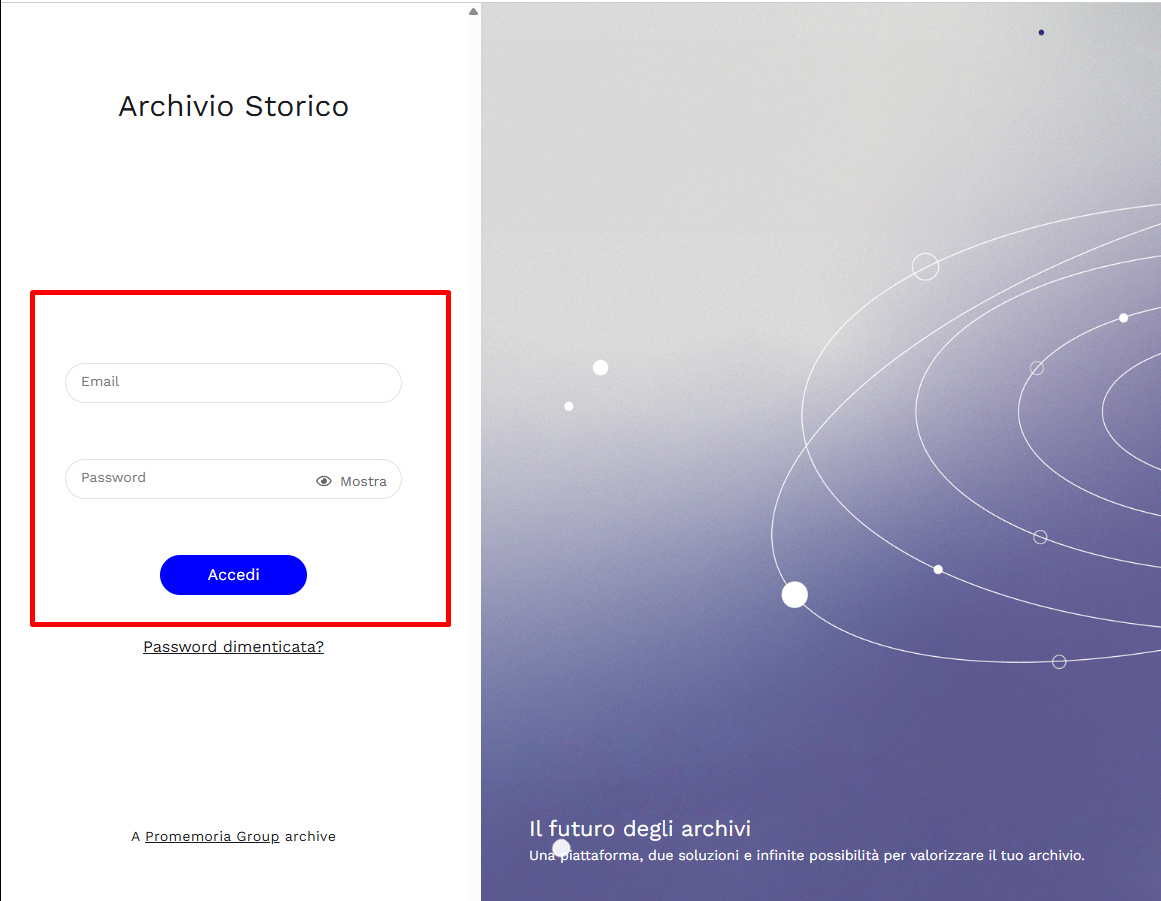
Access to content is protected by an ID (email) and a personal password, delivered via email and configurable upon first access. You can change or recover your password at any time from the user menu.
See also User accounts and access roles
User accounts and access roles
User accounts: activating your account
The procedure for activating a new account involves entering certain user details, specifically first name - last name - reference email. Once a manager user, whether internal or external to Promemoria (see the section Manager User: how to assign new users or manage existing ones), completes the activation, the user in question will receive an automated “Welcome” email.
The procedure illustrated below is similar for all accounts and does not depend on the assigned roles.
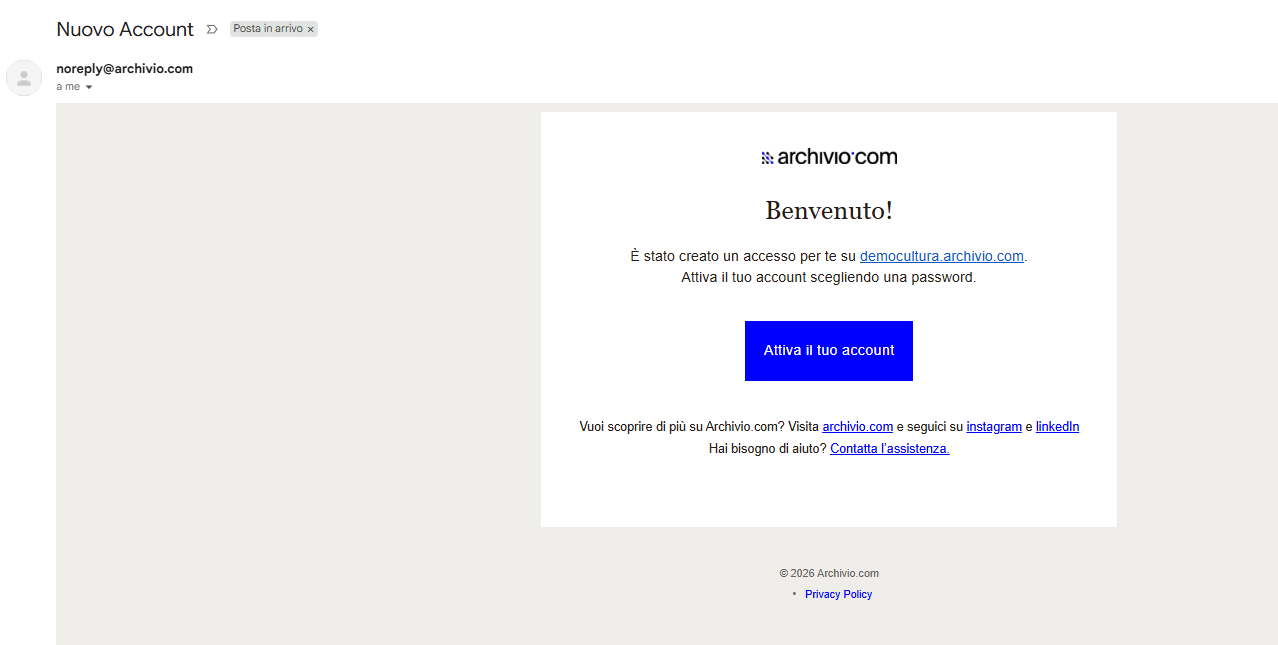
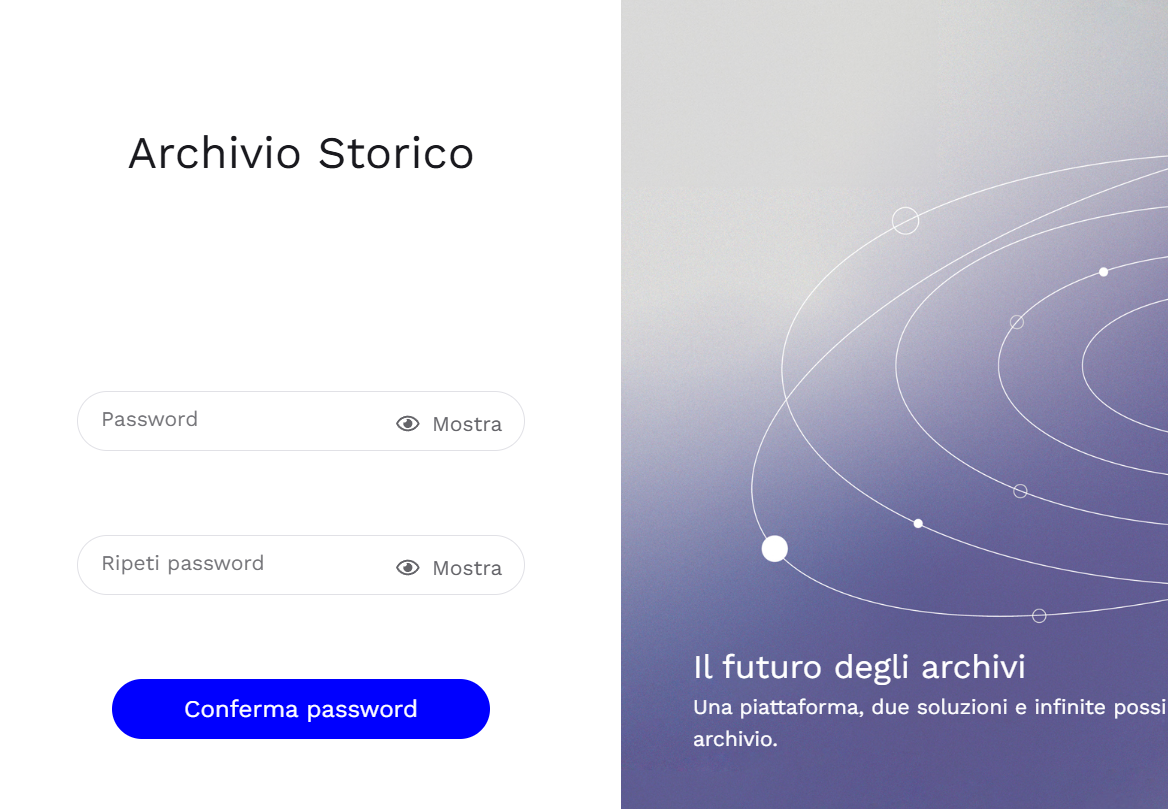
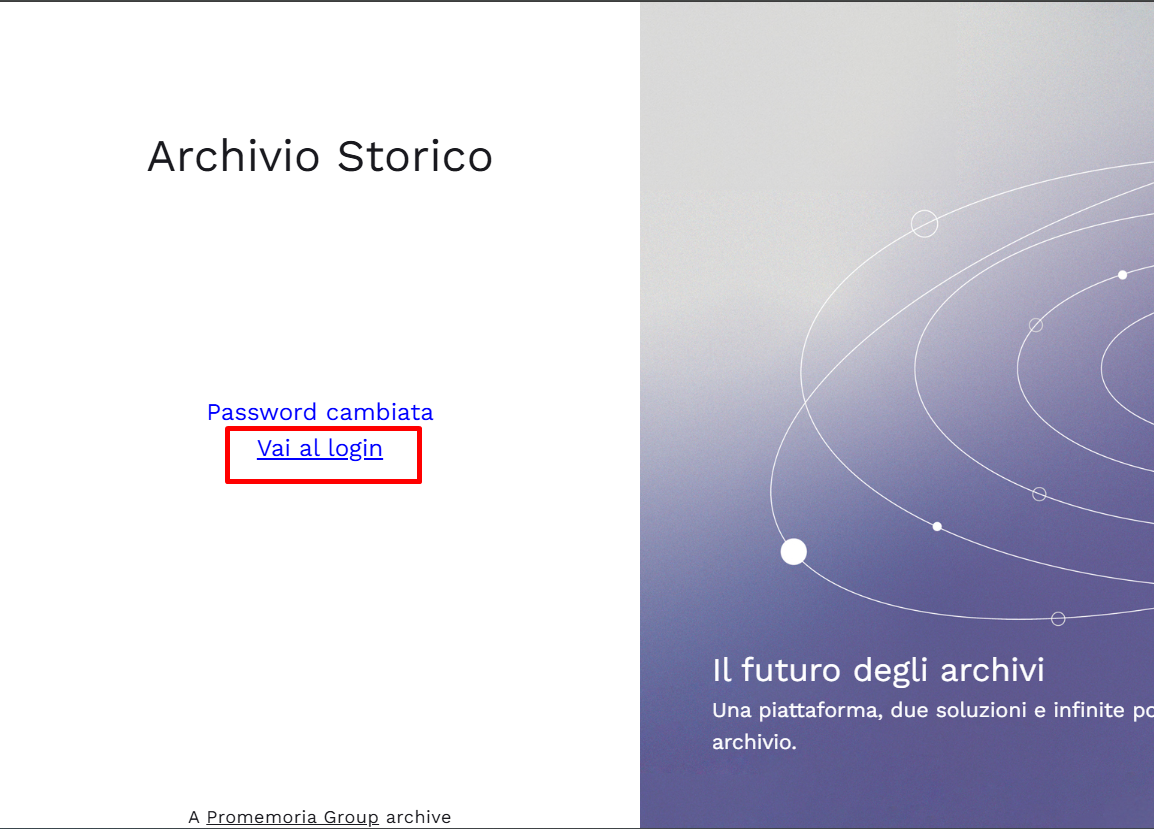
Clicking on “Activate your account” redirects to this screen
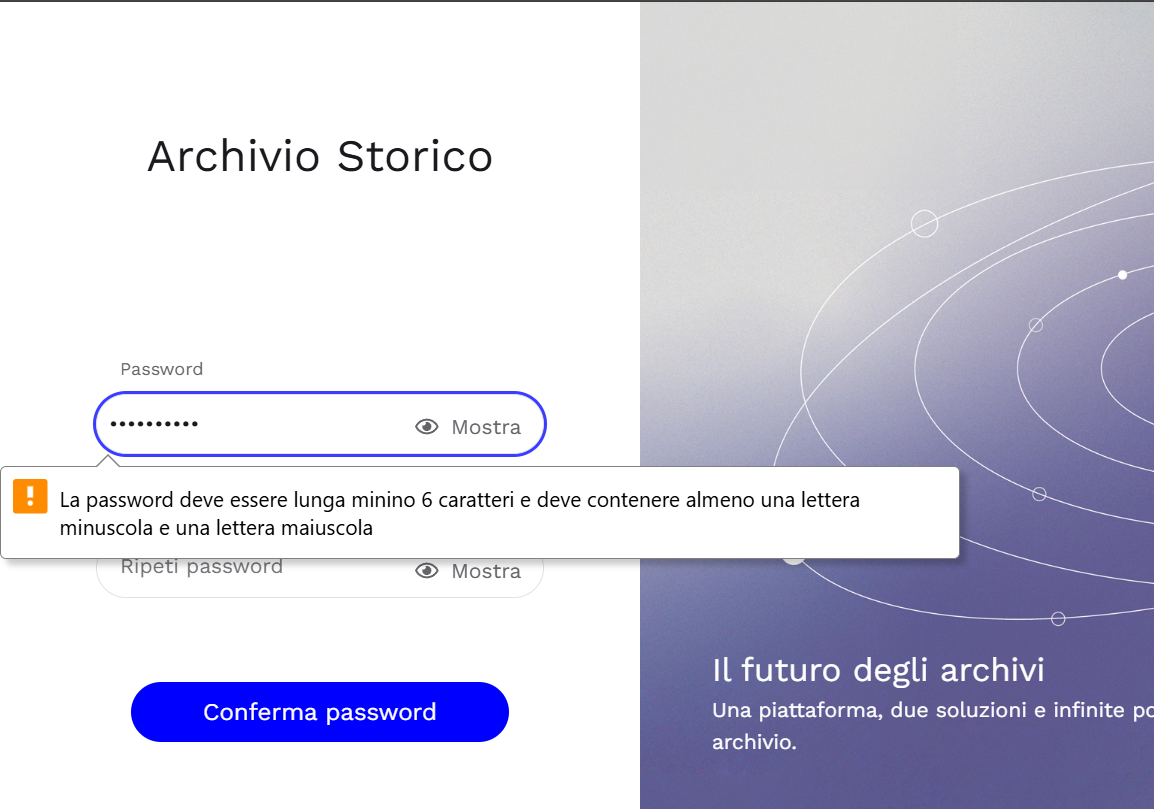
Proceed by entering the desired password, which must contain at least 6 characters, including one lowercase letter and one uppercase letter, as suggested by the banner.
After confirming the password, the user will be prompted to log in (refer to the Login section).
User accounts: recovering your account password
Forgot your password? It happens to everyone!
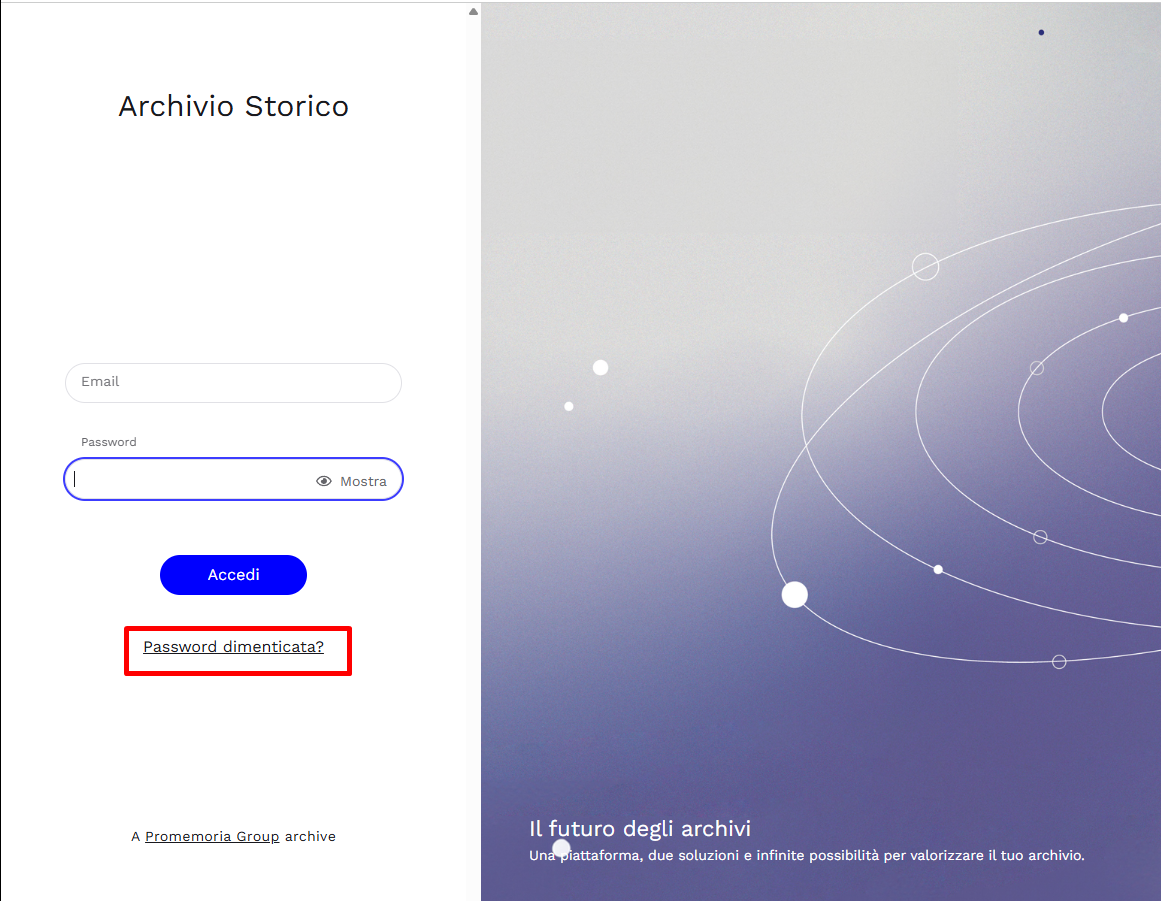
You can recover your password by clicking on Forgot password? located under the “Log in” tab.
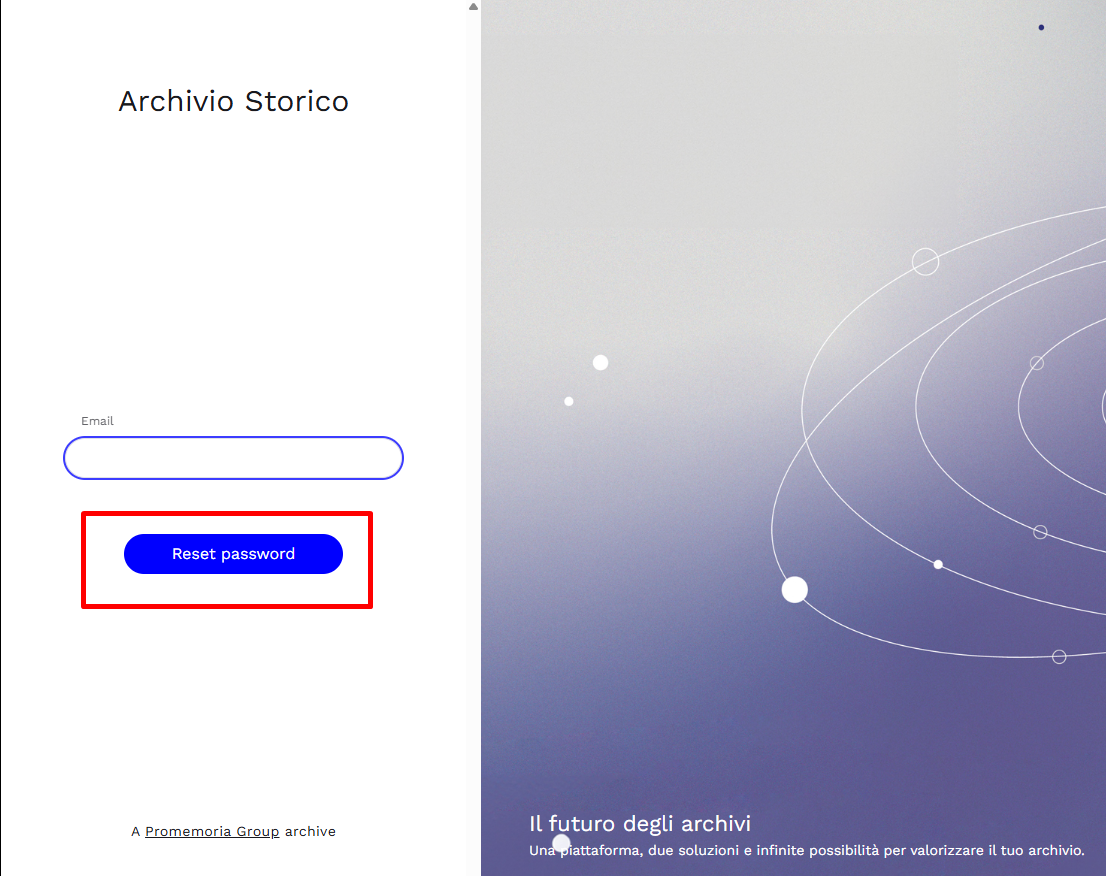
Then proceed by entering the email with which your Account was activated and clicking on “Reset password”.
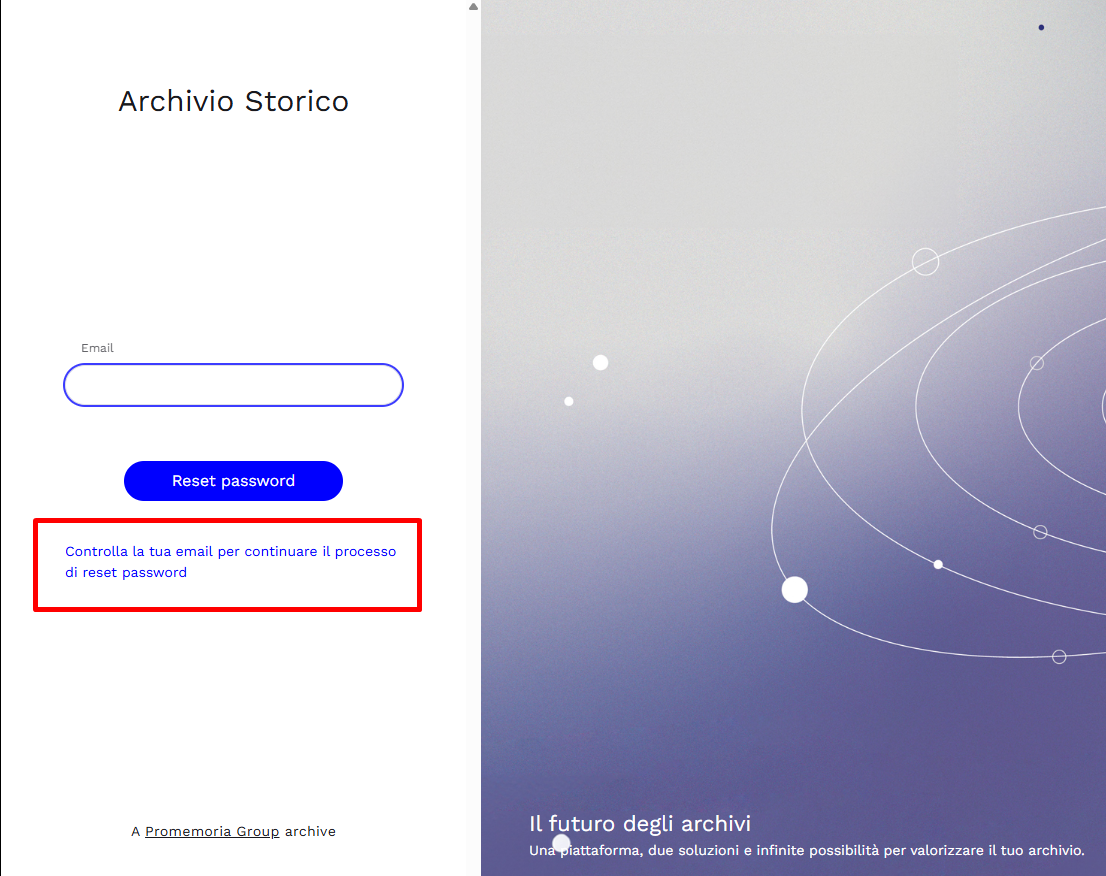
You will then be directed to check your email to continue the password reset process.
An automated email will be sent, from which you can proceed to set a new password.
Manager User: how to assign new users or manage existing ones
From the Homepage, click on the Settings icon shown in the image.
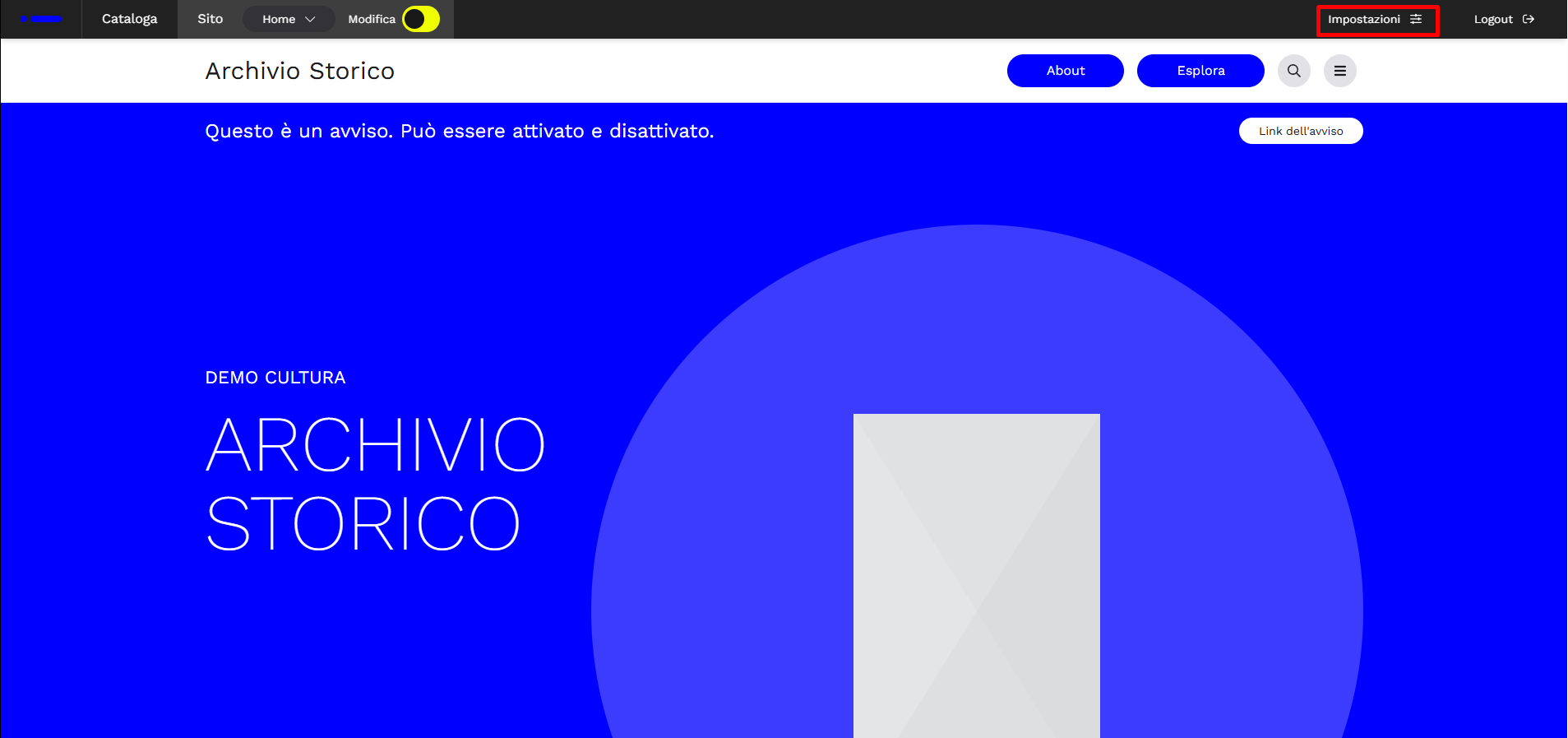
Once opened, go to “Users”
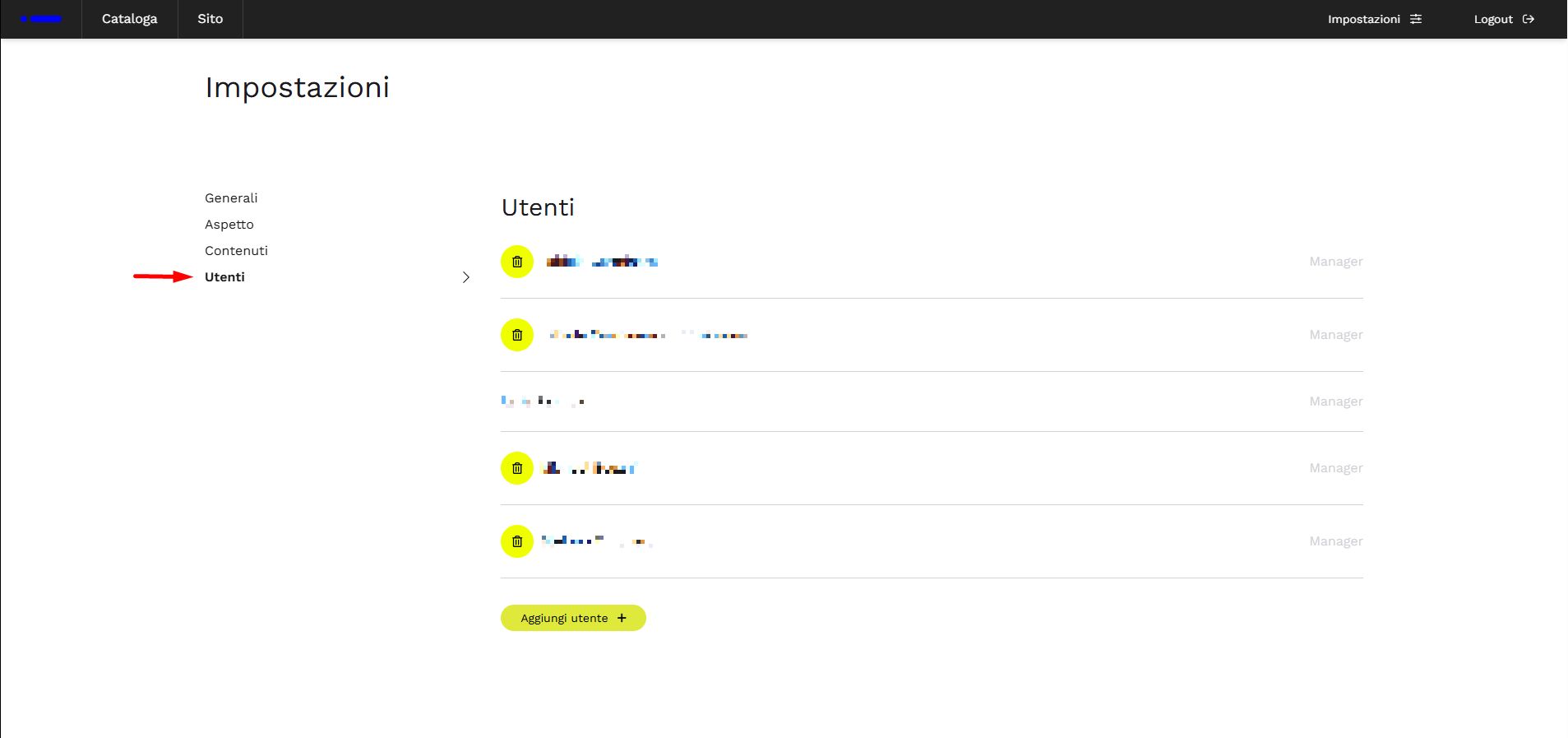
From here you can:
- View already active user accounts and, if necessary, modify roles or login credentials by clicking on the corresponding name
- Activate new user accounts.
To activate new user accounts, click on “Add user”. Proceed by selecting the role from the drop-down menu and filling in the first name - last name - email of the new user, then click Save.
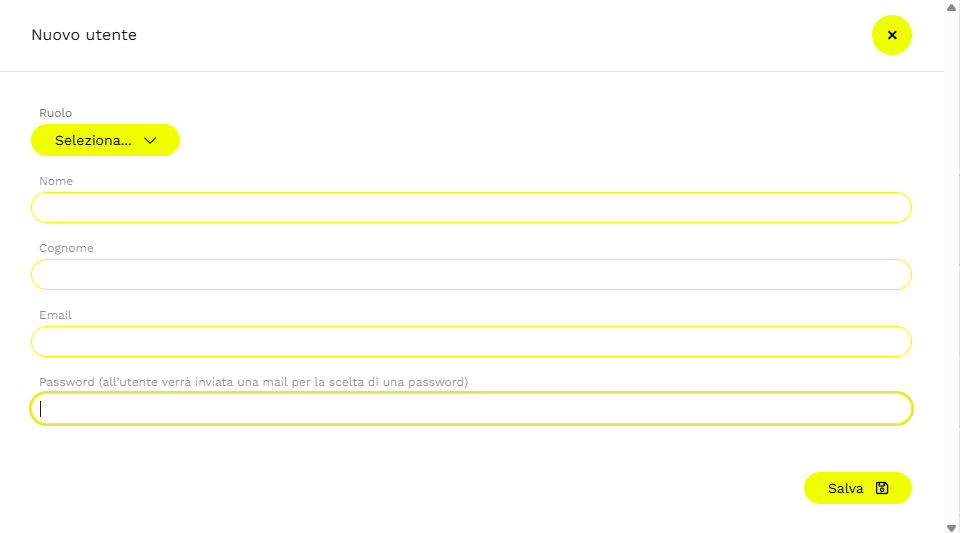
The user will then receive an automated email to proceed with account activation.
Access roles
Every collaborator or researcher can have individual login credentials, with a profile (role) that determines their permissions on the site and on the cataloging software. Each role includes a set of capabilities, listed below in their standard model:
- Manager — performs all actions in the Catalog section; edits every part of the website and decides when to publish it; manages Settings and user accounts.
- Archivist — operates only in the Catalog section (new records, edits, searches); can view the site even before publication, but cannot edit it.
- Researcher — cannot make edits or access the cataloging environment; can consult the website even before publication and save their searches (see the dedicated section).
Console
Once logged into Archivio Digitale, you are directed to the Homepage, which allows quick access to the two main sections: CATALOG — the cataloging and management software — and ENHANCE — the customizable website.
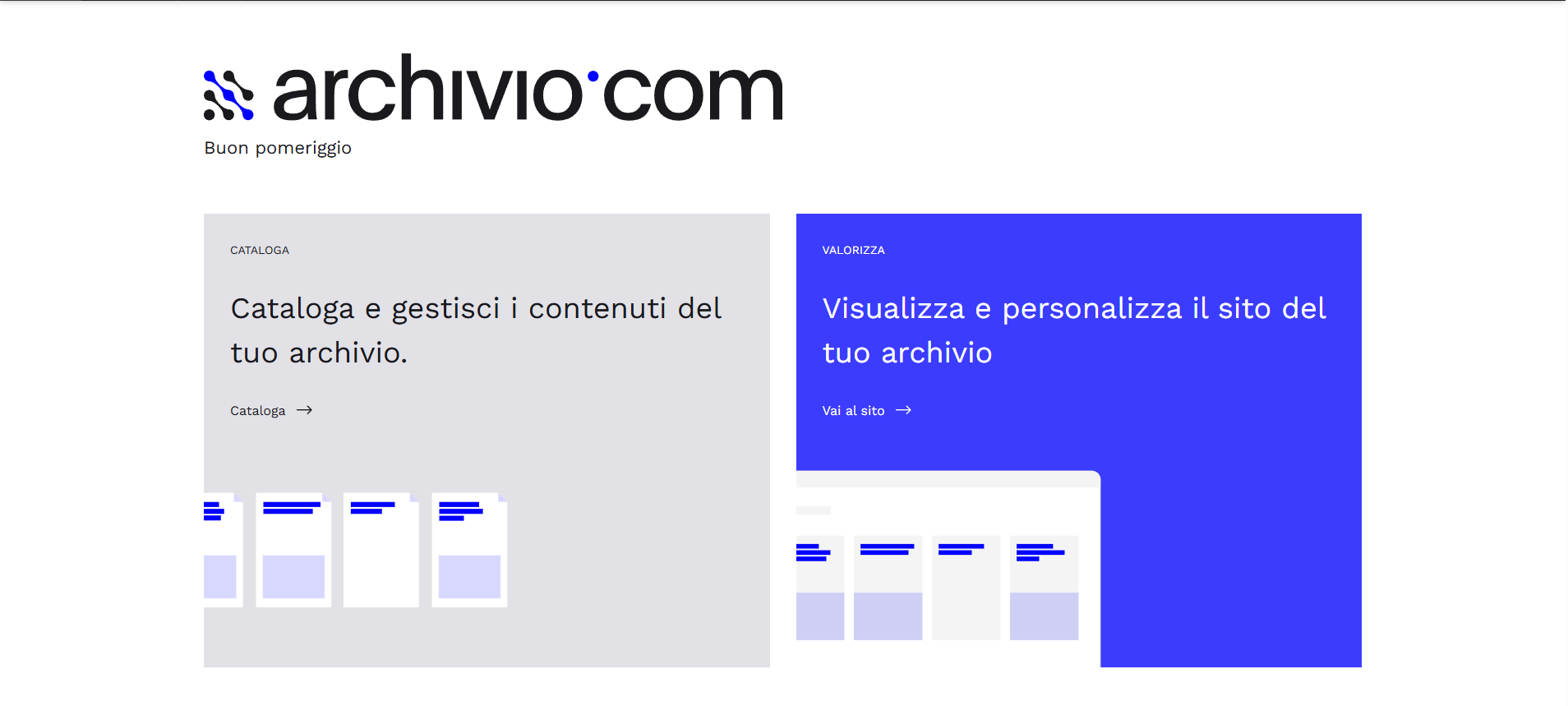
Other important data is present on the page, briefly illustrated below.
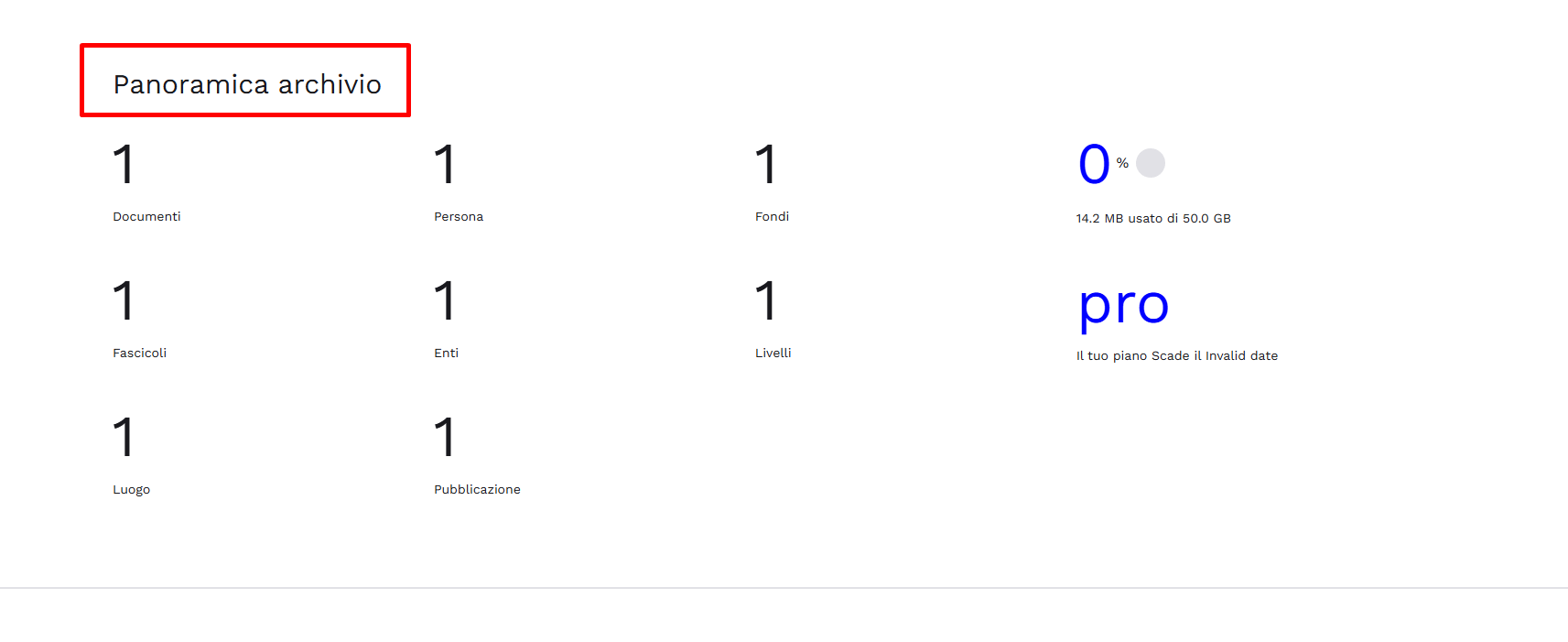
Archive overview
This section informs the user in real time about the records present in the Archive, the percentage with associated media (digital assets), the hosting space used relative to the total available, the version in use, and the subscription expiration date.
Shortcuts
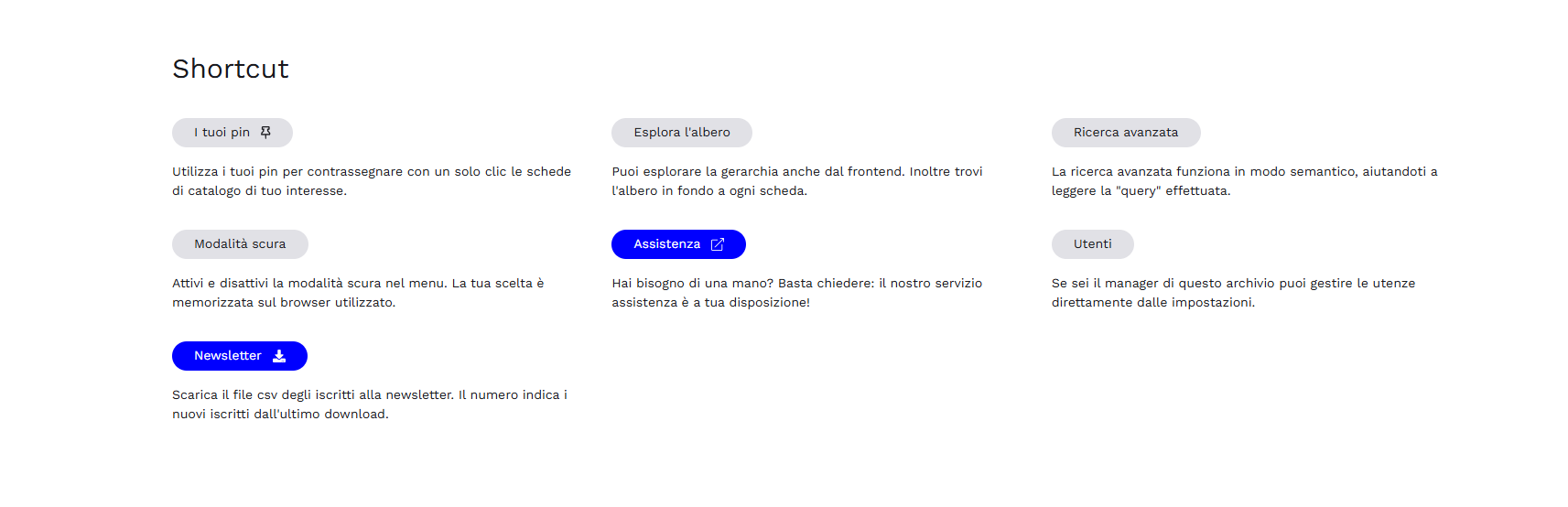
Shortcuts provide fast access to certain functions, such as Advanced Search, PINs (see the dedicated section) and the inventory tree view, user creation, the Archivio.com website, and Support Request.
"Move on" module
For the Museums solution only, the Console additionally features the Move on module, a summary register of ongoing loans, synchronized with movement records (Loans) created in the Catalog section (see the dedicated section on References in Objects / Museum Archives).
Public frontend
General overview
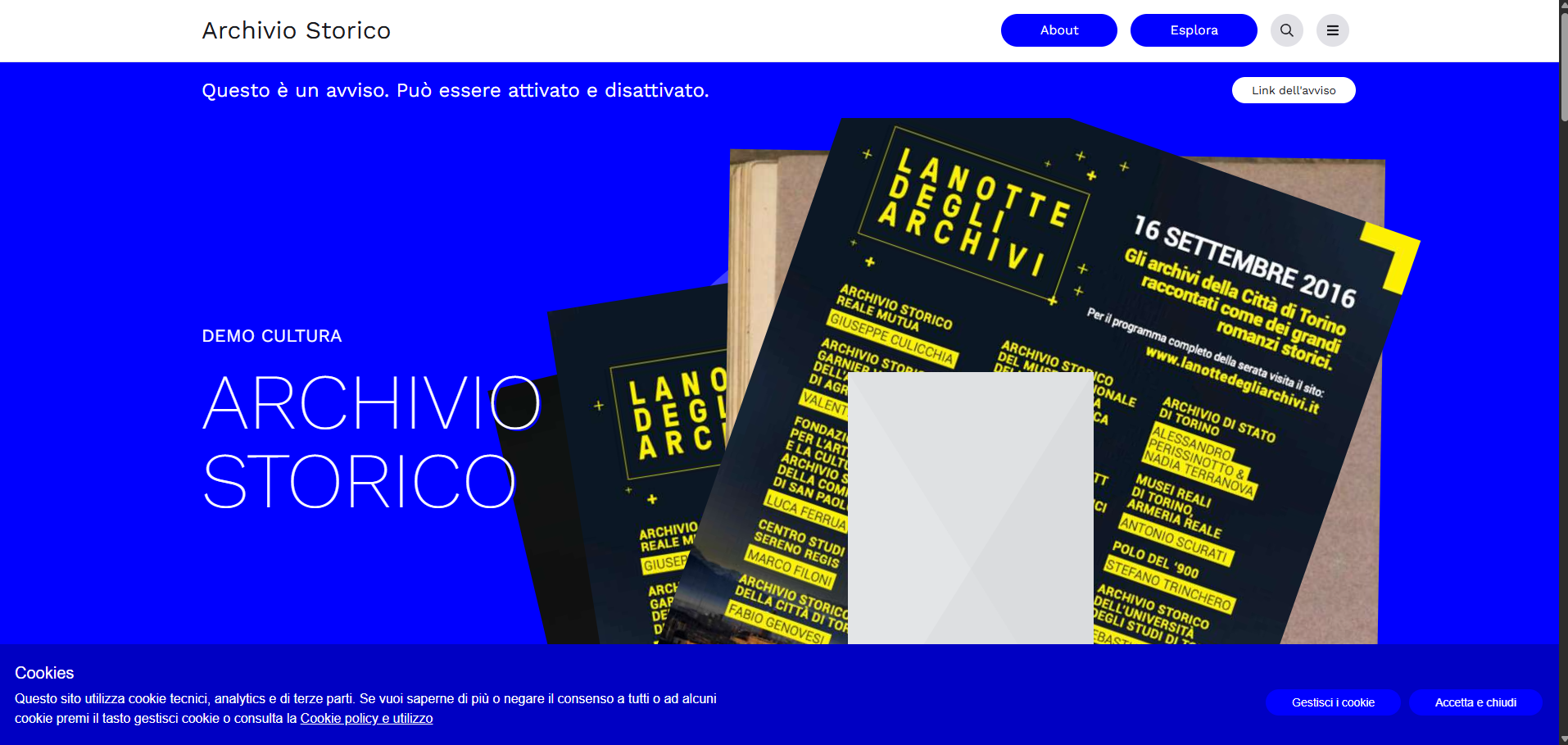
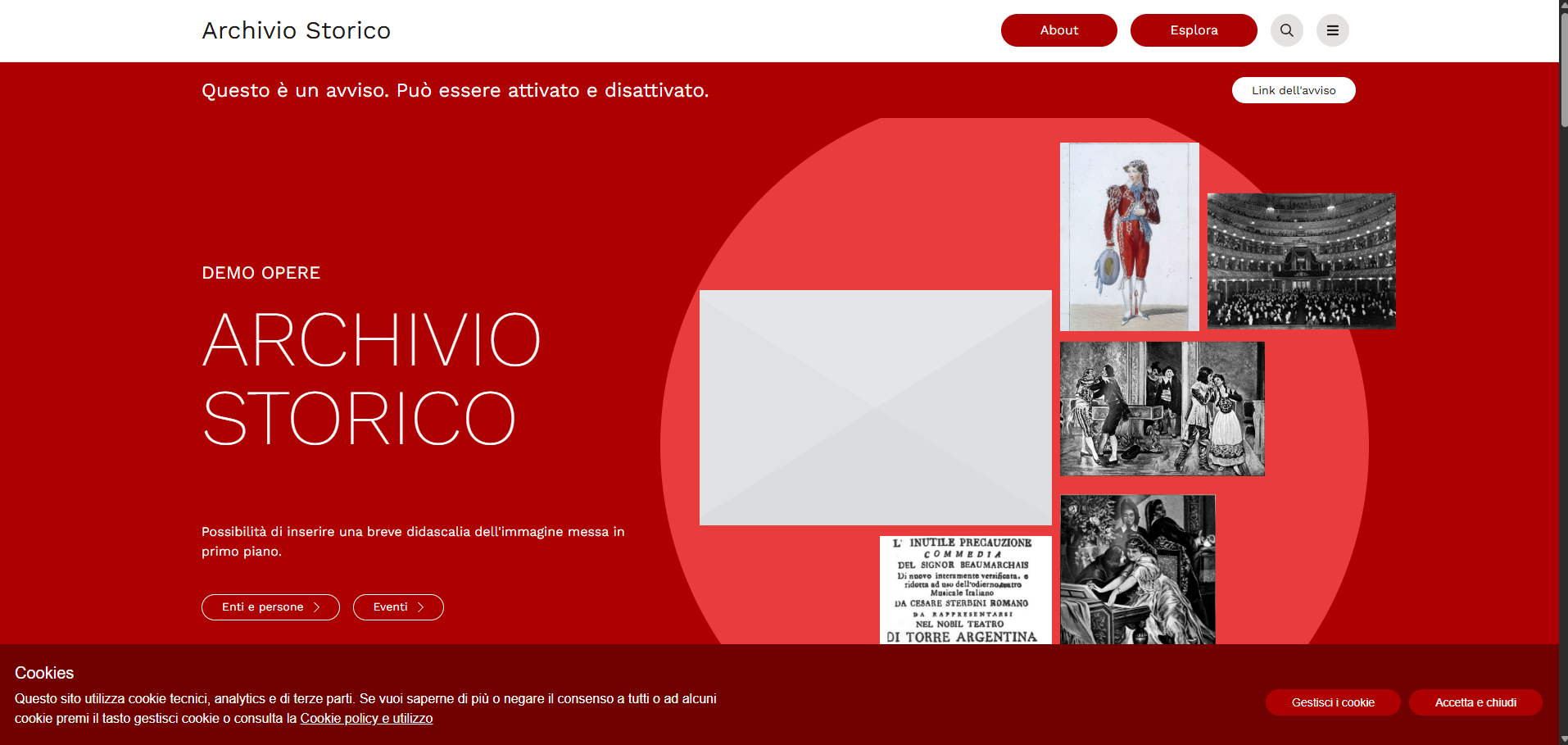
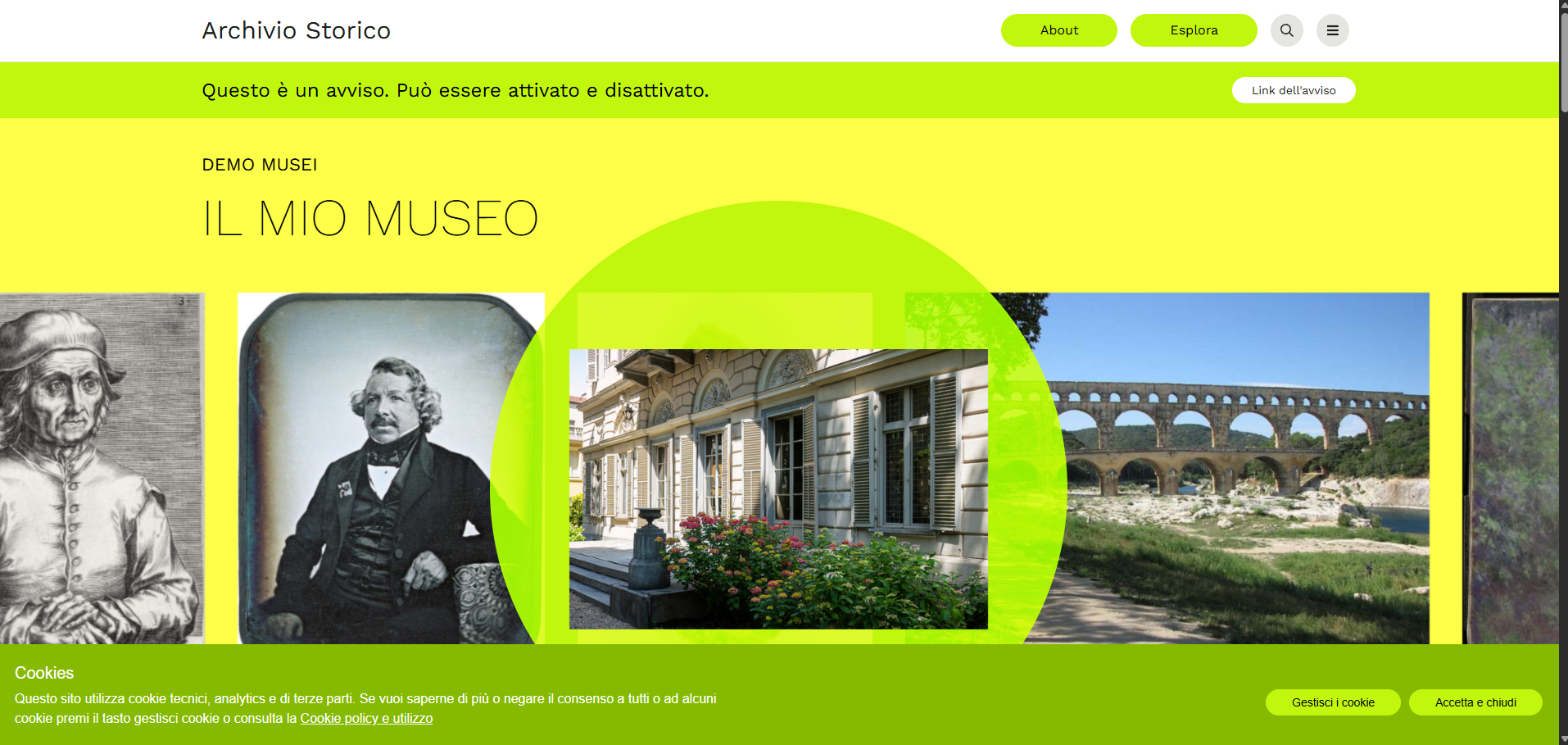
When the website is public (to make it public, see the section dedicated to General settings), the Homepage displays a fixed header: the archive title on the left (for setting and customizing it, see the Settings section), quick access buttons About and Explore, the search icon, and the menu icon (the three horizontal lines) on the right. Immediately below this header, an optional notification banner with short text and a link for further details can be displayed — the Breaking News module.
This is followed by the actual opening section (Hero): a title, a main image selected by the Manager user, and any decorative images, automatically picked by the system from those published in the archive and refreshed upon each page load.
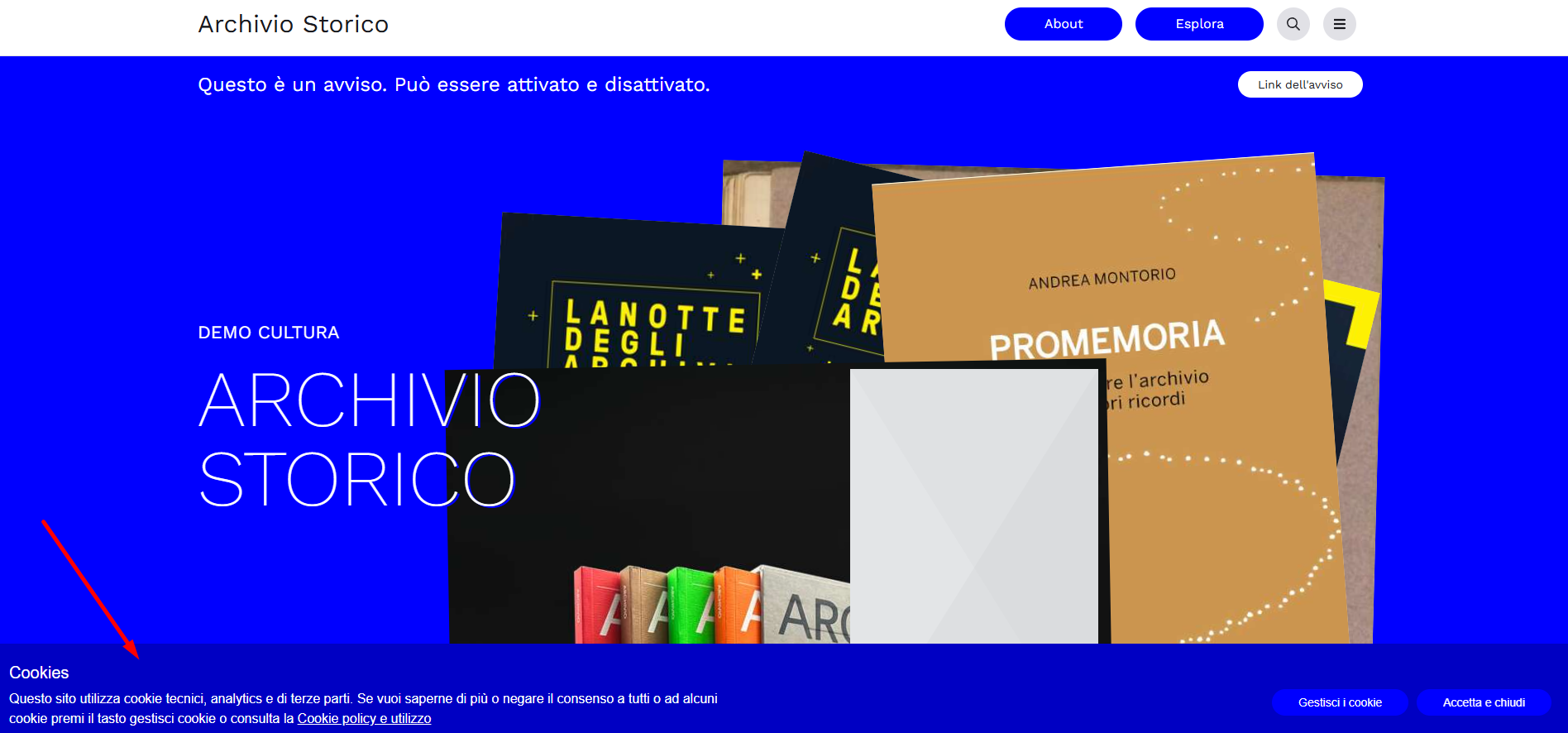
The cookie banner
At the bottom of the page, the cookie consent banner appears: a short text, the link to the "Cookie policy and use", and two buttons — Manage cookies, to choose which categories to accept, and Accept and close, to consent to all. The linked cookie policy text is configured in Settings (see also the Content section).
The navigation menu
Clicking on the menu icon opens the full navigation bar, providing access to all active sections of the website.
In the standard configuration, the following browsable modules are displayed upon opening:
- Home — returns to the Homepage.
- About — the presentation page of the archive or institution (see section).
- Explore — the website search engine: a text search bar accompanied by a filter panel to locate published records (see section).
- News — news published about the archive, included in Pro version (see section).
- Historytelling — thematic pathways created by curators (see section).
Next to the options listed above, on the right side, the language selector is visible (if the Multilingual option is properly activated; see the section Other features for details and General settings) for proper configuration.
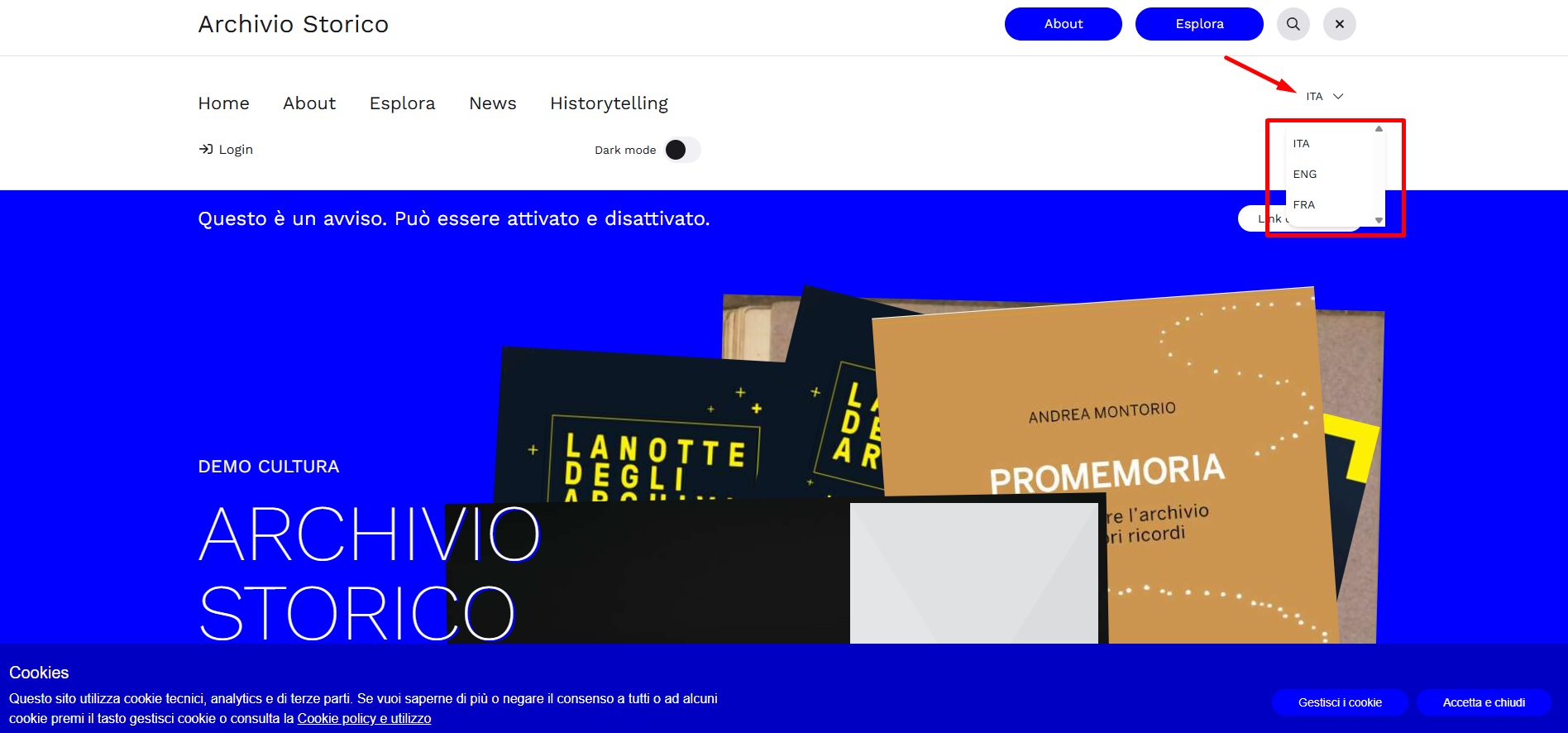
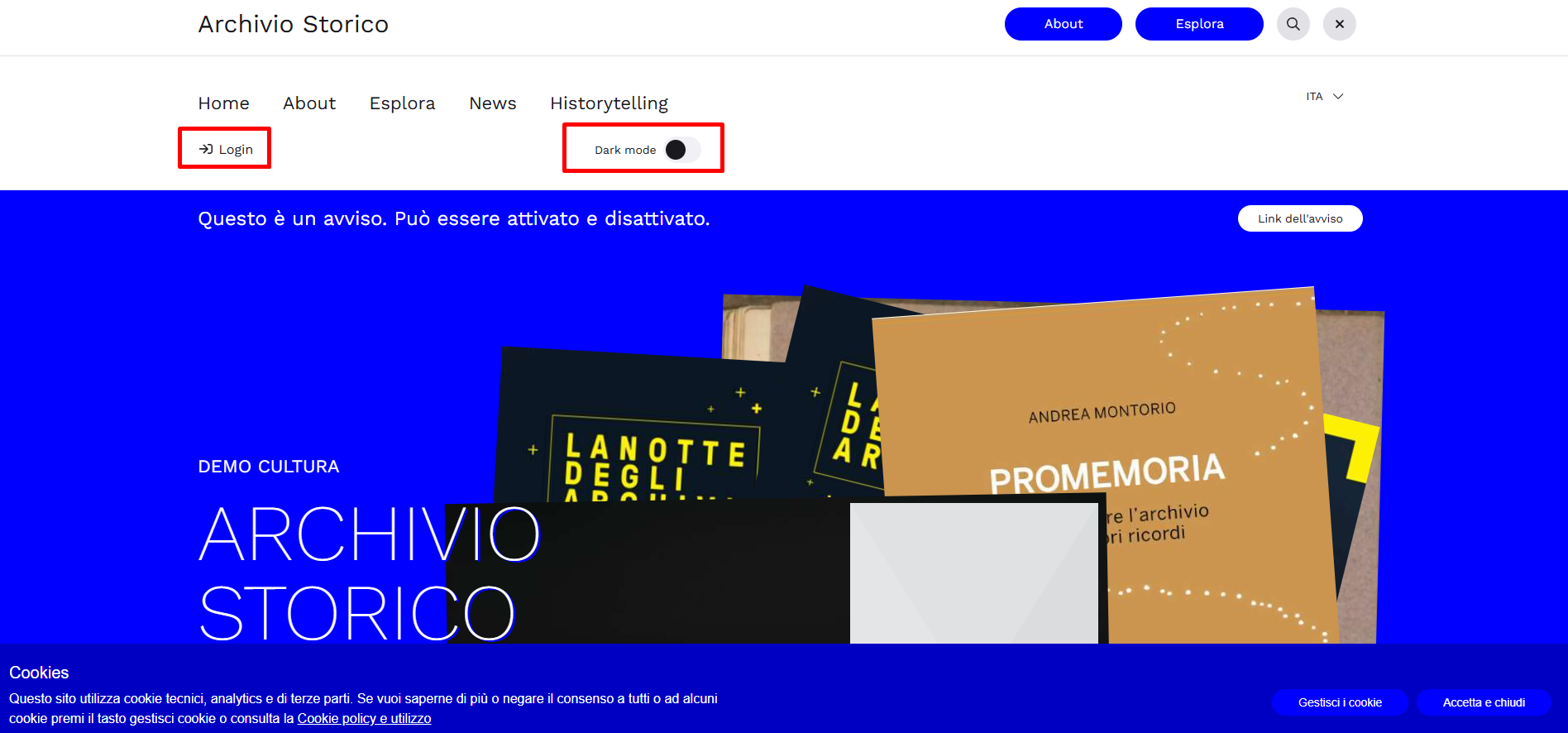
This is followed by the link to the Login area, usable by credentialed users (see also the section User accounts and access roles), and the Dark mode switch for dark screen display.
An example of customization
Base color, title, and images can be configured by the Manager in Settings (see section Appearance): with the same structure, the website can look significantly different from one archive to another. The following three examples show the same header and Hero applied to three distinct configurations (corresponding to the 3 provided demos).
For further details, see the section The "Edit" mode.
The "Edit" mode
Once logged in with their credentials, Manager users can see the Edit switch. Once enabled, you can interact directly with the displayed page (see The Control Panel).
Text parts marked with a wavy line can be edited by clicking on them and typing the new text
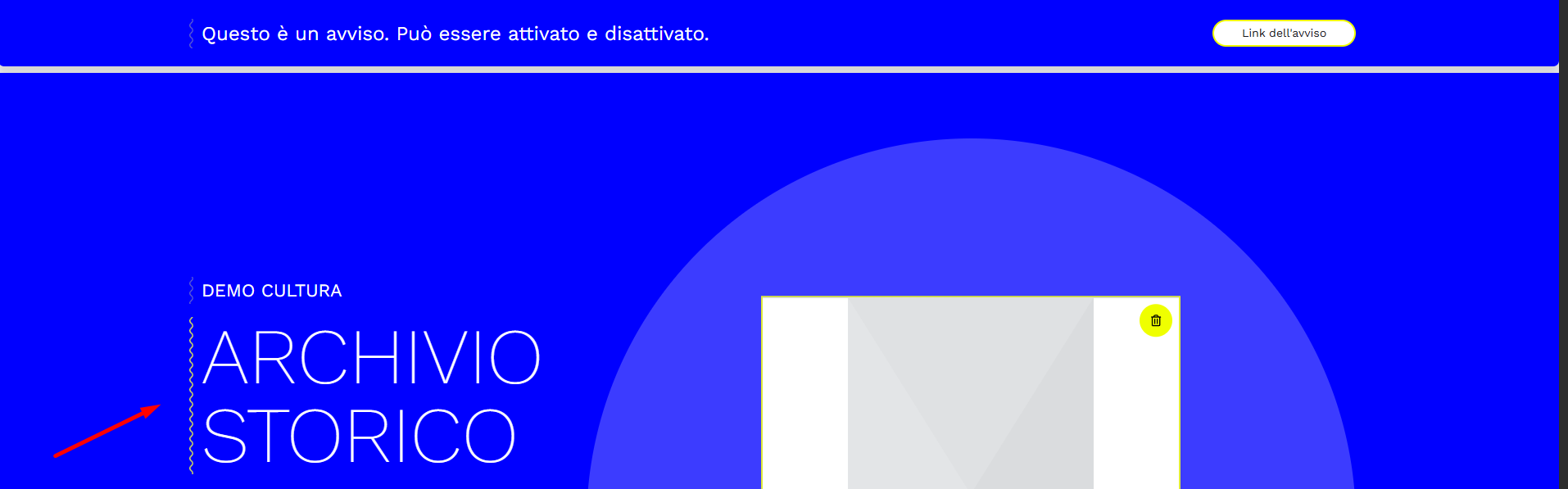
It is recommended not to paste text copied from editors with their own formatting (such as Word): this may introduce visual inconsistencies and misalignments. It is better to type directly into the field, or paste unformatted text (for example from Notepad).
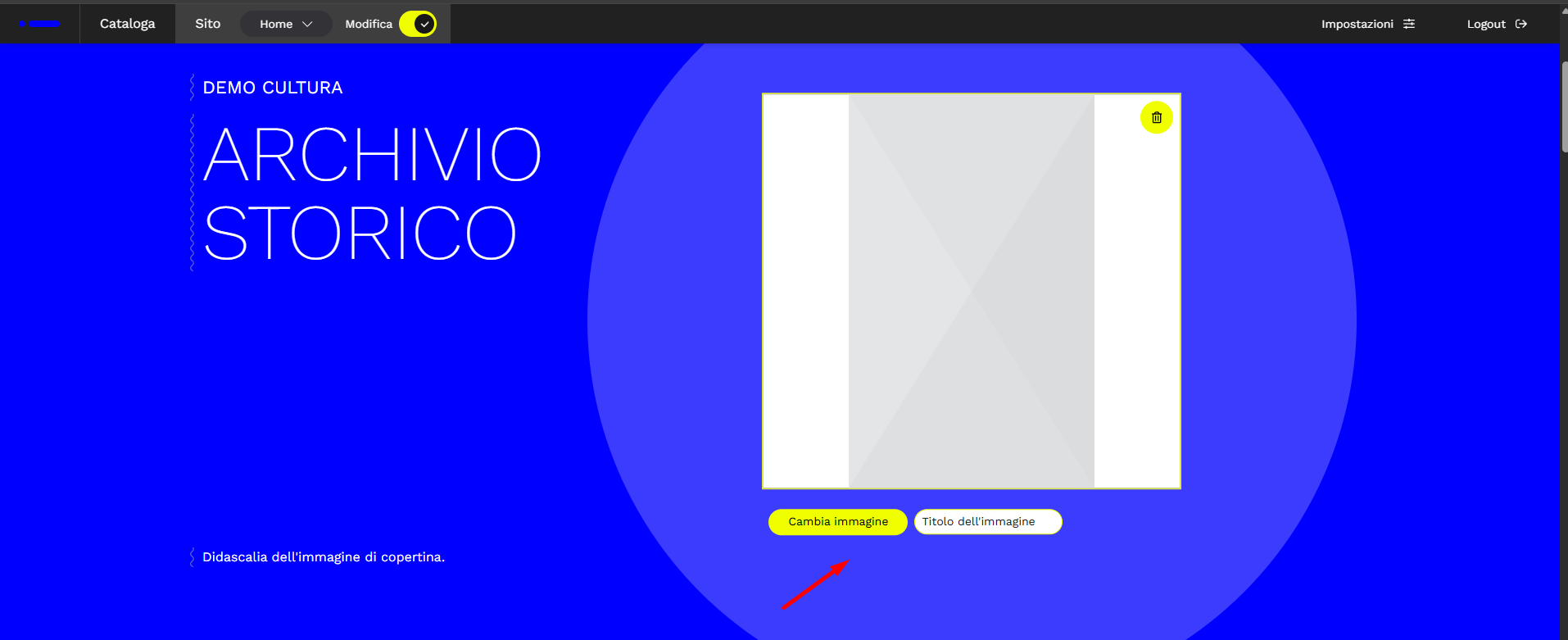
Images are replaced using the “Upload image” or “Change image” commands
Modules that can be enabled/disabled are managed using the dedicated "Visibility" button
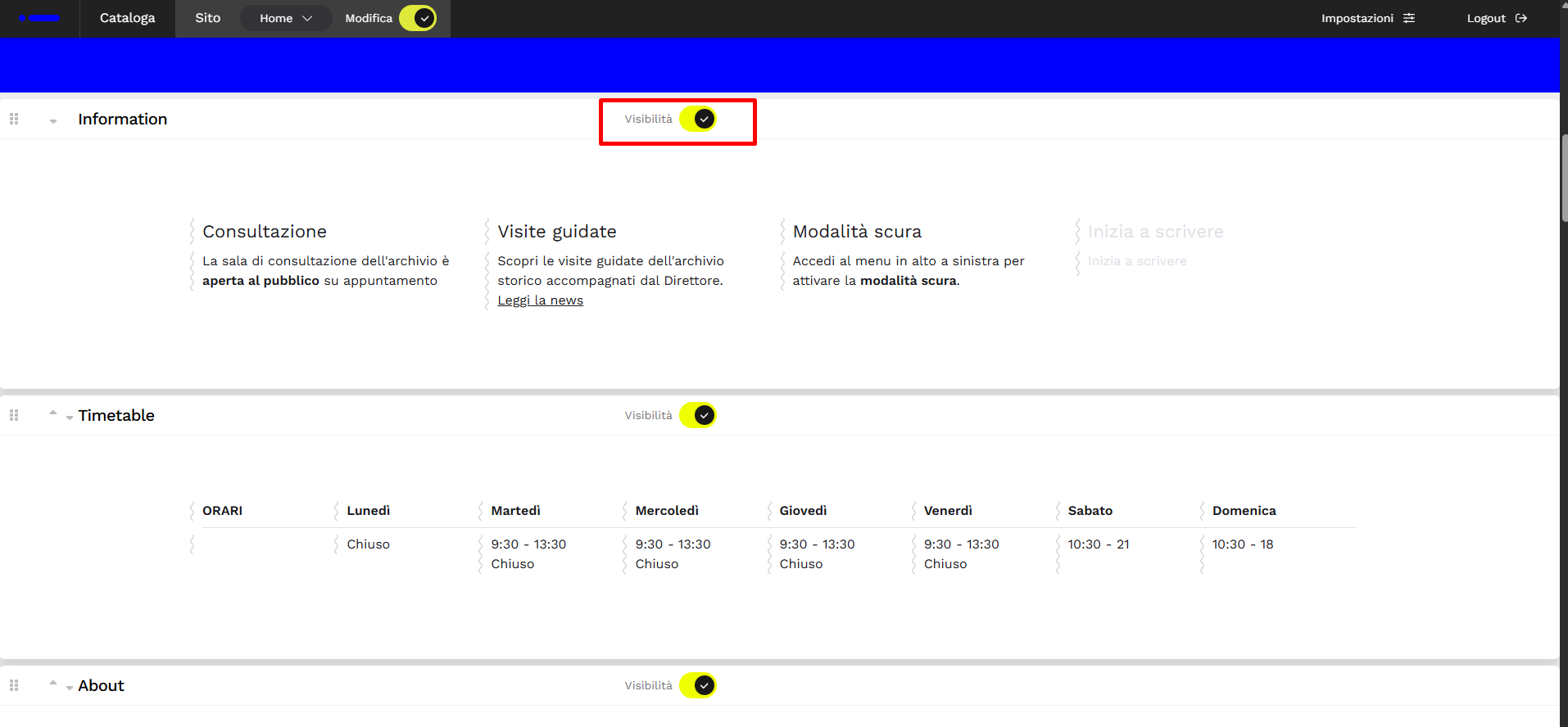
The order of modules can be modified using the arrows that appear next to the module title, or simply by dragging the module while holding down the cursor next to the arrow.
Changes do not take effect until you click the “Save” button, which appears next to “Edit” as soon as you modify a module.
To return to the public view, simply disable the "Edit" toggle switch.