Management tools
The control panel
Once logged into Archivio.com, at the top of the page, you will see the control panel: a dark bar from which you can perform some essential functions. From here you can: return to the Console; go directly to Catalog; switch from one section of the site to another via a compact selector (Home / About / Explore...), distinct from the public navigation menu described in the General overview section; log out.
From the same panel, Manager users also access the Edit toggle (see the section "Edit" mode) and the Settings area, where you can manage users, available languages, and both graphical and textual customization of the site.

In view of the above, depending on the type of registered user, some of these functions might not be visible.
Settings
Manager users access the Settings menu from the dedicated icon at the top right.

The menu is organized into four main sections: General, Appearance, Content, Users.
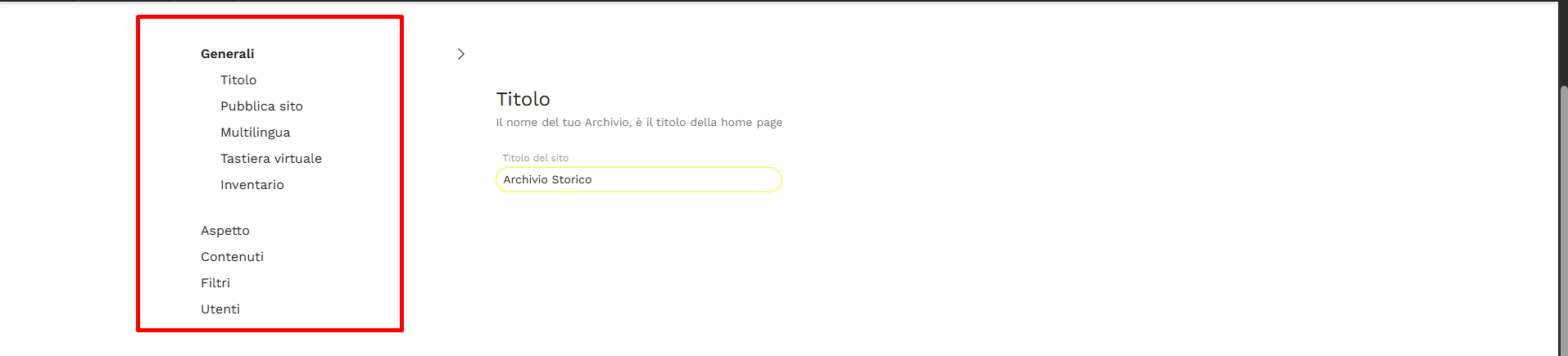
General
Title The name of the archive or museum.
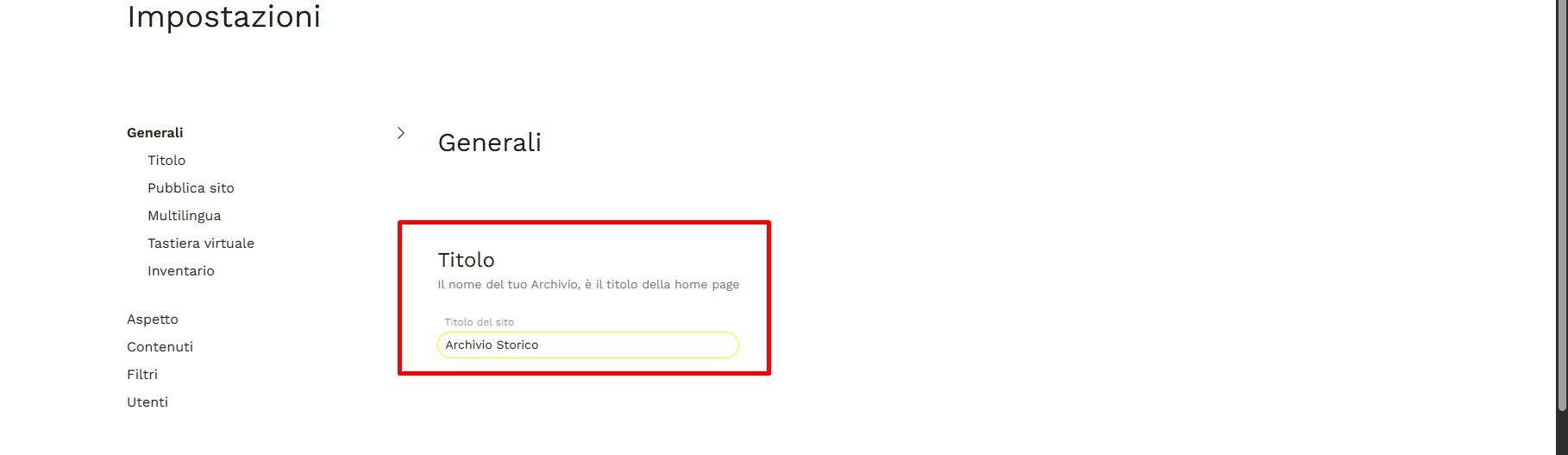
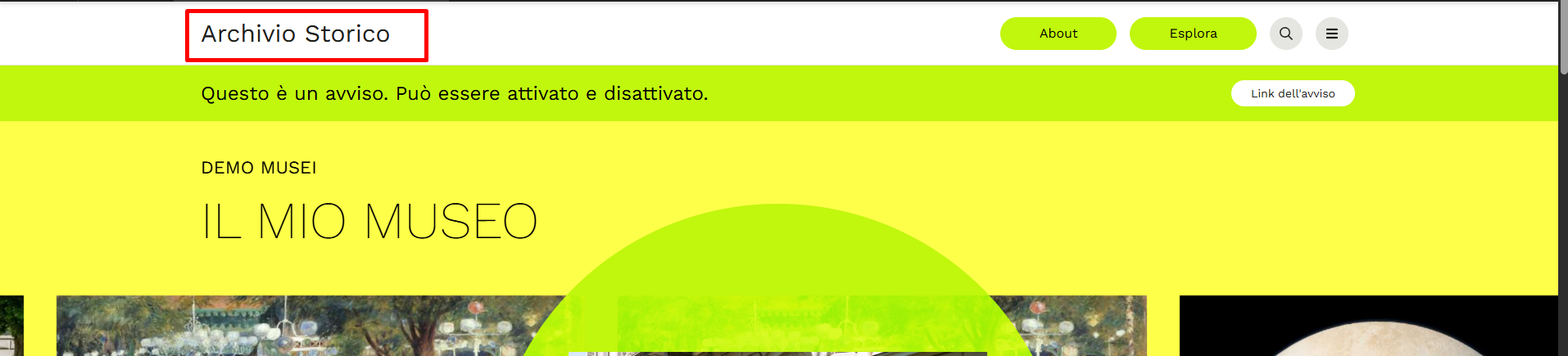
Displayed at the top left on all pages of the site (when a Logo is not set) and as the header of the login page.
Publish site Toggle switch that makes the site available for online browsing, or restricts access to authorized users only.
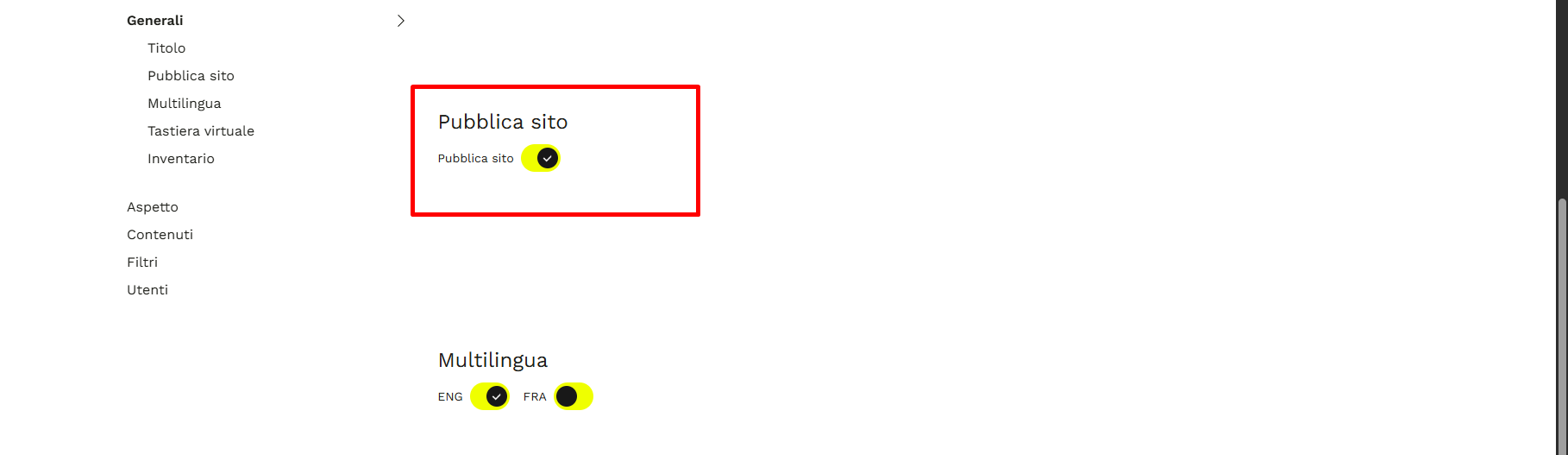
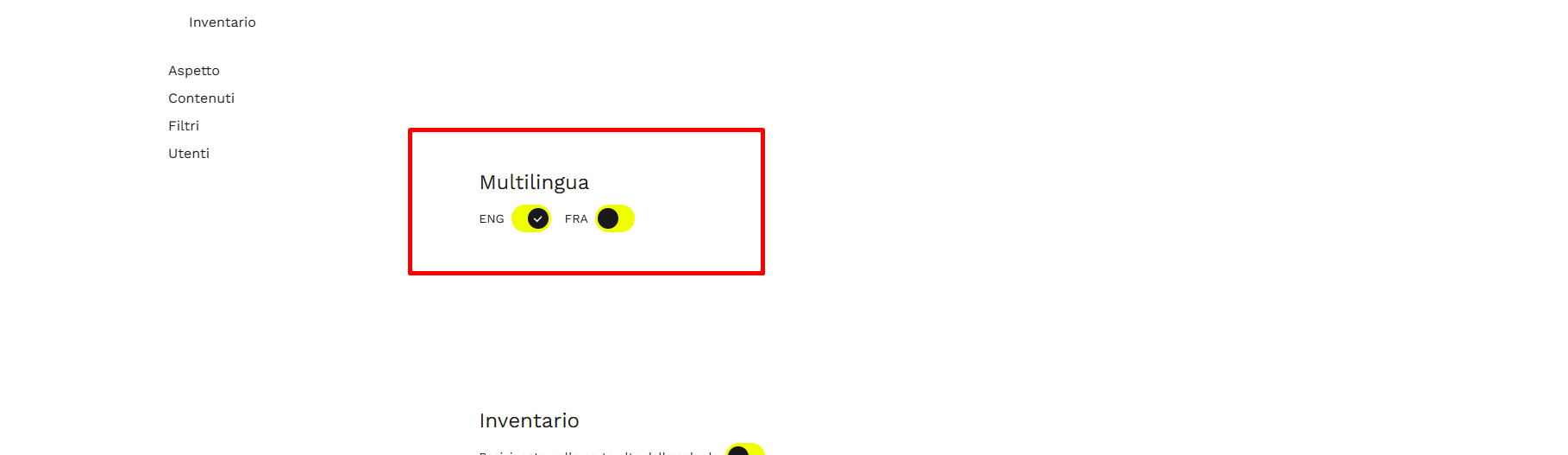
Multilingual Enables site browsing in languages other than Italian. Please note that the site displays content in the language in which it was actually filled in during cataloging: if a record was not drafted in a specific language, visitors selecting that language will still see the content in its original compilation language.
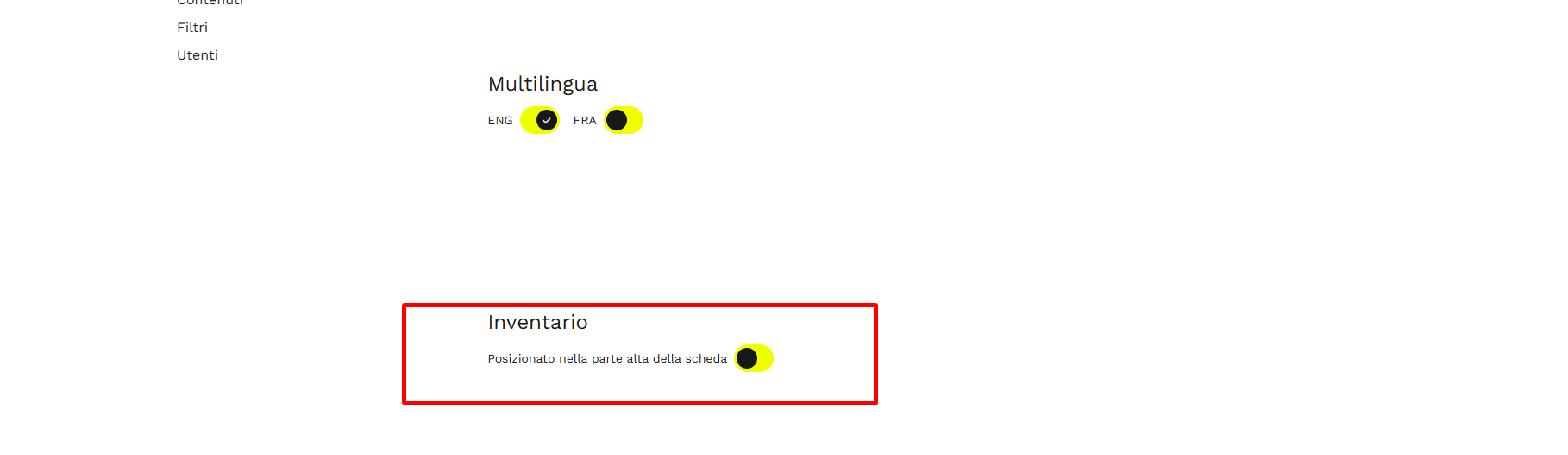
Inventory If active, shows the hierarchical structure of the inventory at the start of the site — the multi-level structure of the collection, from the most general levels down to individual units — instead of relegating it to the end of the detail records.
Appearance
From this section, you can make choices regarding the style and customization of the Homepage.
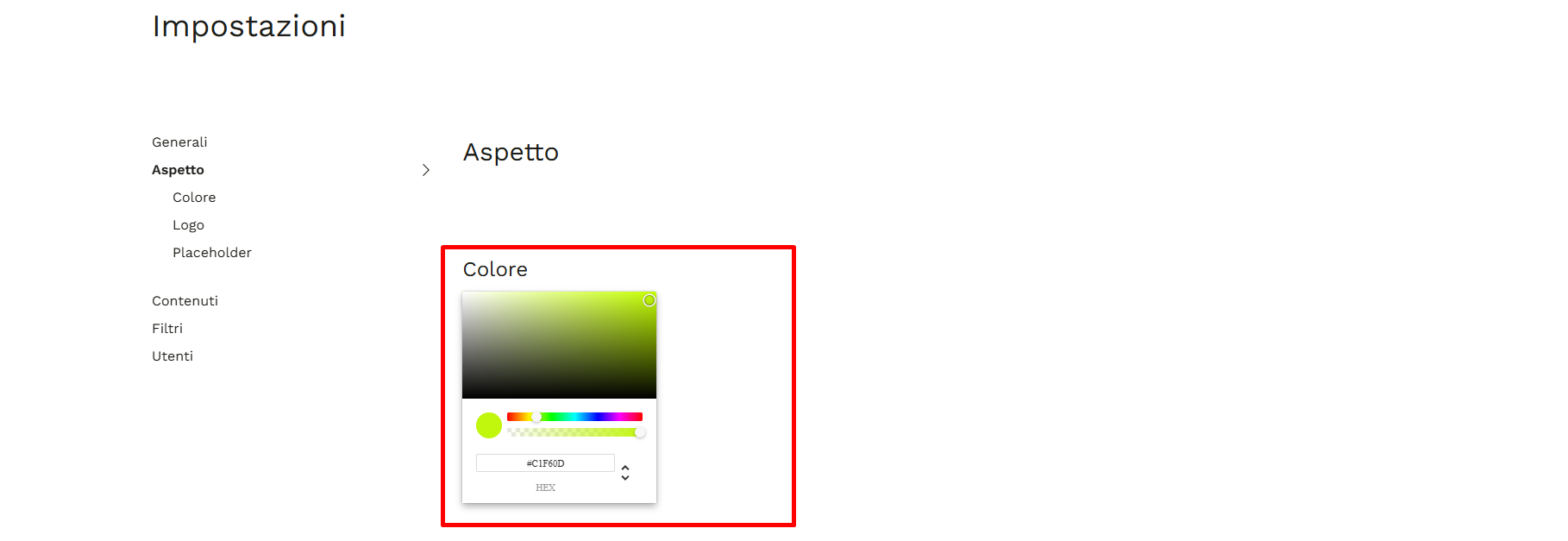
Color You can choose the base color scheme of the site, selectable from a palette or via a hexadecimal code. The system automatically derives lighter and darker shades for buttons and other interface elements, optimizing text contrast for readability.
Logo You can insert and/or modify a distinctive graphic element of the organization or institution, visible at the top left of every page on the site.
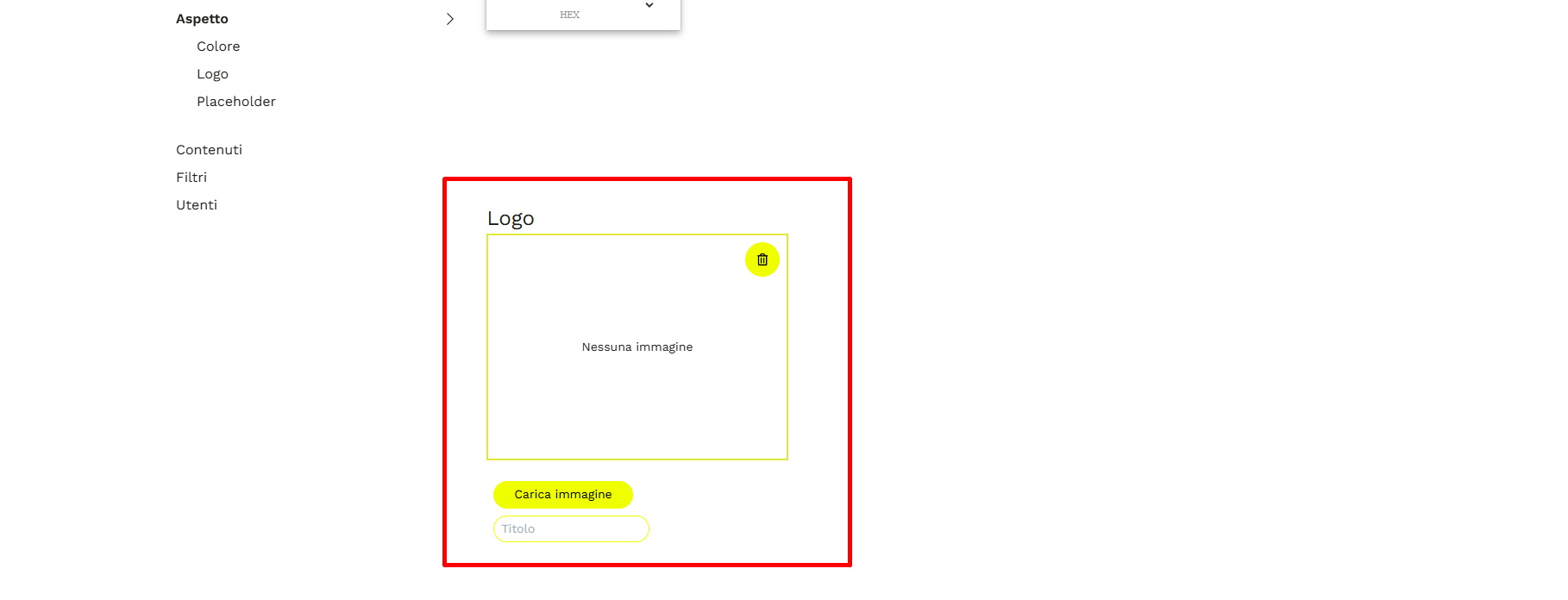
Clicking on the logo from any section of the site will redirect you to the Homepage.
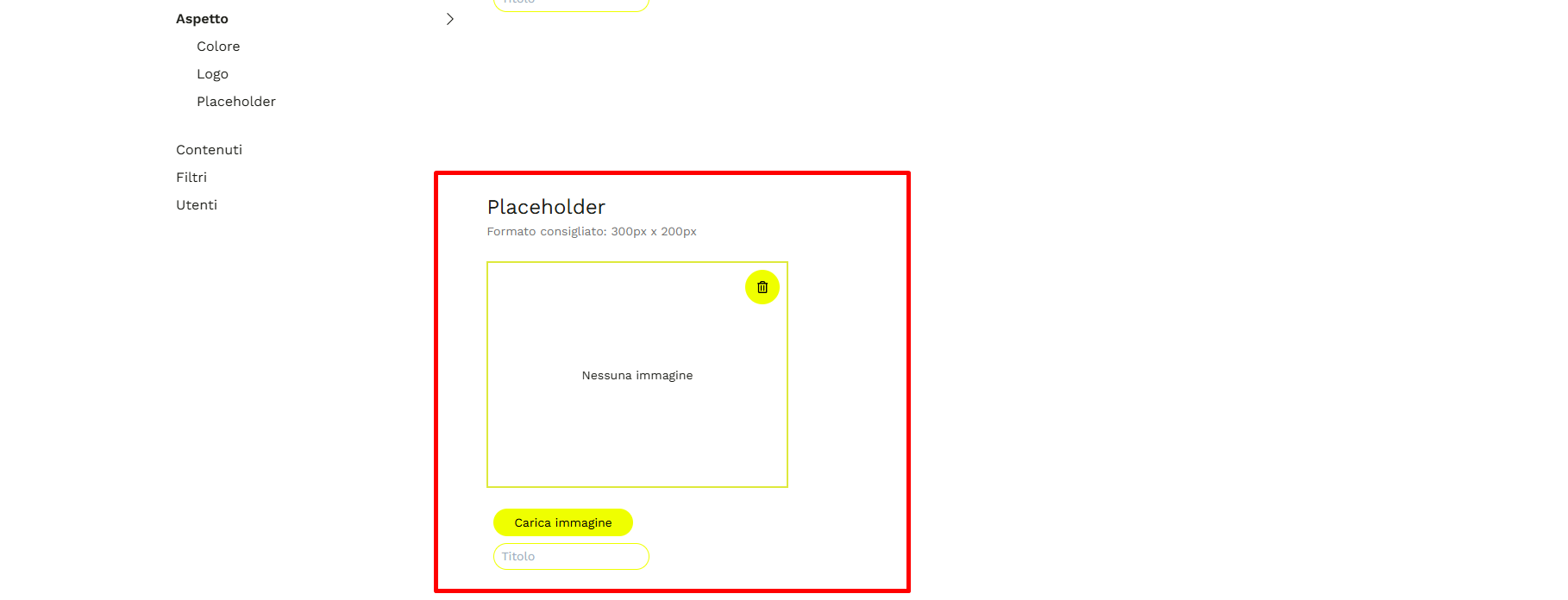
Placeholder Replacement image displayed instead of the preview for description units without associated digital resources, both in the Explore section and in thematic paths.
The 300×200px format is recommended for the image.
Content
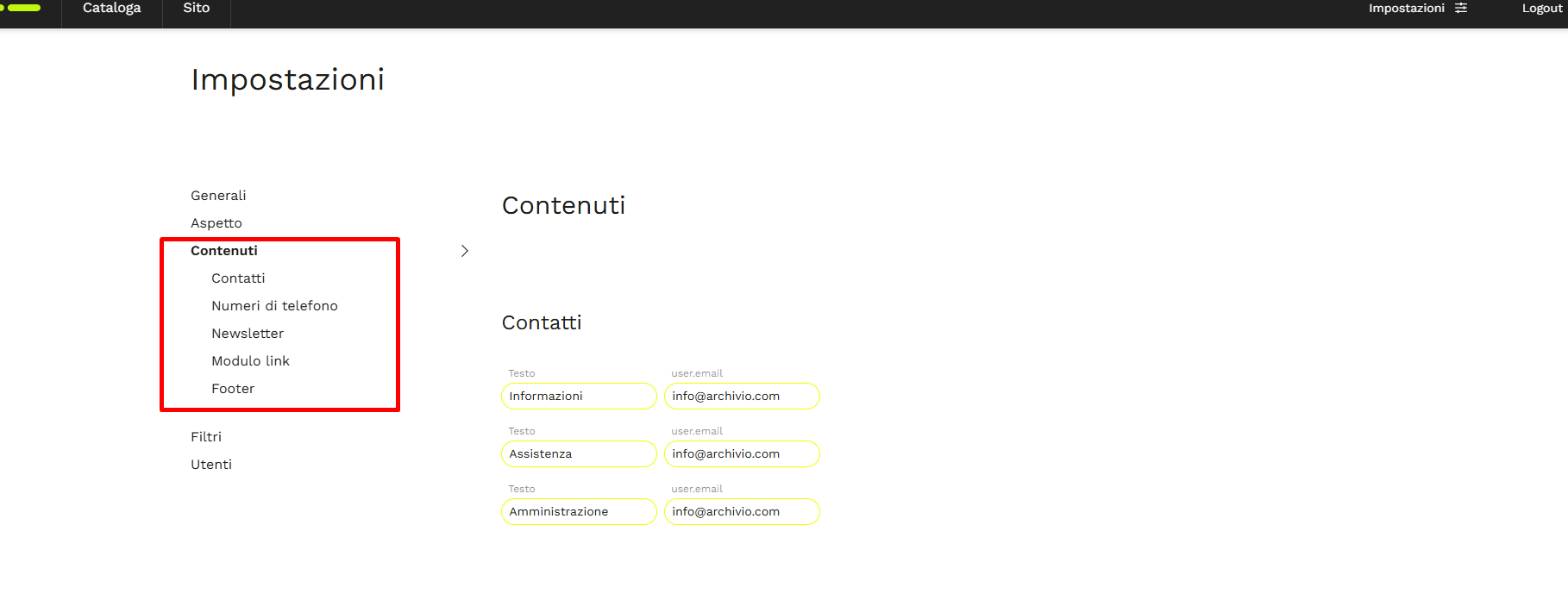
This section allows you to customize the following fields:
-
Contacts: up to three email addresses and three phone numbers, each accompanied by its own header.
-
Newsletter: email address to which notifications are sent for each new subscription (feature available in the Pro package).
-
Links Module: up to three hyperlinks to the institutional website of the entity or other reference resources; if made visible, they appear in a dark bar at the top of the Homepage.
-
Footer: up to two names of the entity with their corresponding contact details (e.g., Registered office and Archive); the contact detail text is free-form and formattable — italics, underline, bold — and can include hyperlinks using the # symbol.
-
Cookies: free-form field for the institution's cookie policy text.
The information entered in the "Content" section will be visible in the site footer (the dark bar at the bottom of the page), where visitors will also find the sitemap and Cookie Policy.
Users
From here, the Manager manages active user accounts: editing details (role, first name, last name, email, password), removing accounts, and creating new user accounts via "Add user".
In this regard, see also the section on User accounts and access roles, in particular Manager user account.