Objects / Archives Museums
Pimcore objects are records that enable the management of structured data. Based on a class that defines their structure and attributes, objects can be used for almost all structured data, whether they are people, artworks, documents, photo galleries, events, or locations.
Object classes
Pimcore Objects represent the descriptive units of the archive. Each object belongs to a class, which defines its type and field structure (descriptive schema).
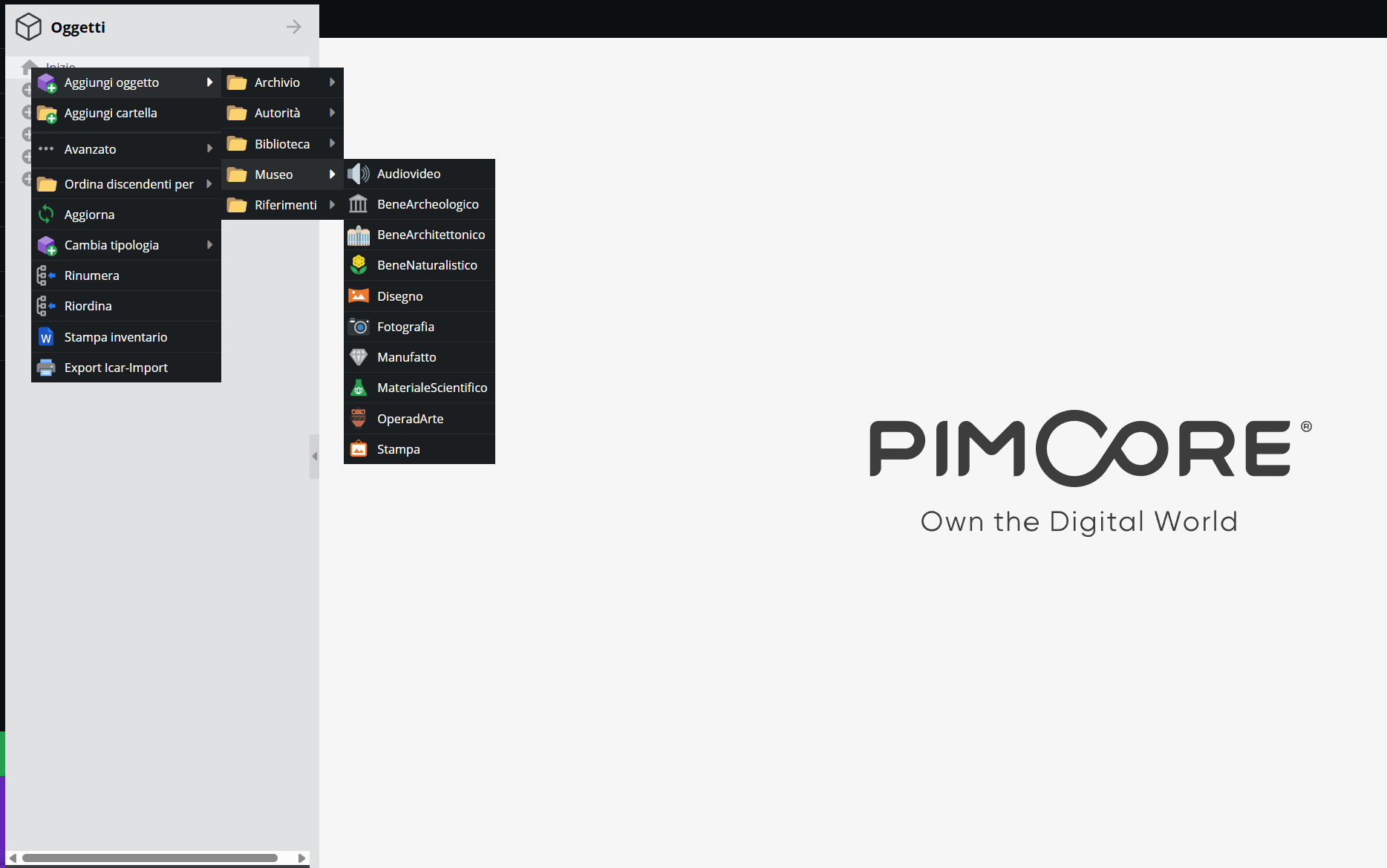
The class is assigned when creating the record: by right-clicking on the desired node in the tree structure, you can select the “Add object” option and navigate through the configured macro-sections.
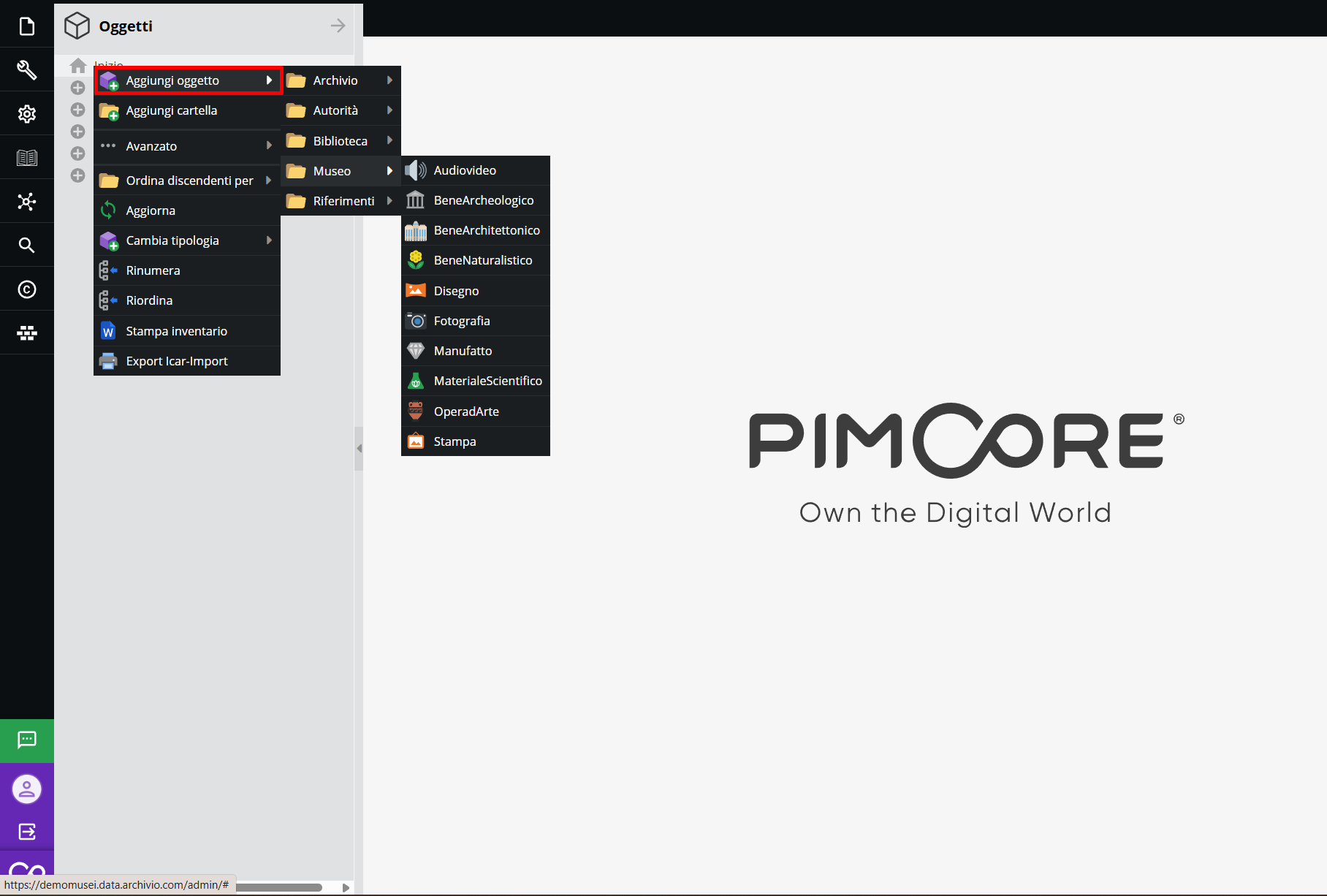
Archive
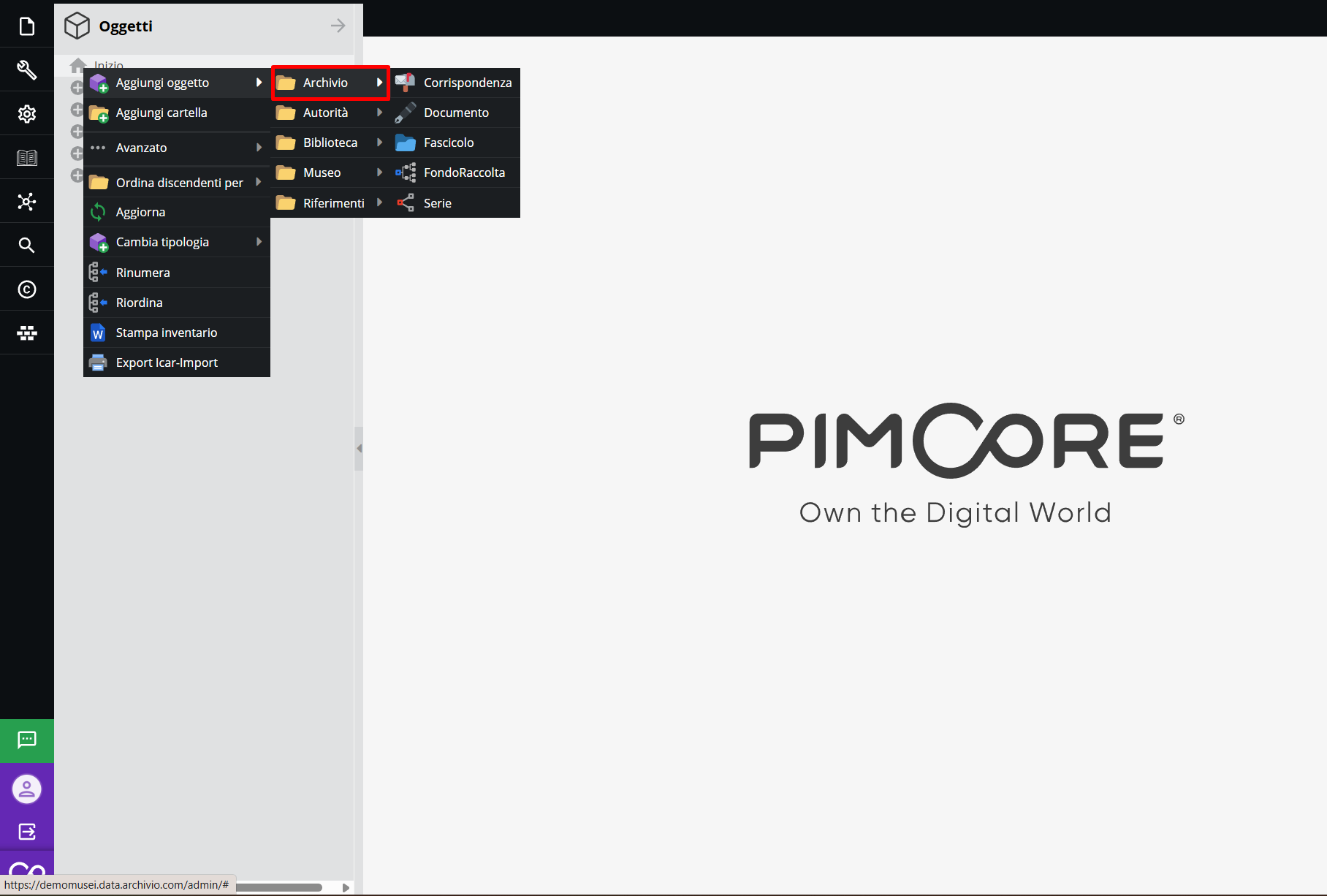
The records in the Archive macro-section serve to outline the hierarchical structure of archival documentation, corresponding to its divisions and aggregations. They allow representing the various levels of aggregation, from general to specific.
The available classes are:
- Fonds/Collection: an organic body of documents produced by a creator (person, family, institution) in the course of their activity, or an artificially assembled collection brought together from different sources based on a chosen criterion (a topic, a collector, a research project).
- Series: an internal division of the fonds, consisting of a grouping of documents that are homogeneous by type, function, or subject (e.g., “incoming correspondence” or “accounting registers”).
- File: the fundamental unit of the archive, consisting of documents grouped according to an organic connection (by business, subject, or administrative procedure).
- Document: the smallest and indivisible archival unit.
- Correspondence: a specialized variant of a document, designed specifically for epistolary exchange (letters, postcards, telegrams). It does not constitute a further level of aggregation, but rather a typological variant of "Document", sharing the same hierarchical placement.
The descriptive schemas of these records follow the international standard for archival description ISAD(G).
Museum
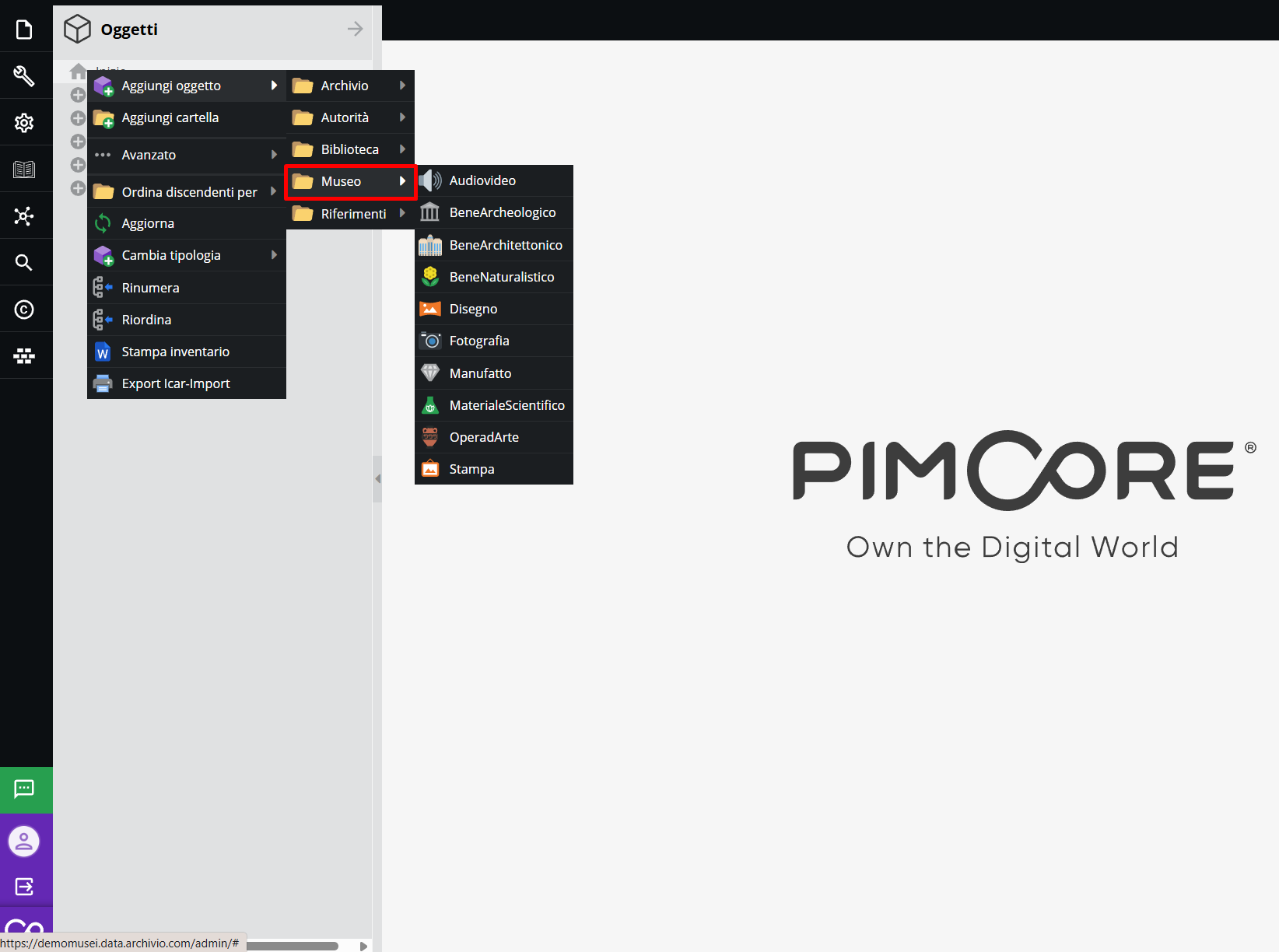
This area holds the classes dedicated to the analytical cataloging of actual museum items, with descriptive schemas differentiated by item type that partially adopt the criteria of the national cataloging system of the ICCD (Istituto Centrale per il Catalogo e la Documentazione), without being a full transposition.
The available classes are:
- Artifact: a handcrafted or utilitarian artifact of an ethnographic or material nature.
- Artwork: a movable item of the visual arts — painting, sculpture, plastic art — with attribution to an author or cultural sphere, iconographic apparatus, and execution technique data.
- Archaeological Item: an artifact of archaeological origin, with discovery and stratification data and optional numismatic identification.
- Architectural Item: an artifact or building section of historical-artistic interest, with data relating to structure, materials, construction techniques, alteration phases, and any reused elements.
- Naturalistic Item: a specimen from a naturalistic domain — mineralogical, zoological, paleontological, or botanical — described according to the taxonomy and systematics of each scientific discipline, including stratification, discovery, and identification data.
- Drawing: a graphic work on paper, with details on execution technique and iconographic apparatus.
- Photograph: a photographic print — positive, negative, or contact sheet — treated as a collection item, with data relating to the photographic process and support.
- Print: a matrix or art print specimen — engraving, woodcut, etching.
- Scientific Material: an instrument or piece of equipment of historical-scientific interest, with functional, structural, and institutional provenance data.
- Audiovisual: a sound or audiovisual document treated as a collection item, with technical data regarding support, format, and duration.
Each class features a specific descriptive schema designed to accommodate technical, iconographic, and legal metadata specific to each item type.
Library
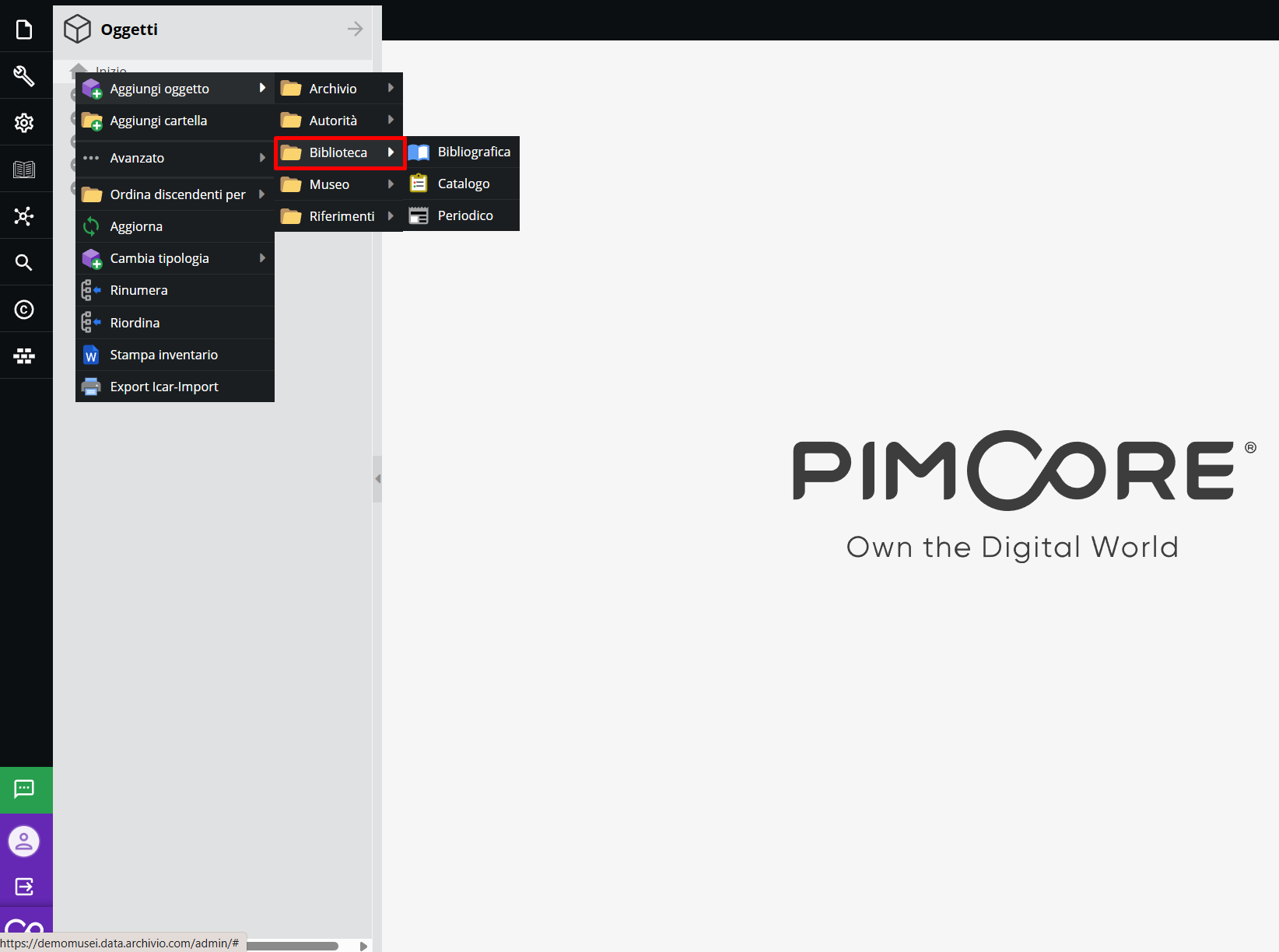
This group contains the classes dedicated to book and periodical holdings. The descriptive schemas combine elements of archival description (context, content) with current library standards (ISBN, SBN/BID identifier).
The available classes are:
- Bibliographic: a printed bibliographic unit — monograph or volume — owned by the library of the museum or archive, described using current library cataloging elements (editorial data, collation, identifiers).
- Periodical: a serial publication, featuring the additional field "Volume/Year" for identifying individual issues or reference years.
- Catalog: an exhibition or inventory publication — the catalog of an exhibition or collection — treated as a distinct bibliographic type and linkable to the corresponding Exhibition record in the References area.
Authority
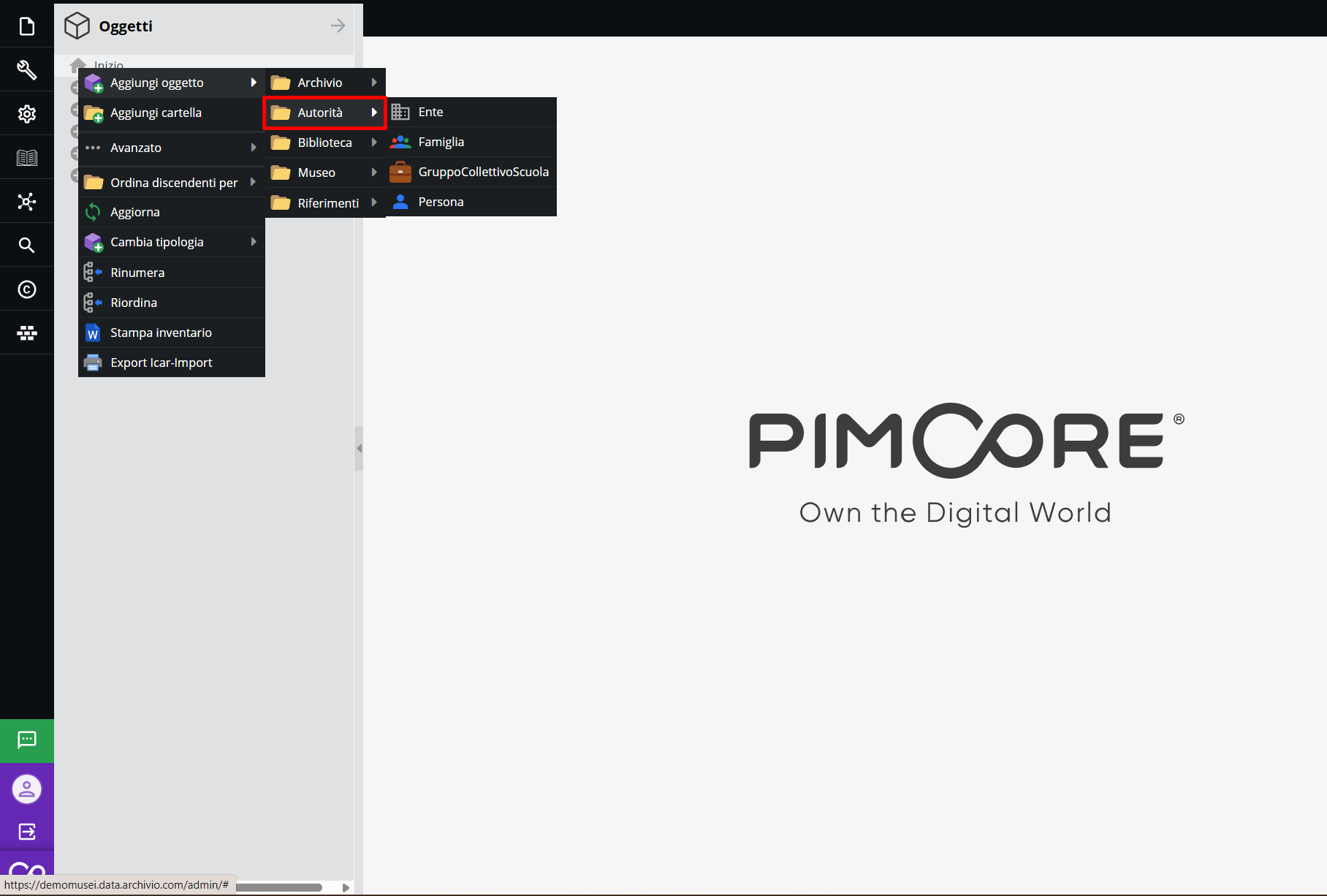
This group contains authority records structured according to the ISAAR(CPF) standard.
The available classes are:
- Person: an individual entity — author, commissioner, donor, collector, or record compiler — whose authority entry standardizes the name form to be adopted in all citations across the system.
- Corporate Body: a collective entity with legal personality — institution, company, museum — recorded as creator, holding institution, or cited subject.
- Family: a family unit treated as creator or subject, following the same normalization logic provided for Person and Corporate Body.
- Group/Collective/School: a collective entity lacking full legal personality — workshop, circle, artistic collective — without a direct match in the ISAAR(CPF) standard, introduced for attribution of circle/school when single authorship cannot be established with certainty ("circle of...", "school of...", "workshop of...").
These records serve a dual purpose:
- Normalization: establishing a unique authority entry for each entity, preventing the same name from appearing in inconsistent forms across different records.
- Relationship: linking creators, custodians, authors, or cited entities to physical and digital documents, reconstructing the institutional or biographical history of the entity being highlighted.
References
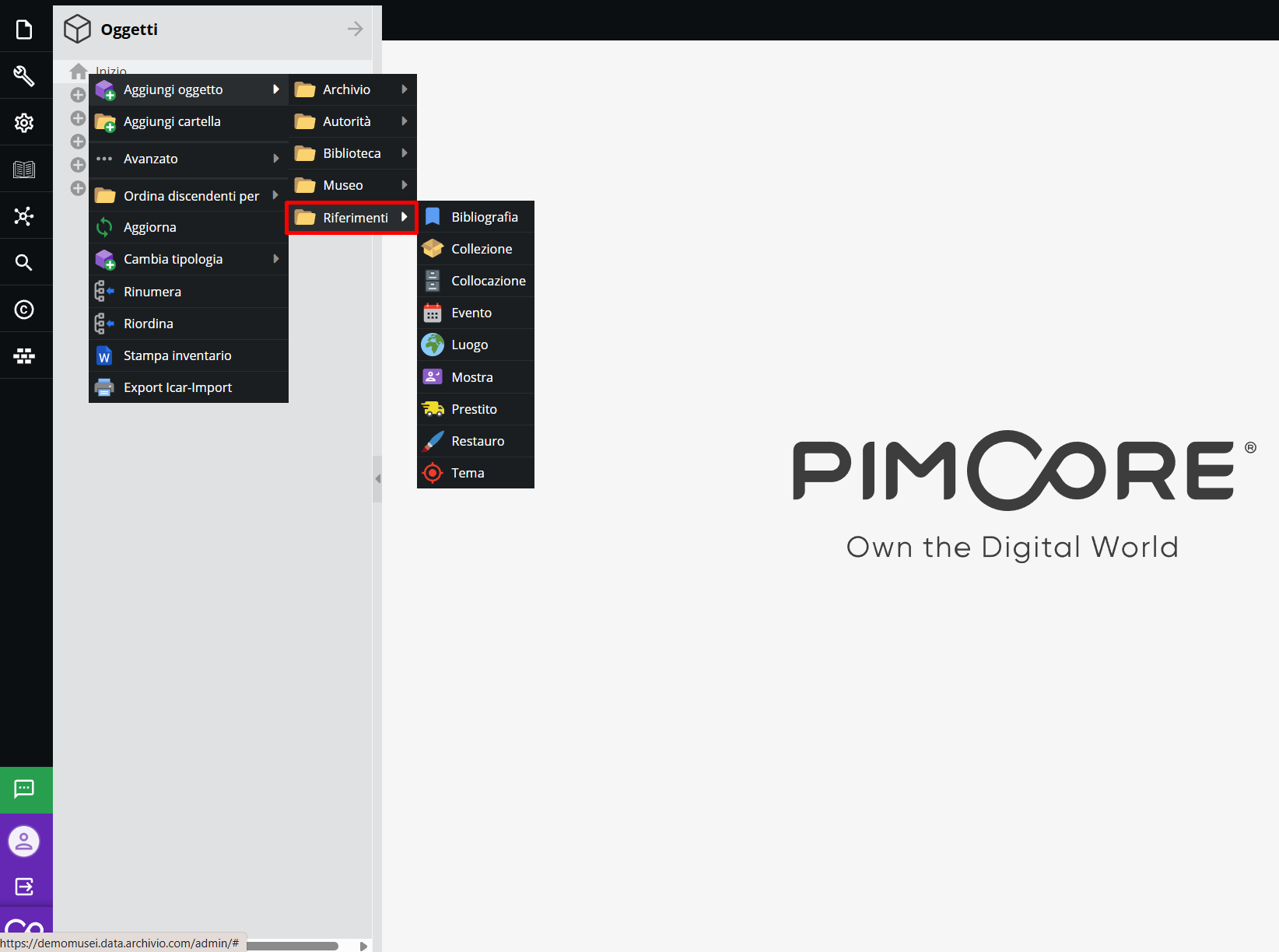
This section holds object classes that serve as cross-sectional access points or linkable controlled vocabularies. These records do not directly describe archival units or museum items, but rather external entities, logistical data, or related events.
The available classes are:
- Location: a geographical, georeferenced access point, cited as origin, institutional headquarters, or discovery location of an item.
- Storage Location: a physical location unit for the item within museum rooms or storage facilities (e.g., room, display case, shelf).
- Topic: a descriptor used for cross-sectional thematic indexing of holdings.
- Loan: a movement record documenting incoming or outgoing loans — for exhibition, study, or restoration purposes — of one or more items.
- Bibliography: a bibliographic reference cited in support of an item's cataloging, distinct from the Bibliographic record in the Library area, which instead describes a physically owned copy.
- Collection: a group of items sharing a common origin or collecting history (a donated collection, a private fonds acquired by the museum), regardless of physical location or individual item type.
- Restoration: a record documenting a conservation intervention, logged as an independent and reusable event for all items involved in the same campaign.
- Exhibition: an exhibition event, containing venue and duration data, linkable to displayed items and their associated loans.
- Event: an occurrence of a non-exhibition nature (e.g., an inauguration, a conference) not falling under the Exhibition category.
This section includes all object classes concerning external occurrences that can be related to paper and digital documentation. Using these objects increases data consistency and reliability within Archivio, ensuring the quality of archival information, avoiding duplication, and increasing search efficiency.
The information areas of records
The main information areas characterizing the different object classes are illustrated below, providing an analysis of their potential fields. Some descriptive sections and elements common to all or most classes in the system are analyzed in the section “Fields common to multiple records”.
Archive
The records in the Archive area are used to describe the logical hierarchy of documentation, from top-level entries (Fonds/Collection) down to the smallest unit (Document/Correspondence). Descriptive units are structured into sections (also referred to here as “information areas”) and a Summary, which can be explored via the bar at the top of the page.
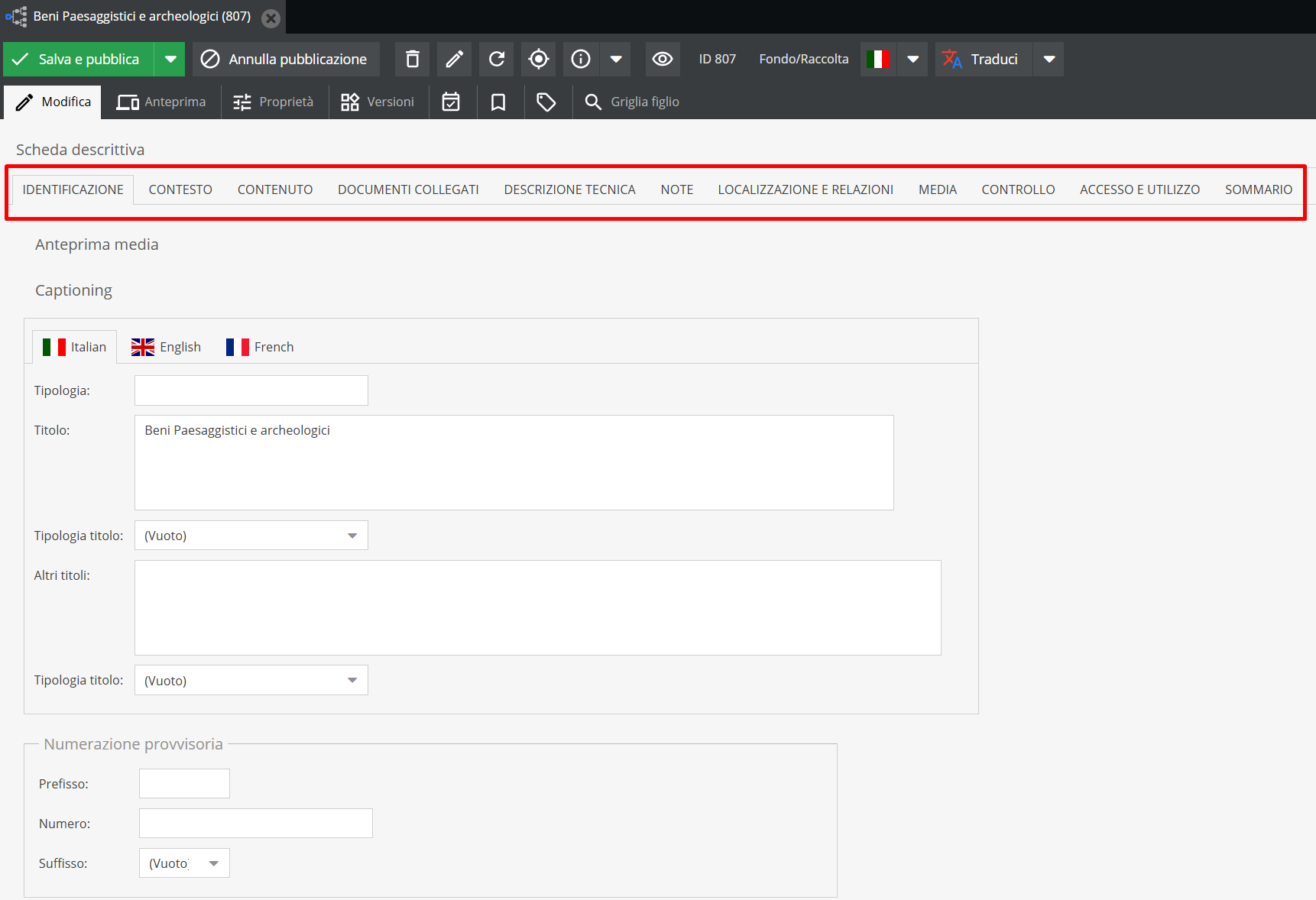
- "Identity" Area* This section contains key data for uniquely identifying the unit:
- Level of description [cf. ISAD(G) 3.1.4.]: a dropdown menu or text field specifying the archival level of the descriptive unit within the arrangement of the fonds (fonds, series, file, and their internal divisions).
- Title [cf. ISAD(G) 3.1.2.]: name of the complex or unit; the system allows specifying whether the title is original (found on the documentation) or assigned by the cataloger.
- Extent and medium [cf. ISAD(G) 3.1.5.]: quantitative indication of the documentation.
- Provisional and definitive numbering: provisional or definitive identification code consisting of prefix, sequential number, and suffix; records any official code useful for unique identification.
Note the presence of the “Calculated extent” field, which automatically counts subordinate descriptive units (e.g., number of files in a series). This tool provides an immediate and constantly updated view of the actual extent of the archival complex without requiring manual entry.
-
"Context" Area*
-
Administrative/Biographical history [cf. ISAD(G) 3.2.2.]: text field for the institutional/administrative history or biographical profile of the creator, helping place the documentation in context.
-
Archival history [cf. ISAD(G) 3.2.3.]: text field for information regarding the origin and history of the unit described, relevant to authenticity, integrity, and interpretation.
-
Immediate source of acquisition or transfer [cf. ISAD(G) 3.2.4.]: text field indicating the entity from which the unit was acquired, the date, and/or the acquisition method.
-
"Content and Structure" Area*
-
Scope and content [cf. ISAD(G) 3.3.1.]: text field summarizing the scope (chronological and geographical) and content (such as document types, subjects covered, administrative procedures) of the descriptive unit appropriate to its level.
-
System of arrangement [cf. ISAD(G) 3.3.4.]: text field providing specific information on the internal structure of the unit, its logical organization, and classification system (e.g., alphabetical, chronological, protocol number order, etc.).
-
Appraisal, destruction and scheduling information [cf. ISAD(G) 3.3.2.]: text field indicating appraisal and disposal actions taken or planned over time, especially if relevant to document interpretation.
-
Accruals [cf. ISAD(G) 3.3.3.]: text field providing notes on whether the described complex is "open" or "closed".
-
"Conditions of Access and Use" Area*
-
Language/scripts of material [cf. ISAD(G) 3.4.3.]: controlled vocabulary dropdown menu indicating the language(s) used in the documentation within the unit.
-
Conditions governing access [cf. ISAD(G) 3.4.1.]: legal or physical conditions regulating access, including privacy regulations or poor physical condition.
-
Conditions governing reproduction [cf. ISAD(G) 3.4.2.]: text field noting copyright rules or technical limits on photo-reproduction.
-
Physical characteristics and technical requirements [cf. ISAD(G) 3.4.4]: text field providing information on any physical characteristics or technical requirements relevant to using the unit.
-
Finding aids [cf. ISAD(G) 3.4.5]: text field listing all finding aids related to the unit, such as pre-existing paper inventories, indexes, databases, or catalogs.
-
"Allied Materials" Area*
-
Existence and location of originals [cf. ISAD(G) 3.5.1]: text field indicating the existence, location, availability, and/or destruction of originals.
-
Existence and location of copies [cf. ISAD(G) 3.5.2]: text field indicating the existence, location, and availability of copies.
-
Publication note [cf. ISAD(G) 3.5.4]: text field citing publications referring to or based on the study of the unit.
Museum
Records in the Museum area share a common framework inspired by ICCD criteria and adapted to platform needs, which varies by item type in technical and analytical detail sections.
This guide does not delve into analytical detail for every field in each area, but presents an overview below of the environments and data types managed for each class.
*** "Identity" Area***
- Inventory number: unique identifier of the item.
- Cultural sphere / Attribution: author or sphere to which the item is attributed, with links to relevant Authorities.
- Dating: chronological boundaries of the item's creation.
*** "Analytical Data" Area***
- Iconographic apparatus: structured and repeatable section (type, identification, description, notes) for the detailed description of depicted subjects, present in Artwork, Archaeological Item, and Architectural Item classes.
- Iconclass coding: field for classifying the subject according to Iconclass — the international classification system for iconographic subjects — present in Artwork, Archaeological Item, Drawing, Photograph, and Print classes.
- Numismatics: repeatable section for describing coins (denomination, series, obverse, reverse, issuing authority, state, mint, die axis), present in Archaeological Item and Artifact classes.
- Usage data: section for functional description of the item, present in Artifact and Scientific Material classes.
*** "Technical Description" Area***
- Materials and techniques: constituent materials and execution technique of the item.
- Dimensions: physical dimensions of the item.
- Conservation status and Restorations: condition of the item and past interventions, linkable to the Restoration class in the References area.
*** "Conditions of Access and Use" Area***
- Legal status: legal ownership status of the item, including protection constraints and notifications under the Cultural Heritage Code.
- RFID identifier: code for physical tracking of the item.
Library
Records in the Library area merge standard archival description fields (context, content) with current librarianship standards.
- Publication information: series, edition, place of publication.
- ISBN and SBN/BID identifier: publication identification codes in the National Library Service.
- Volume/Year: field specific to the Periodical class to identify individual issues or volumes.
Authority
Authority records are external entities relative to the hierarchical tree of the archive and museum, but closely interconnected with it. They enjoy descriptive autonomy, allowing entities (creators, custodians, authors, or cited subjects) to be indexed independently of physical items. Descriptive schemas for the classes presented here (Person, Corporate Body, Family, Group/Collective/School) follow the essential elements of the ISAAR(CPF) standard.
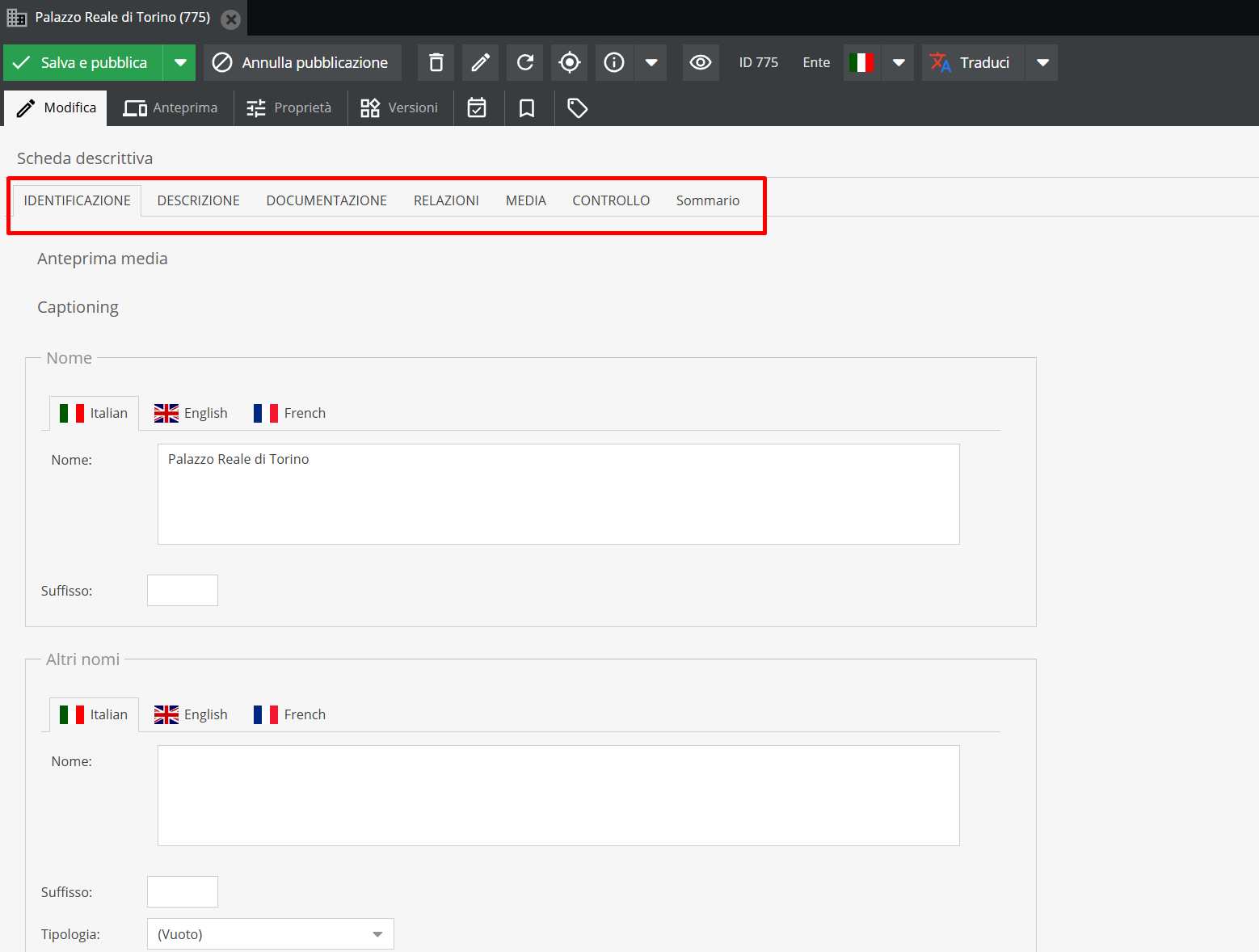
Descriptive records are divided into sections (also referred to here as “information areas”) and a Summary, selectable from the top navigation bar.
-
"Identity" Area*
-
Authorized name entry [cf. ISAAR 5.1.2]: text field for the authorized name form of the entity, person, or family.
-
Parallel/other forms of name [cf. ISAAR 5.1.5]: repeatable field for variant names (parallel forms, acronyms, pseudonyms, historical names).
-
"Description" Area*
-
Dates of existence [cf. ISAAR 5.2.1]: two distinct fields indicating the chronological lifespan of the entity. For Corporate Bodies, foundation and dissolution dates are indicated; for Persons, birth and death dates.
-
History/Bibliography [cf. ISAAR 5.2.2.]: text field providing a concise history of the entity, family, or person.
-
Legal status [cf. ISAAR 5.2.4.]: text field detailing the legal status of the entity (e.g., public body, joint-stock company, unincorporated association).
-
Functions, occupations and activities [cf. ISAAR 5.2.5]: text field for describing primary activities (e.g., positions held, professions, institutional domains).
References
Classes in this group serve as “cross-sectional” records, linking descriptive units from different areas under a single common denominator (e.g., the same Location, Topic, or Loan). Starting from the classes listed under Object classes, below are details on fields for Location and Loan records, two of the most commonly used across project domains.
Descriptive records for these classes are divided into sections (“information areas”) and a Summary, selectable from the top navigation bar.
- "Identity" Area of the Location record*
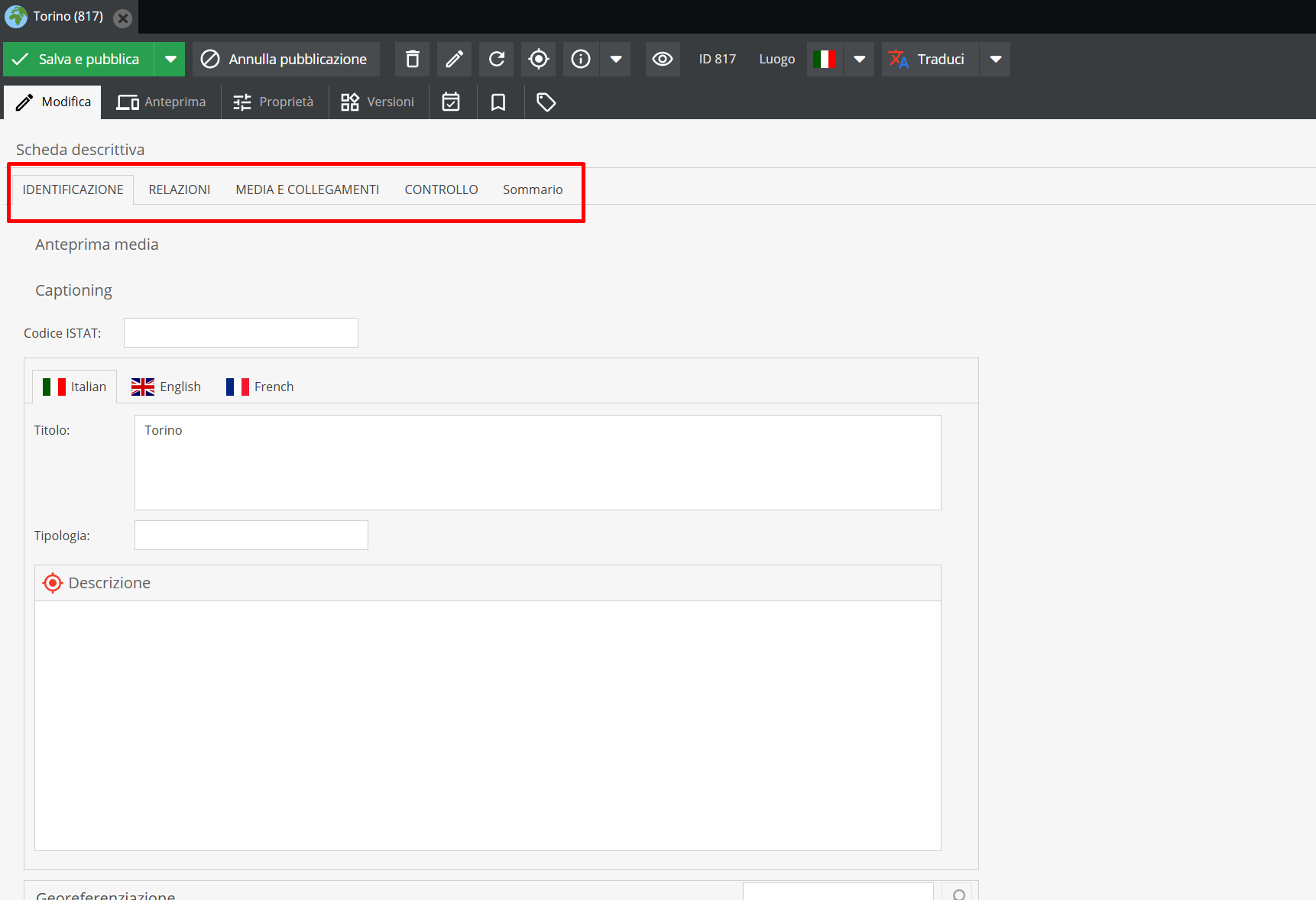
- Title: name assigned to the location.
- Type: text field specifying the nature of the location (e.g., Legal Headquarters, Production Facility, Film Location).
- Description: text field describing the place, its history, and relationship with the creator or custodian.
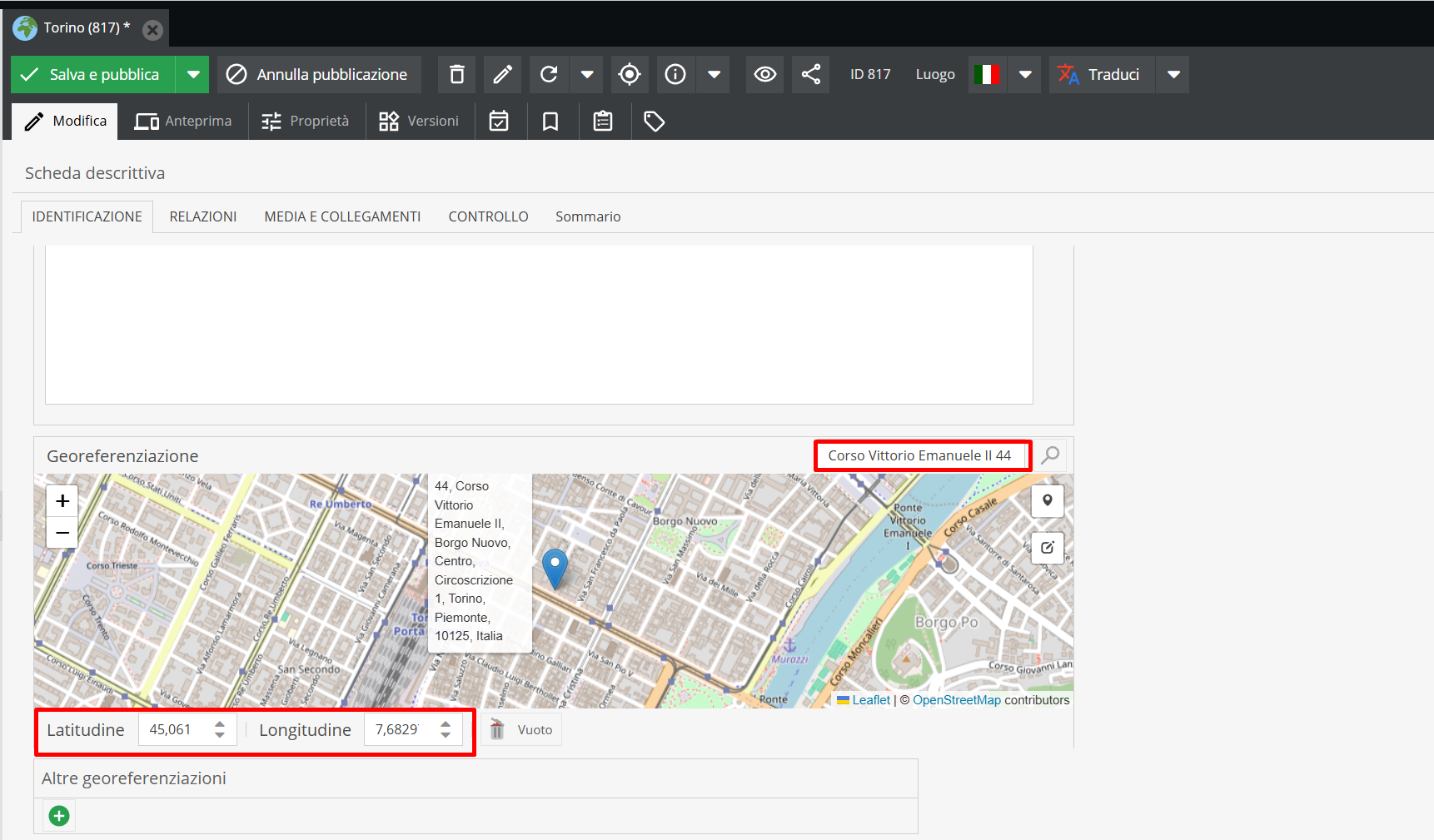
- Geolocation: Google Maps-based geolocation field for entering a specific address. Text addresses or GPS coordinates (Latitude/Longitude) can be entered for precise mapping.
-
Dating: chronological boundaries for the location's existence or use by the entity.
-
"Identity" Area of the Loan record*
The Loan record is the tool dedicated to managing physical movement and administrative tracking of items. It documents outgoing movements (e.g., for exhibitions or restorations) or incoming movements (e.g., temporary third-party deposits), supporting protection and monitoring of holdings.
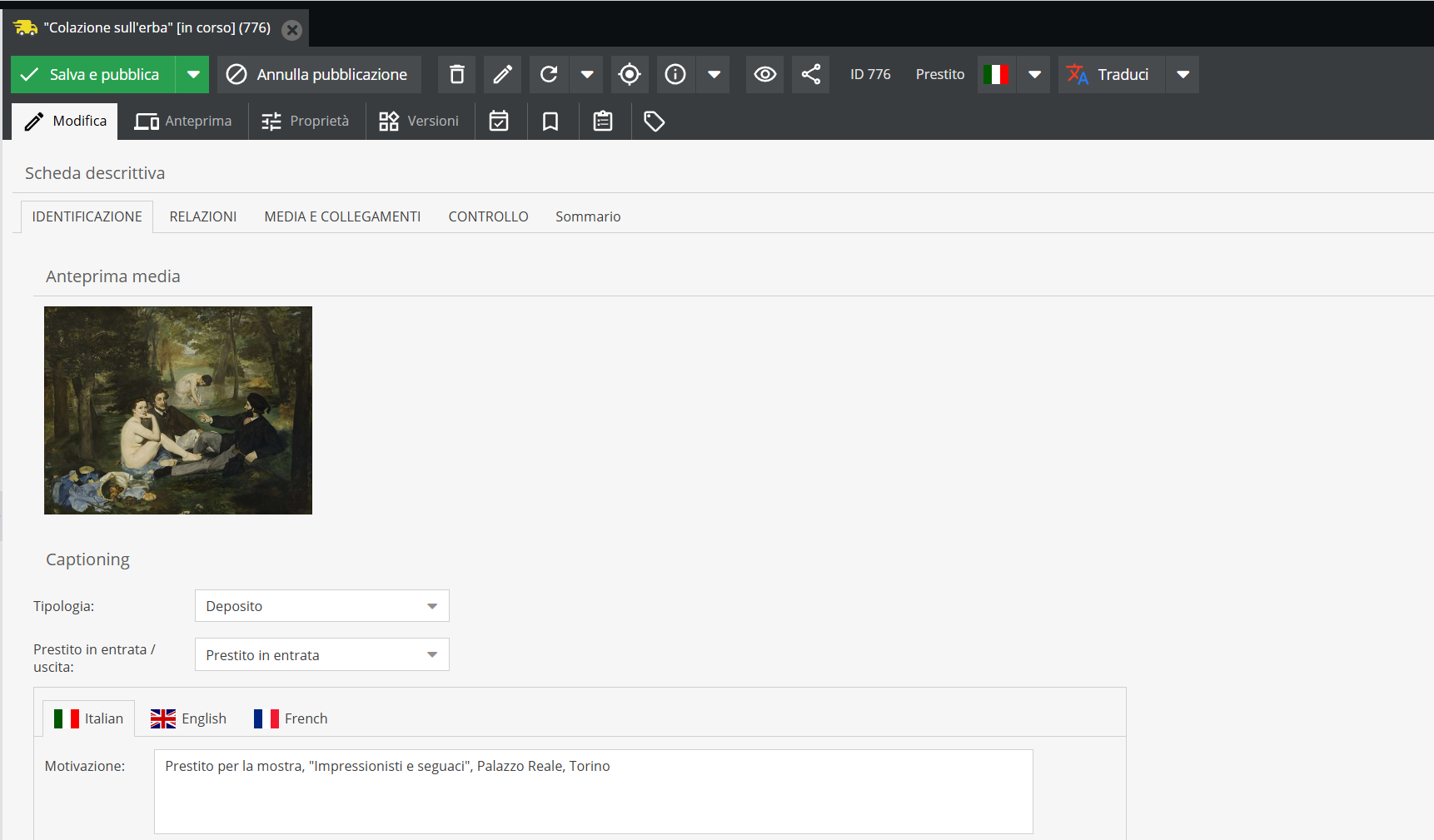
The "Identity" area features fields tailored to logistical flow management:
- Type: controlled vocabulary dropdown to classify the nature of the operation (e.g., Exhibition, Restoration, Study, Deposit).
- Incoming / Outgoing Loan: selector identifying flow direction and corresponding legal/conservation responsibilities.
- Dating: chronological boundaries of the loan.
- Condition report: conservation state recorded before and after transport, along with insurance and transport details.
Fields common to multiple records
- "Identity" Area: Media Preview and Captioning in object records*
Numerous classes feature two read-only fields at the start of the tab: Media Preview and Captioning. These are not manually filled, but reflect media (digital assets) linked to the object through fields in the "Media and links" tab.
-
Media Preview: displays thumbnails of images and documents linked to the descriptive record.
-
Captioning: shows text generated by the "Captioning" feature (see "Ask AI" functionality), proposing a description of the media content.
Both fields update only after reloading the record (the Reload button on the toolbar): linking a new image or generating a new caption does not automatically reflect in these fields until the record is reloaded.
- "Identity" Area: Dating*
Specifying chronological limits is common to all descriptive schemas.
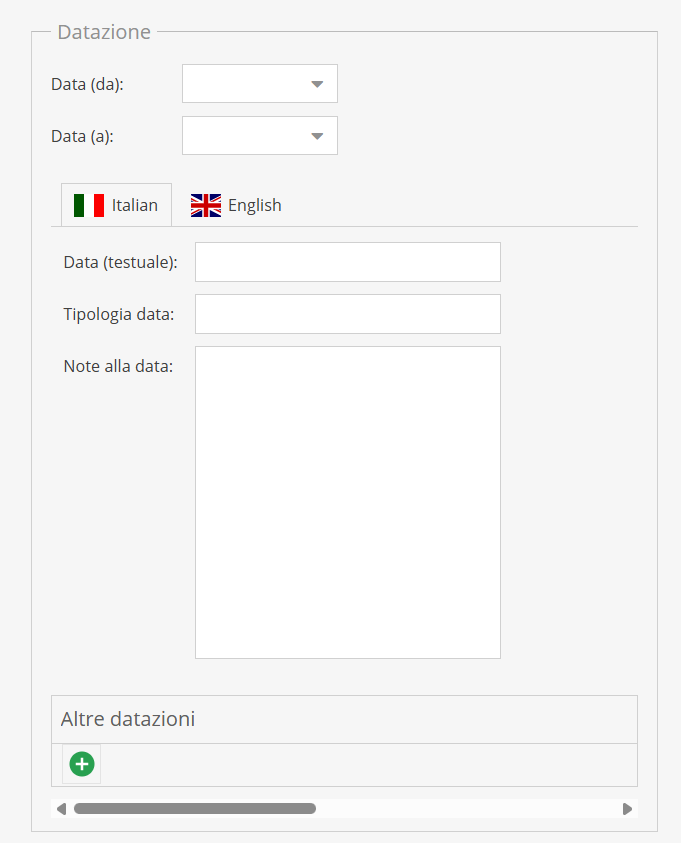
The system allows specifying dates using the following fields:
-
Date (from) - Date (to): Fields for standardized date format entry (DD-MM-YYYY; e.g., 05-06-2013). Dates can be picked via calendar or entered manually using hyphens. Note: completing these fields is required to power front-end chronological searches.
-
Textual date: field for natural language date expression. Using the example above, 05-06-2013 would be rendered as June 5, 2013.
-
Date type: text field specifying the nature of the date. Common examples include "exact date", "deduced date", "event date", "copy date".
-
Date notes: dedicated to methodological notes regarding dating. Explanations for assigned dates (e.g., "date deduced from paper watermark") or anomalies (such as documents preceding or postdating main date limits) belong here.
-
Other dates: repeatable field for additional significant temporal references.
-
"Media and links" Area*
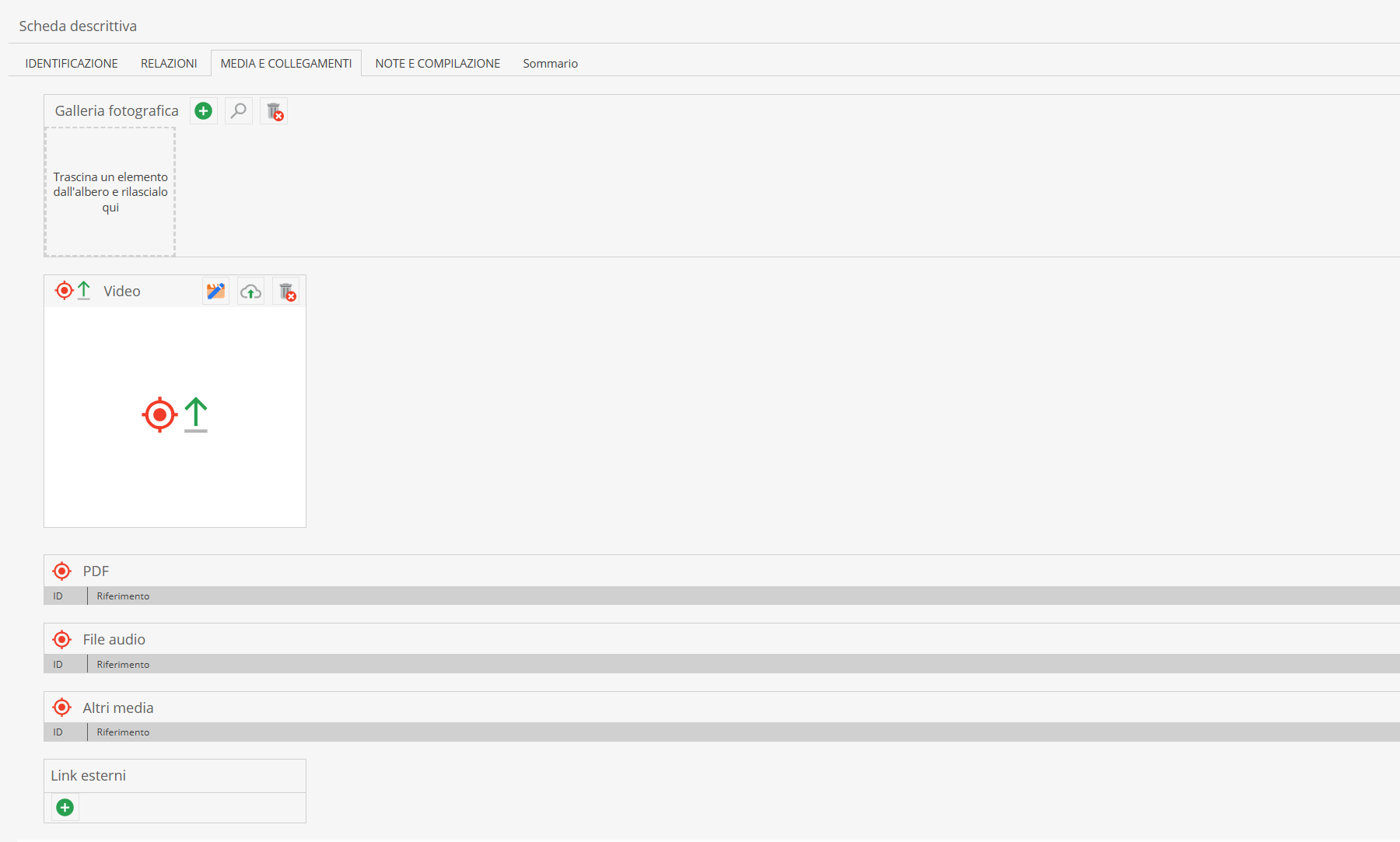
Digital assets are not uploaded directly onto the object record; they are linked/dragged via drag & drop from the Media (or Asset) section into the relevant field.
To link files within descriptive records, assets must first be imported into the "Media" section (see File management and the Media chapter).
Each asset type has its extension: images (.tiff, .jpeg), videos, audio files, or PDFs.
In the media section, each extension can be placed in its dedicated field.
Key fields are briefly outlined below:
- Photo gallery: photograph formats can be linked here directly via drag & drop.
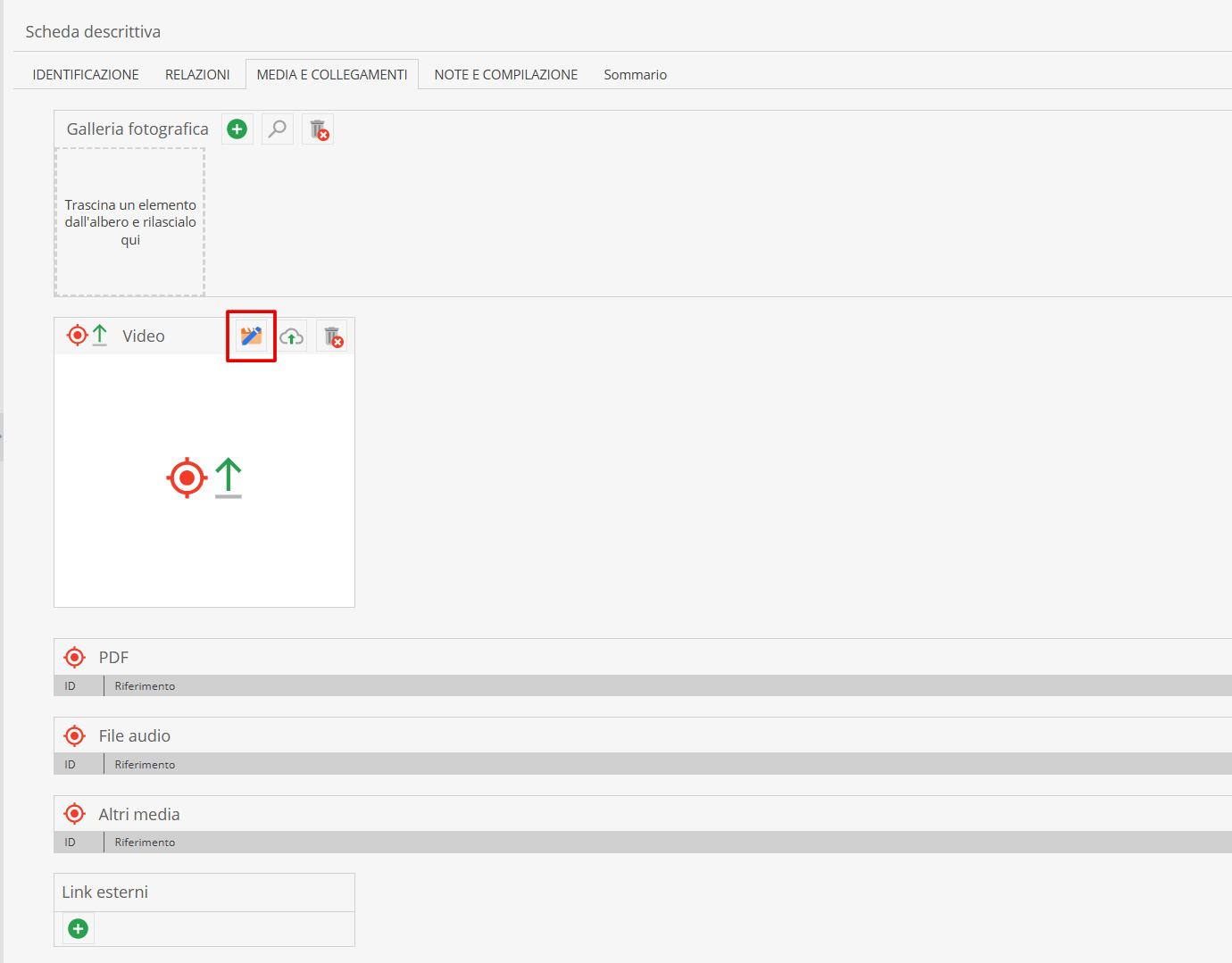
- Video: click the "edit" icon and drag video files from the Media area into the highlighted field.
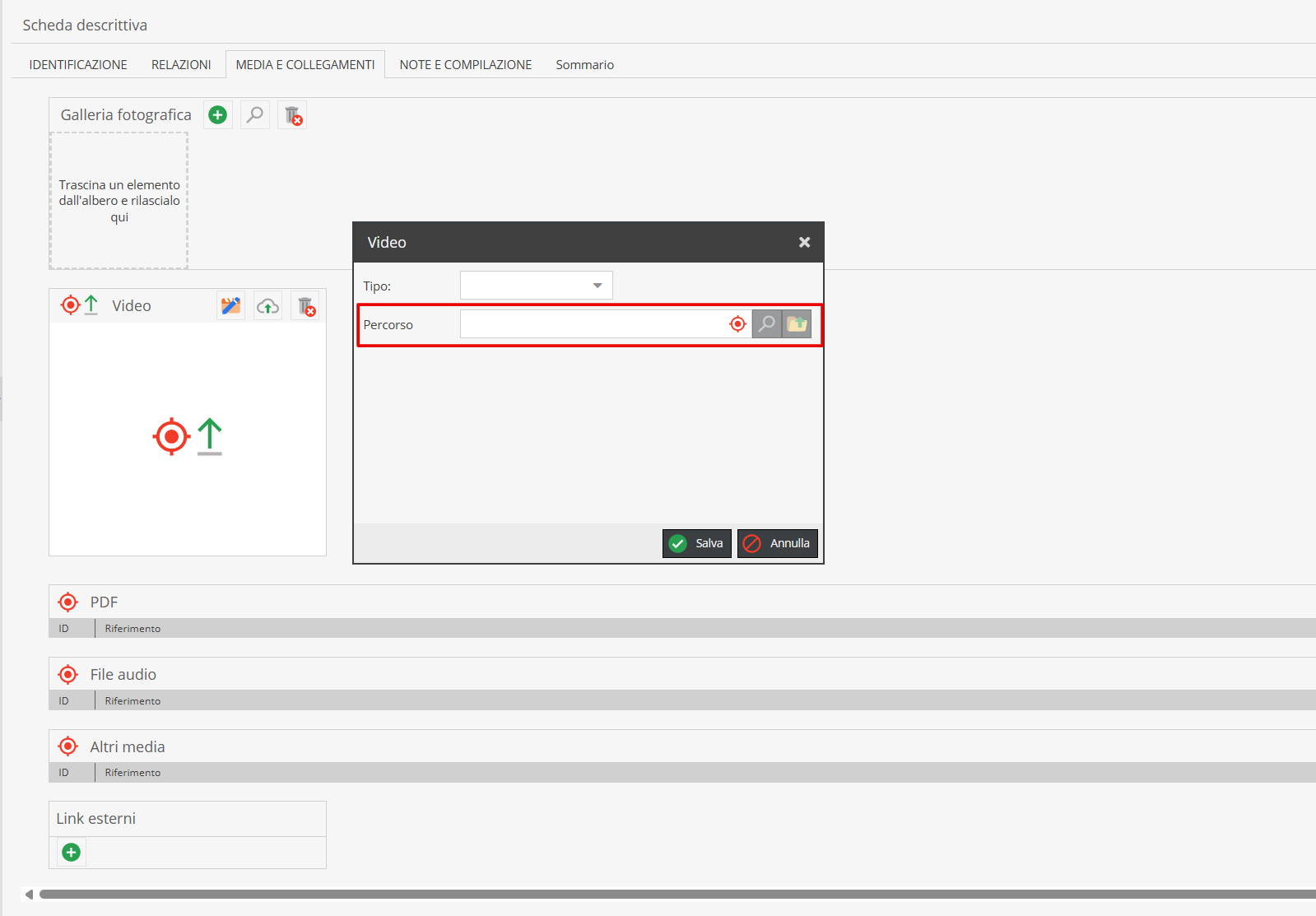
-
Other media: supports various formats. Usually employed when multiple videos or images need to be linked in bulk operations.
-
External links: links to external sites (e.g., YouTube, Wikipedia) can be added here. Click "Add" in the specific field.
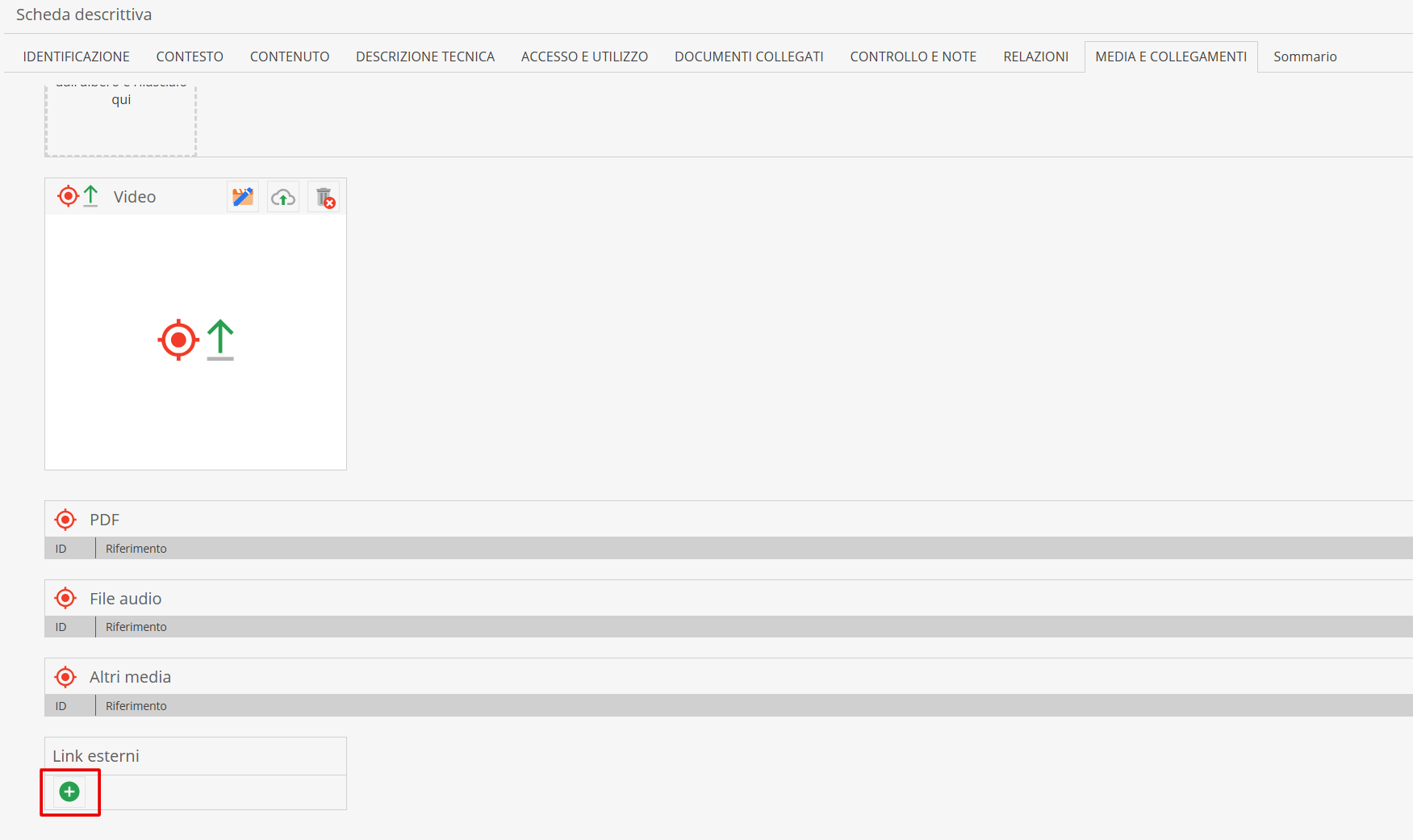
Click the "Edit" icon.
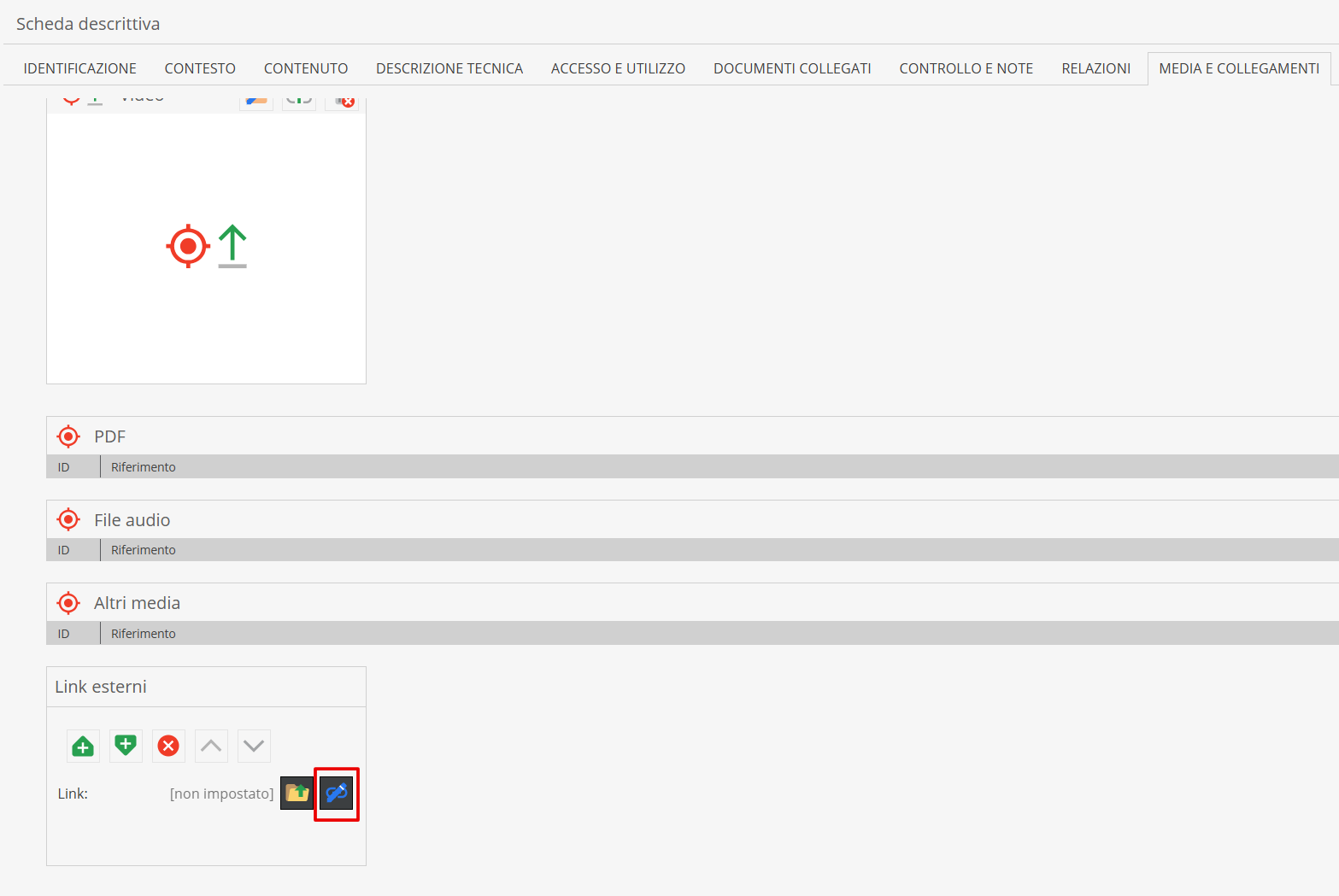
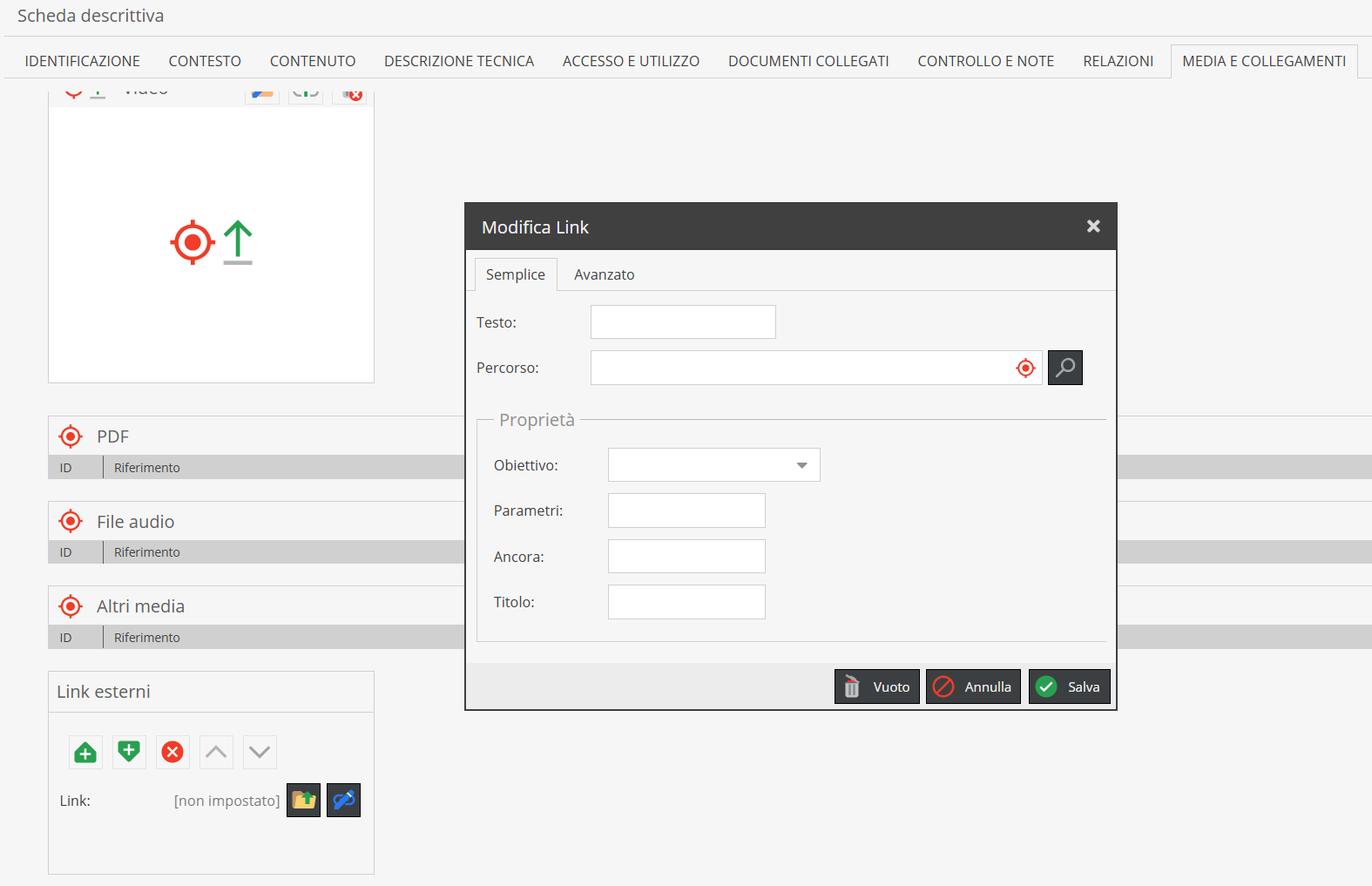
A modal window will open. Paste the complete URL into the "Path" field. To give the link a descriptive title, fill in the "Text" field.
- "Control and notes" Area*
Created with reference to the notes area (6) and control area (7) of ISAD(G) standards, this section includes:
-
Cataloging level: controlled vocabulary (dropdown) indicating record progress, helping monitor workflow.
-
Responsibility: repeatable section tracking history of record modifications. Each entry records Action (controlled vocabulary), Date, and Compiler (text field).
-
Notes: free text field for relevant details that do not fit into structured fields elsewhere.
-
Archivist's notes: technical field documenting methodological choices, sources, or interpretative doubts during compilation. Unlike general "Notes", these are usually intended for internal or scientific reference.
-
"Relationships" Area*
The Relationships area establishes logical and scientific connections between descriptive units in the system. To establish a relationship, at least one unit (either the host or target record) must already be saved.
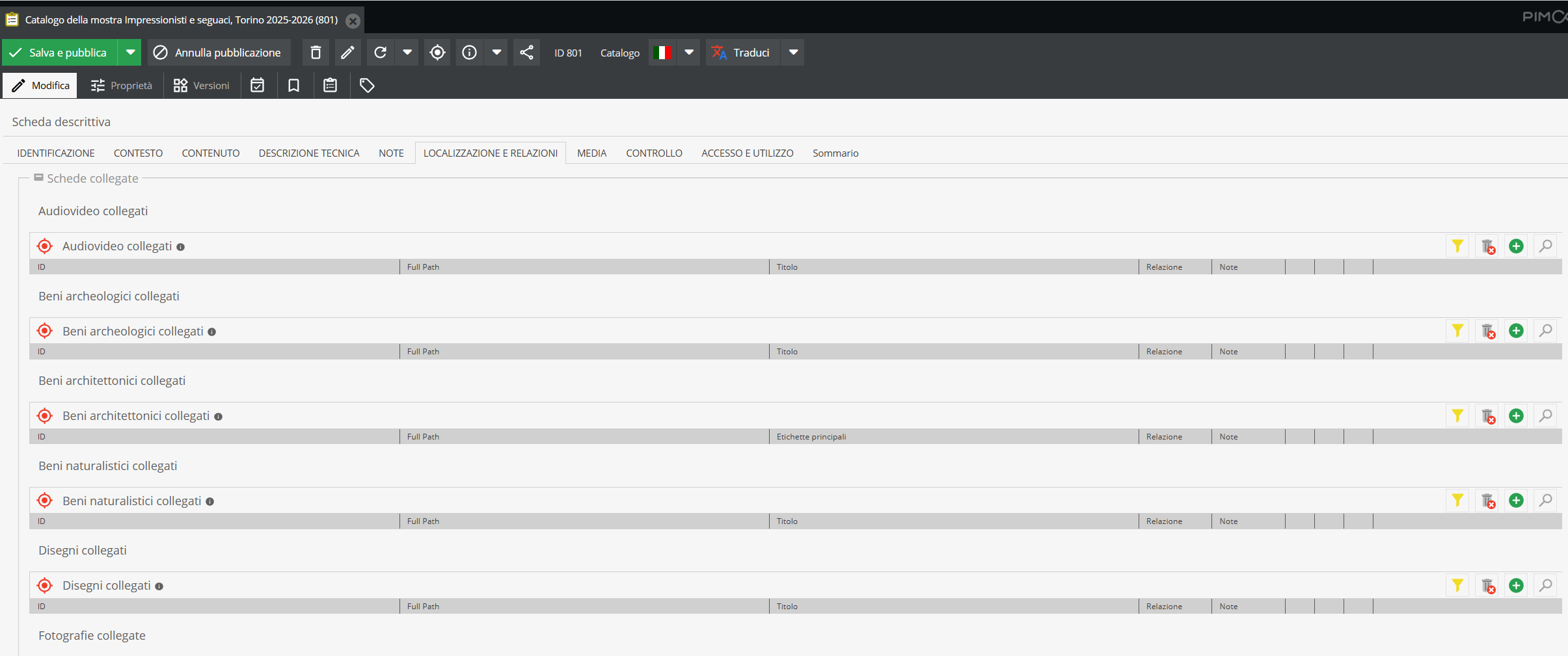
If units to be linked are already present in the tree, the system offers two workflows.
Method 1. Click the “Search” icon (magnifying glass).
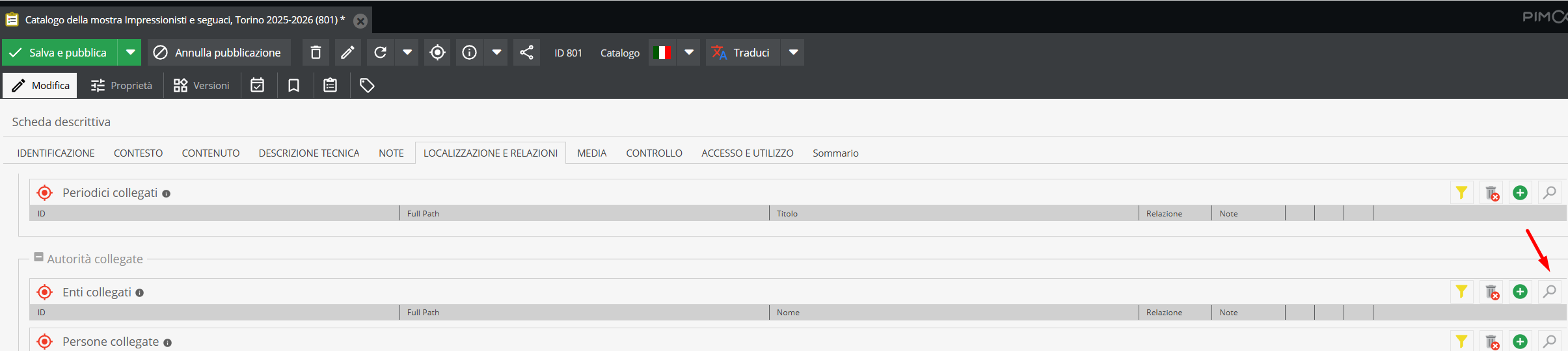
A search interface filtered for the relevant object class will open.
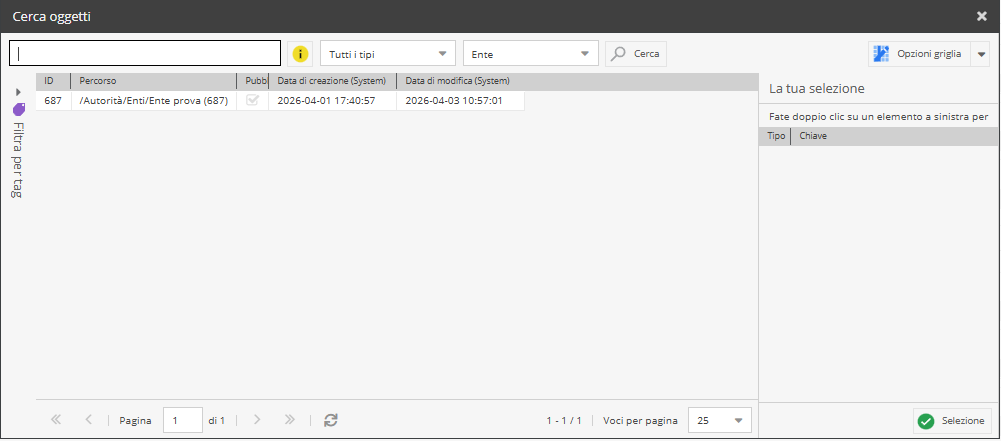
Locate desired records via keywords, tags, or scrolling, and select them.
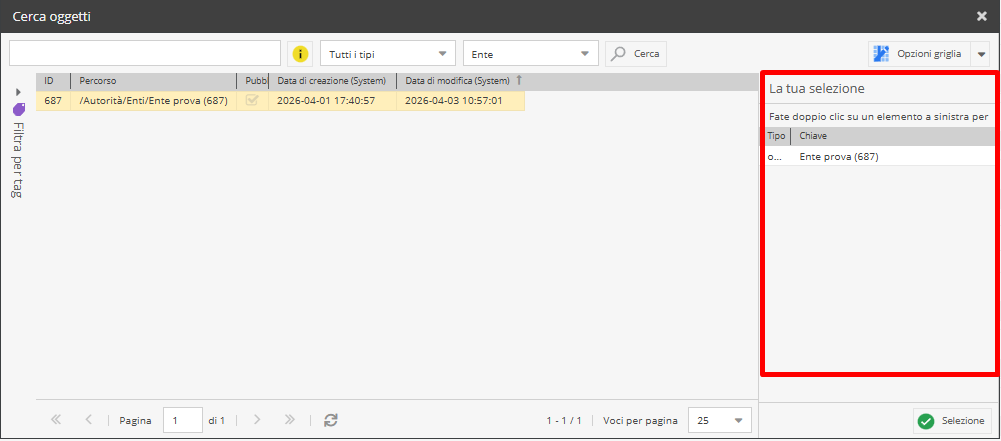
Double-click an item or right-click a multi-selection and select “Add” to transfer records to the side panel “Your selection”.
Multi-selection is possible by holding Shift (for contiguous elements) or Ctrl / Command on Mac. Once selected, right-click and choose "Add" to transfer the selection to the designated area.
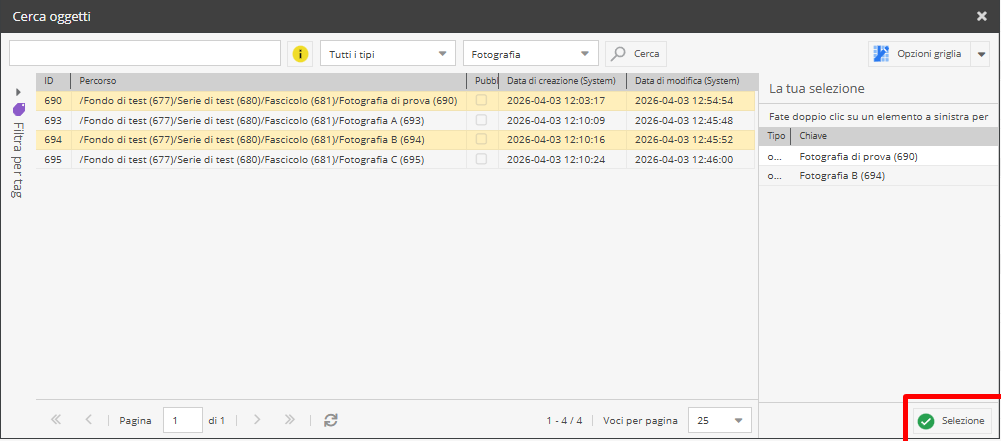
When finished, click “Selection”. The linked element will appear in the target bar.

Method 2. Two or more elements can be linked simply by dragging the item onto the corresponding bar (drag & drop mode).
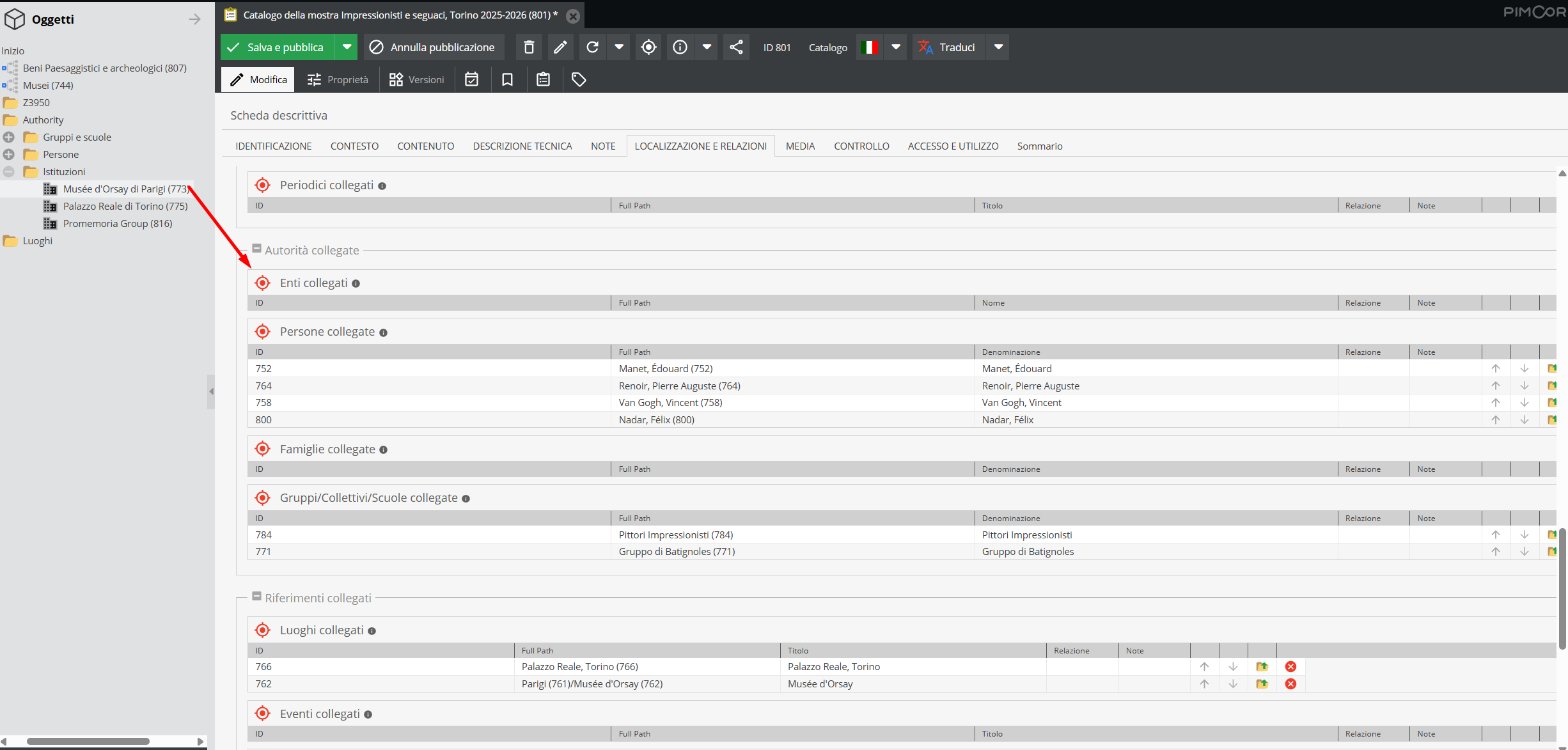
If dragged correctly, the item can be dropped when a green checkmark symbol ✓ appears.
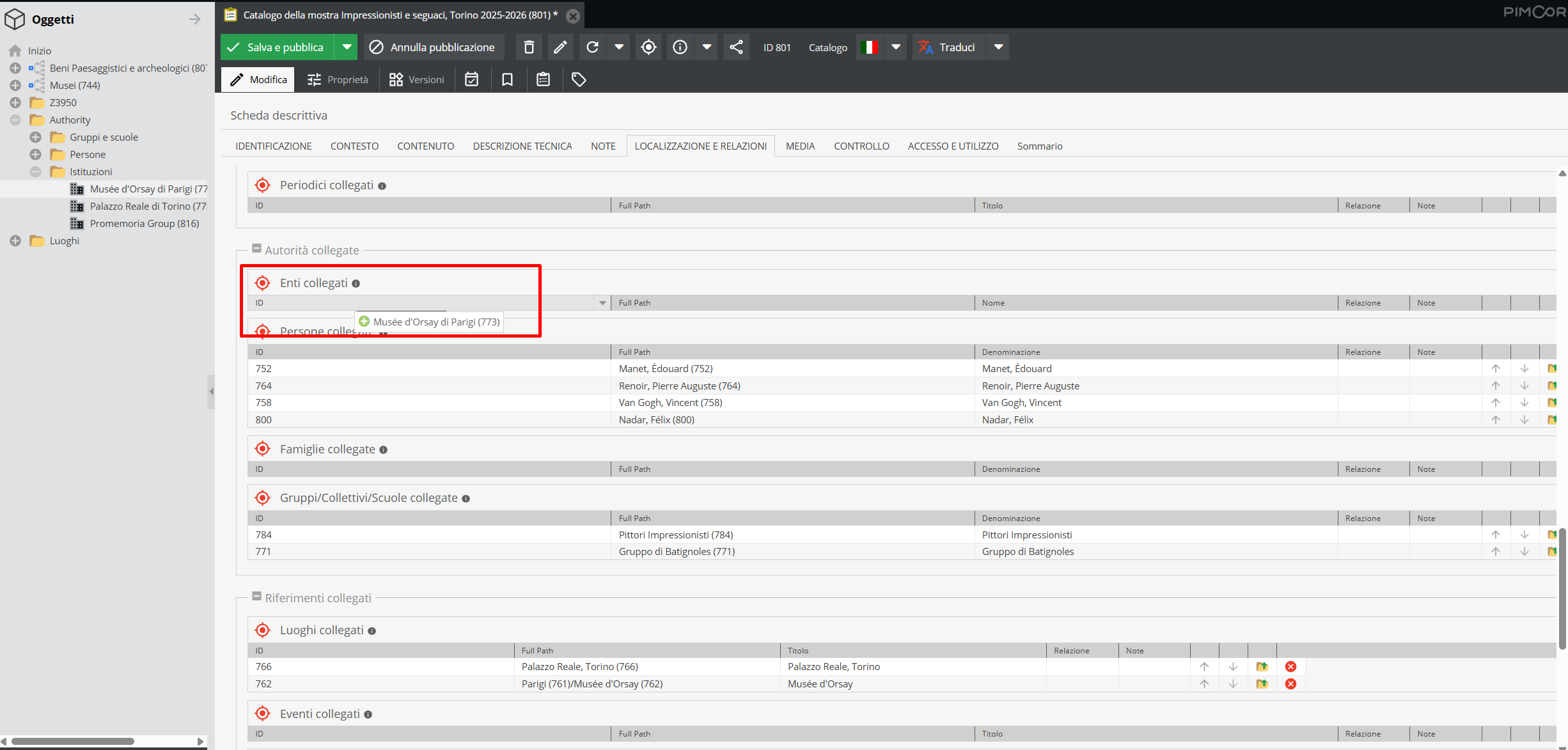
If an item is dragged over an incorrect document type field or an invalid area, a red ✕ symbol will appear next to its name.
If the descriptive record to be linked has not yet been created, it can be created directly using the “Add” (+) icon beside the relationship field.
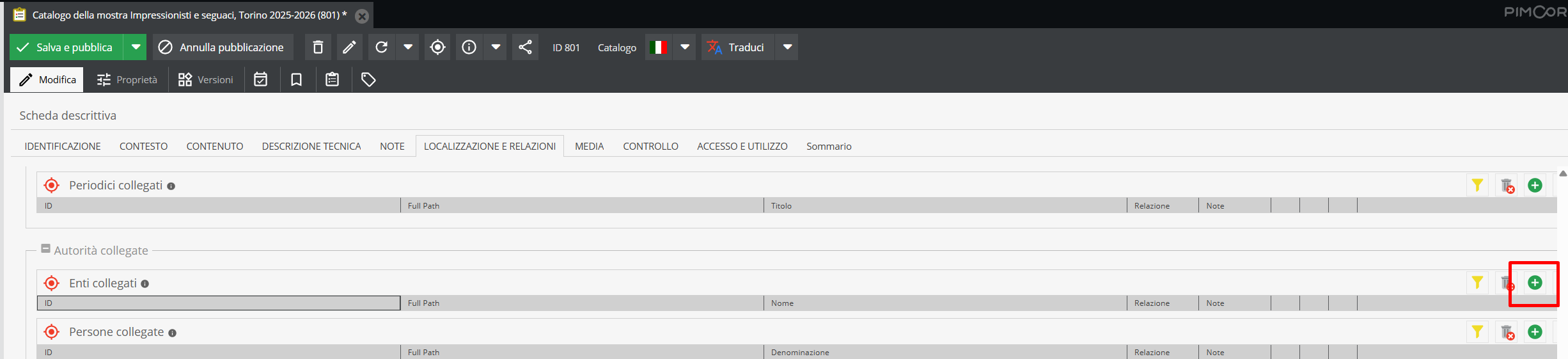
Clicking it opens an “Add object” window where you enter the Name (provisional or final name of the new unit) and Parent (the location in the tree under which the record will be created).
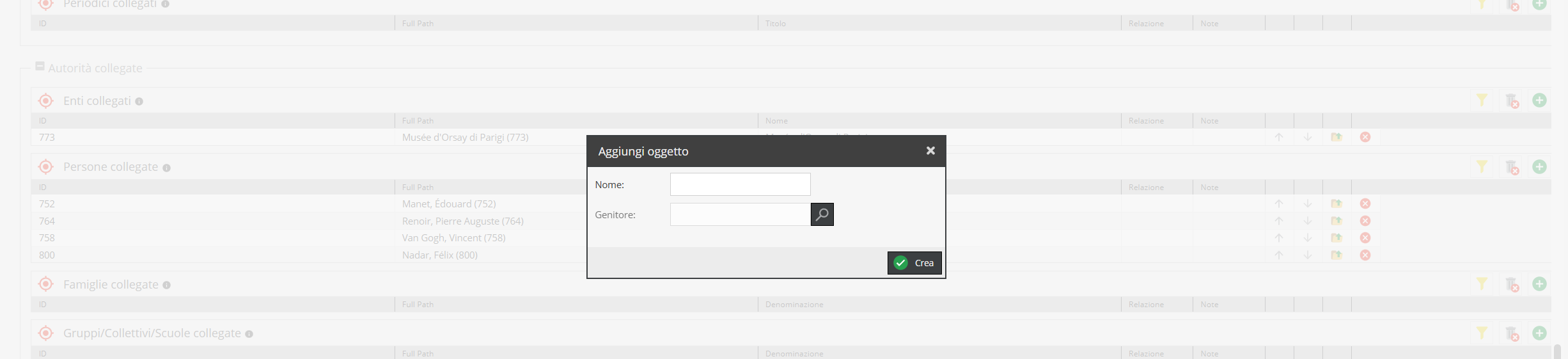
The “Name” section is a text field, while the “Parent” section is a search field. Clicking the magnifying glass opens the search interface to define the parent hierarchical aggregation.
For example, to add a person as creator and link them to a Collection/Fonds record, the new record can be created directly from the relationship field by positioning it under Authority > Persons. You can then select the target "parent" record: to find it in the tree, use the search bar with its Pimcore ID or keywords, or filter by class via the dropdown menu. Once selected, the element is created and placed under the specified node.
If no “Parent” is defined during record creation, an error message will prompt you to complete all required fields.
Once linked, the relationship can be qualified using two additional columns on system relationship fields:
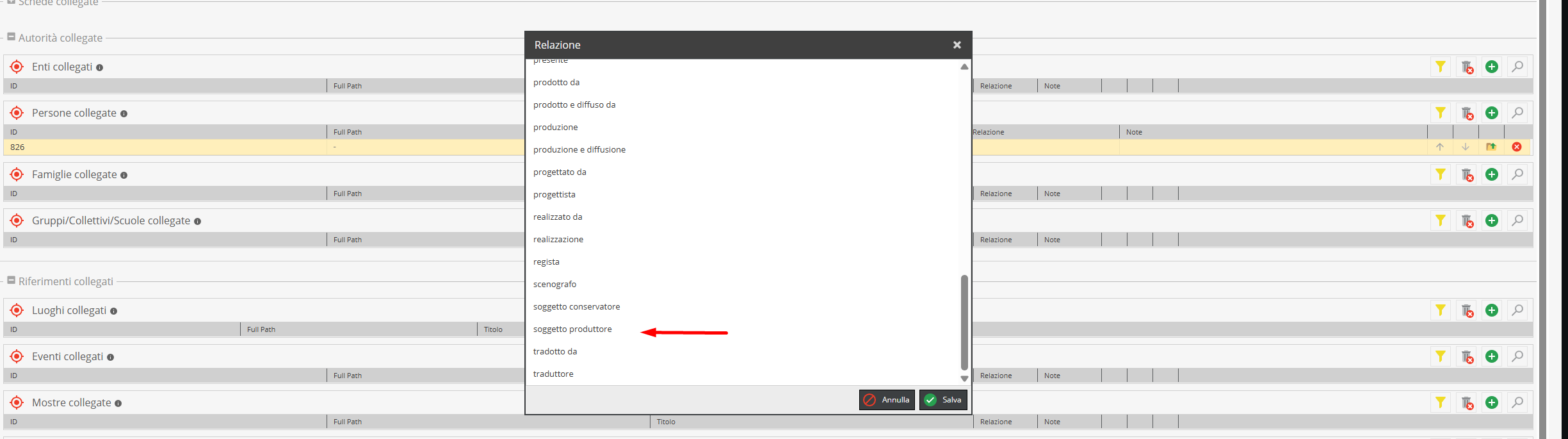
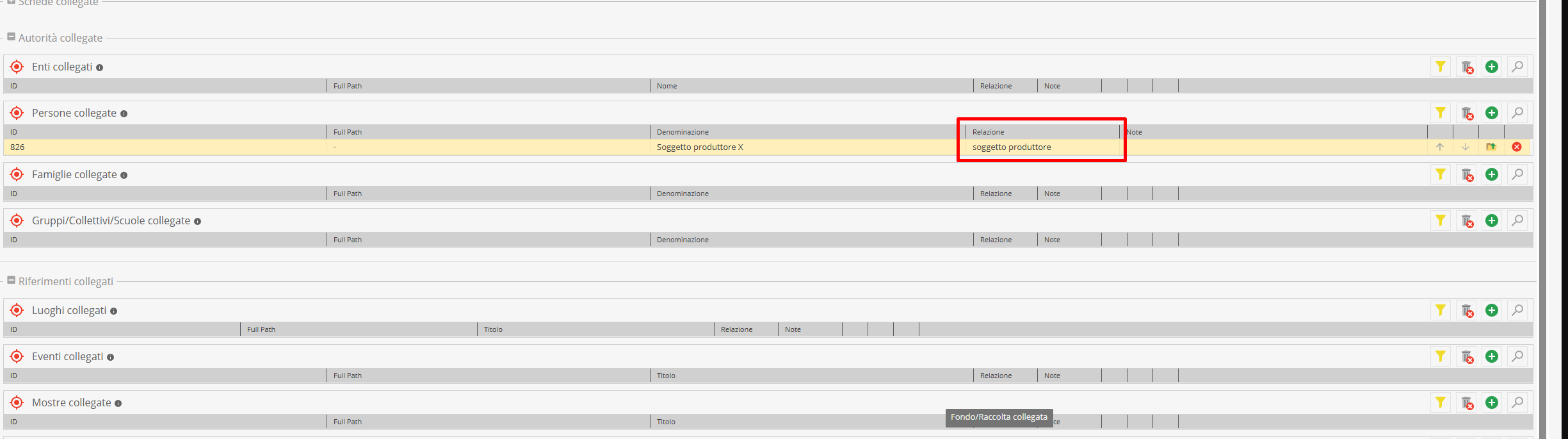
- relationship type specifies the nature of the link. For instance, if a Corporate Body is linked to a Collection/Fonds, its role (e.g., Creator, Custodian, Cited Subject) can be selected from the “Relationship” dropdown menu. Depending on the field, choices may be single-select, multi-select, or free text.
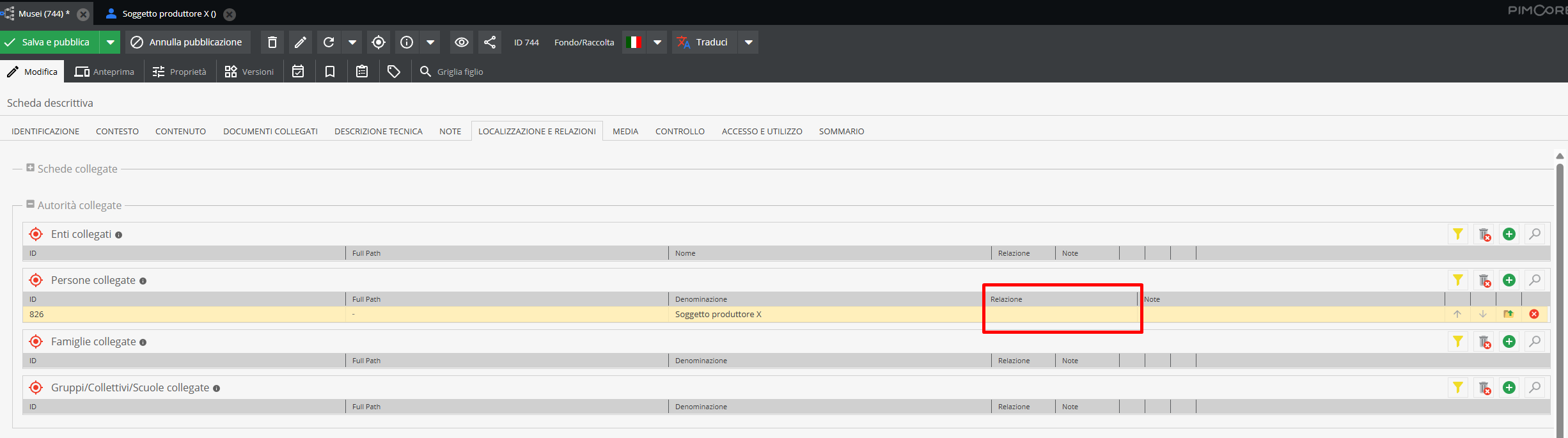
- Relationship notes is a text field for methodological clarifications or comments regarding the link.
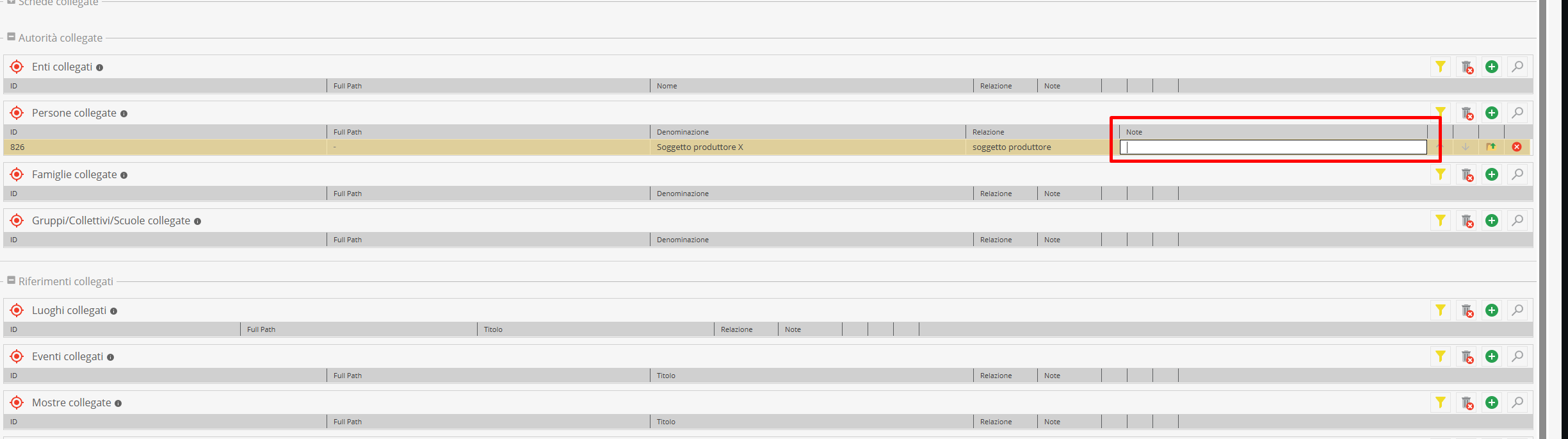
These two data points belong neither to the host nor target record, but to the relationship itself — hence referred to as “interstitial data”.
- "Summary" Area*
This section serves as an overview of the descriptive unit, aggregating key metadata extracted from across information areas into a single overview screen.
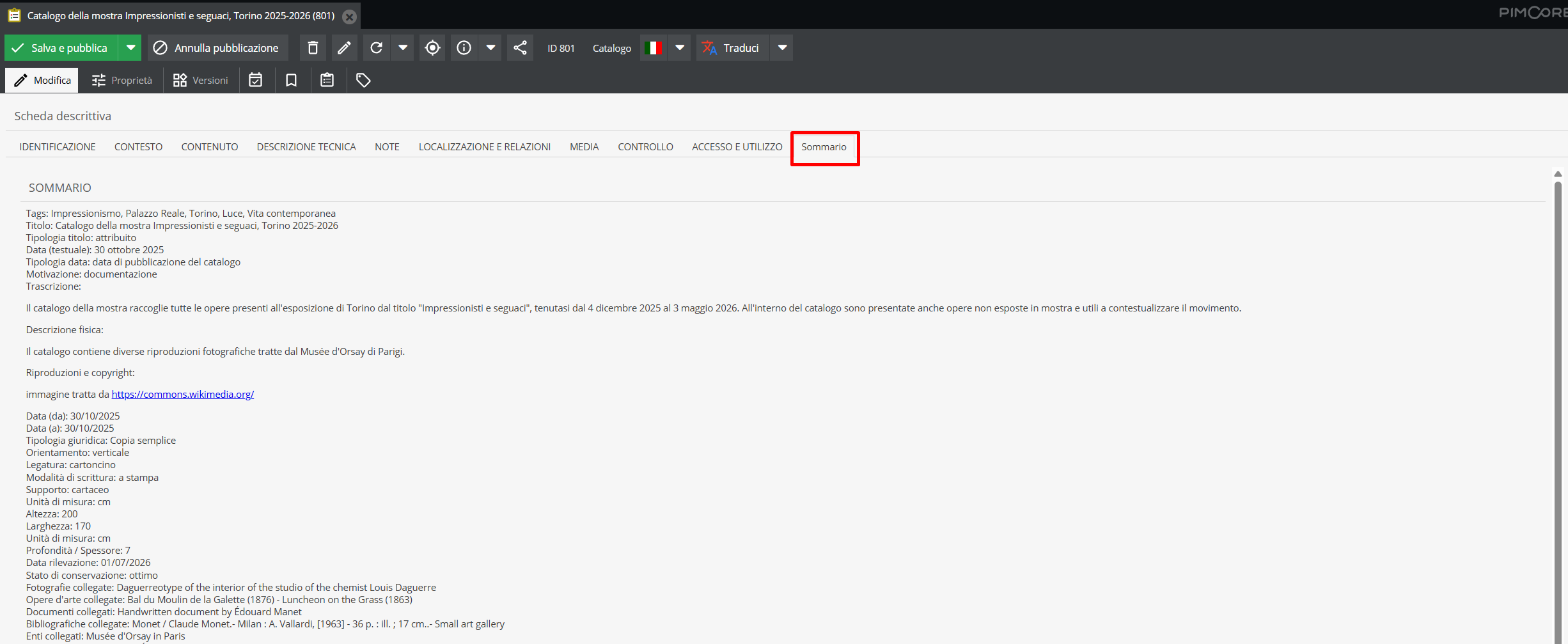
The "Summary" tab enables quick consultation and verification of data consistency, giving catalogers an overall view of the record without navigating individual detail tabs.
Localized fields
Localized fields are an advanced Pimcore feature enabling multilingual metadata management, essential for making holdings accessible to a global audience.
These fields are easily recognized by Language selectors (tabs with flag icons and labels) positioned beside text areas. Standard system setup includes support for Italian, English, and French.
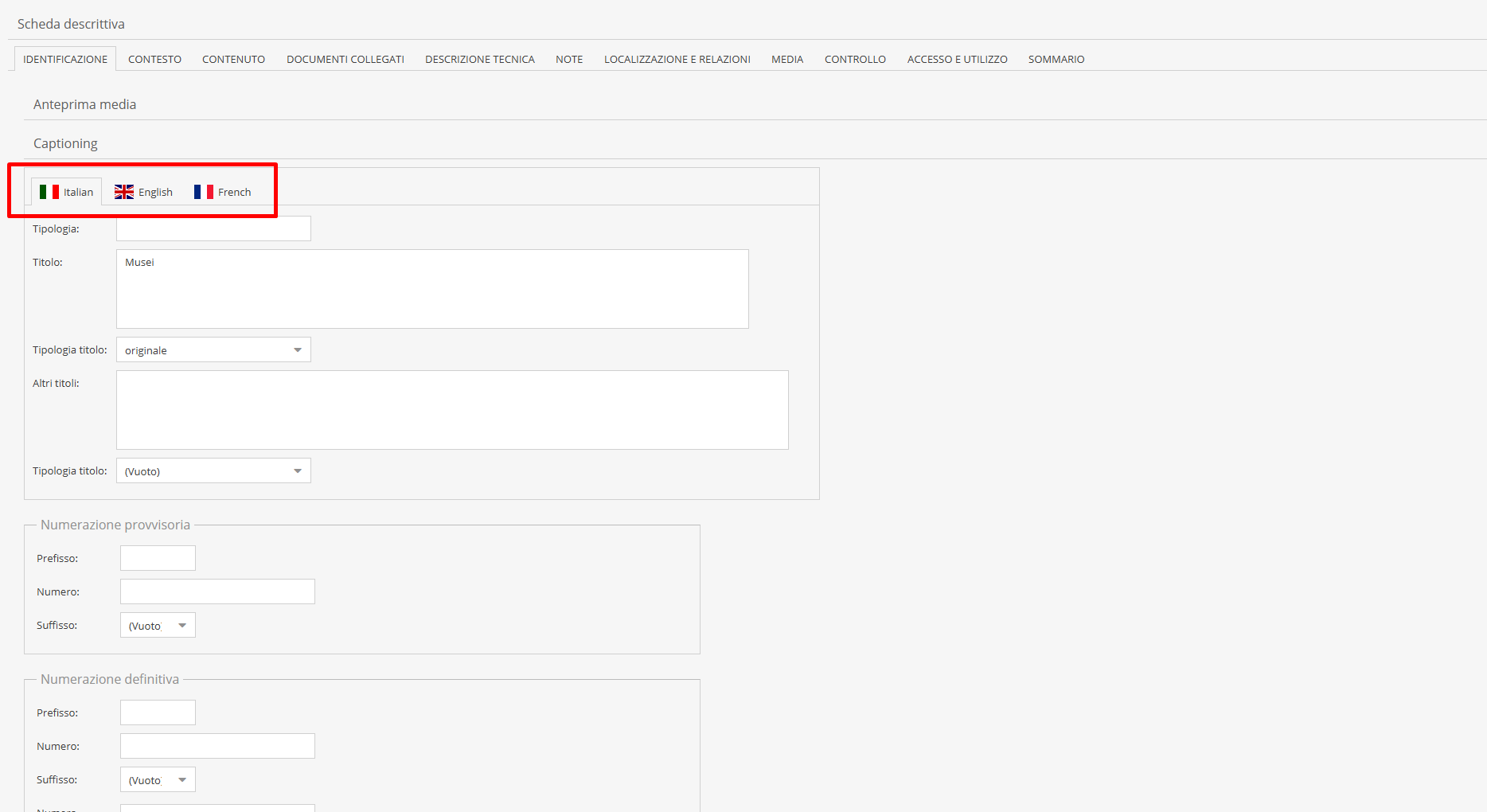
Fields typically configured for multilingual translation are narrative and descriptive text fields. Localizing purely alphanumeric or structured fields (such as dimensions, ID codes, call numbers, or normalized dates) is excluded, as they retain a single value regardless of language.
Field translation is not automatic: catalogers must manually fill text areas in selected languages, or Clients can request bulk description translation services for large volumes of material.
Properly completing localized fields enables the “Multilingual” feature on the public portal, making the Archivio Digitale available in multiple languages at the click of a button.
Integrated automatic translation system Located on the toolbar next to the active language selector, the "Translate" button operates specifically on text fields designated as translatable per language.
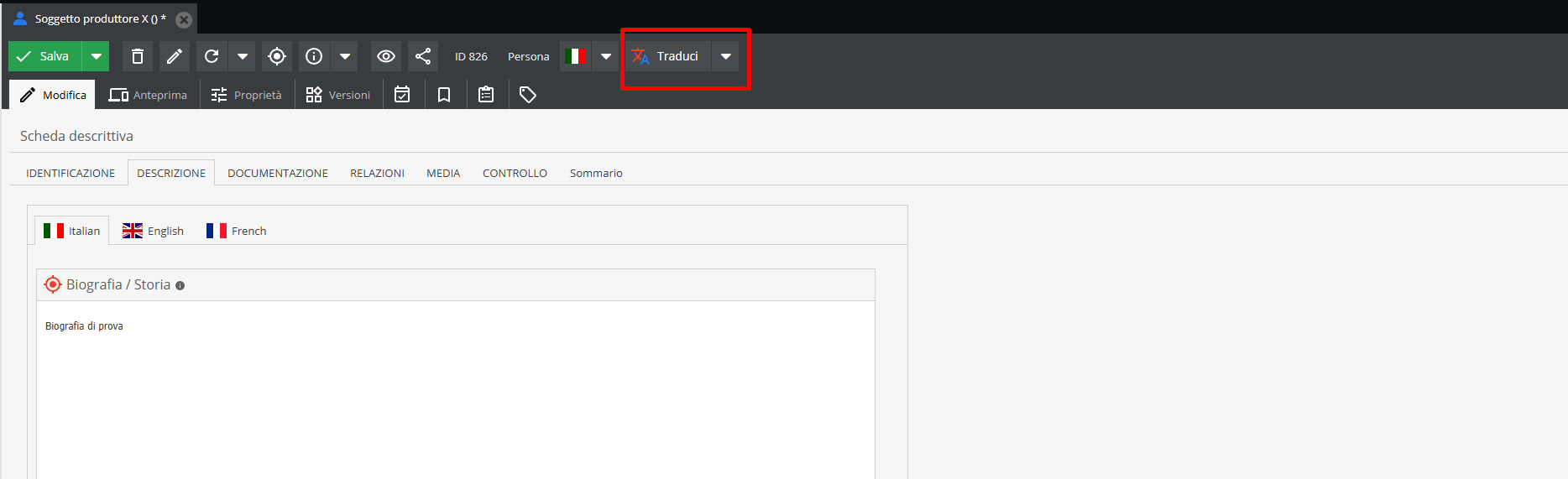
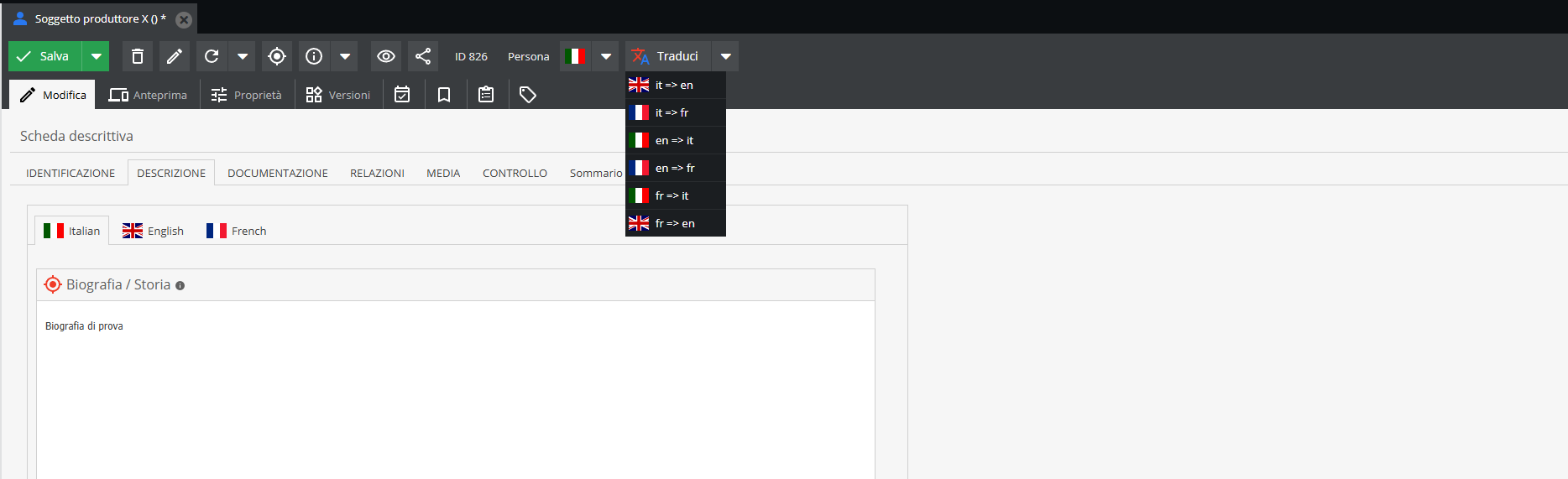
Select source and target languages from the dropdown menu (e.g., Italian to English): the system calls the automatic translation service and directly populates the target language tab.
The "Translate" button affects only specific text fields; it cannot be used on select or multi-select fields, for example.
Object management
The object types described here can be created, modified, and organized within the “Objects” (or Data Objects) area. Right-clicking opens a context menu for executing various actions.
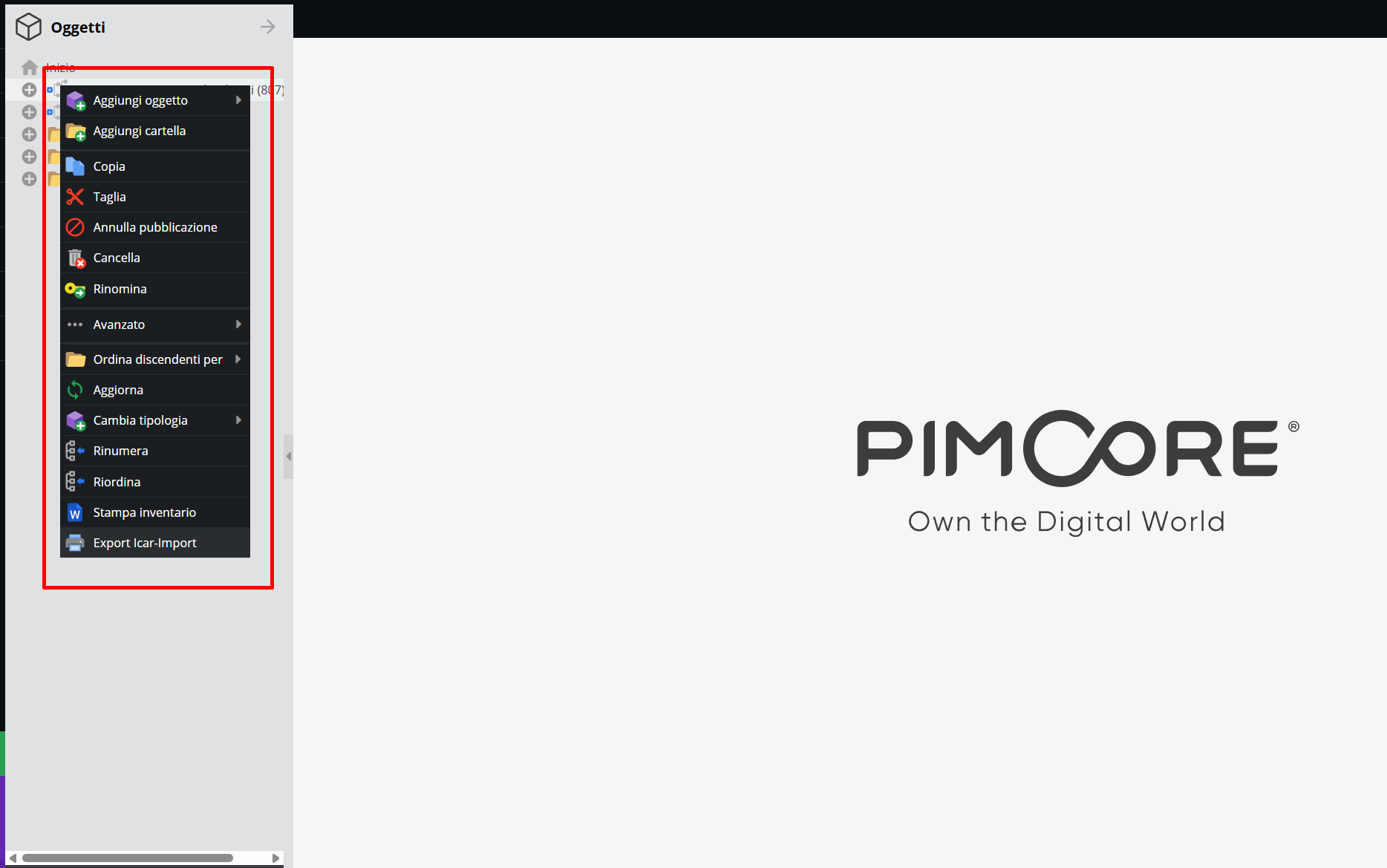
Adding a new element to the structure
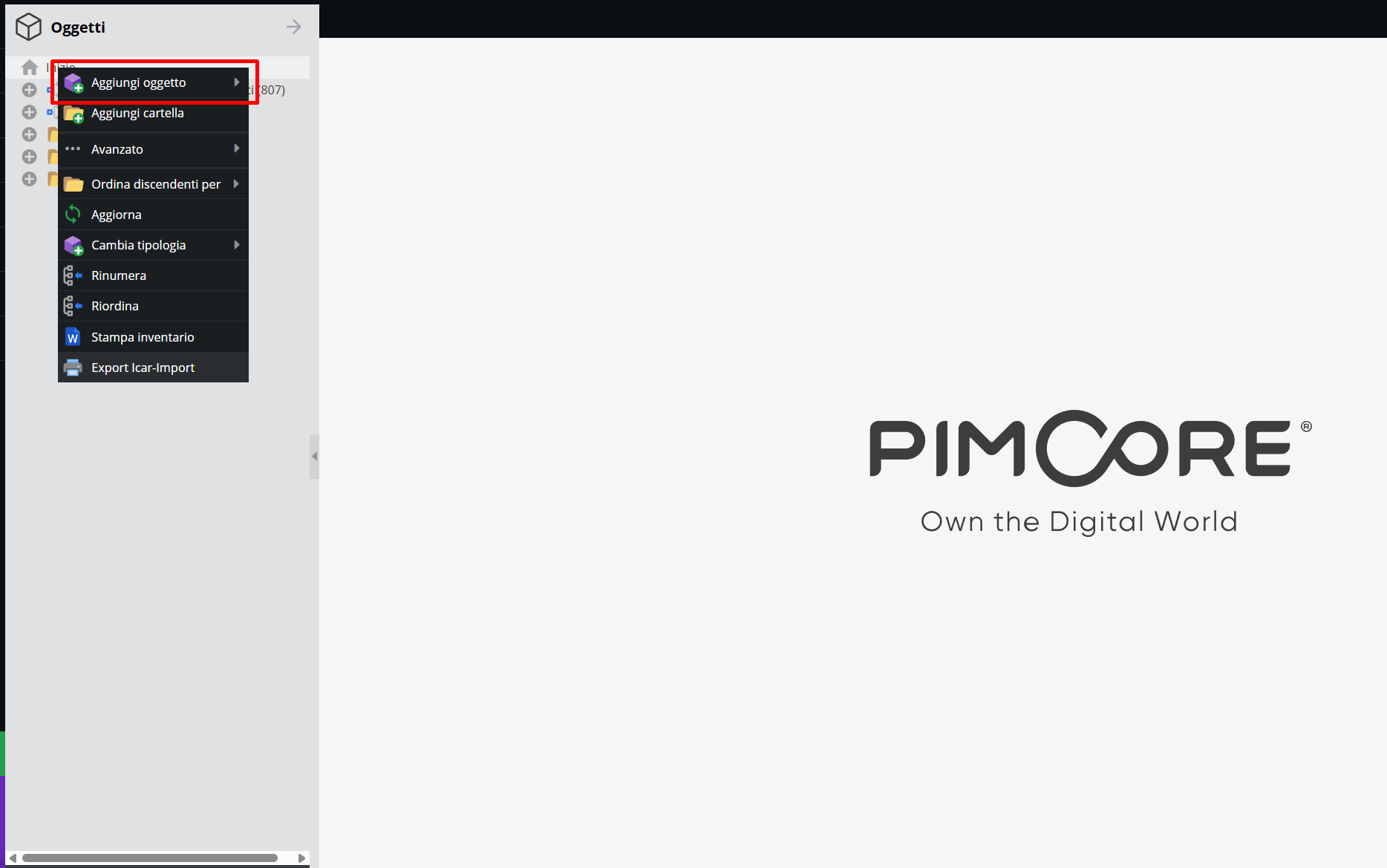
Right-click the target archival complex, museum item, or entity/reference folder, then select “Add object”.
Select the group containing desired objects, then choose the chosen descriptive unit type.
Clicking the desired record type opens the following form:
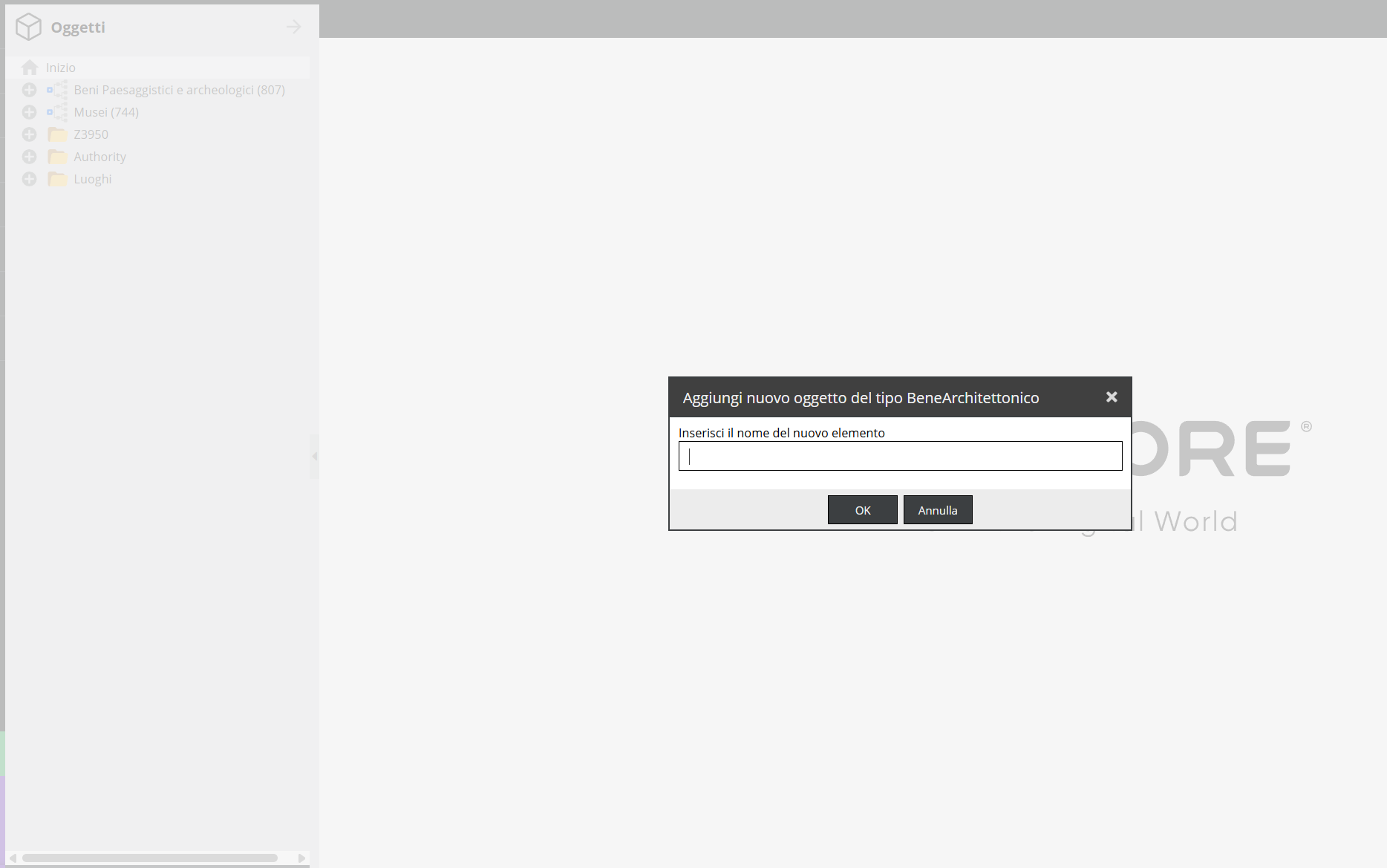
Enter the title (provisional or final) of the new record, then click “OK”.
The descriptive record will open, whose areas and fields are detailed in The information areas of records.
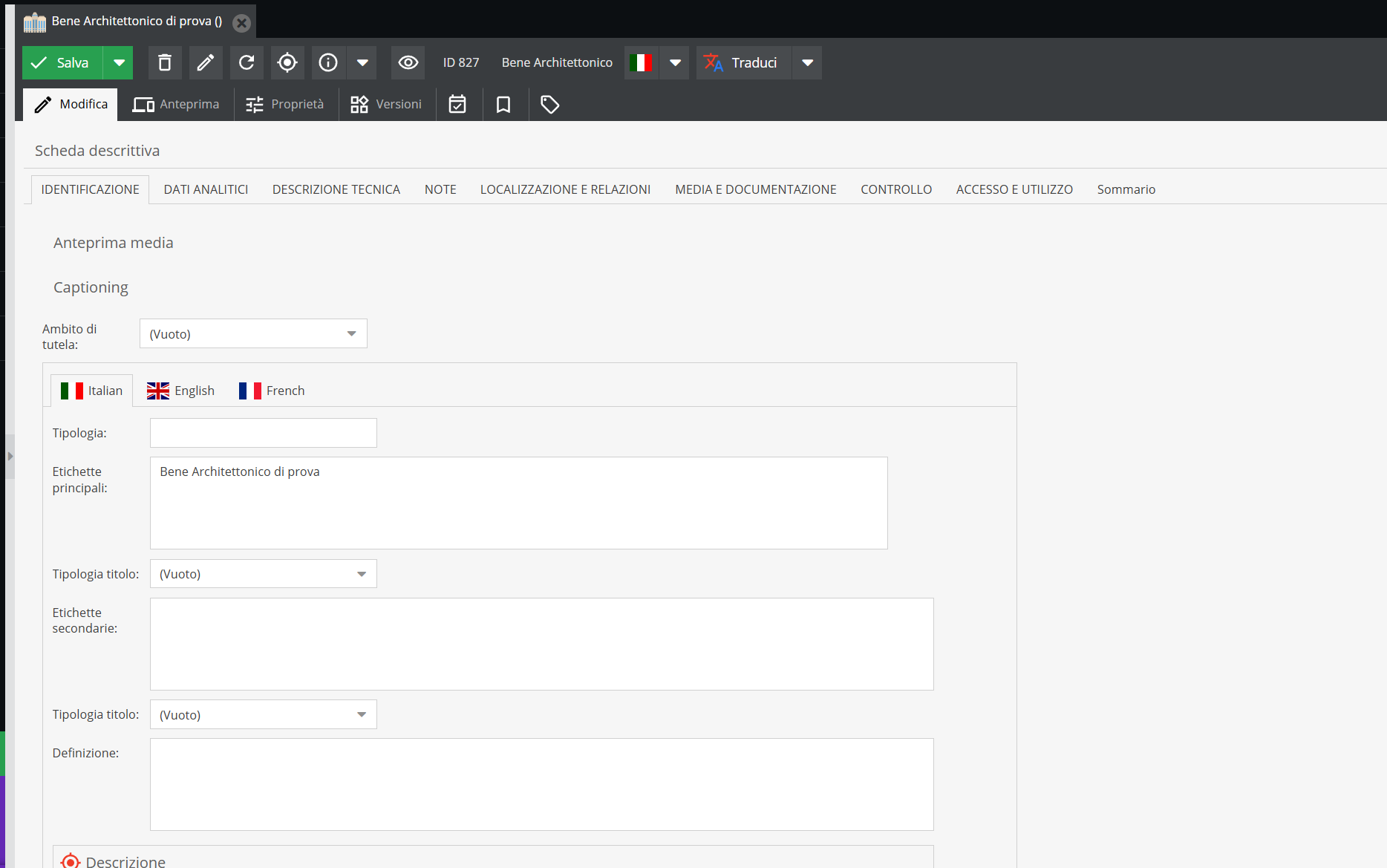
The same menu allows performing copy, cut, paste, rename, and delete actions.
Reordering objects
The system supports systematic reordering to adjust the logical sequence and hierarchy of elements. Select the target node in the tree, right-click, and choose “Reorder”.
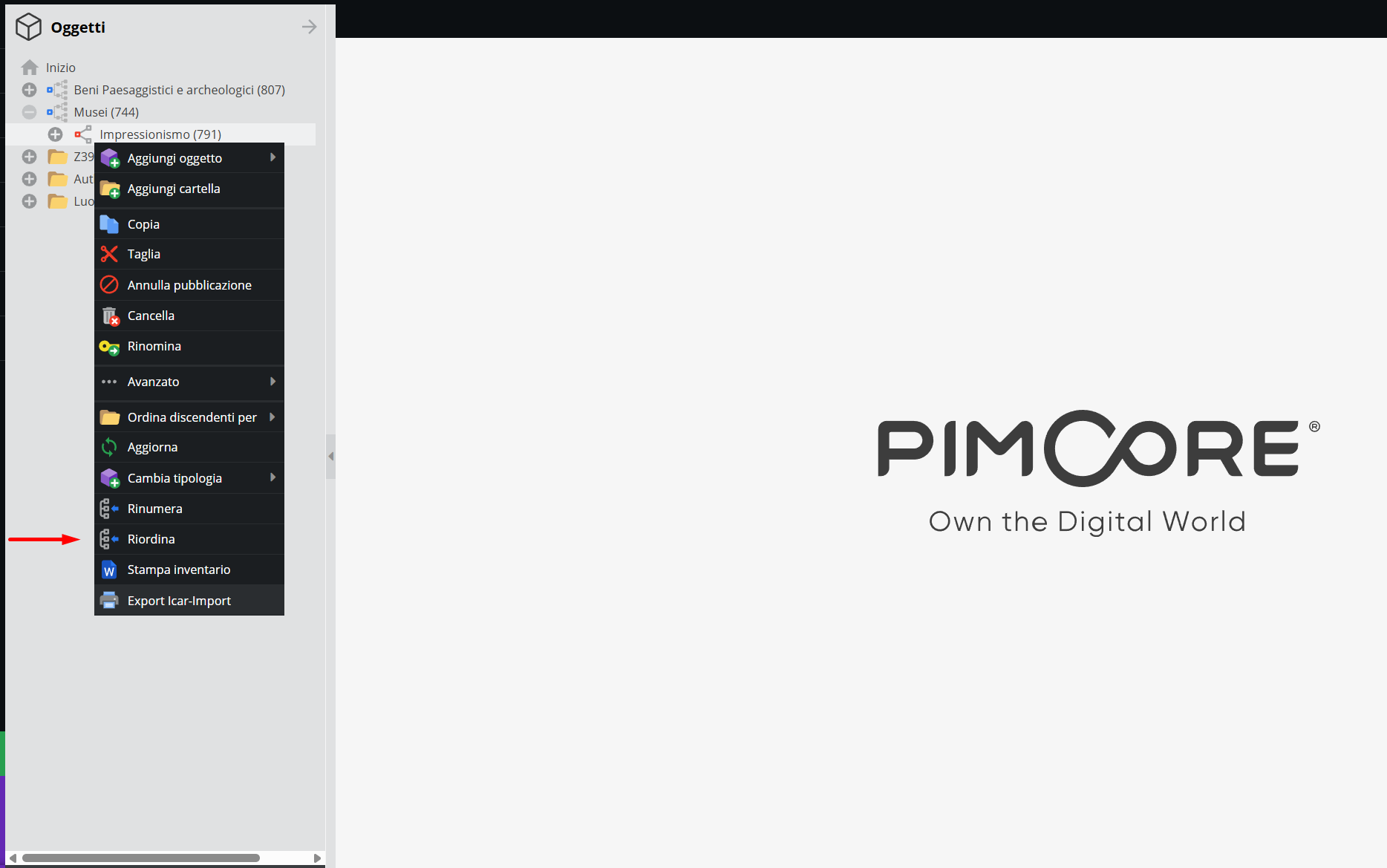
This function allows reordering first-level child units (direct children) or recursively reordering the entire sub-tree of the selected node. Available sorting criteria are: identifier code (sorting based on provisional or definitive numbering), chronological (Date), or alphabetical (Title).
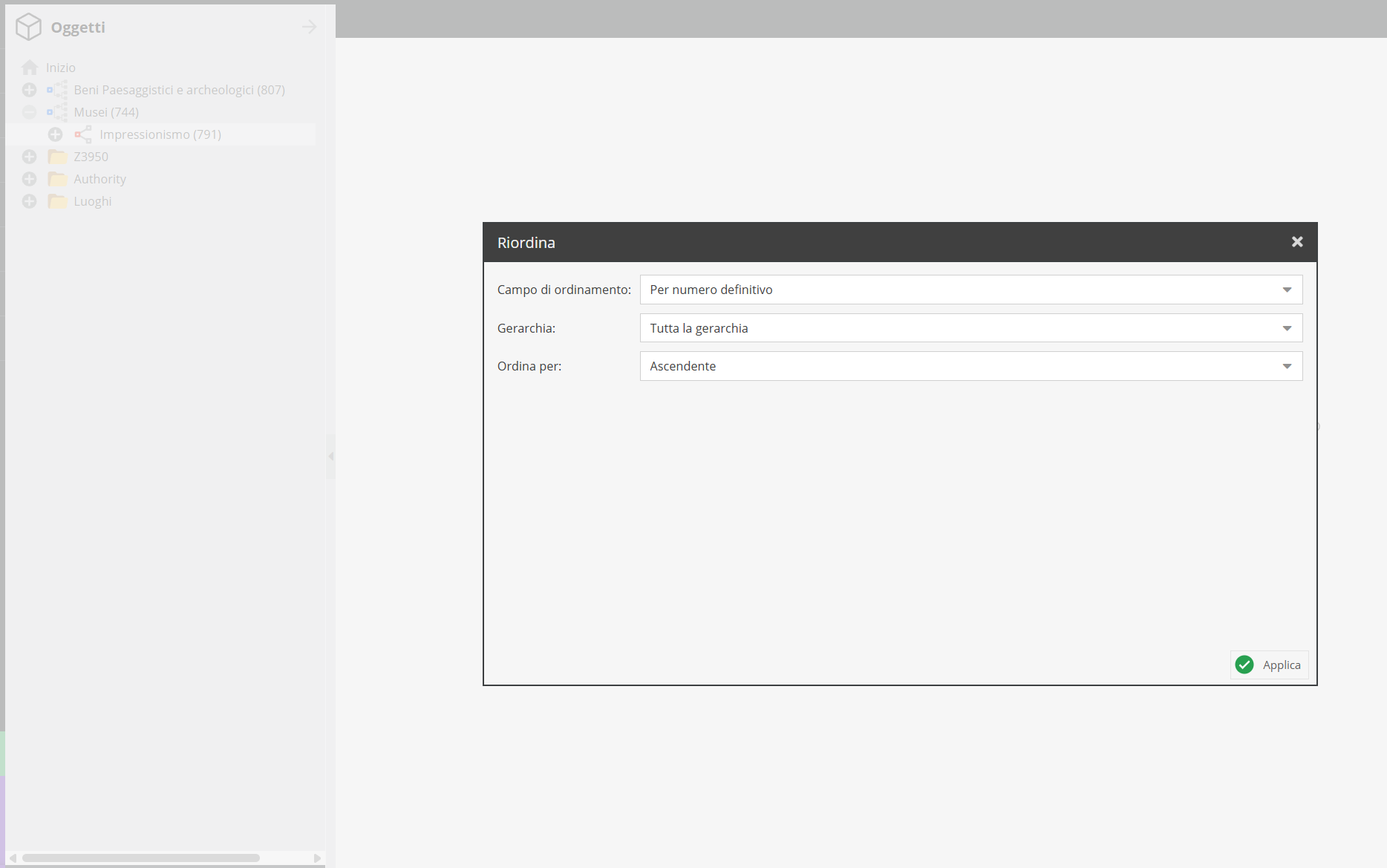
Ascending or descending order can be set for each criterion. After selecting parameters in the dropdown menus, click “Apply” (bottom right) to execute the new order in the hierarchy.
Renumbering objects
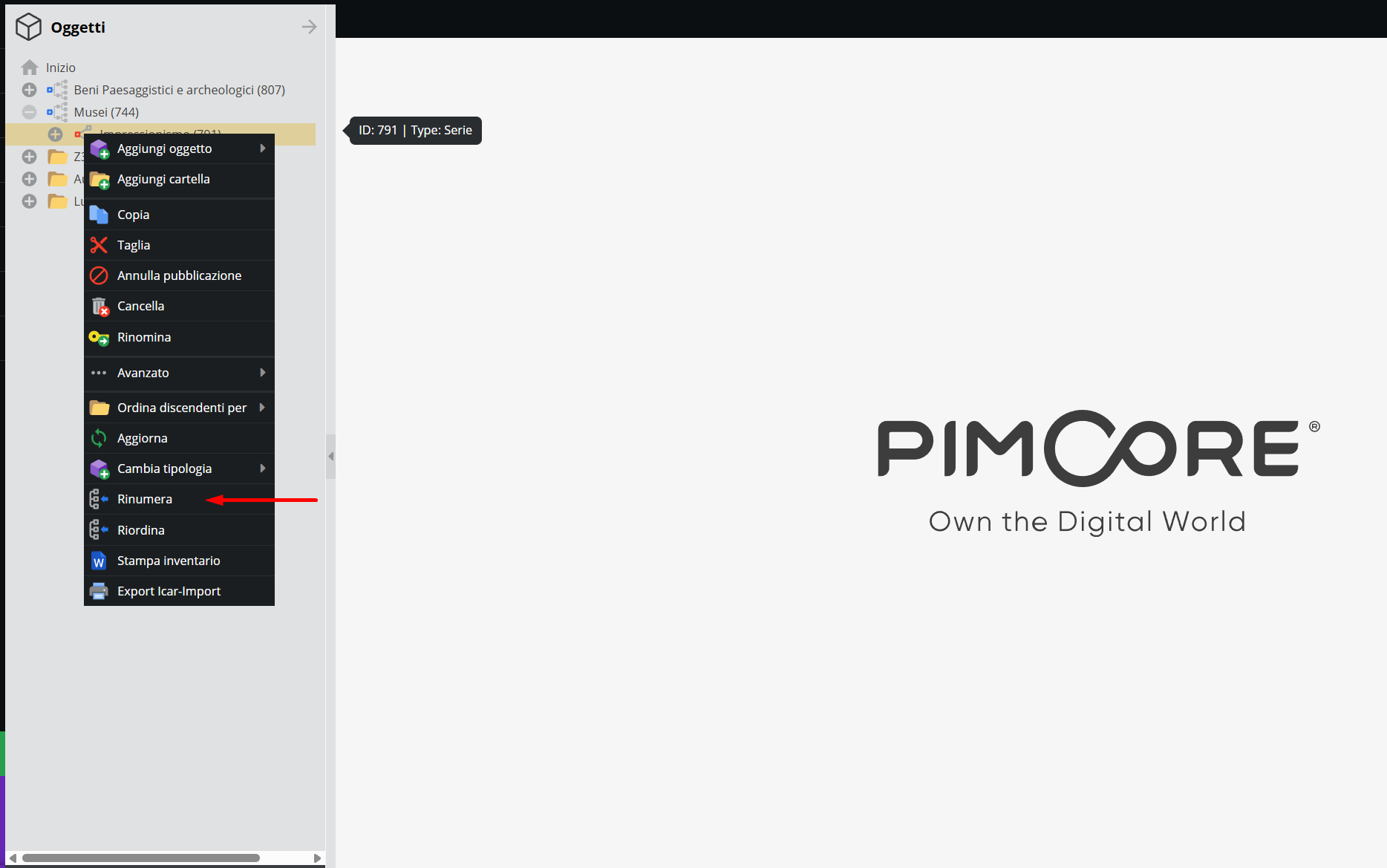
This feature automatically assigns sequential item numbers (e.g., box numbers, volume numbers) to storage units or archival items within a complex. Select the reference node, right-click, and choose “Renumber”.
Select object classes to number using the corresponding dropdown menu:
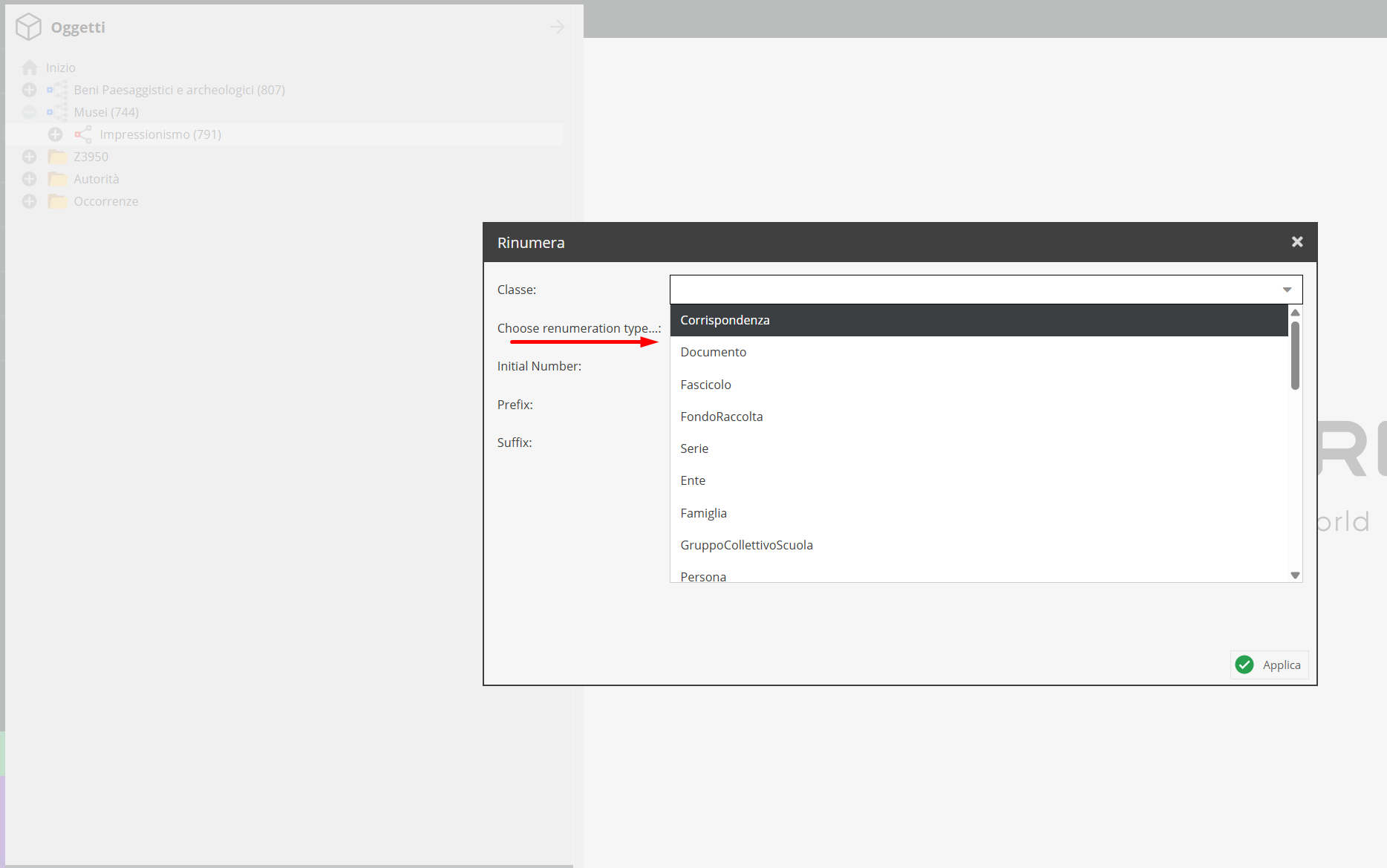
Define the numbering sequence mode:
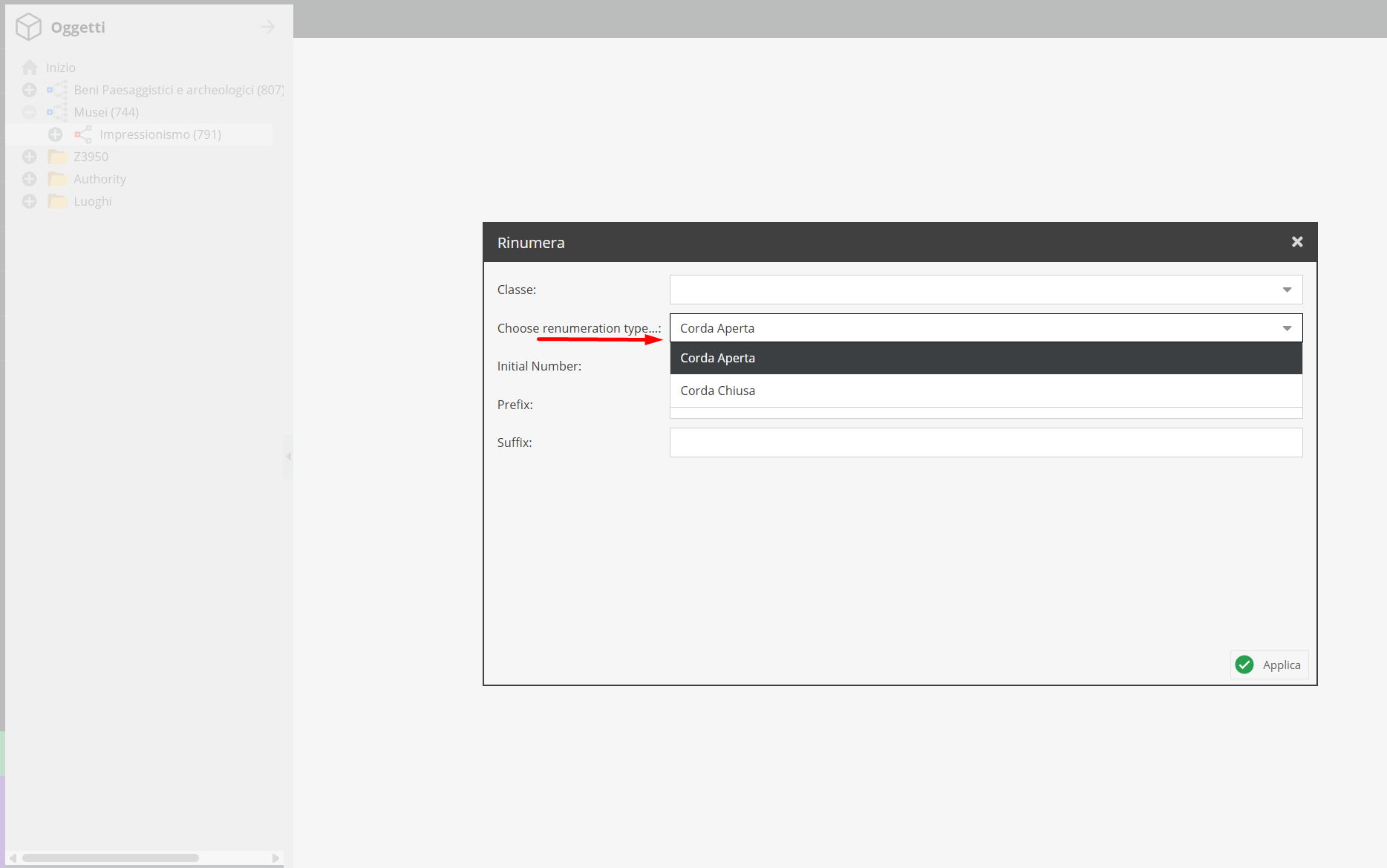
- Closed Sequence: Used for completed complexes where numbering follows an uninterrupted continuous sequence.
- Open Sequence: Used for expanding series, allowing flexible numbering for future additions. Enter the starting numeric value for counting (e.g., "1" for a new series, or a higher number to continue an existing sequence).
Print inventory
This function generates a .docx document containing a descriptive inventory of all units descending from the selected node. Select the target node, right-click, and choose "Print inventory".
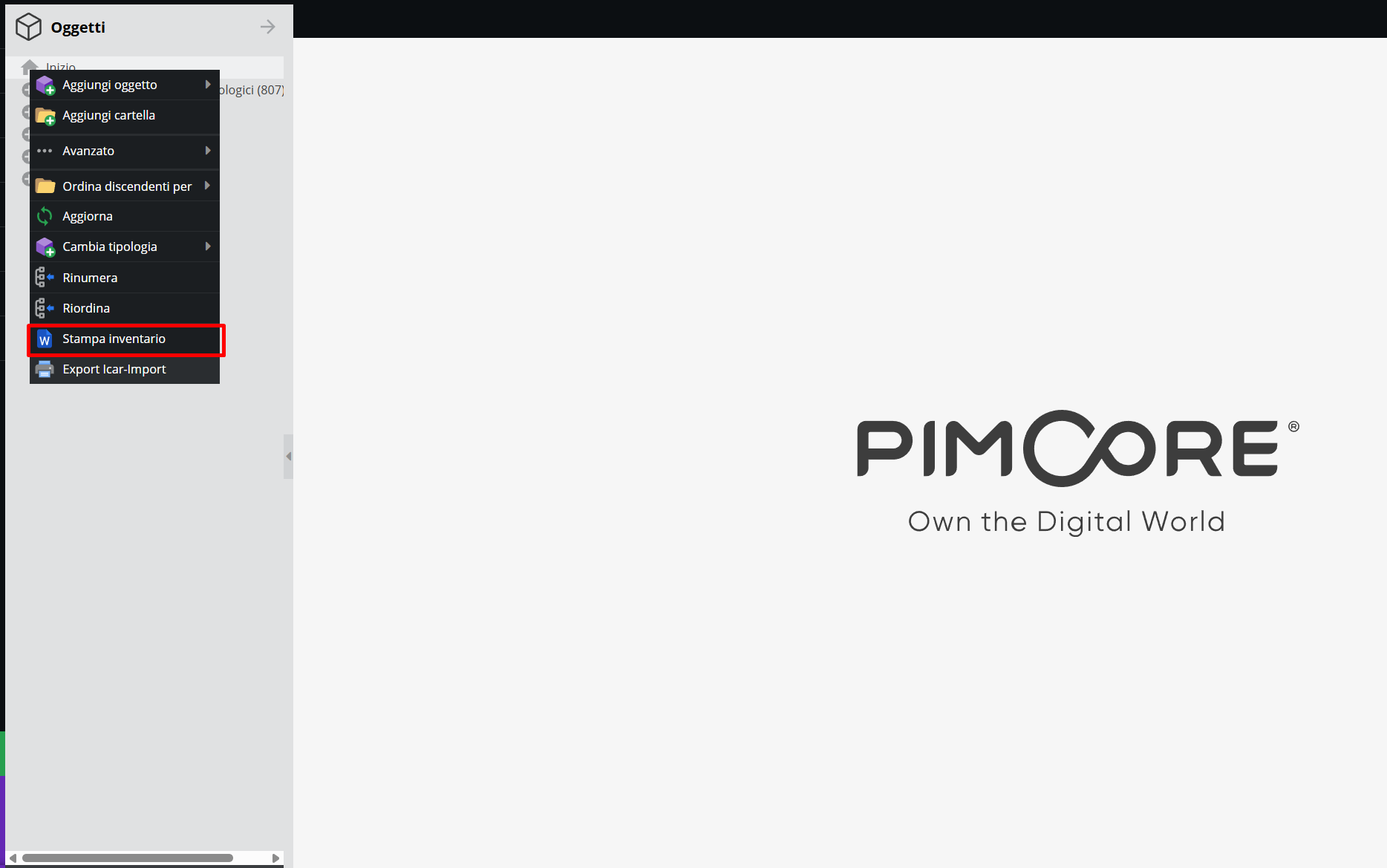
The generated document reflects the tree structure from which it was printed: each partition becomes a section header, and child descriptive units appear beneath, each accompanied by its ID — the numeric identifier assigned upon creation.
The document includes automatically generated indexes — such as an alphabetical list of Authorities and Locations linked to inventoried units — leveraging relationship fields: cross-reference numbers beside index entries match unit IDs where relationships were established.
This yields a complete inventory with reference apparatus suitable for offline use.
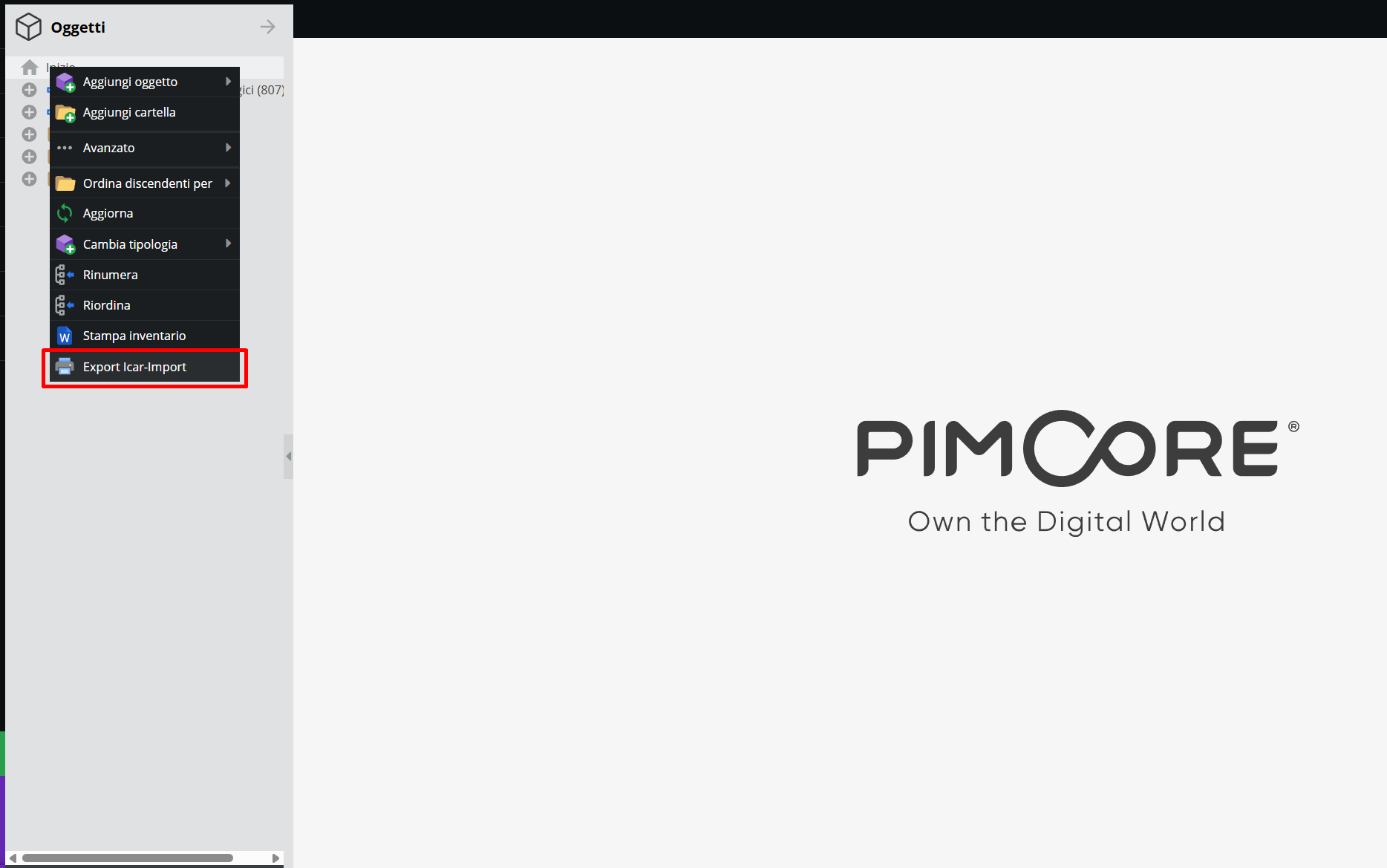
ICAR-Import Export
The “ICAR-Import Export” feature, enabled upon client request, exports archival descriptions into a standardized format compatible with ICAR (Istituto Centrale per gli Archivi) specifications.
System architecture: hierarchical structure and access points
System architecture was introduced across preceding sections. This section offers a general summary, referring to dedicated chapters for details.
The architecture outlined in Object classes accommodates the coexistence of archival holdings (Archive), museum holdings (Museum), and library holdings (Library), combining multi-level hierarchical description in the Archive area (fonds/series/file) with analytical cataloging by item type in Museum and Library areas, alongside contextual entities in "Authority" and "References" areas.
Fonds/Collection represents the logical structure of documentation, supporting a multi-level hierarchy of Series, Files, Documents, and Correspondence. Museum and bibliographic items are not necessarily nested in this hierarchy: their connection to the archival complex — when present — is expressed via relationships rather than nesting, following archival principles for physically separated units within a fonds. While linkable to a File documenting their administrative or conservation history, they remain autonomous descriptive units cataloged according to their own criteria (Museum area following ICCD-inspired principles; Library area following current librarianship standards).
In parallel, the system manages external object classes linked to the hierarchy: Authority and References records. These entities possess descriptive autonomy and serve as cross-sectional access points, contextualizing relationships between items, entities, locations, and events.
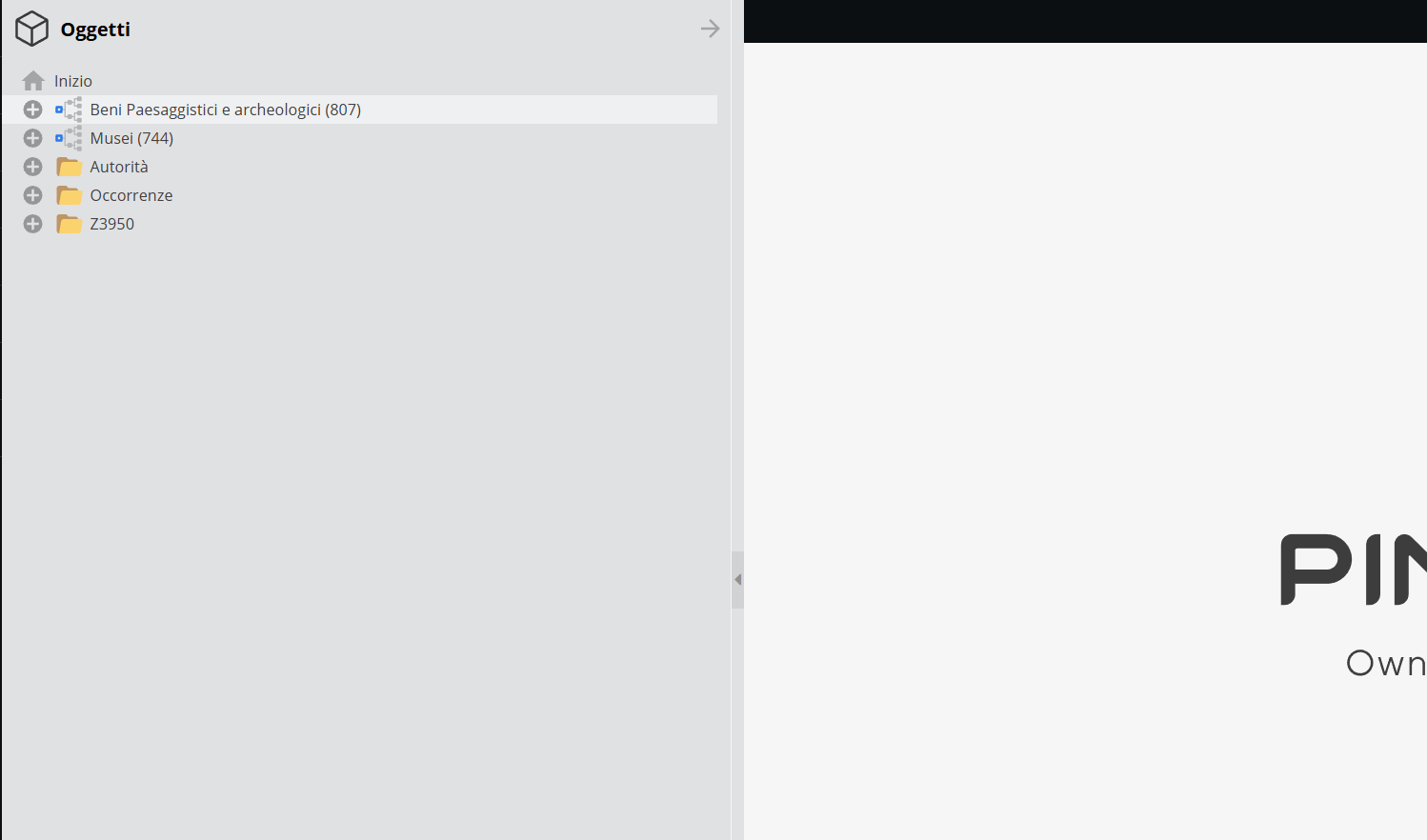
Authority
This section hosts normalized records for entities interacting with holdings. Structure is organized into folders based on legal and biographical nature:
- Corporate Bodies: subfolder for collective entities with legal personality;
- Persons: subfolder for individual biographical profiles;
- Families: folder for family units;
- Groups/Collectives/Schools: subfolder for collective entities without full legal personality.
See also Authority and The information areas.
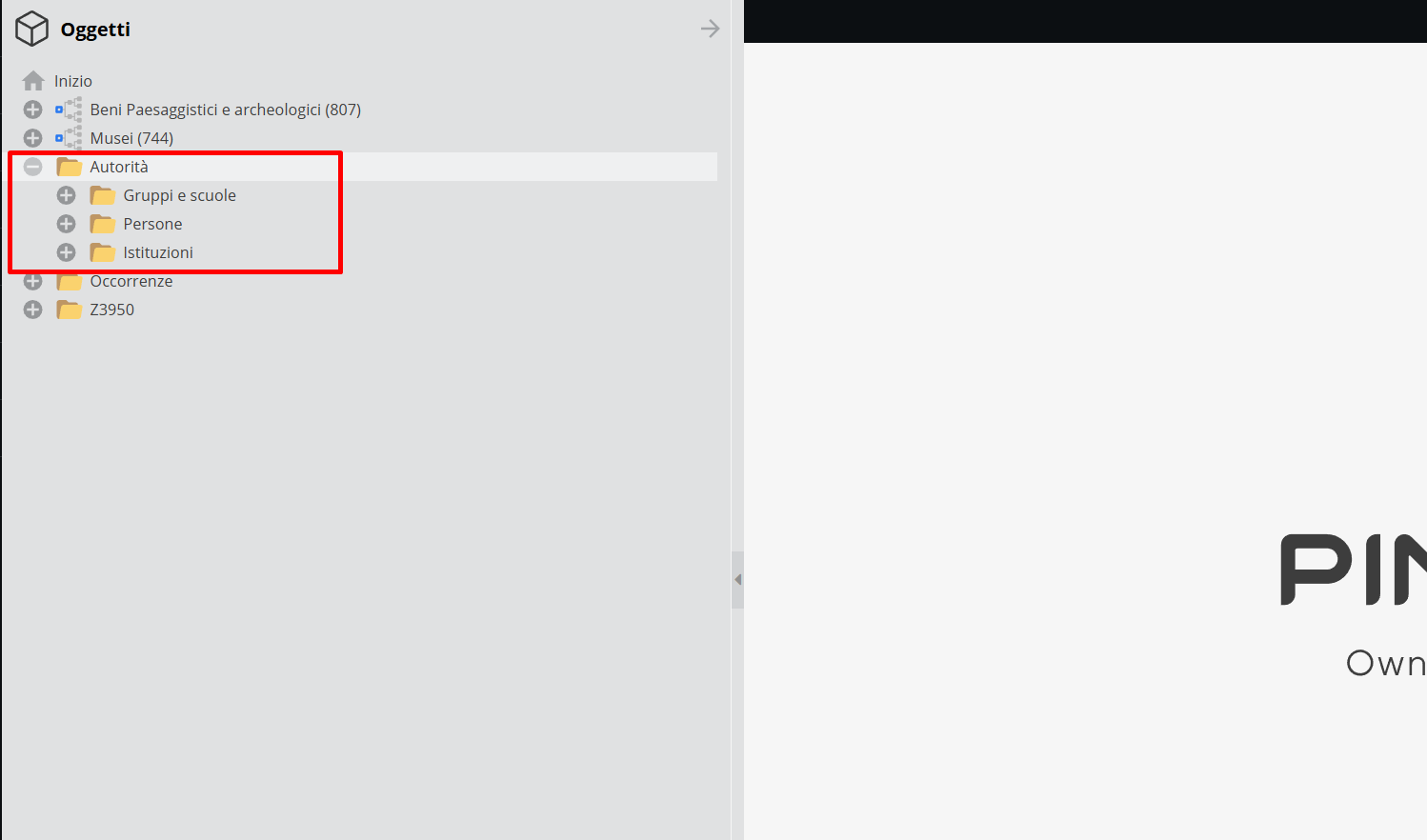
References
Similarly, the References section hosts cross-sectional access points for geographical, thematic, logistical, and administrative contextualization. It can be organized by project needs or object class.
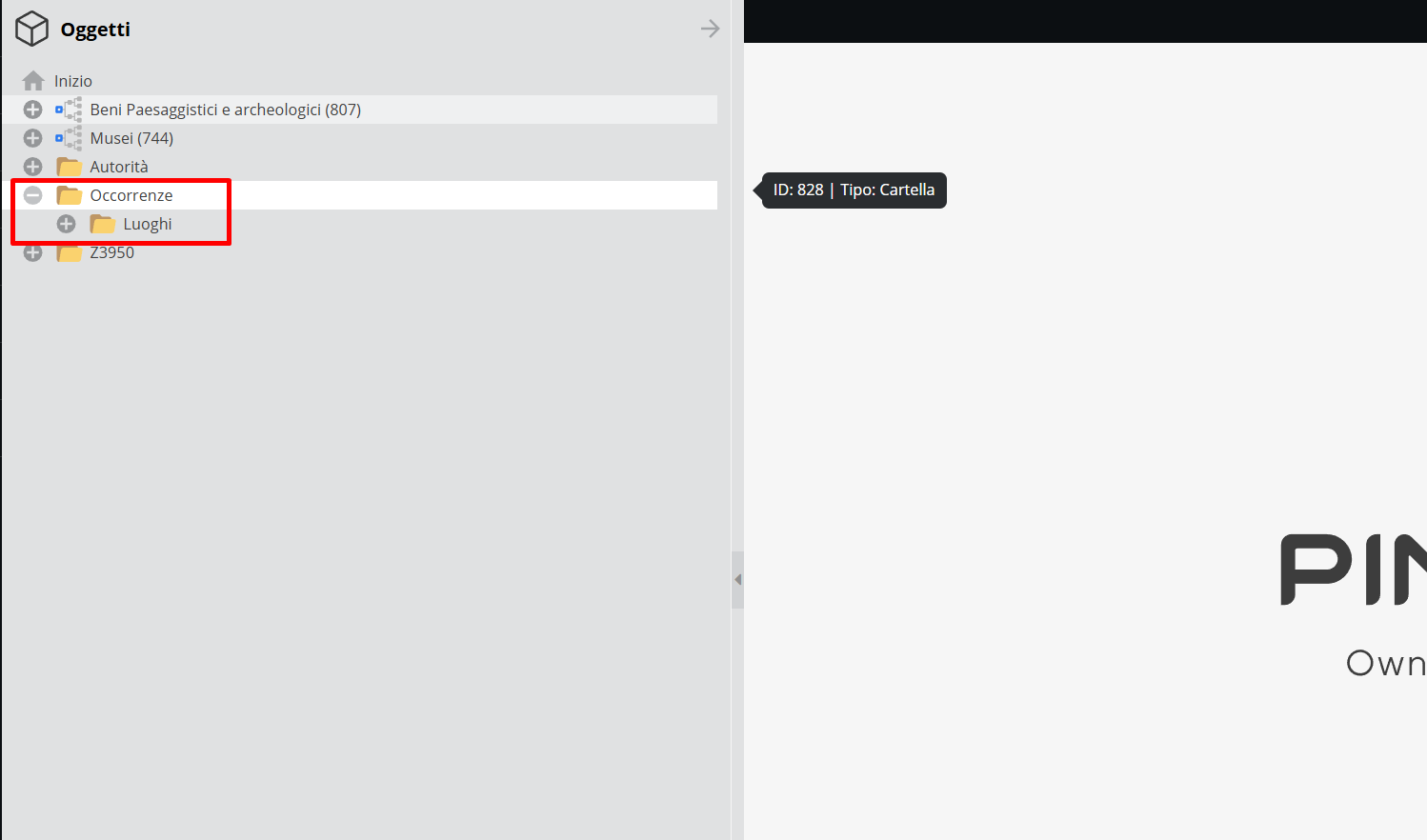
See also References and The information areas.
The descriptive record: options and features
Clicking any created object opens its descriptive record.
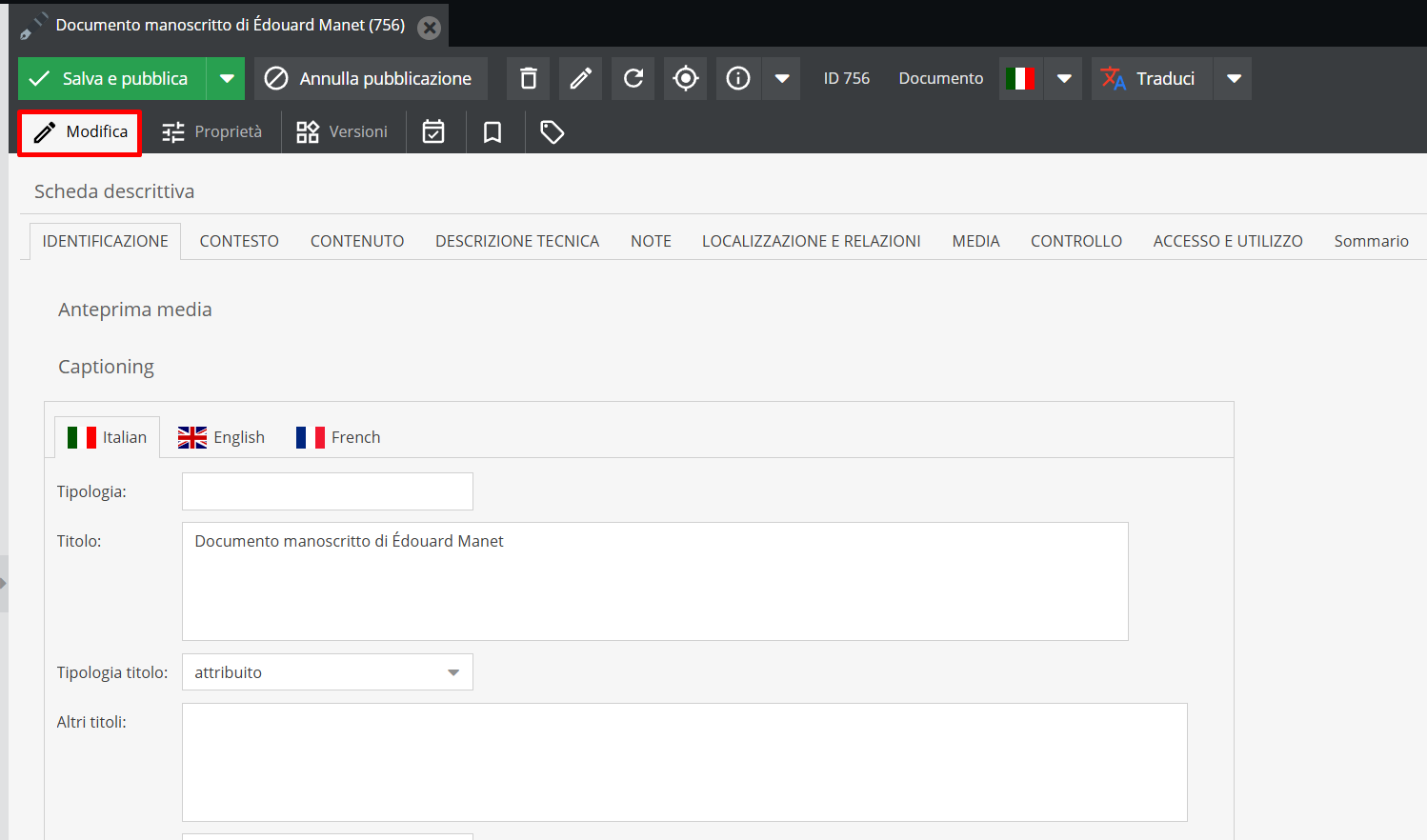
"Edit" Tab
The record opens on the Edit tab, allowing you to fill in information area fields.
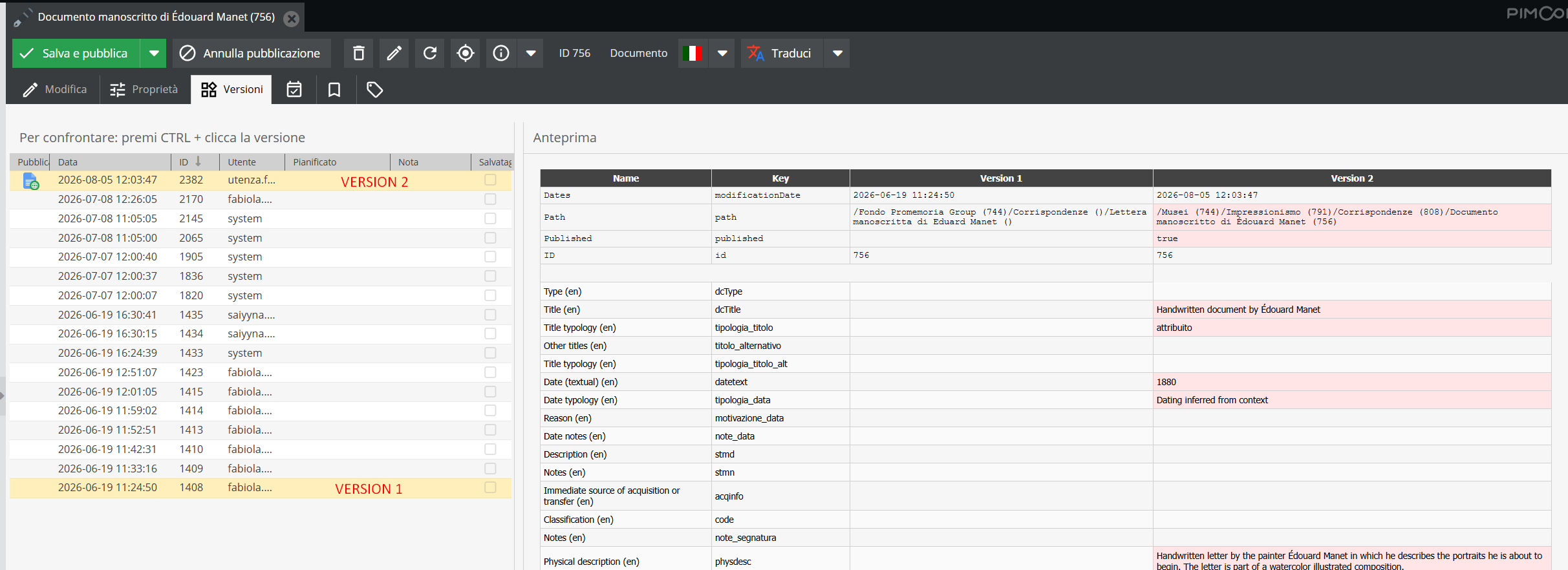
"Versions" Tab
Displays all edits made to that record, noting user and timestamp.
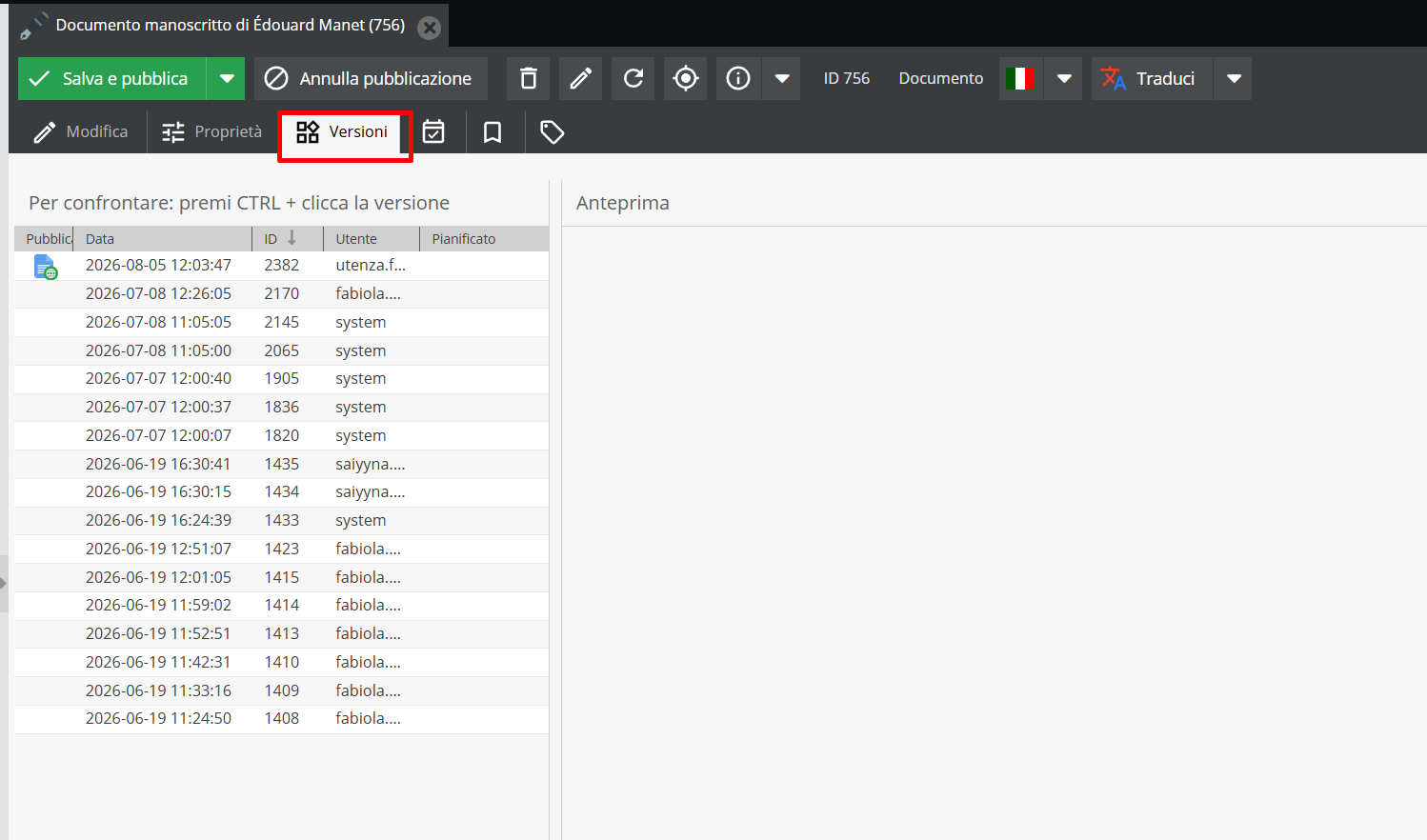
You can compare two or more versions by pressing CTRL + selecting target versions.
A side-by-side preview highlights modified fields.
You can revert to a previous version (making it current) by right-clicking it and selecting “publish”.
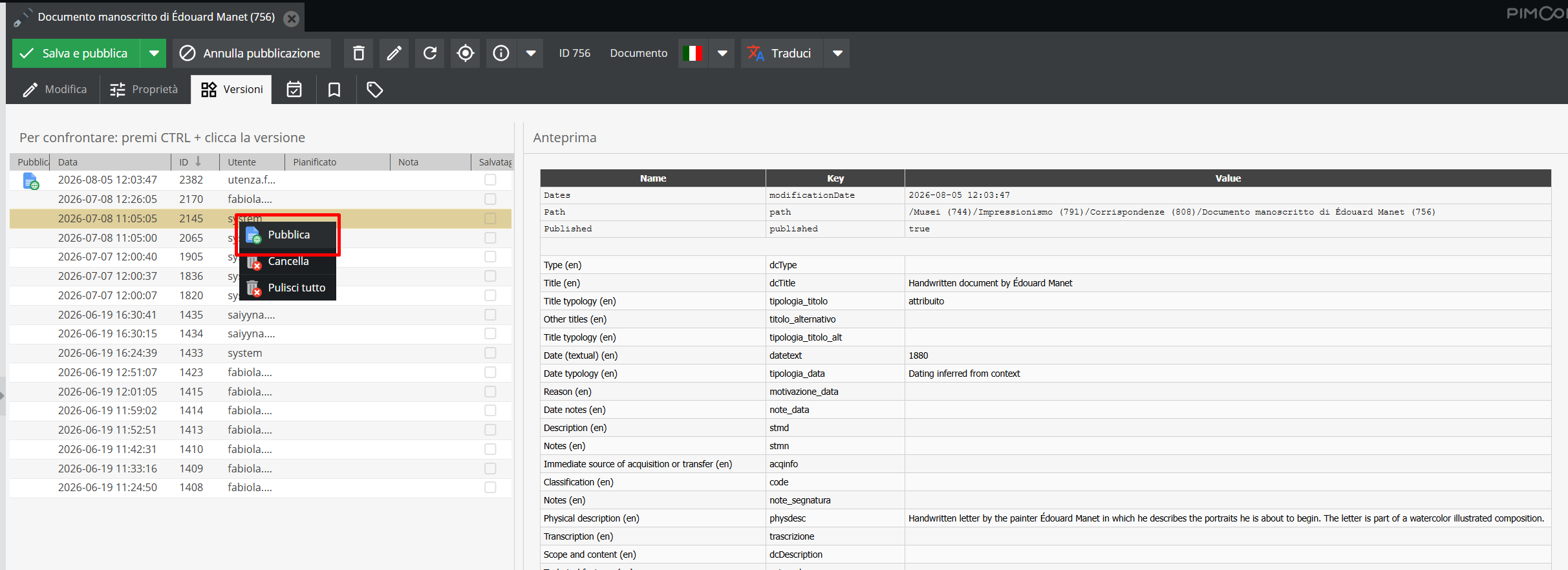
The same menu allows deleting a previous version or clearing version history.
As a best practice, avoiding clearing version history is recommended.
"Dependencies" Tab
Logs record dependencies, pointing out links to Media and Object records.

The “Requires” section displays direct relationships, summarizing external references linked to the record (other Objects or Media).
The “Required by” section displays reverse relationships, showing other object records linking to the current record.
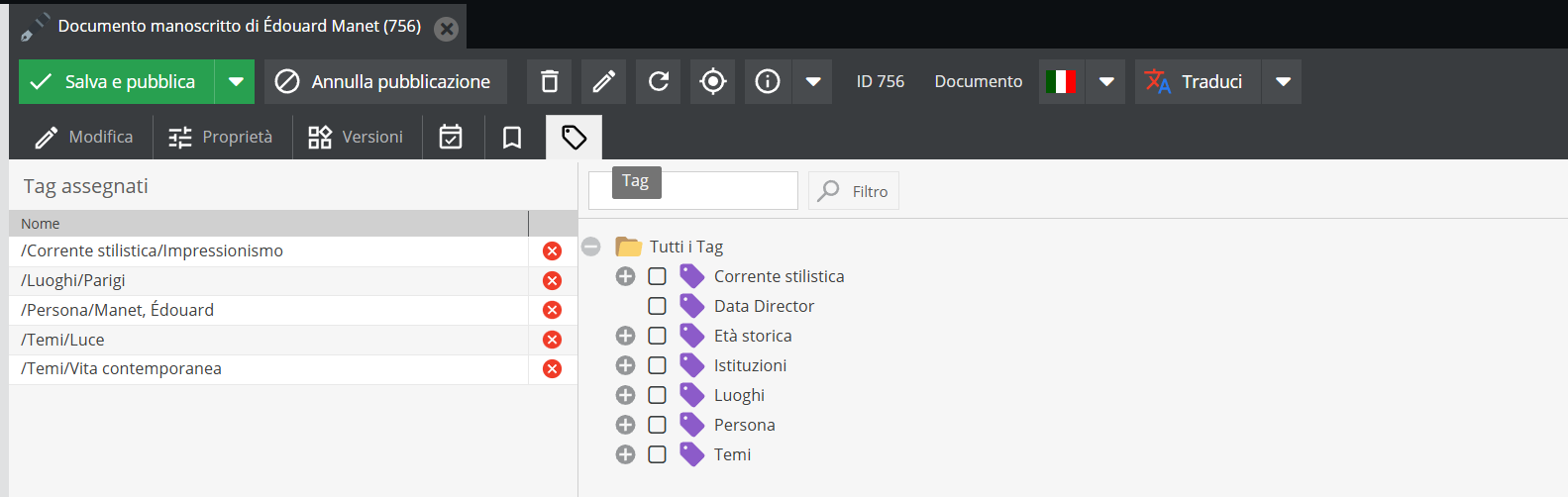
"Tags" Tab
The Tags tab is dedicated to tagging the descriptive unit: select one or more tags (filters) to assign them to the record.
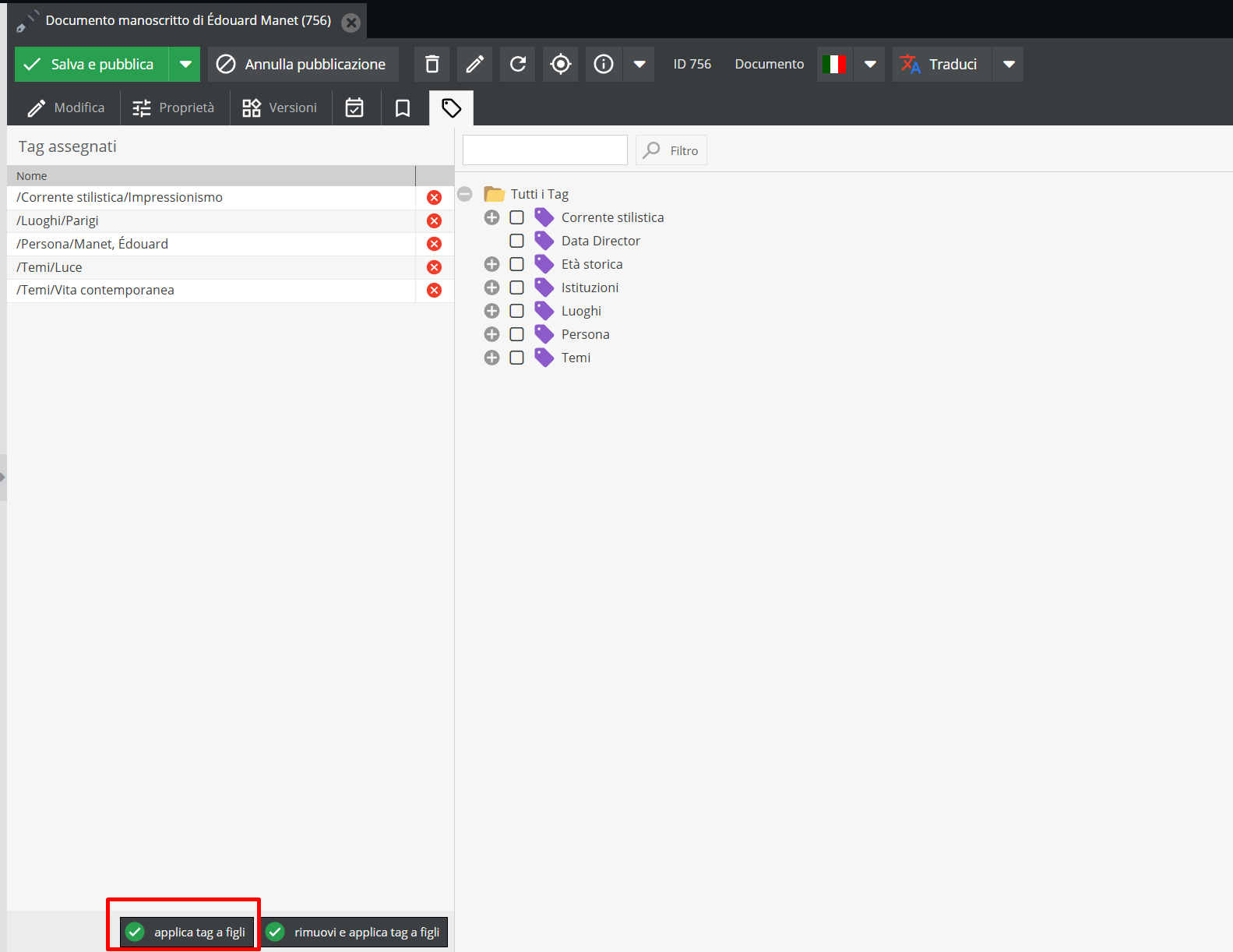
Bulk tagging can be executed if the object record acts as a "parent record" containing subordinate units.
Navigate to a node with "child" records. On the "Tags" tab, select desired tags and click Apply tags to children.
For tag management and structure details, see Applying tags and Tag configuration.
Bulk tagging applies chosen tags to all descriptive units below the parent record. This action cannot be undone. Execution should be limited to users who have completed system training with Promemoria Group staff.
"Save" Tab
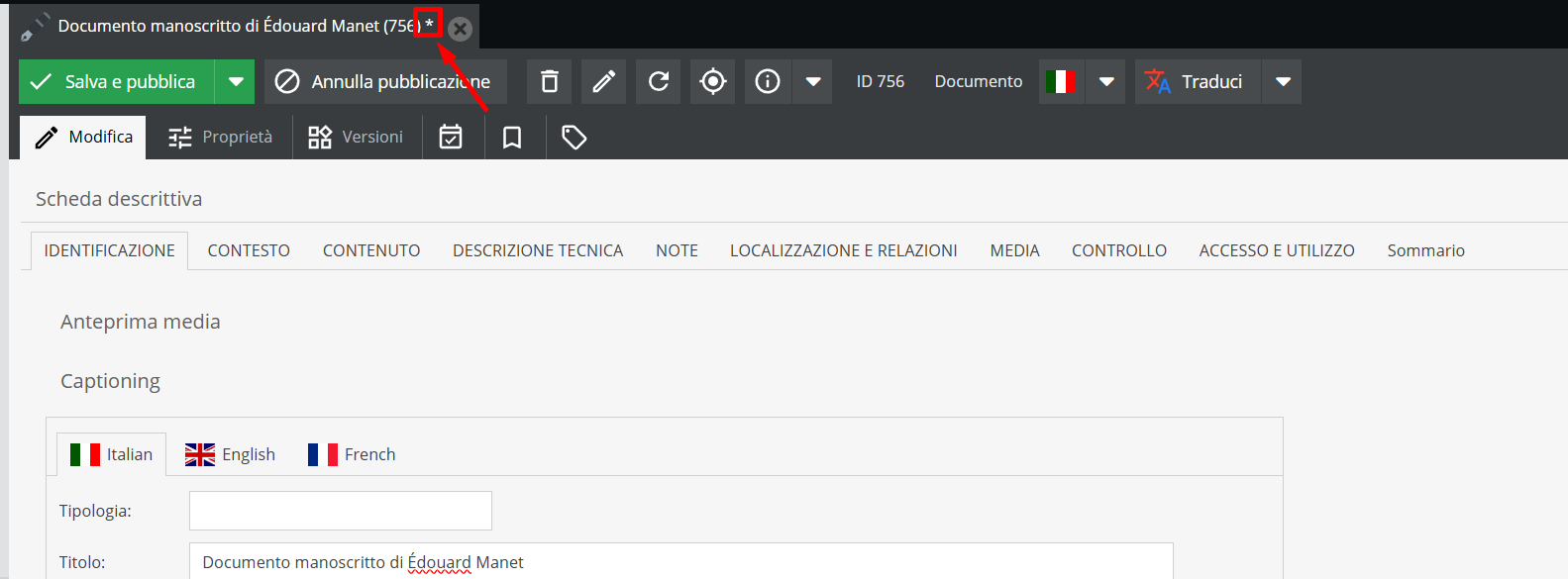
When edits are made, an asterisk (*) appears next to the record title indicating unsaved changes.
All edits must be saved to take effect.
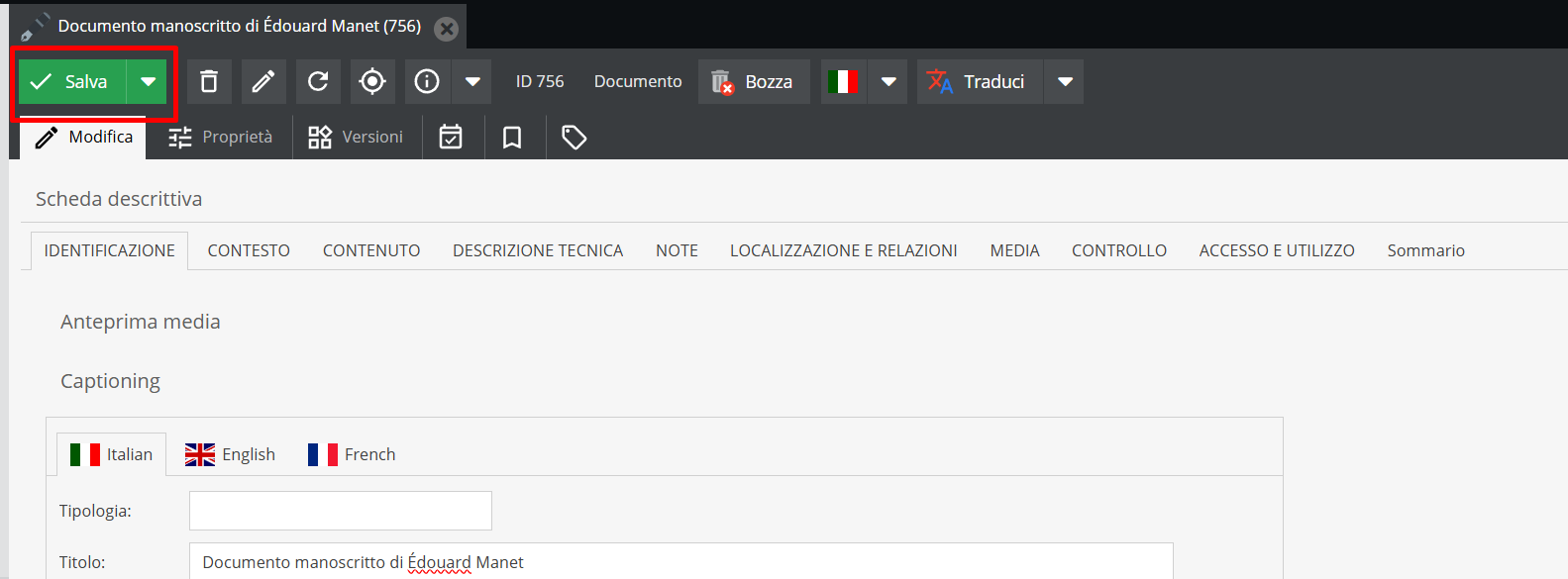
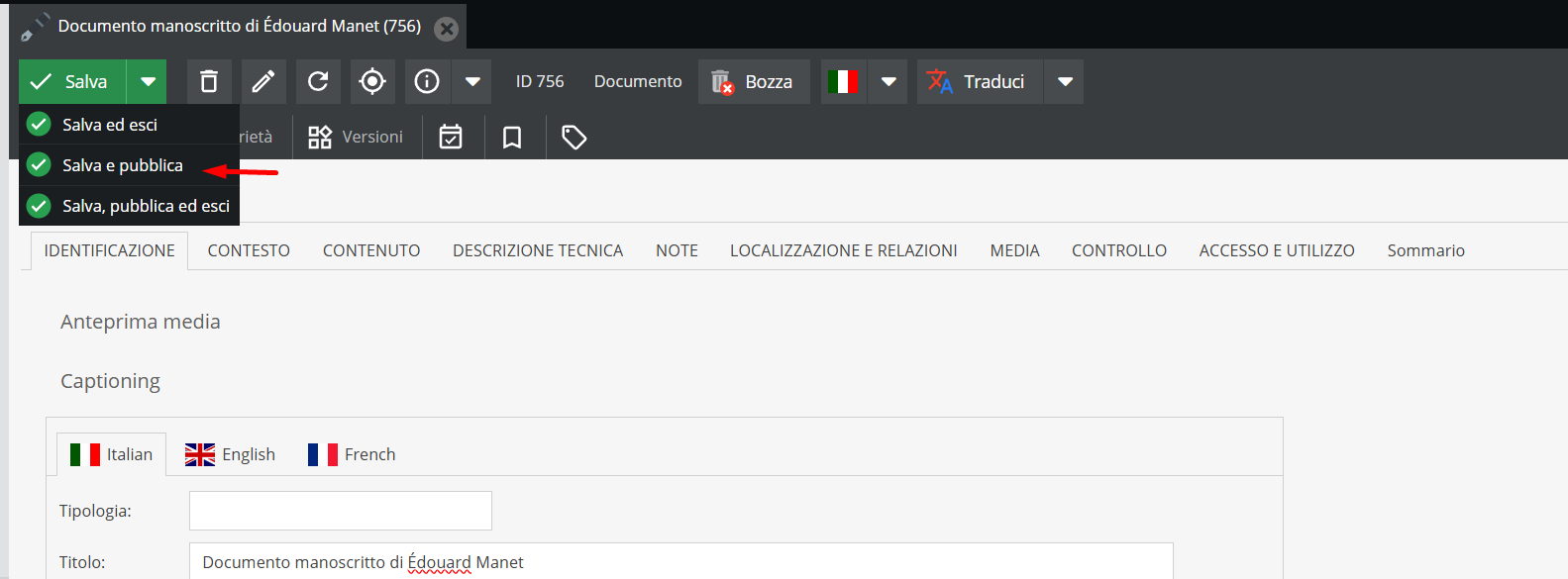
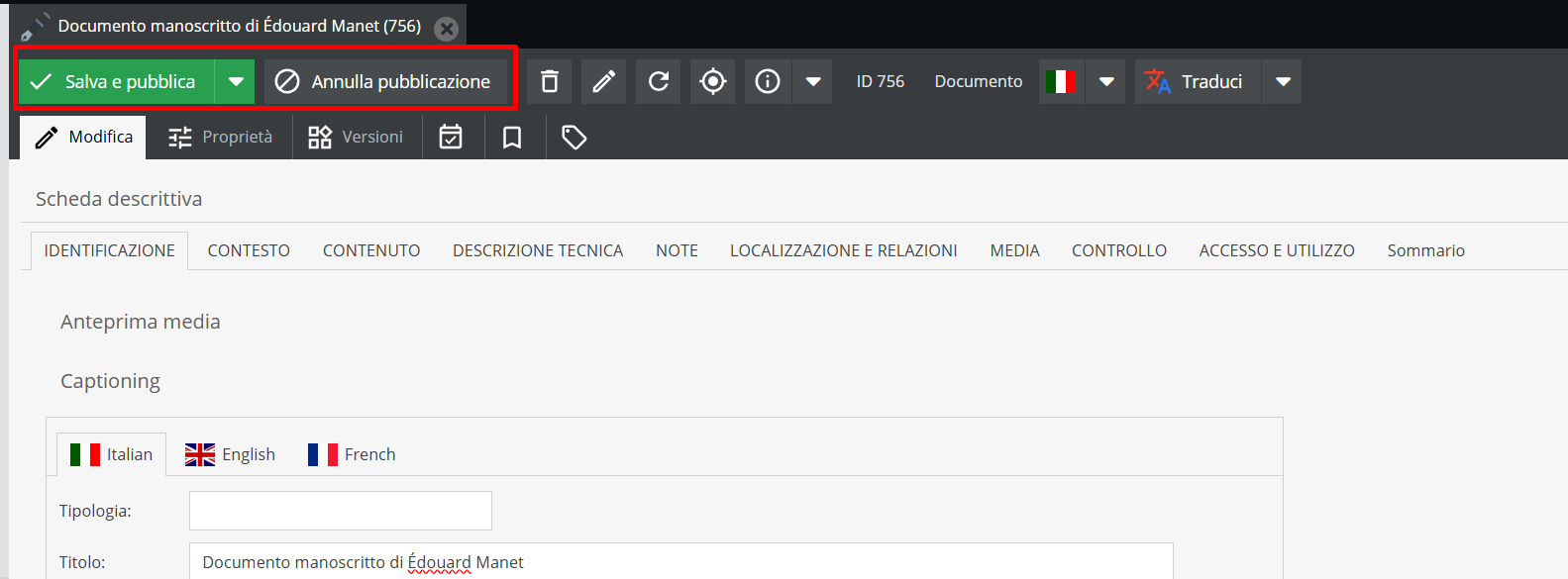
You can save without publishing by clicking the green Save button, or select Save and publish from the dropdown menu.
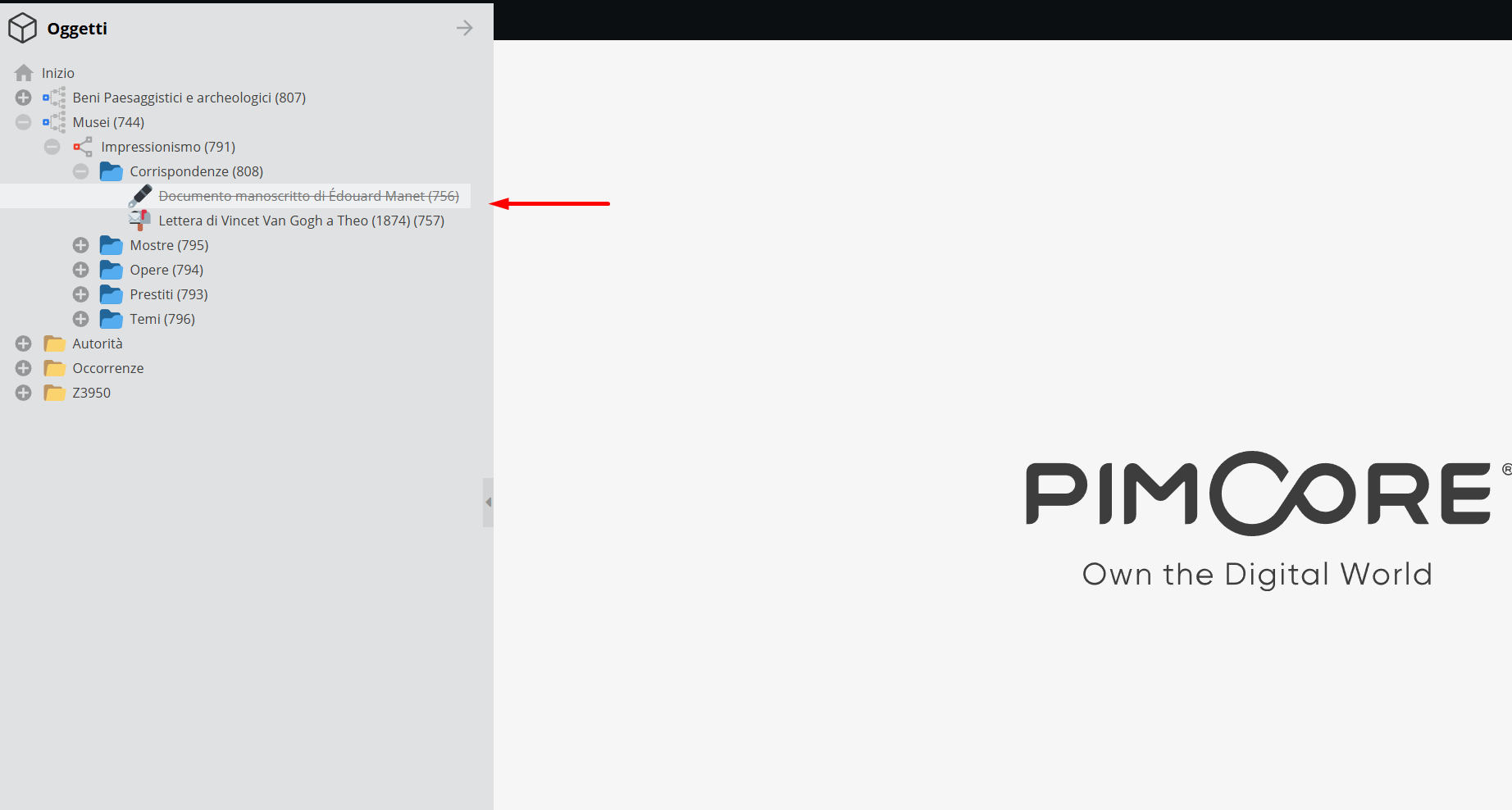
Saved but unpublished records (not visible on the front-end) appear with strikethrough titles in the navigation tree, whereas published records appear in regular text.
Once published, a record can be reverted to back-end visibility only by clicking the grey Unpublish button.
"Trash" Tab
Clicking Delete removes the entire descriptive record.
"Rename" Tab
The Rename option allows modifying the "Title" field of the unit.
"Reload" Tab
Refreshes the individual record.
"Show in tree" Tab
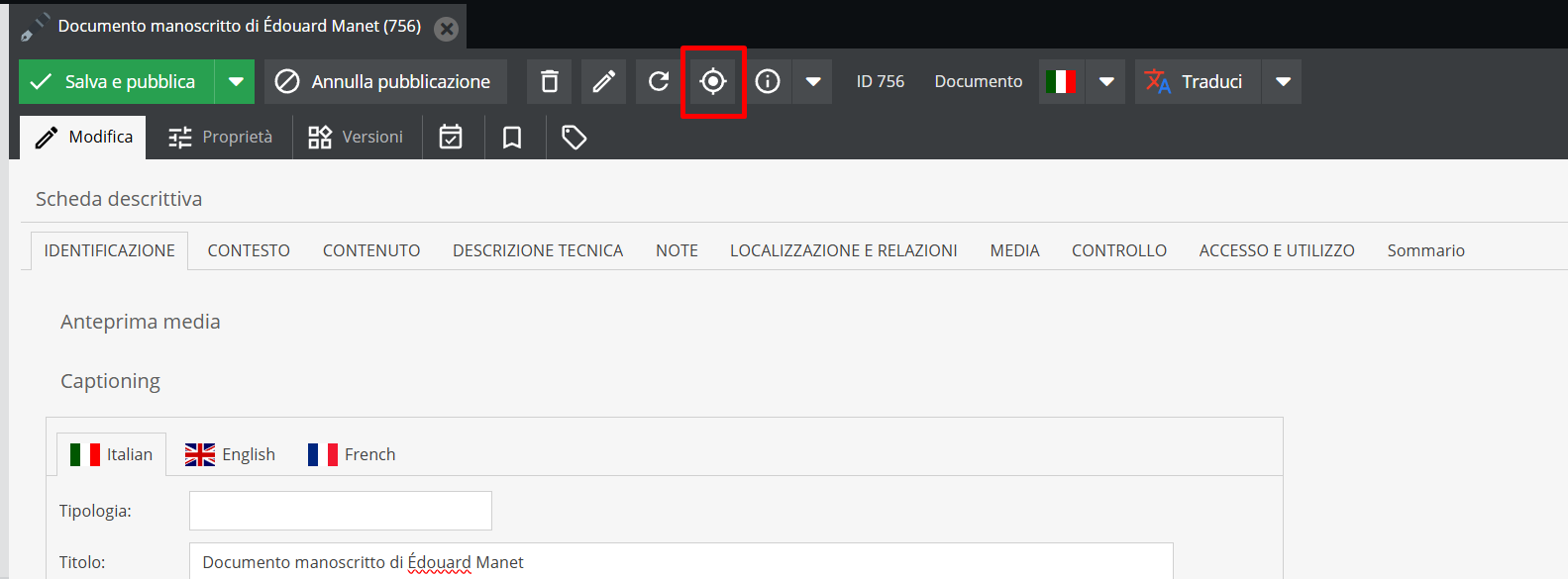
Locates the open record within the navigation tree.
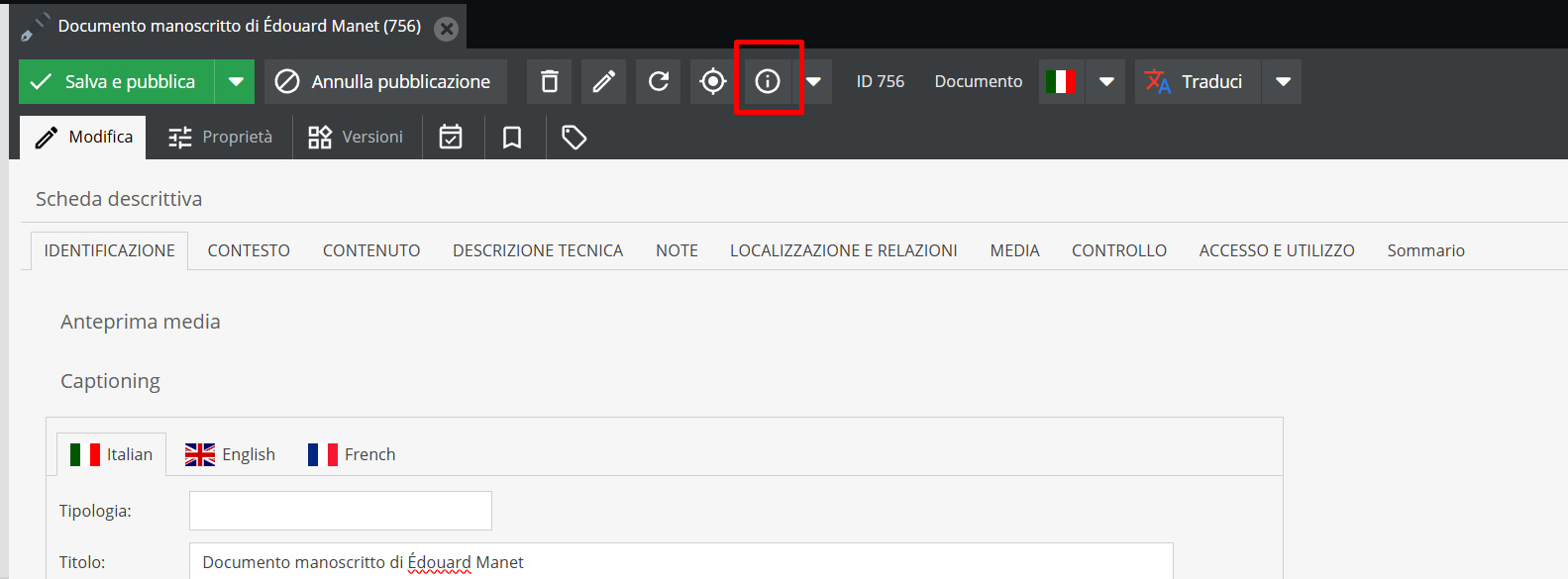
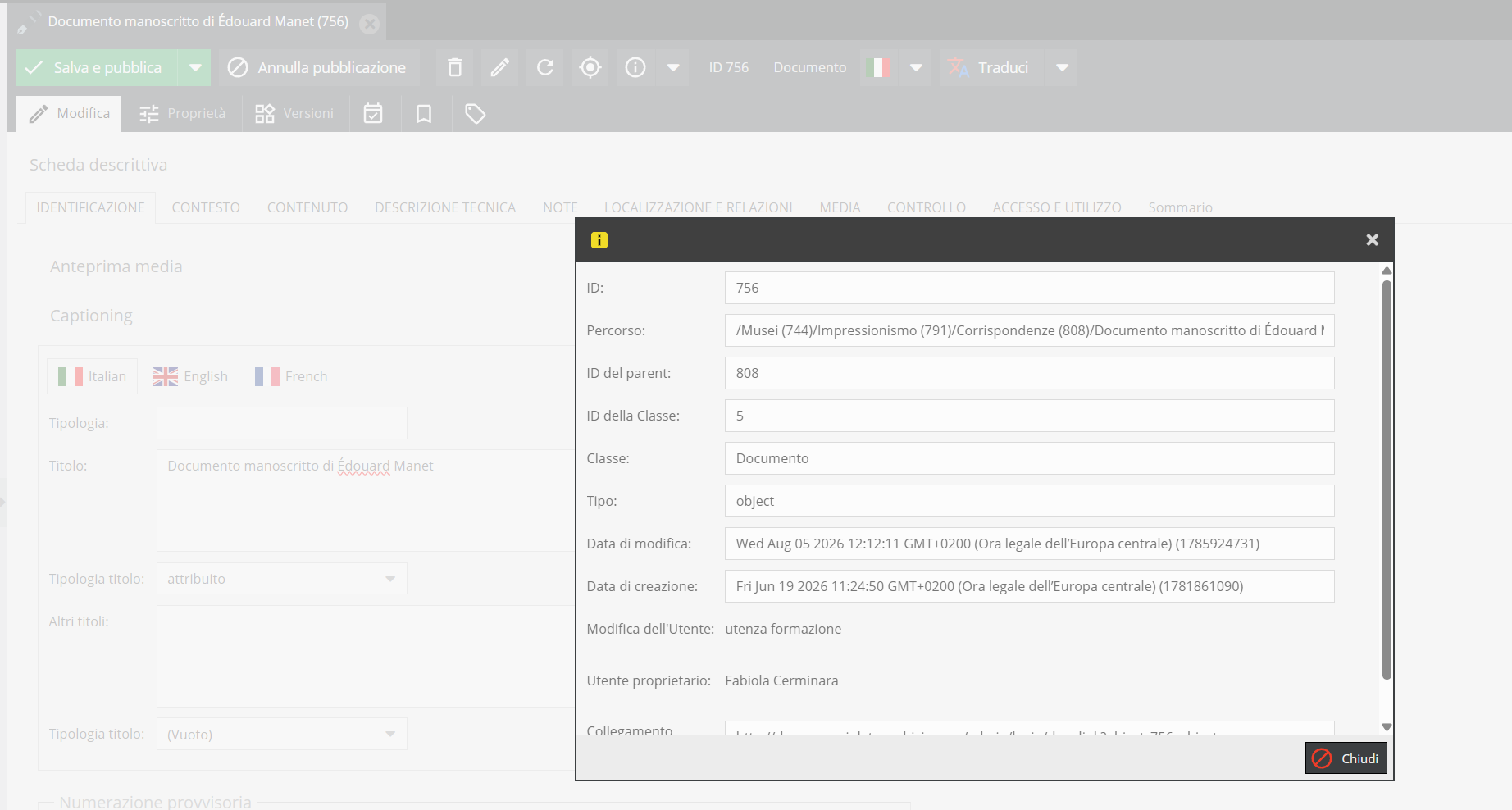
"Information" Tab
Displays metadata about the generated record, such as class type, parent class ID, creation date, modification date, and deep link (allowing you to copy the direct URL).
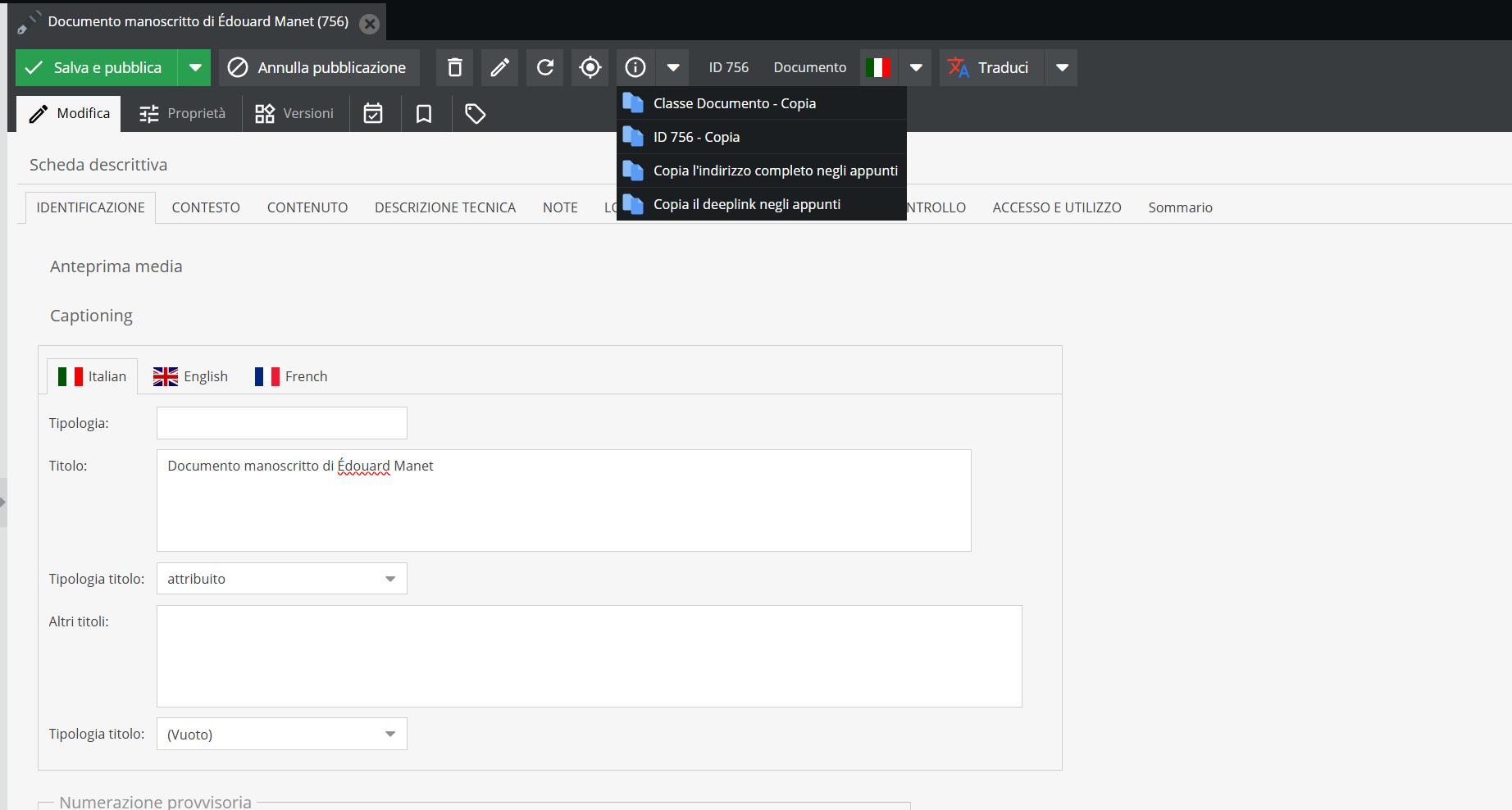
Clicking the arrow next to Information opens a menu to: copy ID to clipboard (automatically generated platform identifier); copy full address; copy deeplink (direct Pimcore path to the record).
"Translate" Tab
The "Translate" button operates on specific translatable text fields.
Select source and target languages from the dropdown menu (e.g., Italian to English): the system runs automatic translation and populates the target language tab.
The "Translate" button affects selected text fields only; it cannot be used on select or multi-select fields.
For details, see Localized fields.
The "Grid" option and bulk tagging of objects
Double-clicking an aggregate node (an object containing child units) displays its contents via Child Grid.
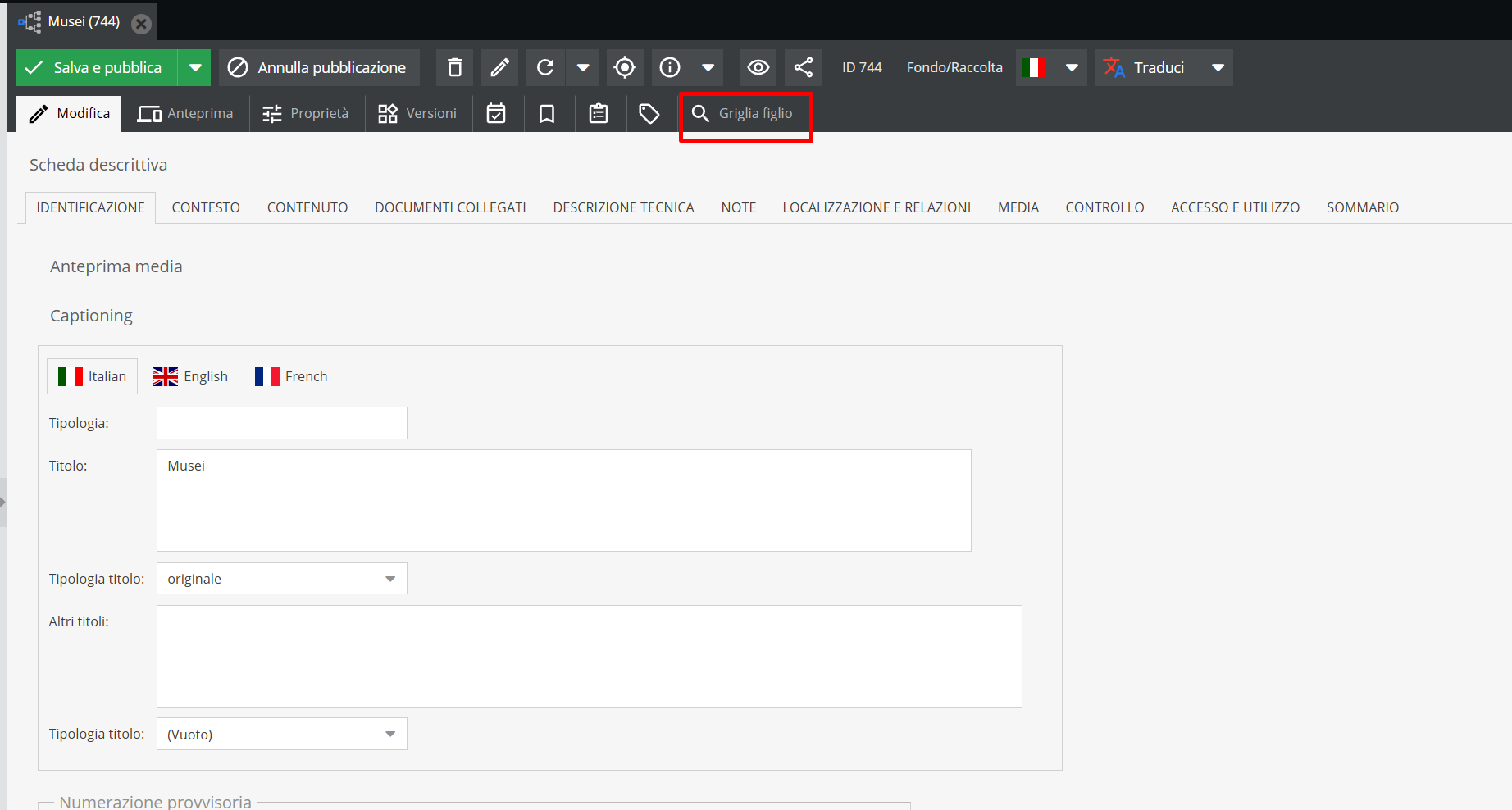
If child elements belong to different object classes, select the desired class from the dropdown menu.
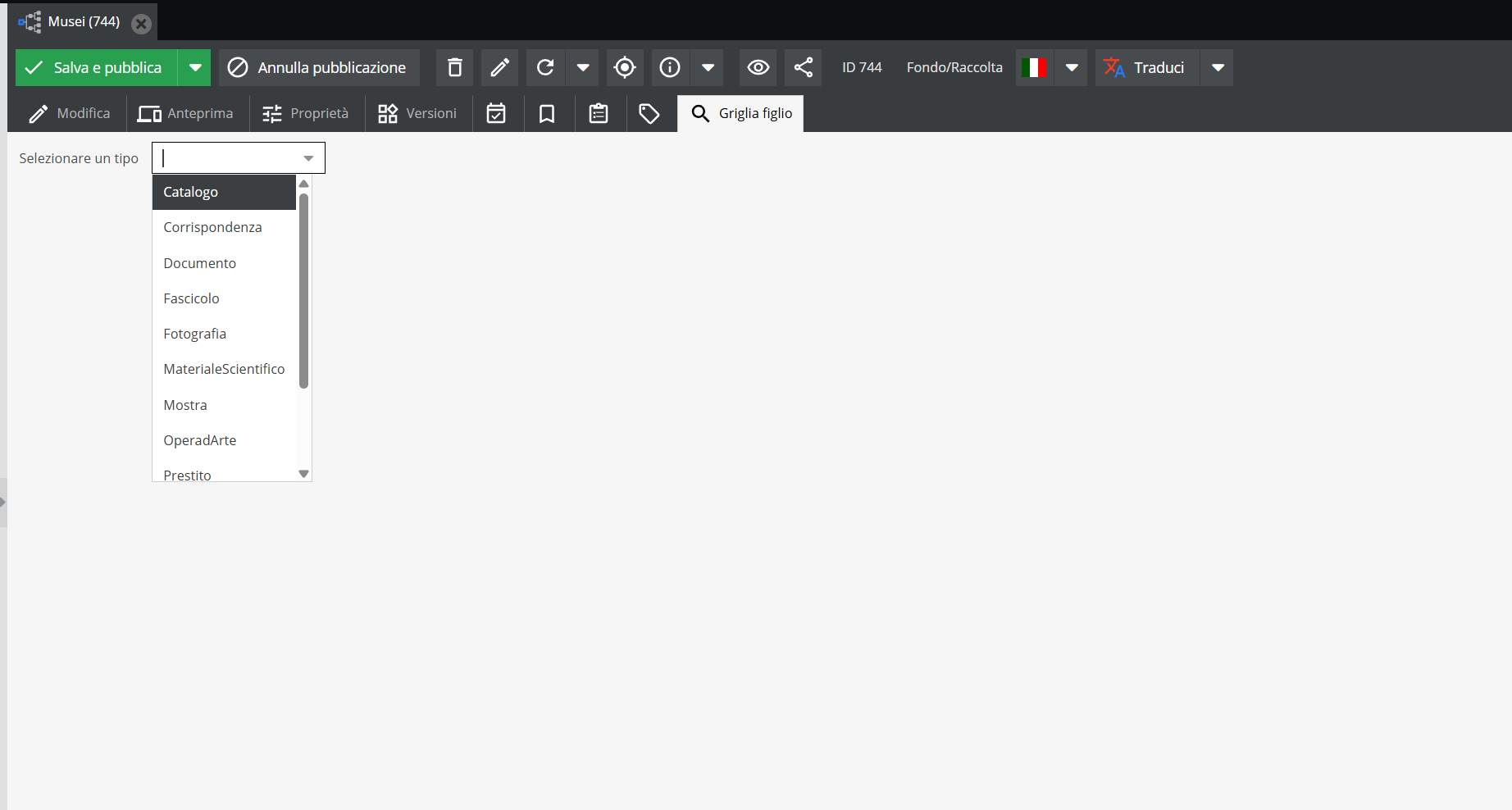
Multi-selection is not supported in this dropdown menu; items of different document types cannot be viewed simultaneously.
Upon selecting the class, the Grid opens.
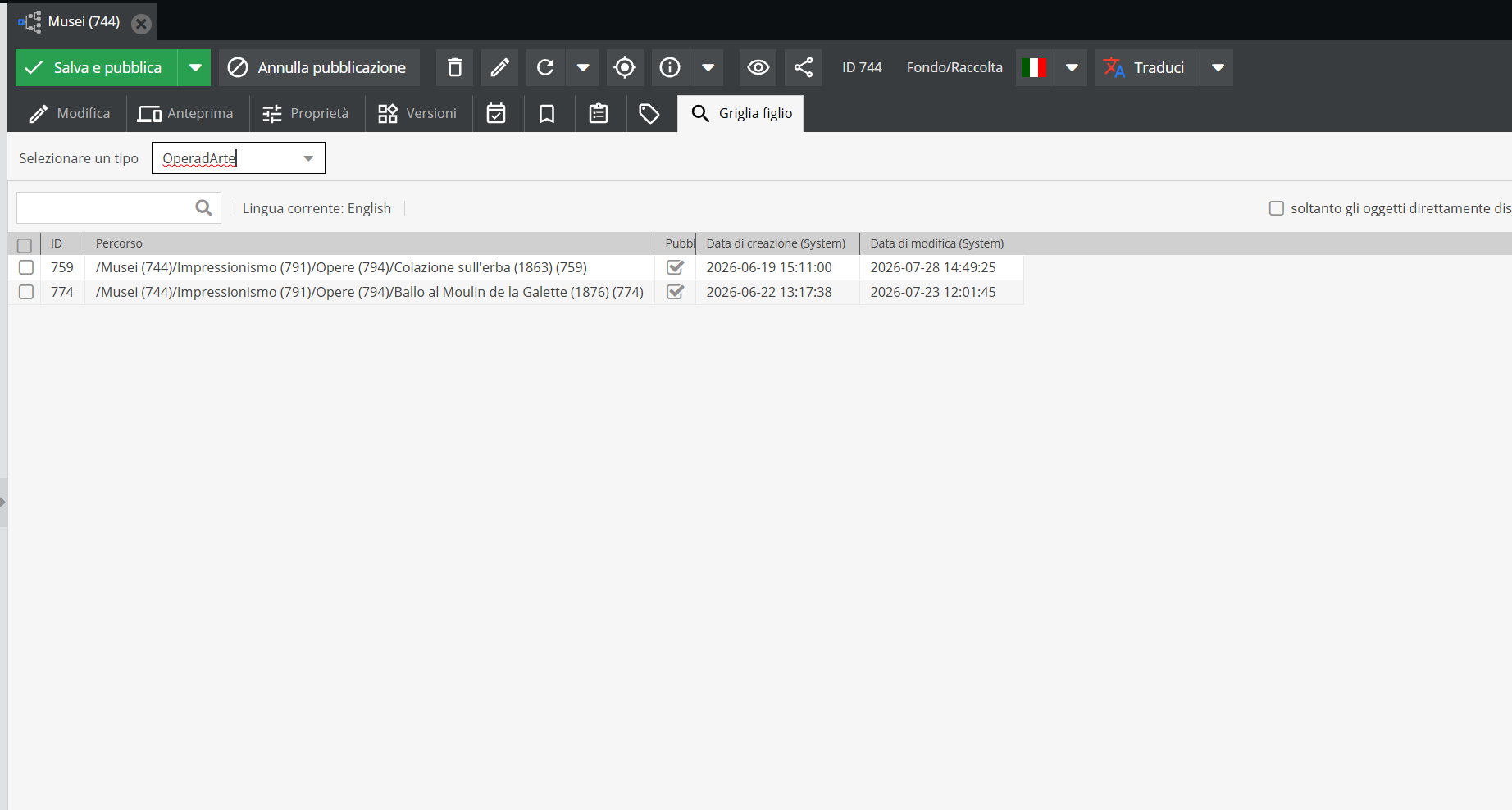
The initial list shows all descriptive records of type Artwork under the parent record. Default grid columns include:
- Record ID;
- Unit path;
- Publication status (checked for published, unchecked for unpublished);
- Creation date;
- Modification date.
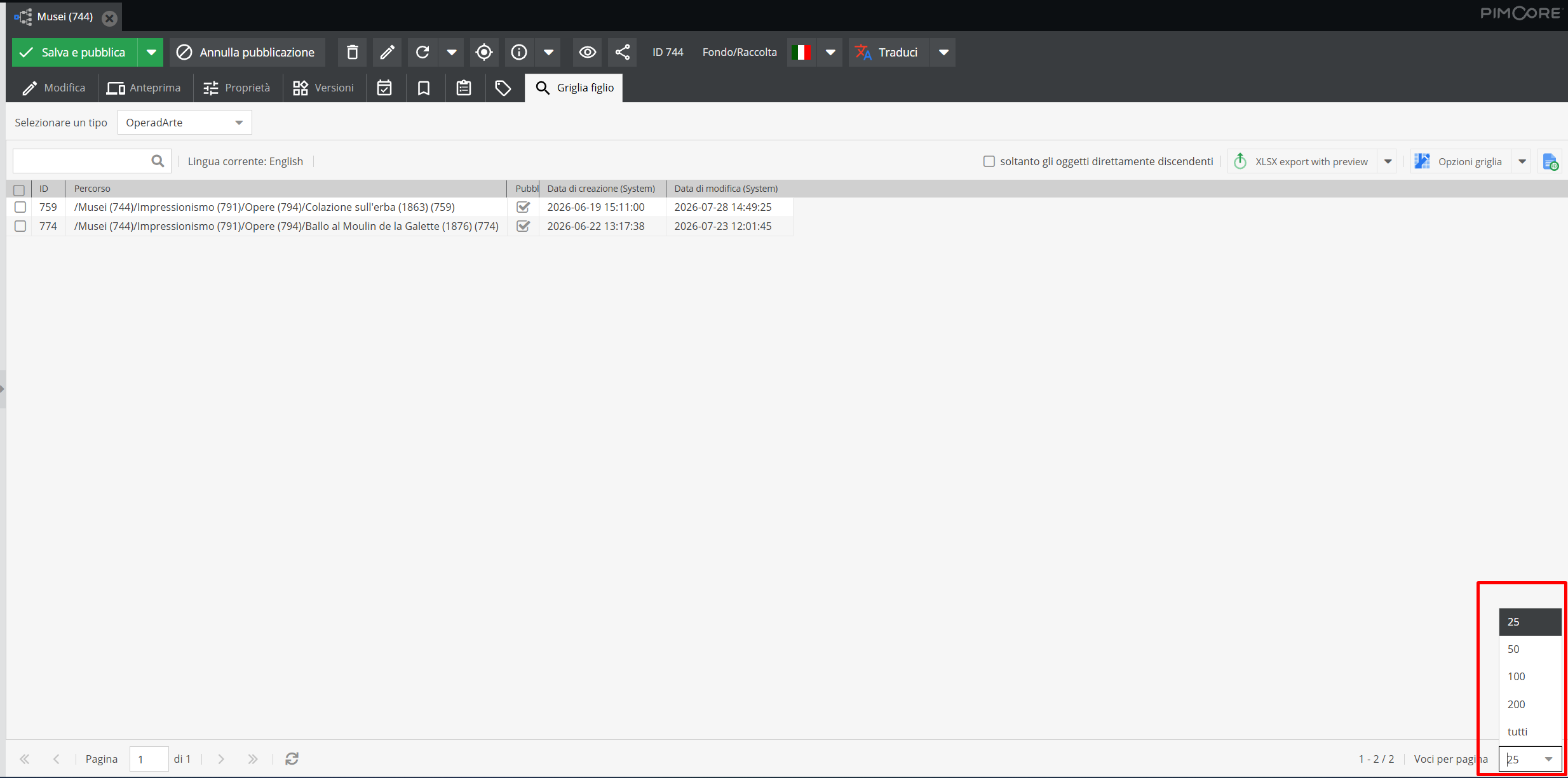
At the bottom, select items per page to display. Default is 25 items per page, configurable to show all items.
At the top, clicking Grid options opens customization settings, allowing catalogers to review, edit, delete descriptions, or link relationships in bulk.
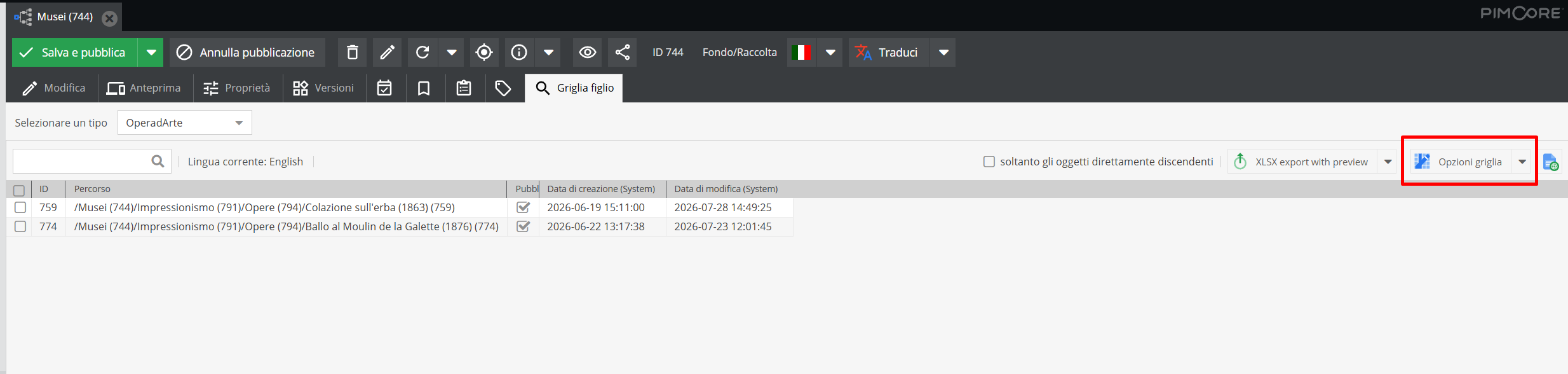
Clicking “Grid options” opens the Grid configuration form.
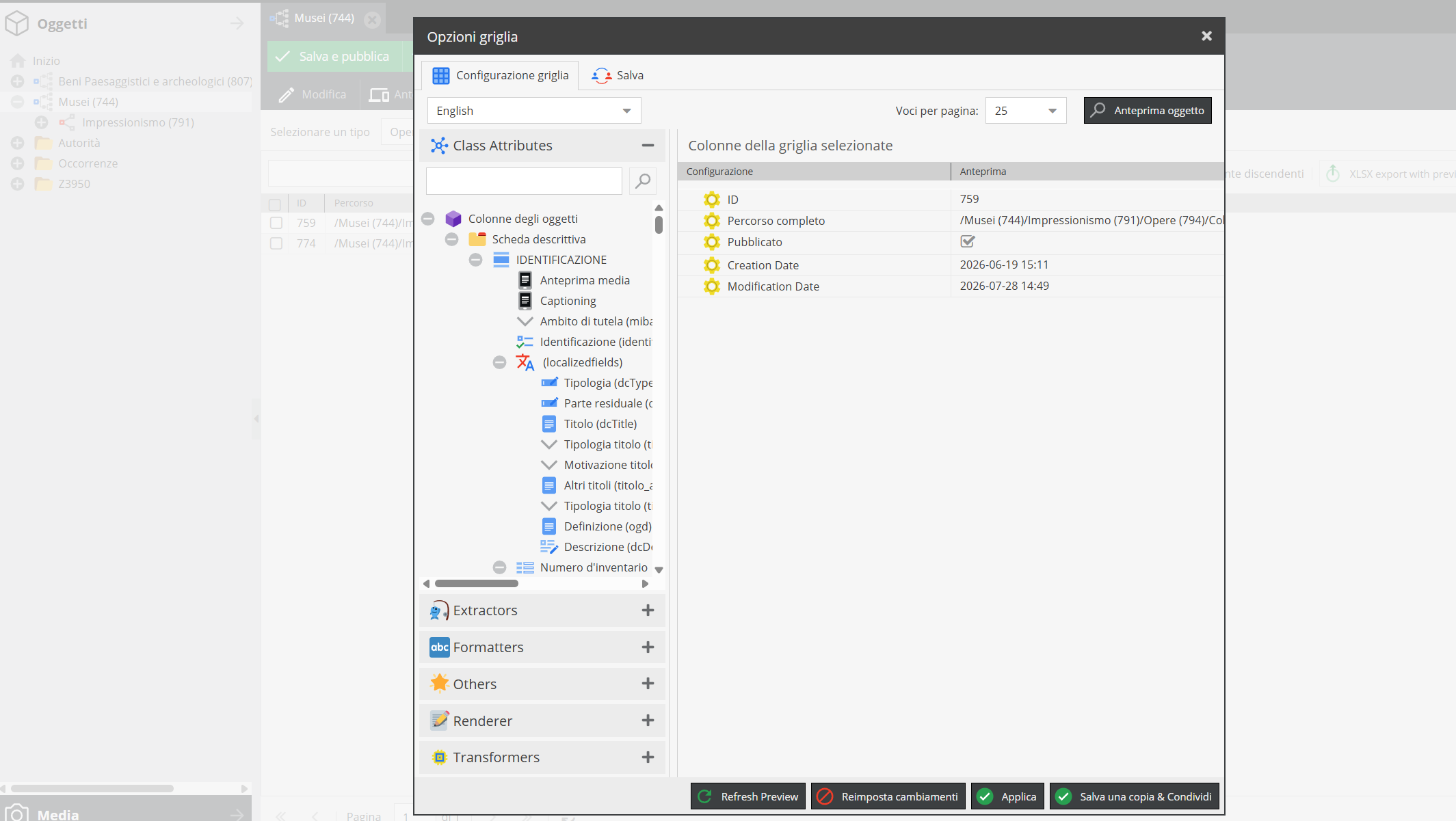
Select the target language for viewing and editing fields.
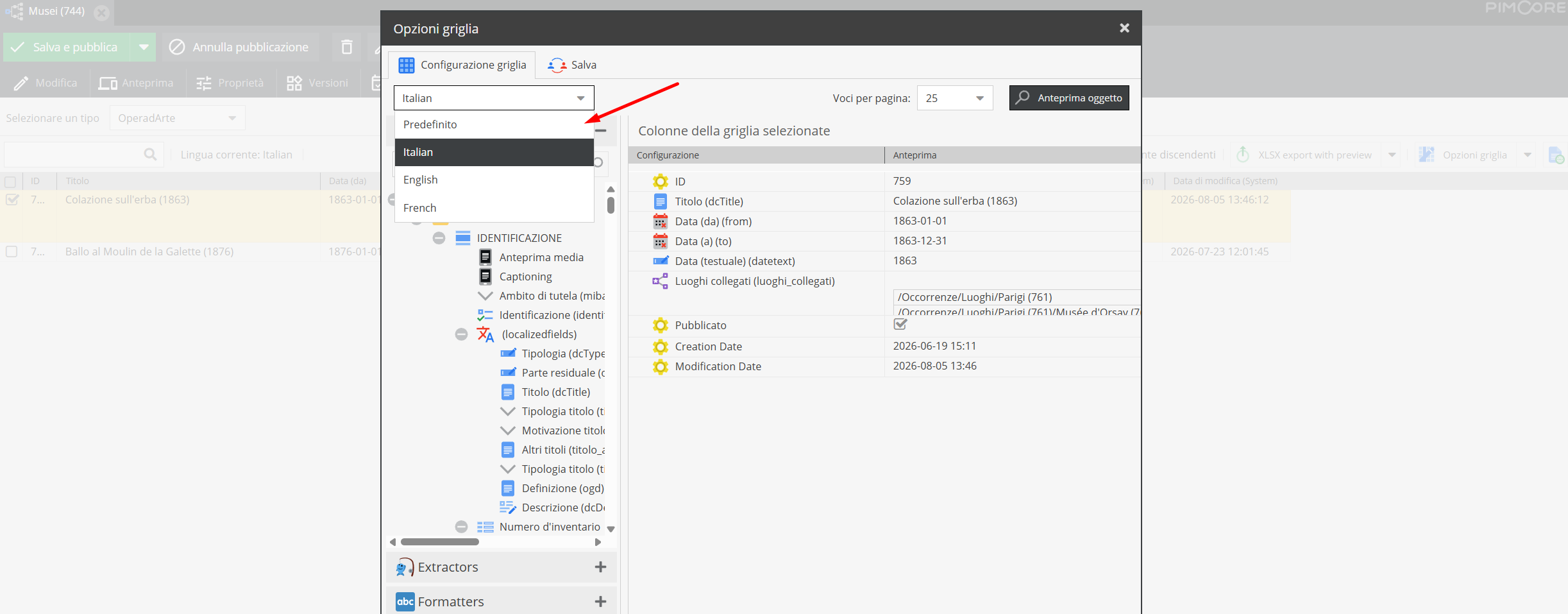
On the right, descriptive fields for the object class are listed (see Object classes and The information areas of records).
Use drag & drop or double-clicking to display desired fields on the grid: from title to description, including relationships.
If an element is dragged into an invalid area, a red ✕ symbol appears next to its name and it will not appear in the grid.
Correctly added elements appear as follows:
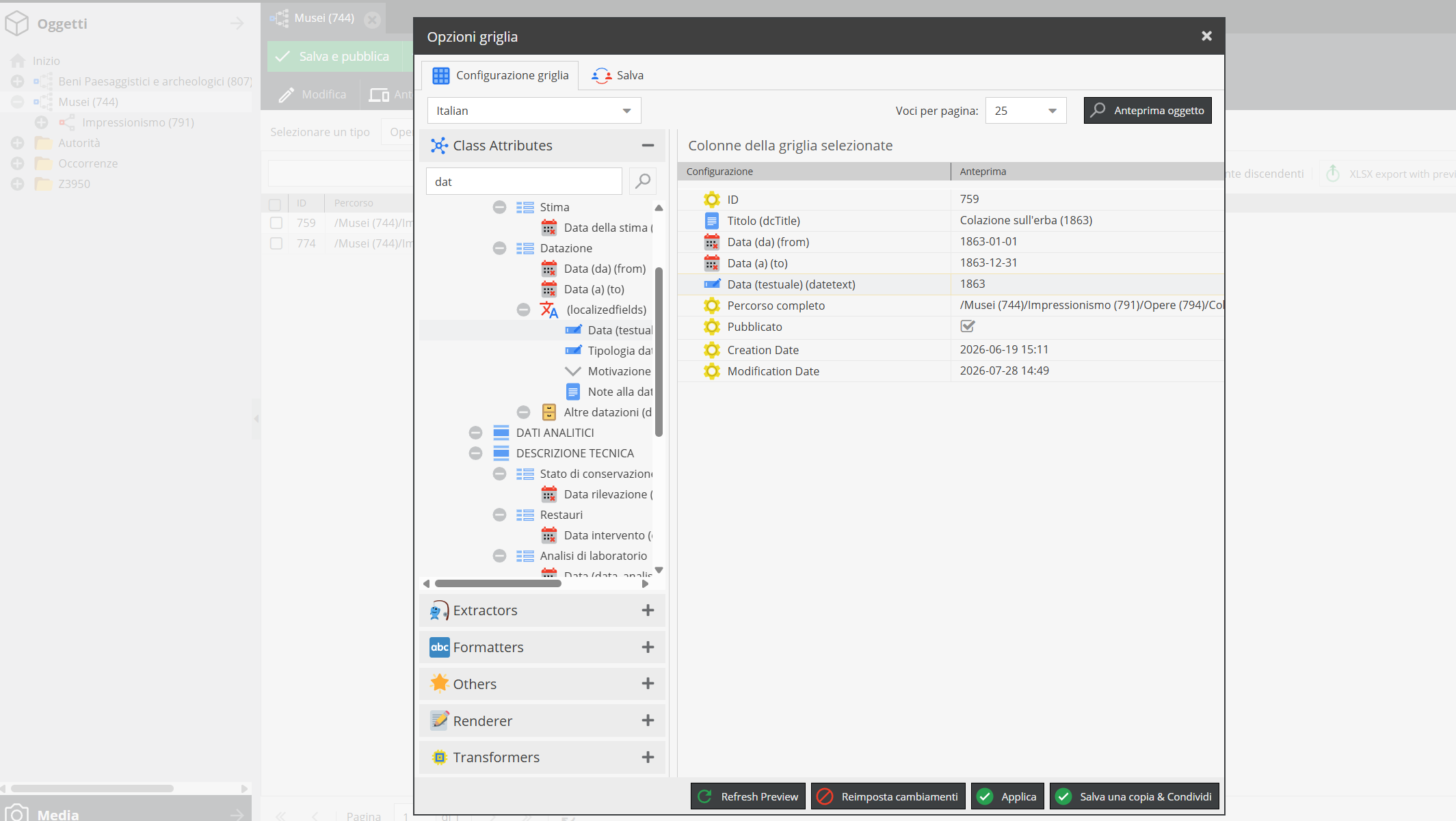
Remove any grid field by right-clicking it and selecting Delete.
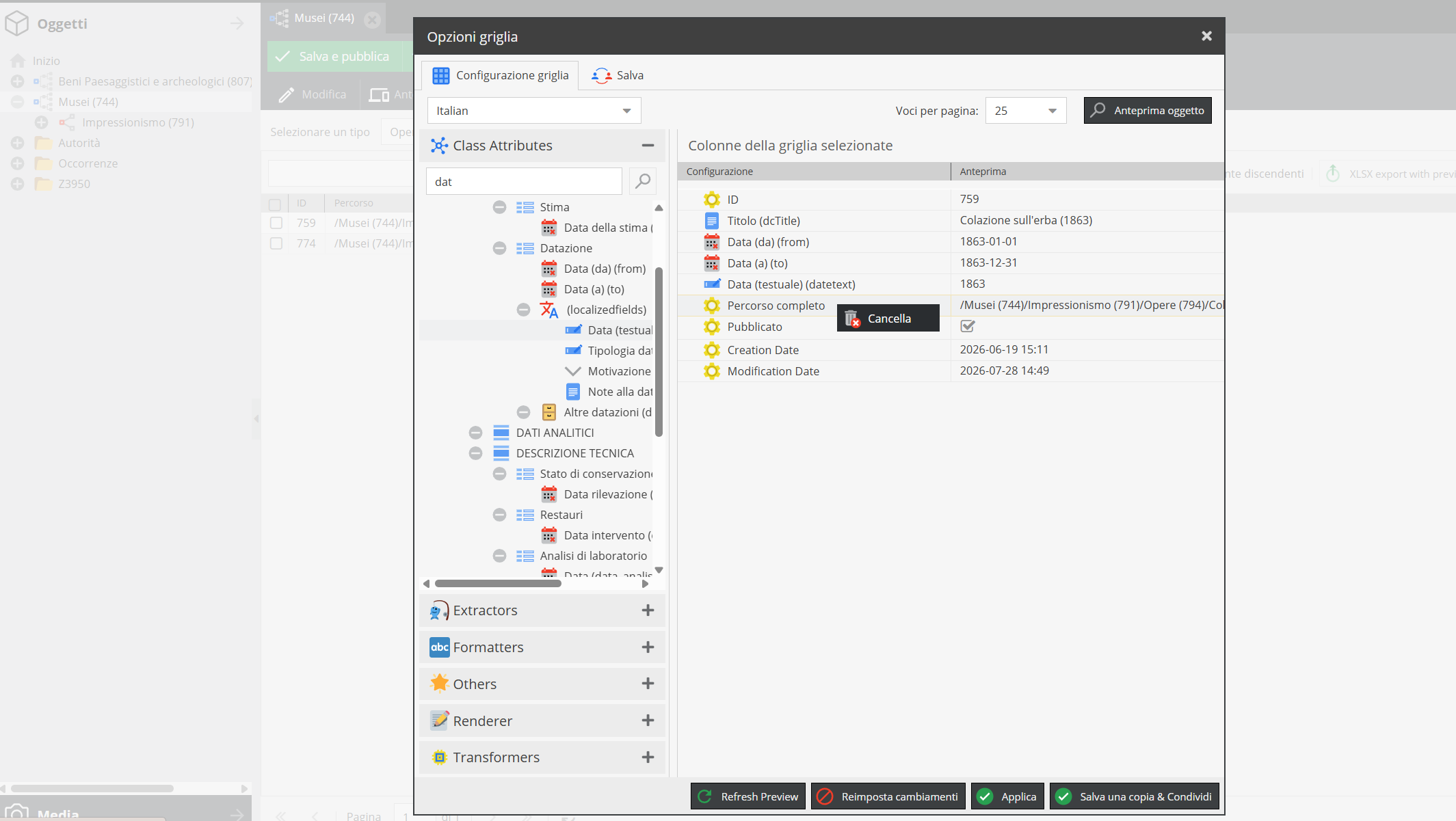
Click Apply for a temporary view of the configured columns.
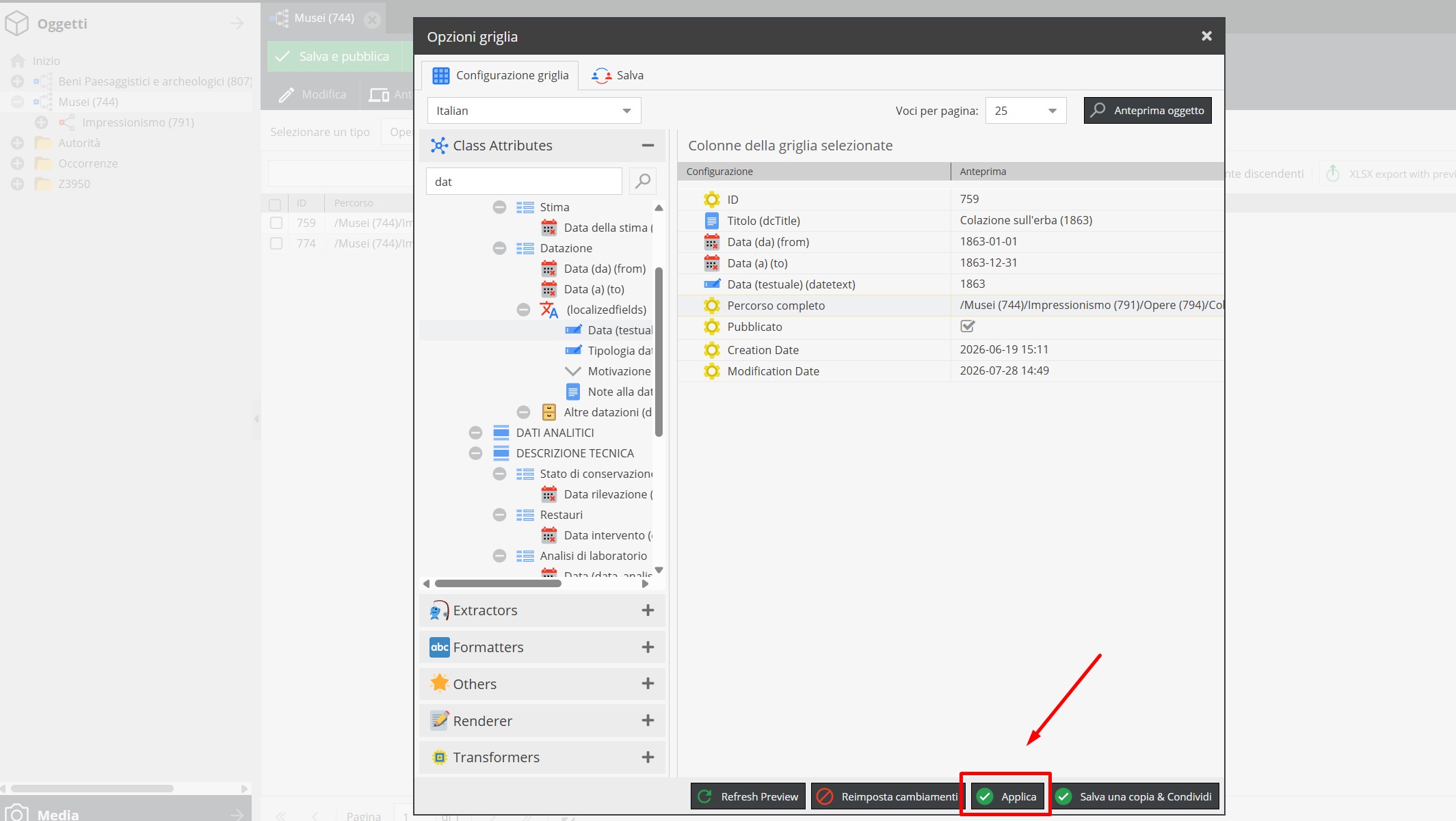
To save a reusable copy of grid columns, switch to the Save tab.
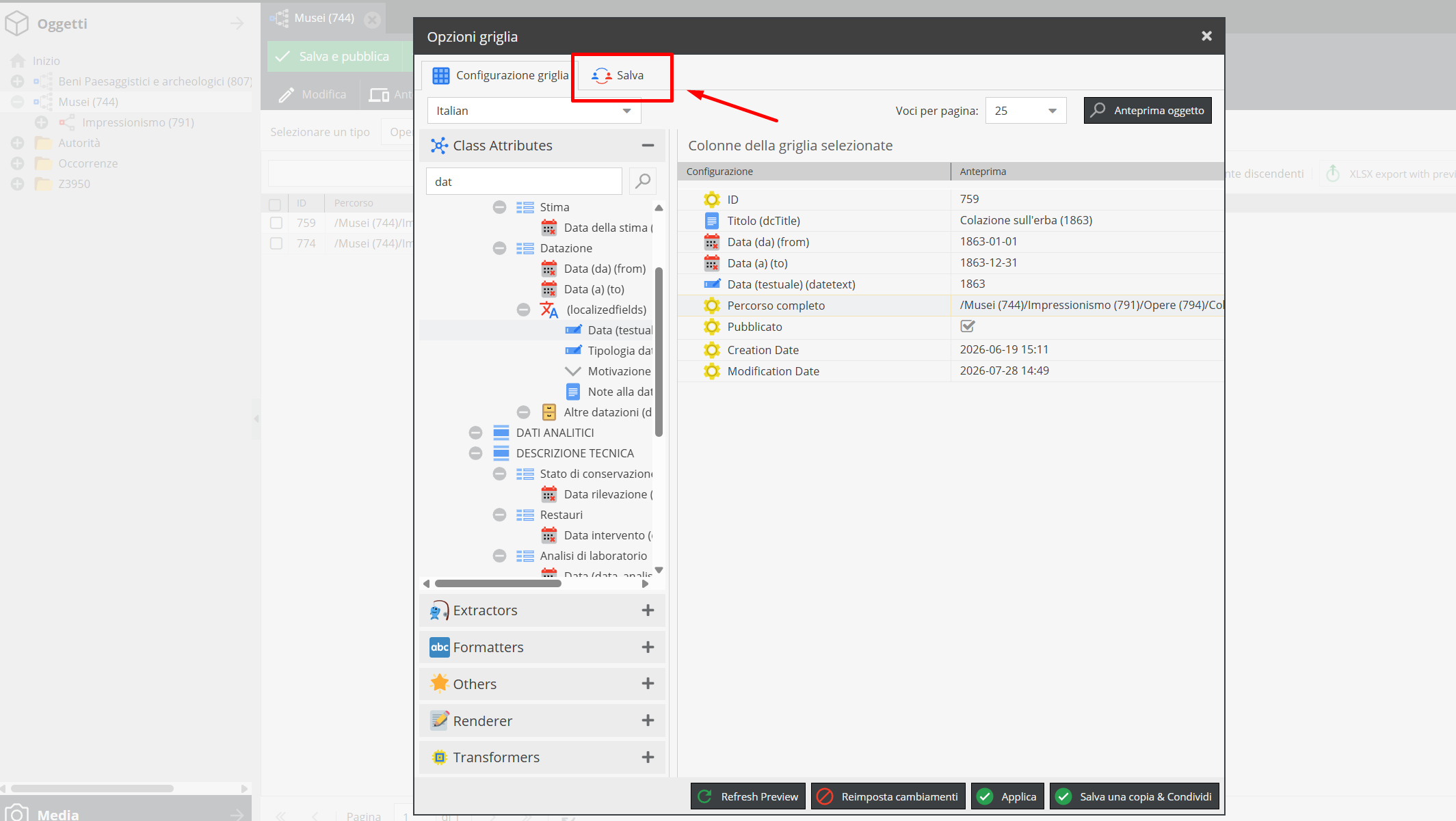
Enter a name and optional description for the configuration, then click Save a copy & Share.
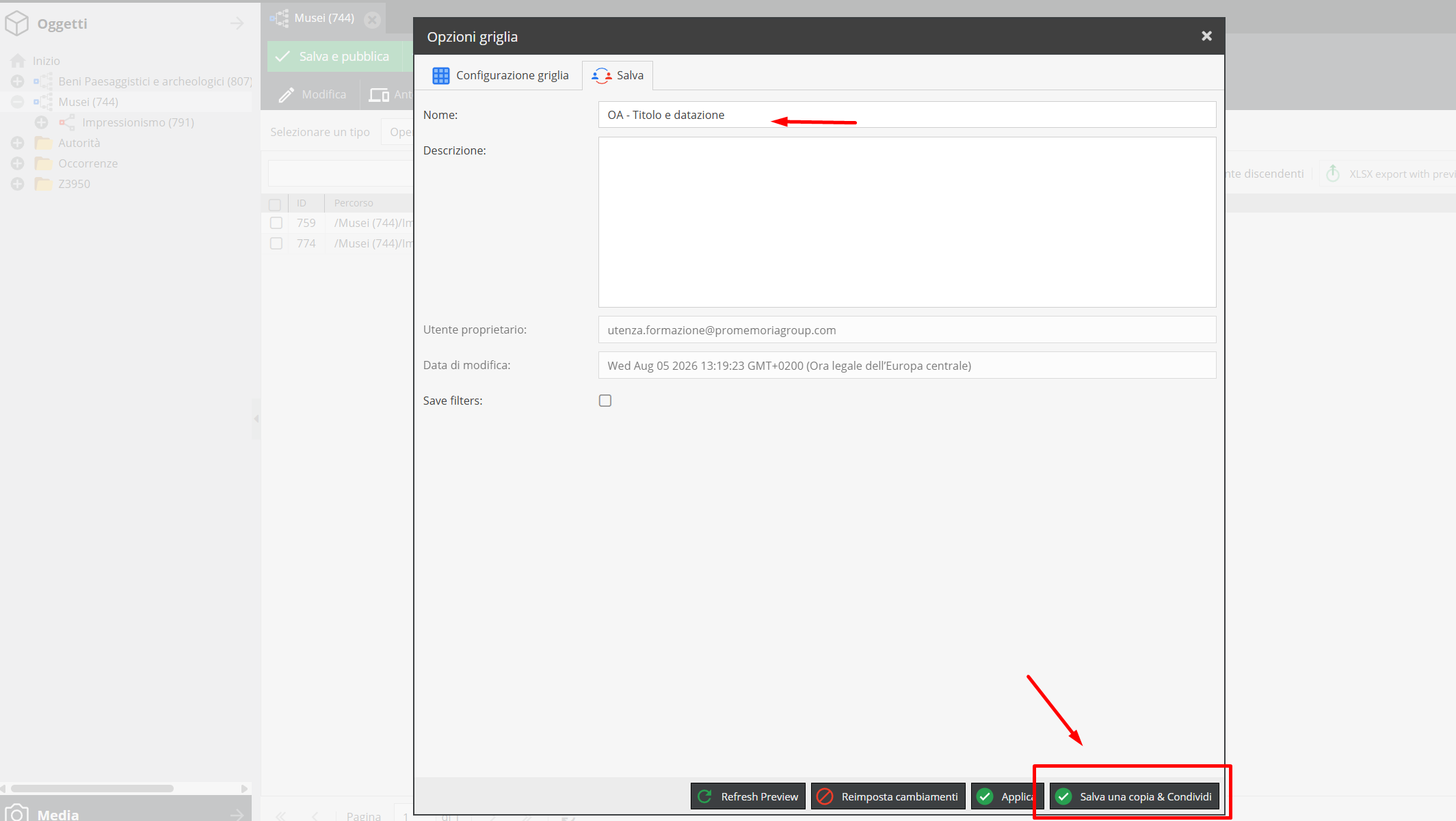
Note: clicking Save a copy & Share without entering a title triggers a warning message.
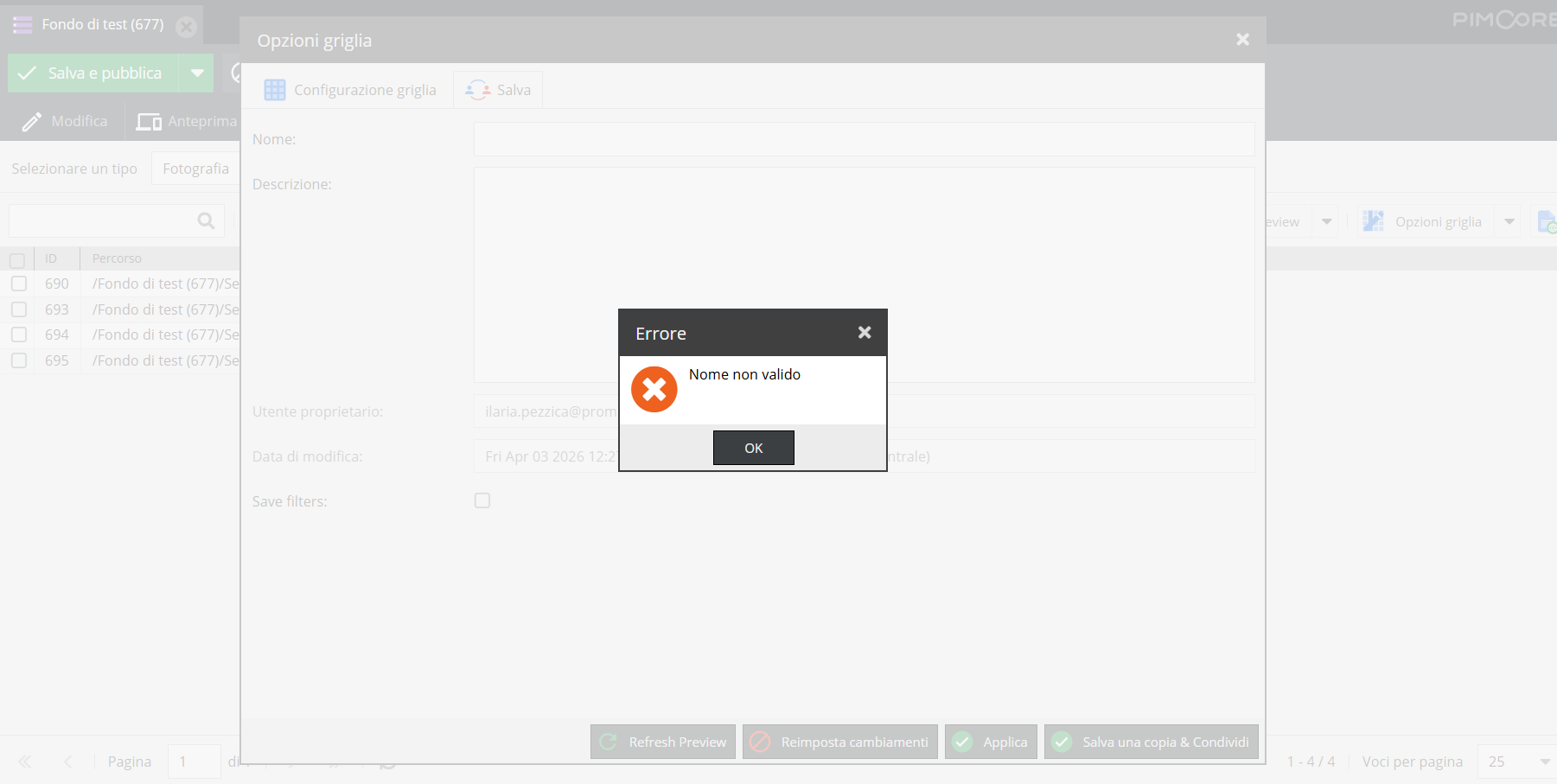
Clicking “OK” redirects you to the Save tab to title the grid configuration.
Once saved, the tabular view enables bulk description operations.
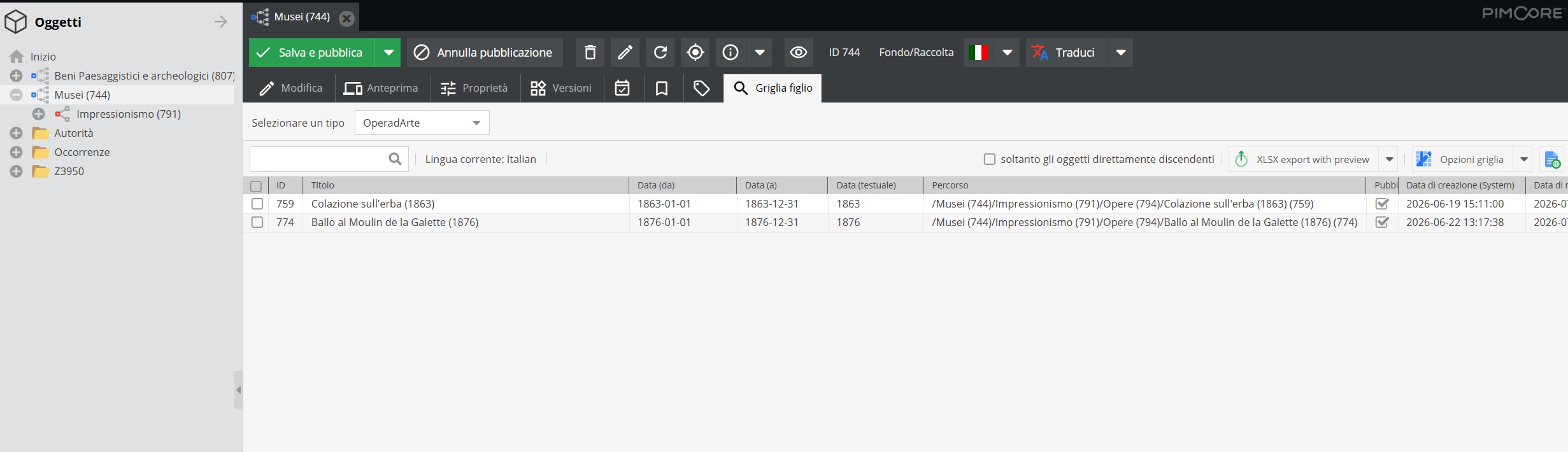
The grid supports several actions.
Editing information for individual descriptive units
Clicking a specific field opens an editable overlay window. For text fields, make changes and click Save to apply.
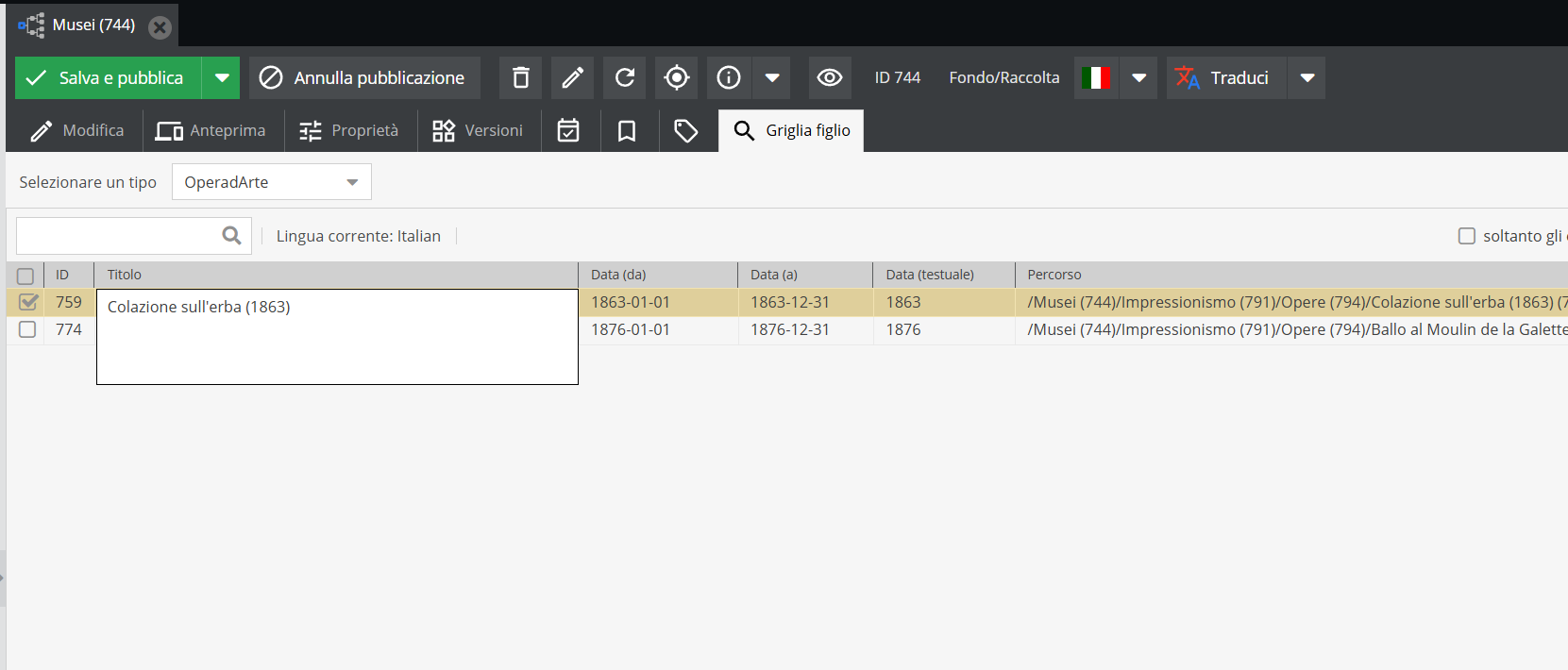
For relationship fields, a popup opens with features described in "Relationships" Area under Fields common to multiple records.
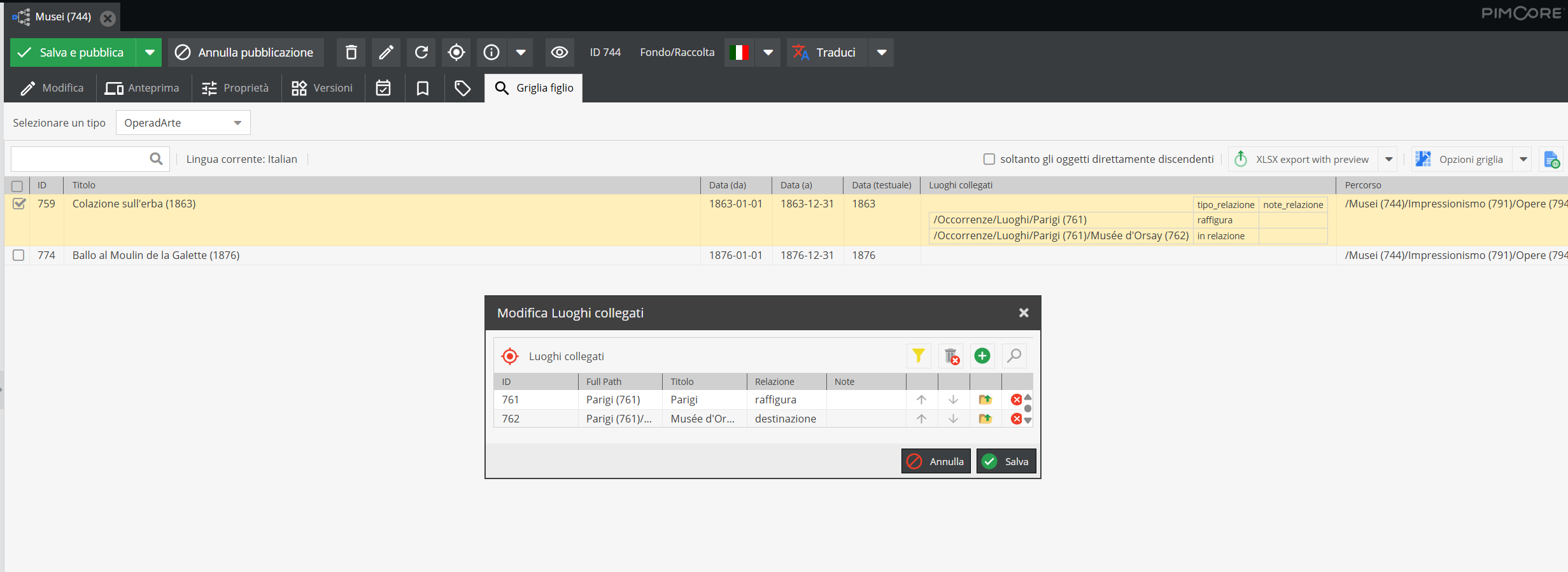
Batch editing
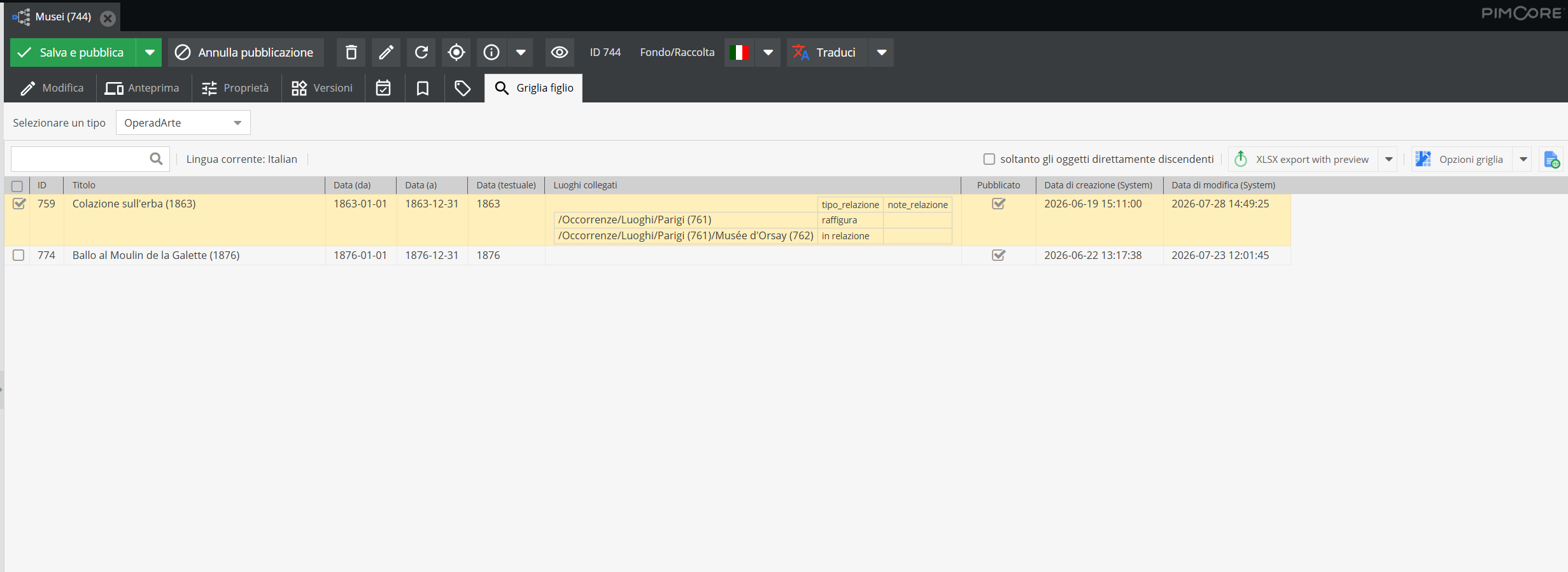
Select records to modify.
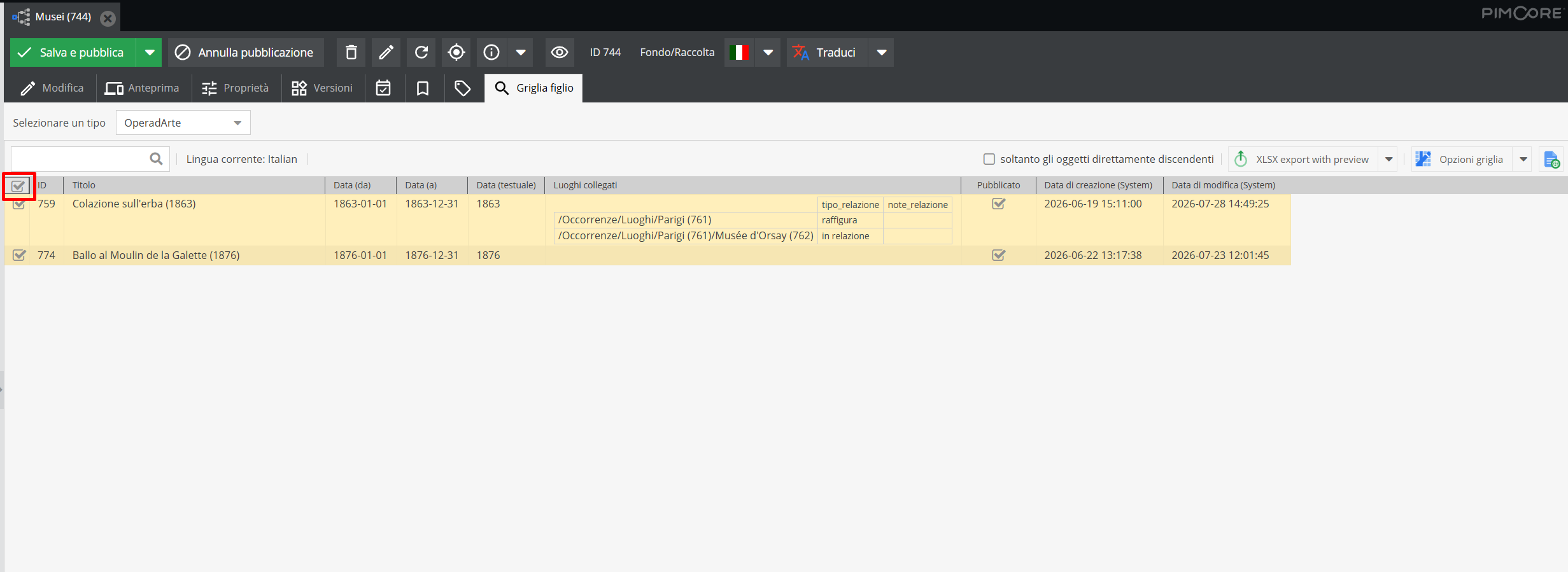
You can also select all records in the grid.
When editing more than 25 items, adjust items per page at the bottom right. Working on more than 50 records at a time is discouraged.
After selecting records, open the dropdown menu for the column to modify.
For text fields, options include batch edit all or batch edit selected.
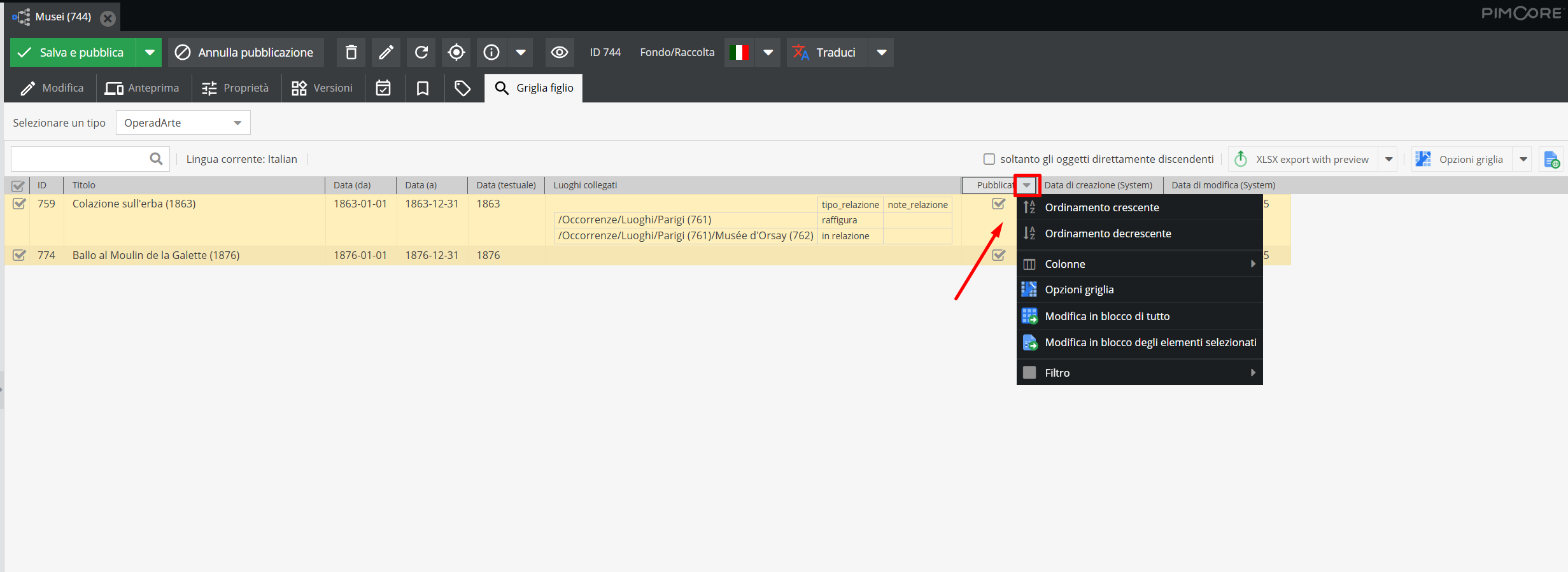
All batch actions overwrite elements permanently. Proceed with caution and only following training by Promemoria staff.
For relationship fields, you can batch edit all or selected (overwriting existing links), batch append to all or selected (coexisting with existing links), or batch remove from all or selected.
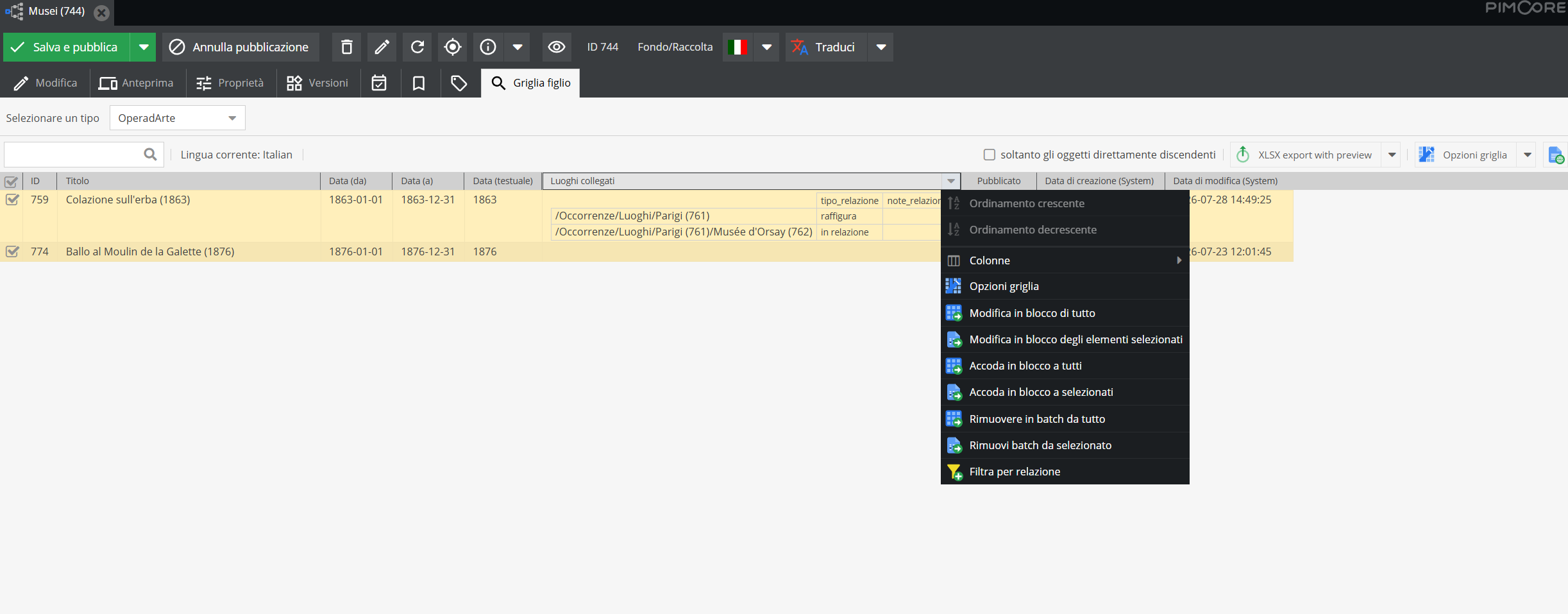
Bulk editing of interstitial relationship data (relationship type and notes) is currently unsupported in grid view.
For archival descriptions, manual record-by-record entry is recommended to ensure precise metadata assignment.
Applying tags
Tags (filters) can be applied in bulk from the grid — as outlined in “Tags” Tab — by selecting records and right-clicking near checkable boxes.
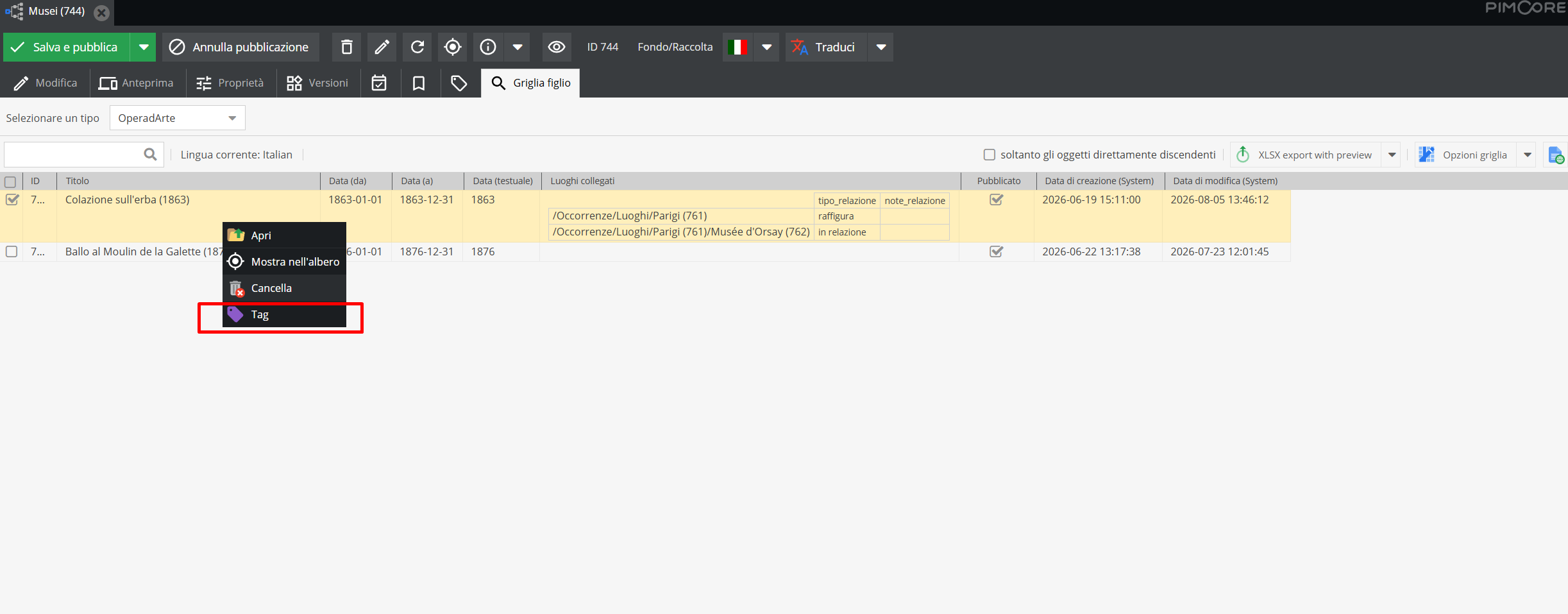
For tag setup, see Tag configuration.
The grid as an exporter
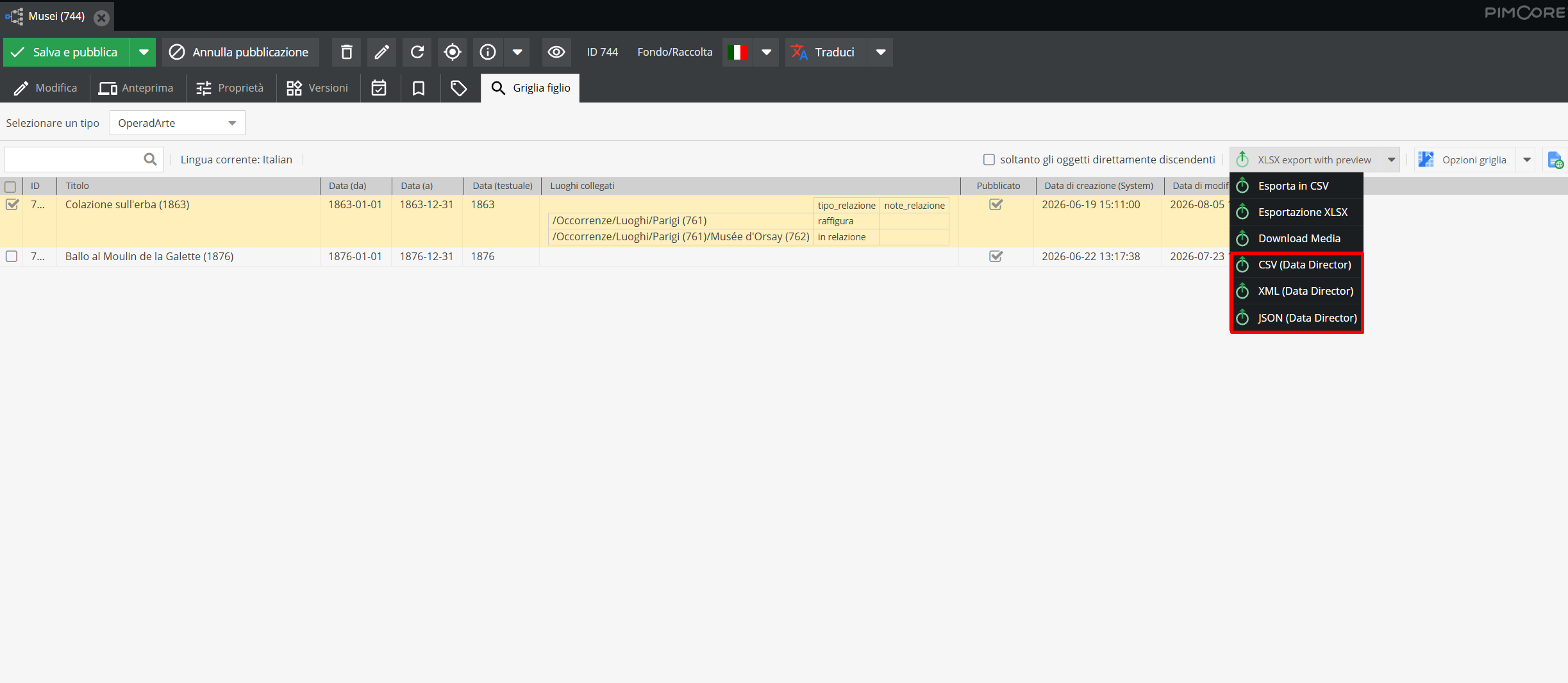
The grid allows exporting data in multiple formats: select Export to CSV, XLSX Export, or Download Media (to download media files linked to objects) from the top-right menu. Exports apply to selected records via checkboxes or to all records in the grid.
Search
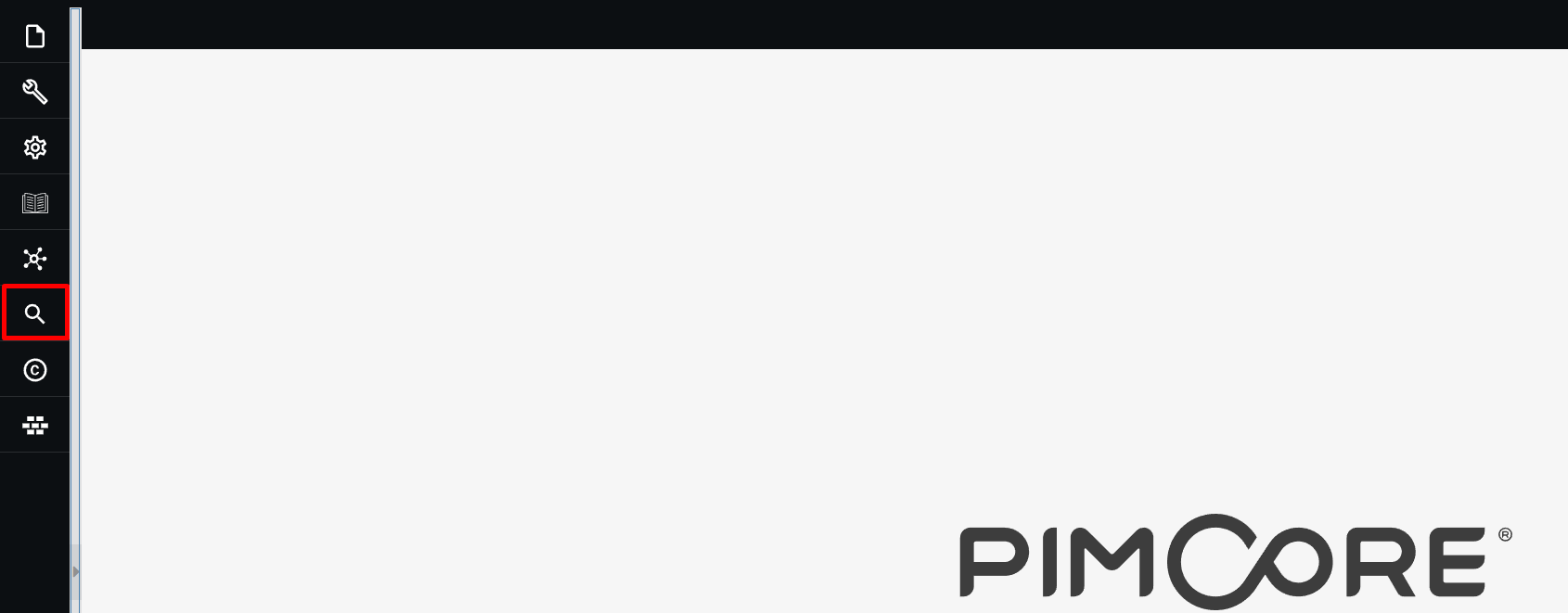
Elements in Pimcore (Objects and Media) can be searched using the Search feature. Click the corresponding search icon on the main menu.
Select desired search mode: quick search (across media and objects), search by object, search by media.
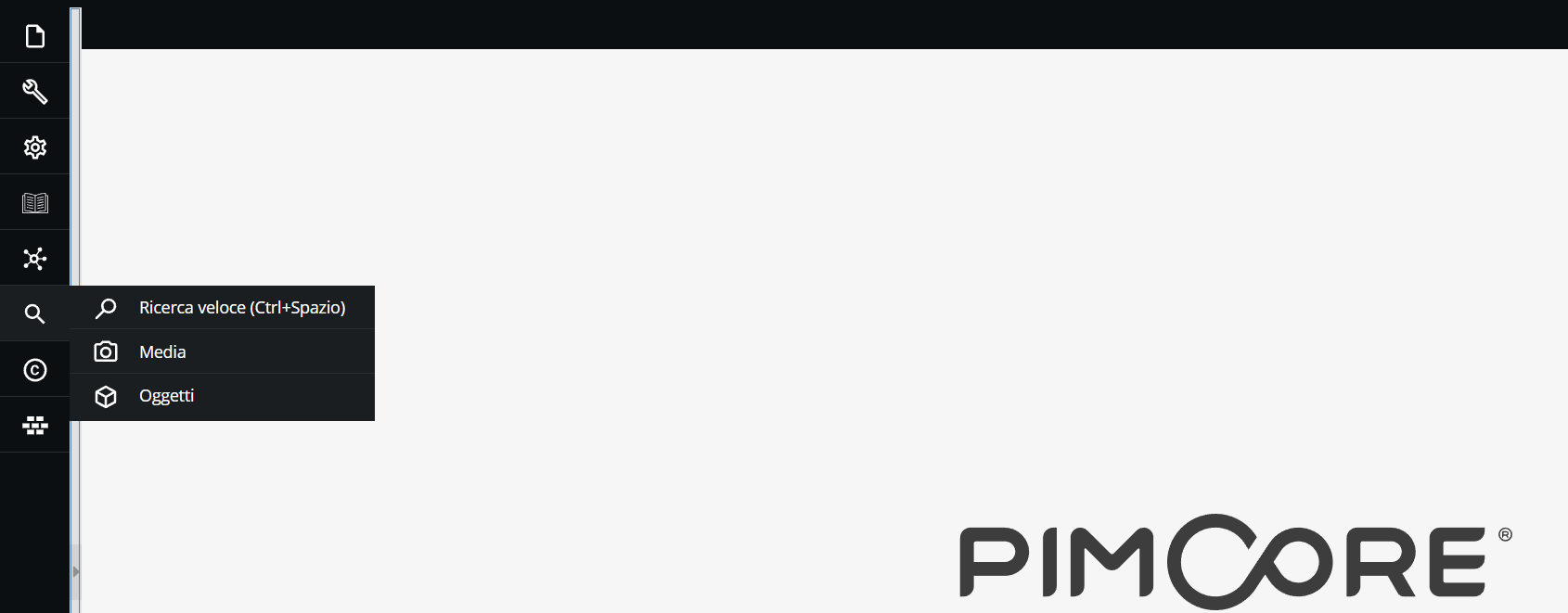
Quick search locates items across both Objects and Media environments.

This runs a broad search across Pimcore. Specific keywords are recommended to avoid overly broad results.
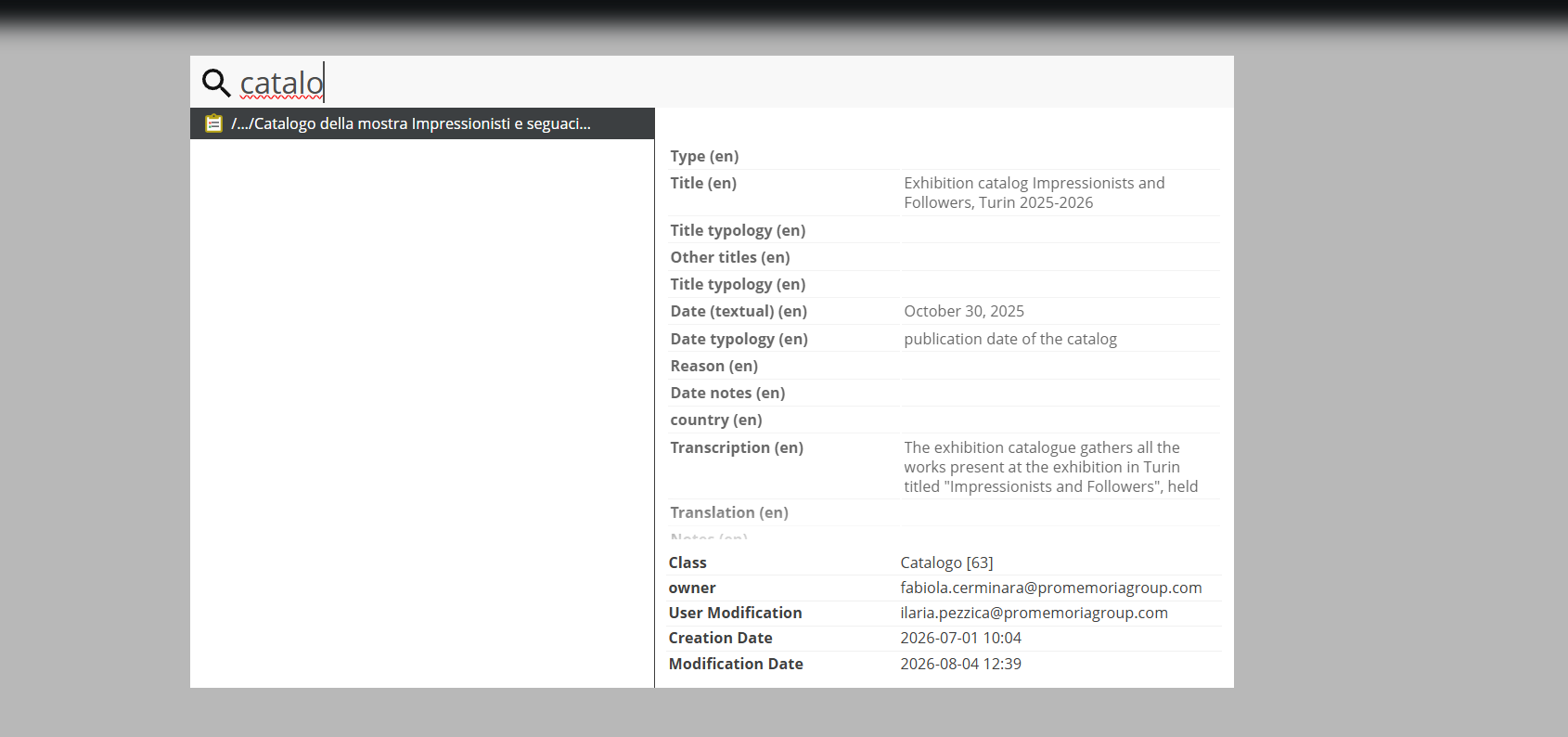
Search by object targets items within Objects (Data Objects).
Search by selecting a document type from the dropdown menu or entering keywords in the search bar.
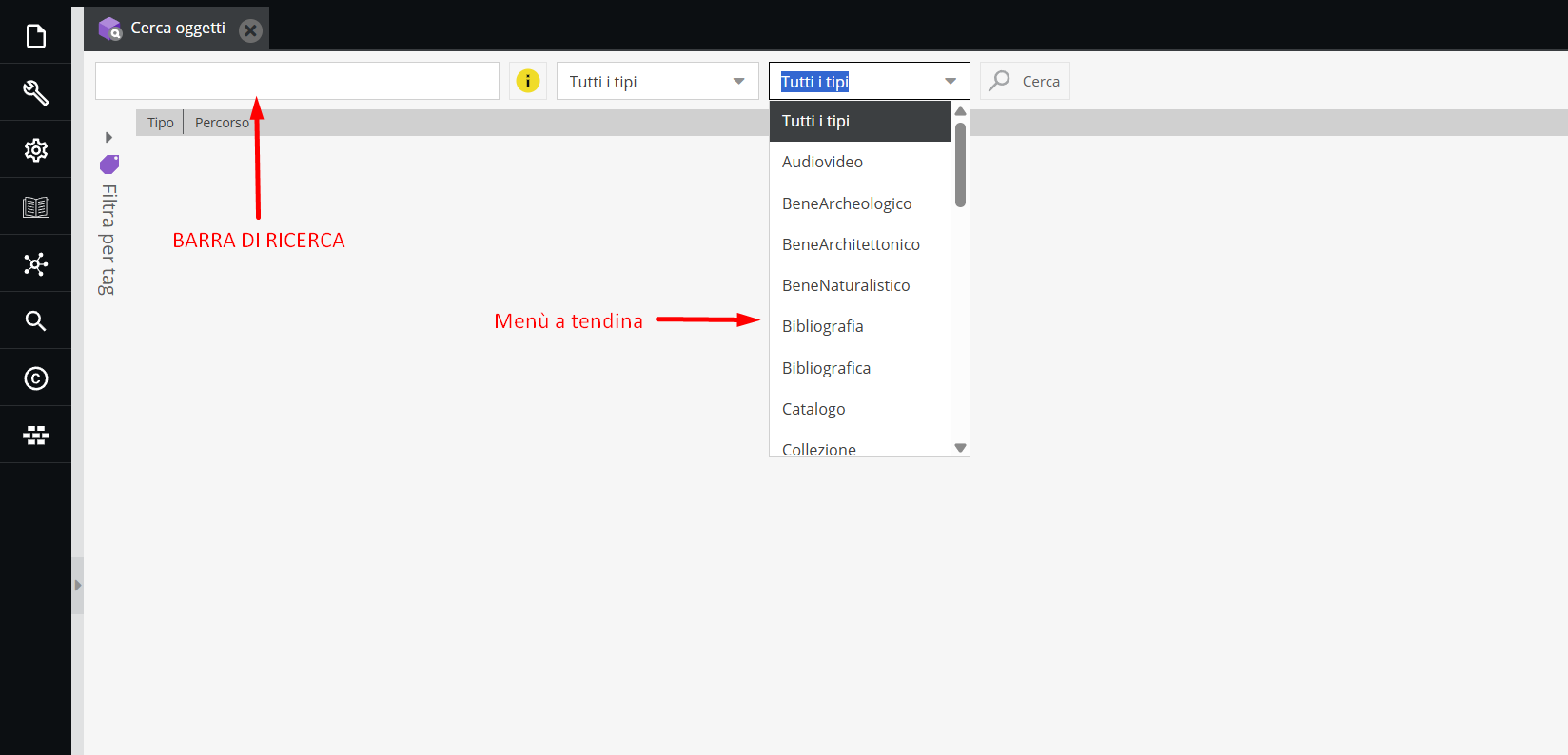
Double-click records to open them.
Search by media targets items in Media (Assets). Search methods match object search options.
Advanced Search activation is available upon request. Once enabled, it appears in the menu.
Advanced Object Search supports detailed queries by object class and tags.
Tag configuration
Access points to archival holdings are crucial to establishing accessibility.
Search criteria organize materials, facilitate retrieval, and index archival content — functions fulfilled by record relationships and tags (filters).
As shown earlier, tags can be assigned on individual records.
However, deleting a tag or moving it within information architecture requires the Tag configuration tool.
To perform these tasks, navigate to “Settings” → Tag configuration.
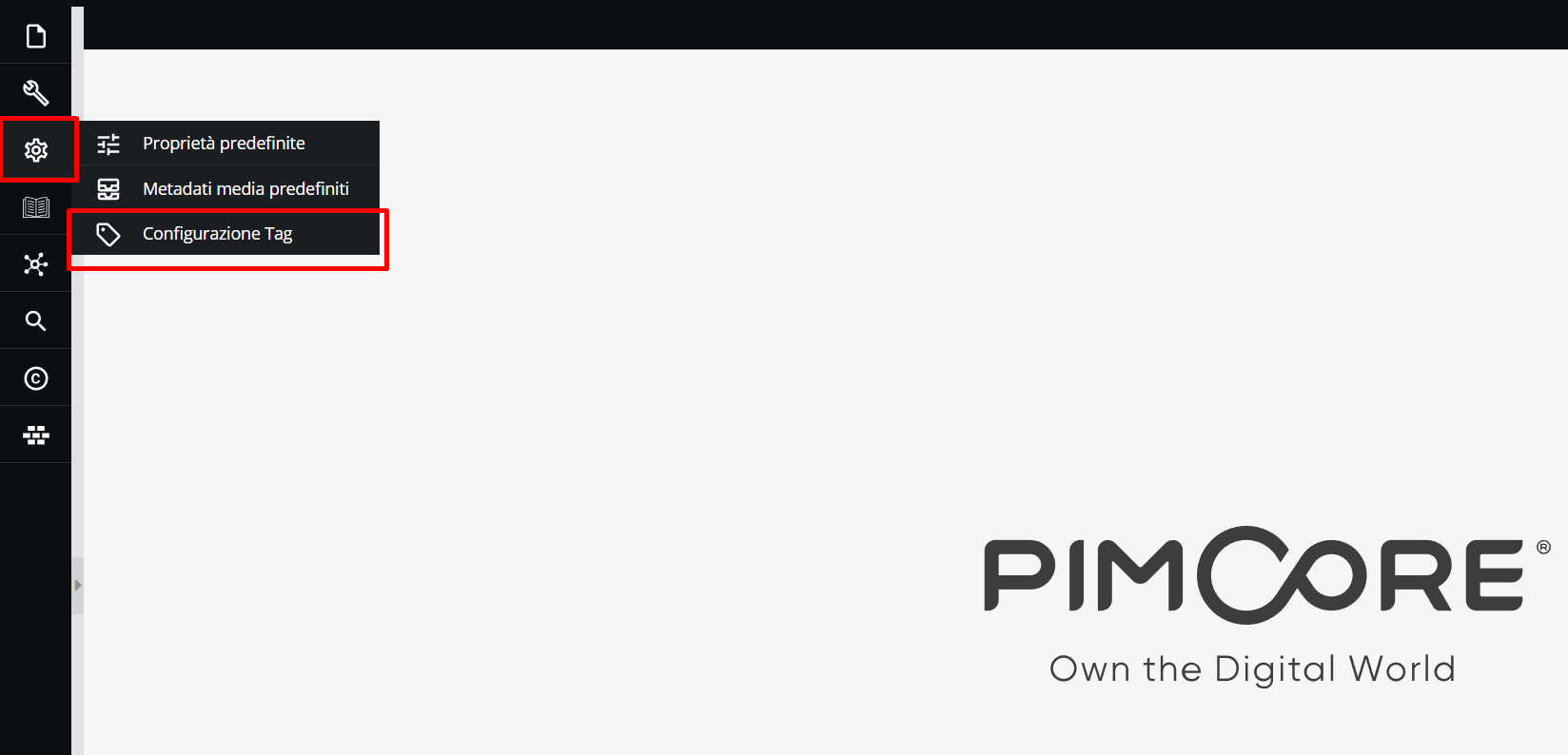
The tag structure can be explored here. For multi-level structures, expand levels by clicking the "+" symbol.
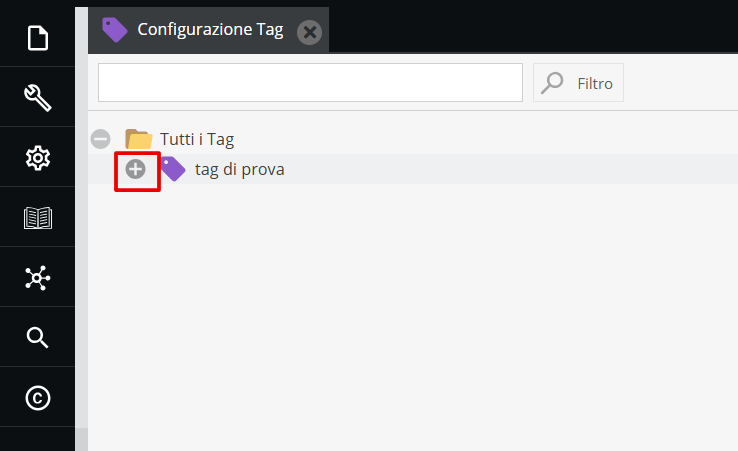
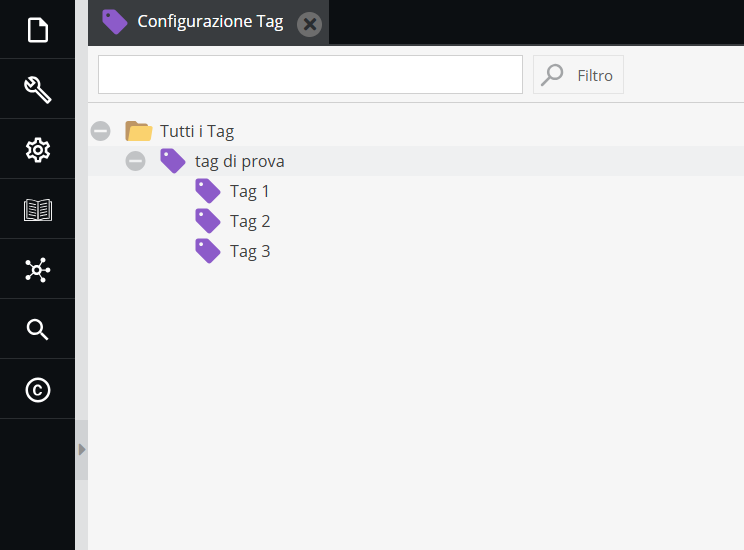
Right-click items to rename, add, or delete tags. Move tags across levels using drag & drop.
Z39.50 Protocol
Through this integration, the system acts as a Z39.50 client connecting to the SBN OPAC server — the collective catalog of Italian libraries — retrieving publication cataloging data directly rather than transcribing manually (derived cataloging).
This feature is valuable for the Library area: speeding up record creation, ensuring compliance with national bibliographic standards, and eliminating manual transcription errors.
Operationally, query the SBN OPAC via the integrated search interface to find the exact publication edition; retrieved data maps automatically to descriptive fields, creating a record populated with core cataloging data. Physical copy details — call number, conservation state, provenance — are added manually.
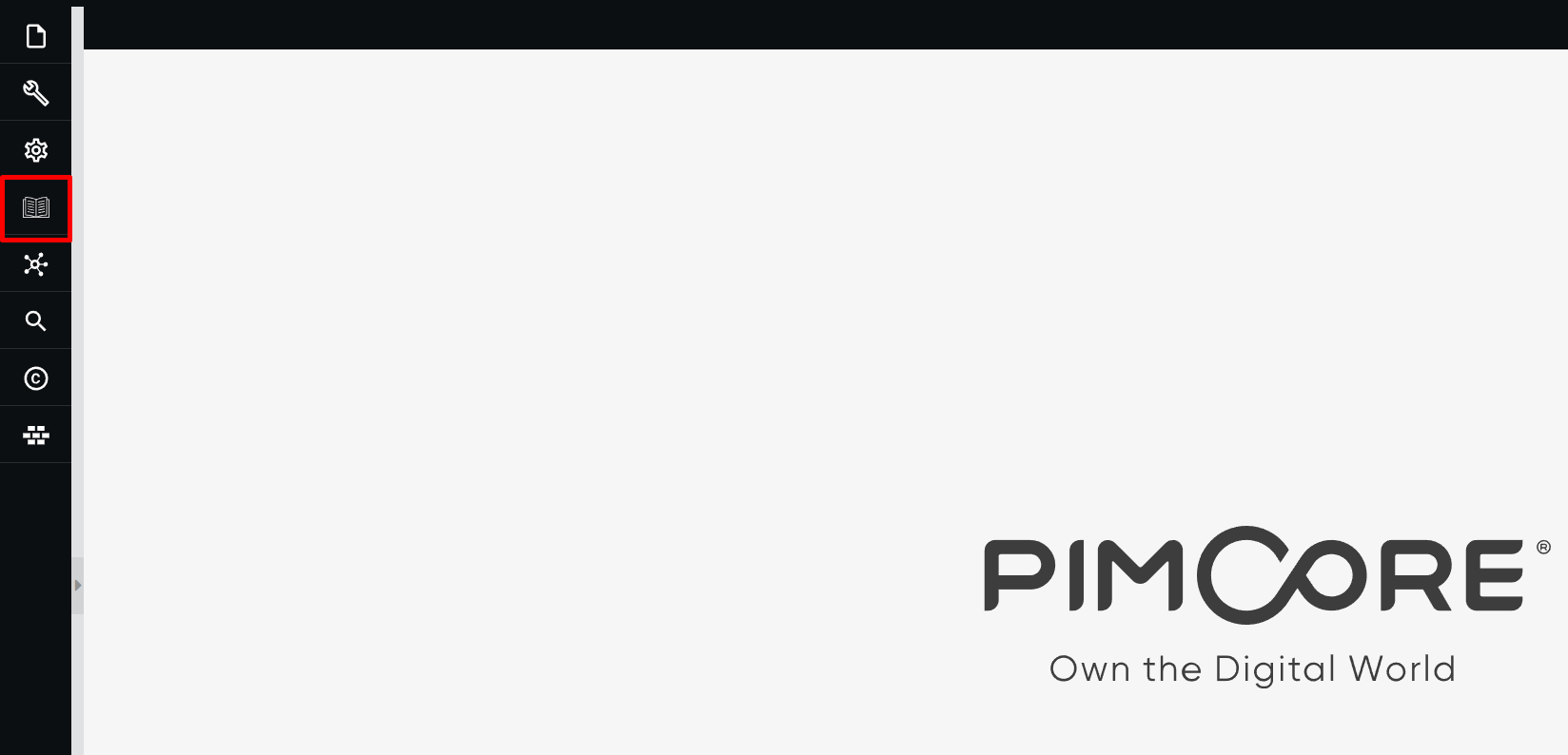
Access the feature by clicking the “book” icon on the main panel.
In the search interface, enter publication titles in the search bar.
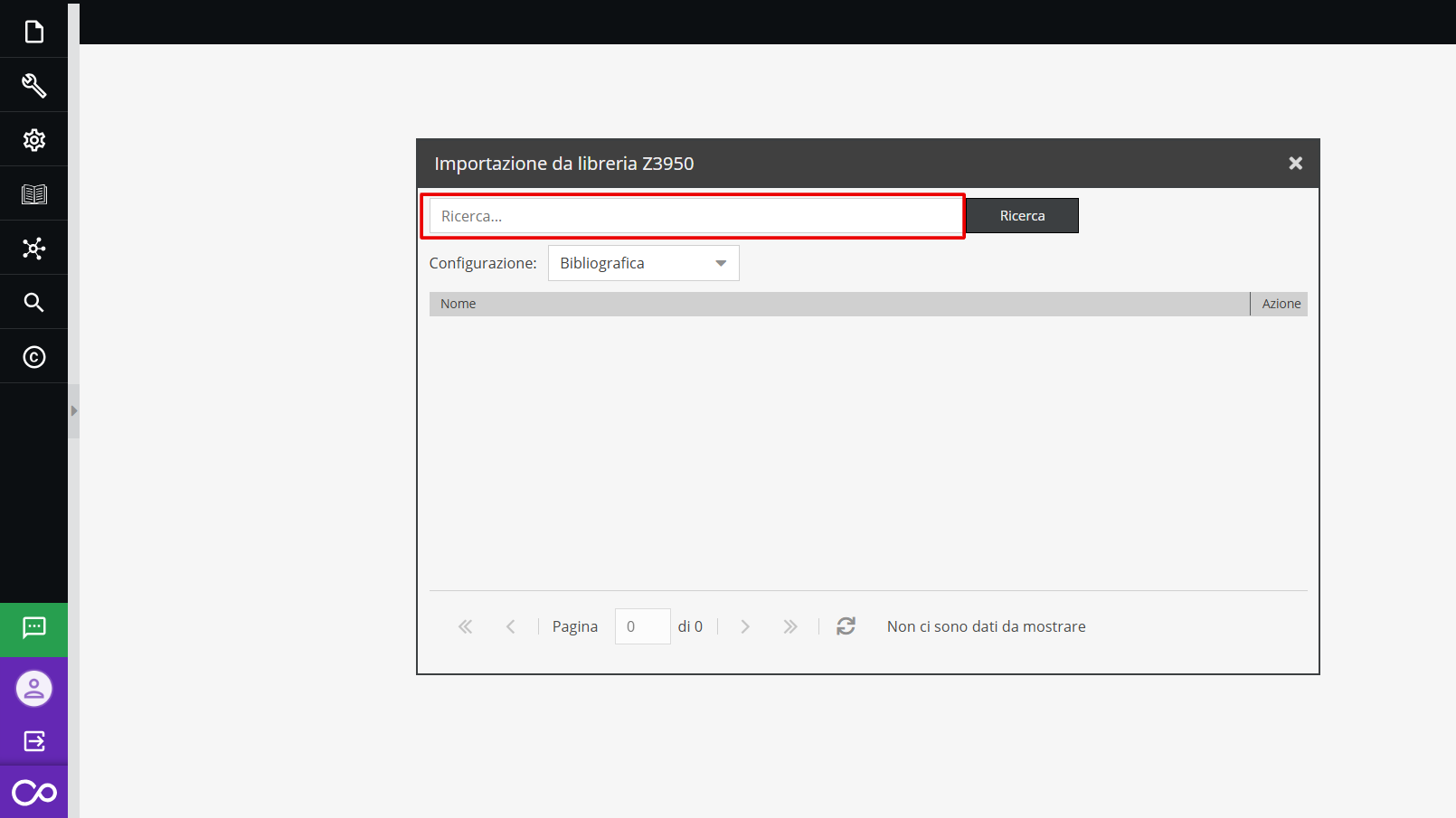
Click “Search” and select the correct edition by clicking the folder icon in the “Action” column.
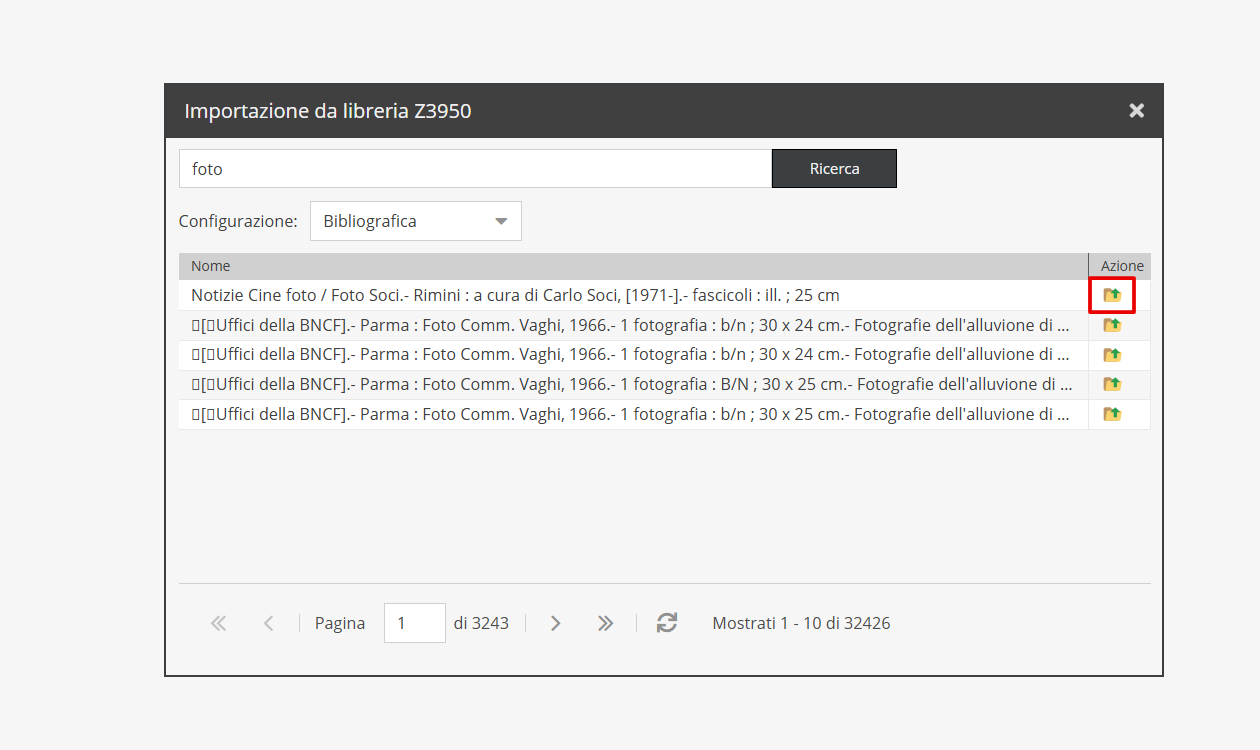
The descriptive record generates with cataloging data pre-filled, ready for additional item details.
Bulk import from CSV
Bulk data import is conducted via CSV files using "Datahub", accessible from the left sidebar.
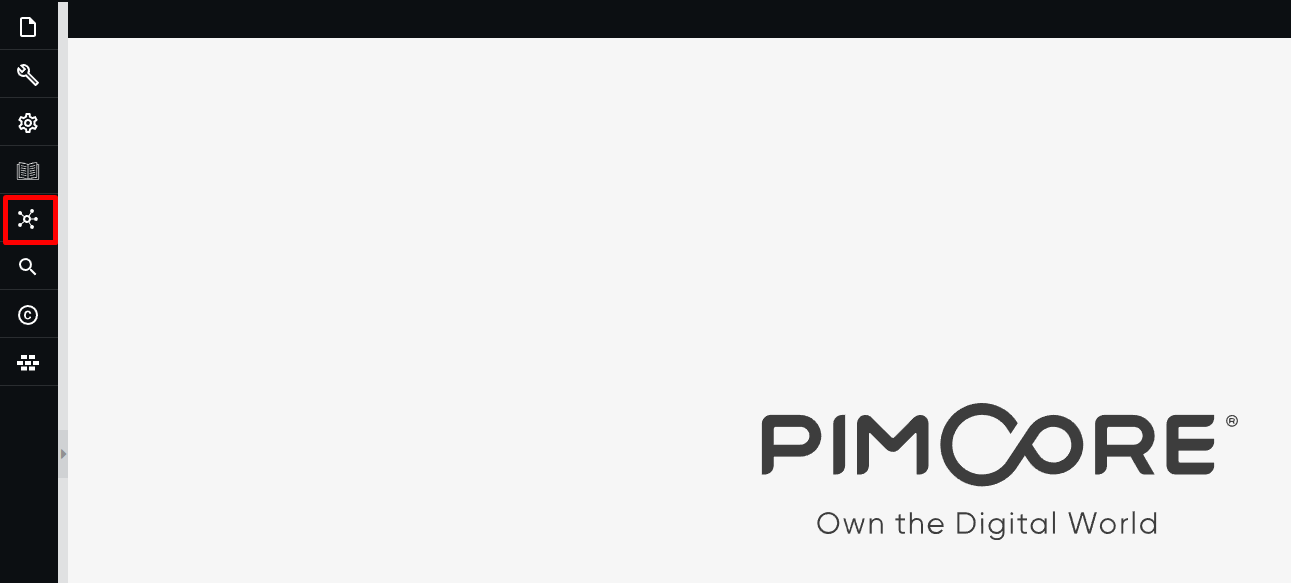
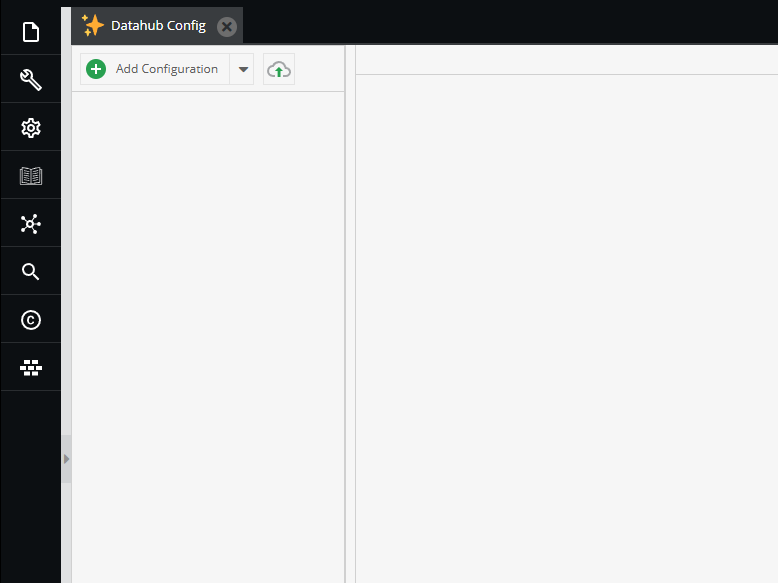
Clicking the icon opens the "Datahub Config" tab.
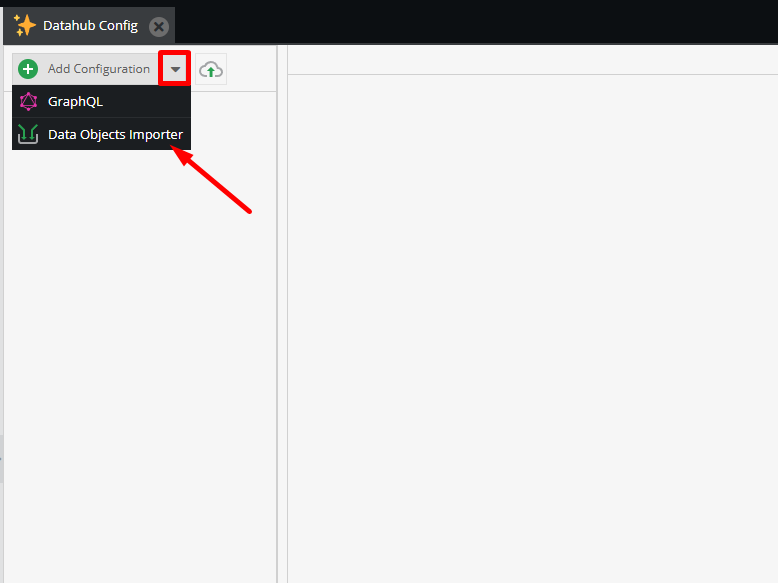
To create an import configuration, click the arrow beside "Add Configuration" and select Data Objects Importer (the importer for Object classes).
Each configuration is specific to a single class: the system imports one object type at a time; heterogeneous data across multiple classes cannot be imported in a single configuration.
Datahub usage requires dedicated training, provided by Promemoria Group upon request. Importing complex hierarchical structures is managed directly by Promemoria's internal IT team.
AI Usage
Features powered by Ask AI rely on a token credit system, monitored at any time via the dedicated icon on the left sidebar.
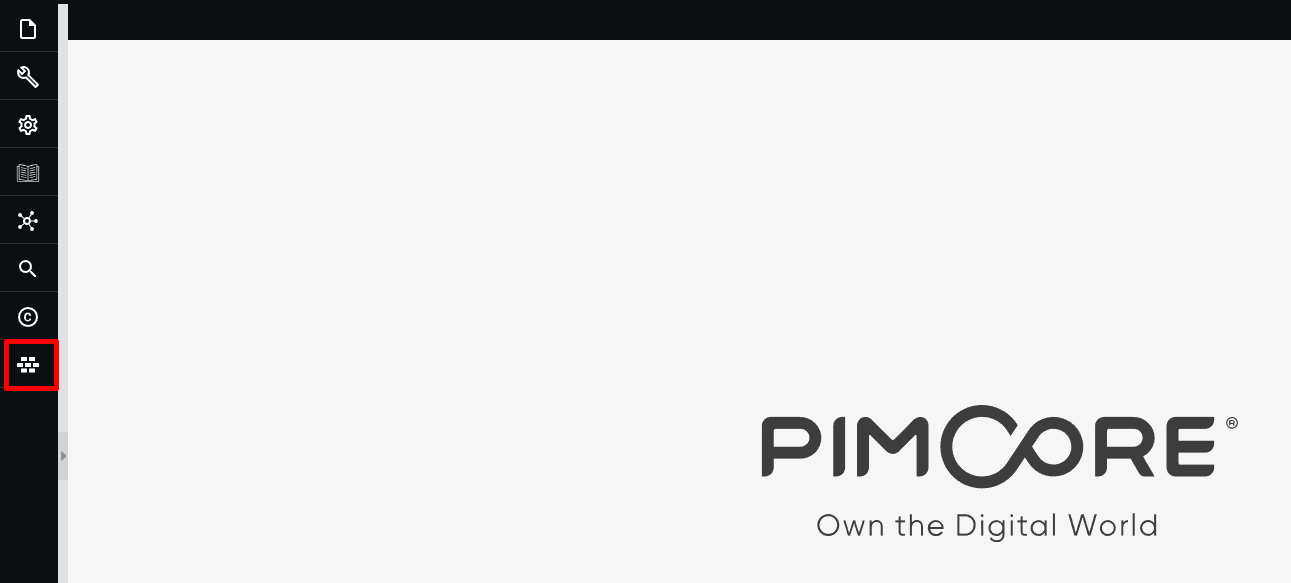
The default active tier includes 5,000 monthly credits. Custom tiers with higher limits are agreed upon and configured during platform setup.
Clicking the icon opens the "AI Usage" popup, displaying current monthly consumption.
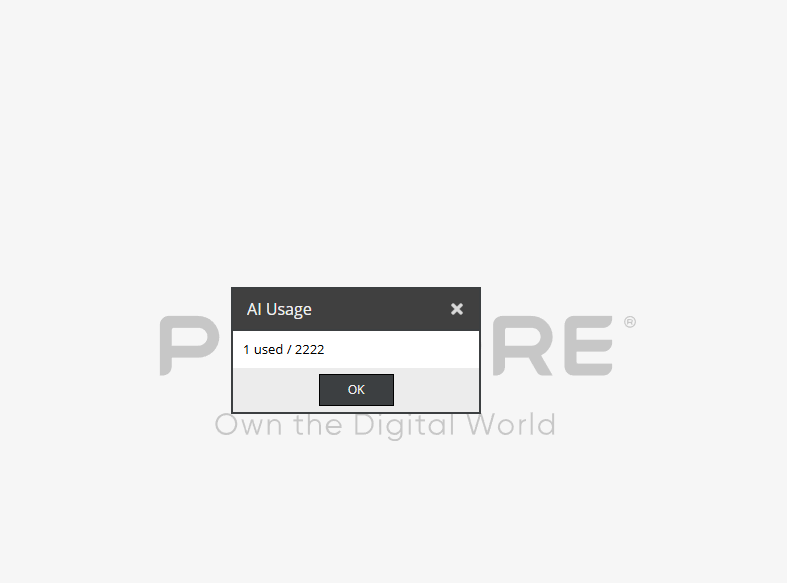
If credits exhaust before month-end, AI features pause and display an error message. Credit counts reset automatically on the first day of each month.
Data synchronization
The technological infrastructure of Archivio Digitale consists of two main levels: (1) the Pimcore platform for managing the Corporate Historical Archive, and (2) a company-exclusive navigation interface protected by login, making holdings accessible to non-specialist users. While point edits to individual records sync in real time, structural or bulk actions require a synchronization procedure to align data between environments. Specifically, synchronization is required for:
- All bulk edits affecting digital assets and objects (e.g., bulk editing the "Restricted" field on media requires launching a sync to reflect on the front-end).
- Deleting and renaming tags, or restructuring tag hierarchies.
- Bulk media tag application (when applying tags from a parent folder to child files).
Synchronization is not automatic for the operations listed above. It is initiated manually by Promemoria Group IT staff upon client request to safeguard data integrity and optimize front-end performance.